
Quick start
Follow the setup checklist on the Robylon Home page: add your account details, set up the chatbot, build your Knowledge Base and install the chatbot on your site.
The Home page in the Robylon dashboard has a setup checklist that takes a new workspace from empty to live. Work through it in order, and each step links to the guide that explains it in detail.
Open it from Home at the top of the left sidebar.
What does the setup checklist cover?
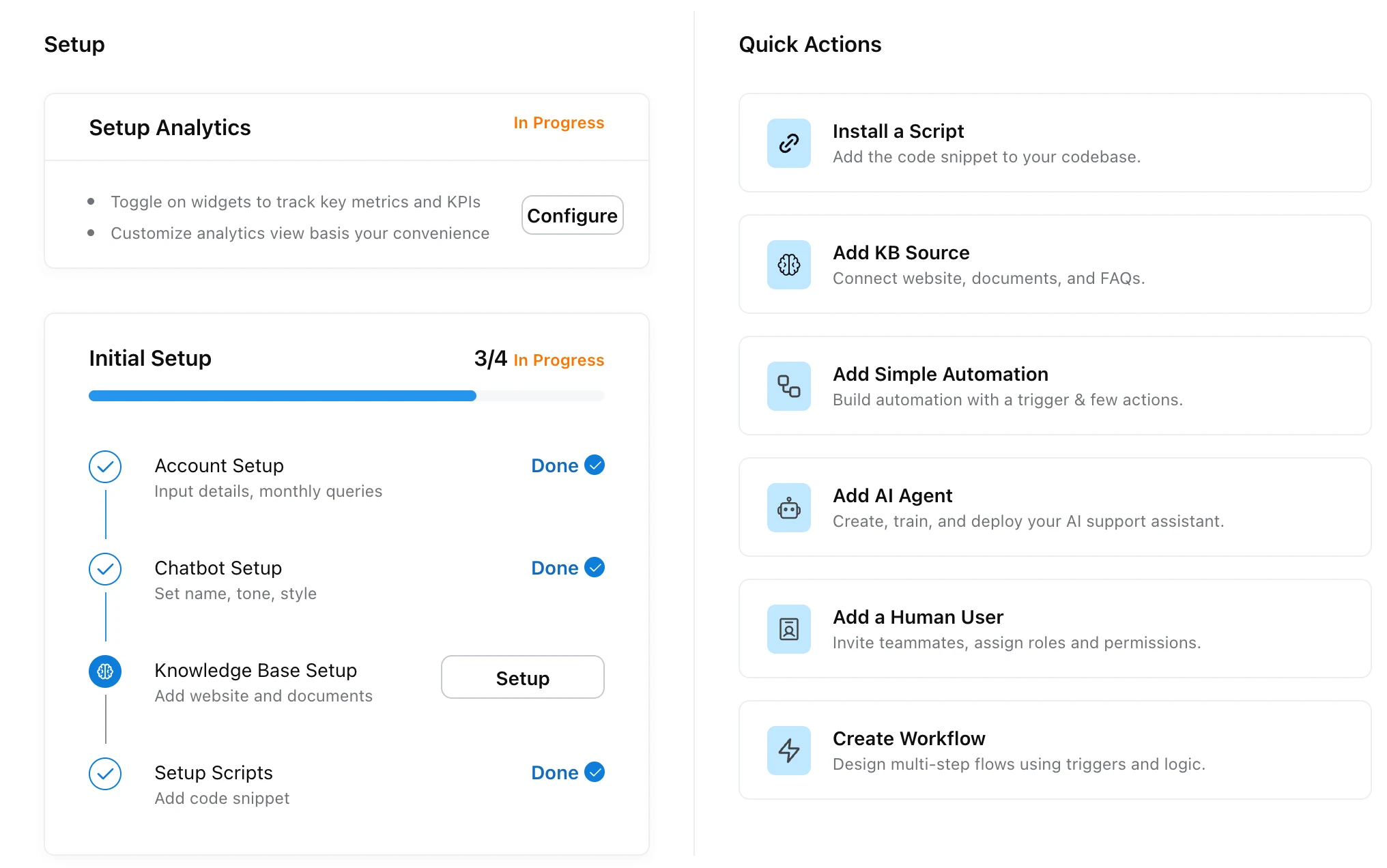
The Initial Setup card lists four steps and marks each one Done as you finish it:
Account Setup
Add your company details. See Brand info and timezone and Languages.
Chatbot Setup
Set your chatbot’s name, icon and style. See Widget and behaviour and Appearance.
Knowledge Base Setup
Add your website and documents so the AI agent can answer from them. See Add sources.
Setup Scripts
Add the chatbot’s code snippet to your website. See Install the chatbot.
The Setup Analytics card lets you choose which widgets to track on the Analytics dashboard. See Analytics dashboard.
What can I do from the Quick Actions?
The Quick Actions on the Home page jump straight to the most common tasks:
| Quick action | What it does | Guide |
|---|---|---|
| Install a Script | Add the chatbot’s code snippet to your site. | Install the chatbot |
| Add KB Source | Connect a website, documents or FAQs. | Add sources |
| Add Simple Automation | Build an automation with a trigger and a few actions. | Simple automations |
| Add AI Agent | Create, train and deploy an AI support assistant. | Custom agents |
| Add a Human User | Invite teammates, assign roles and permissions. | Teammates and seat types |
| Create Workflow | Design multi-step flows using triggers and logic. | Workflows |
What should I do after the checklist?
Connect the other channels your customers use, then bring in your team:
- Channels: email, WhatsApp, voice and social.
- Your team: add teammates, set up groups and assignment.
- Test before going live: use bulk testing to check answers against real customer questions.