
Voice overview
Turn on the voice channel, add phone numbers, create calling hours and call transfer configurations, and learn how the pieces of a voice AI agent fit together.
Open it from Settings → Channels → Voice. It holds the settings every voice agent shares: phone numbers, calling hours, call transfers and inbox calling.
What to set up first
Work through the pages in this order:
- Add a phone number here, and at least one calling hours configuration.
- Create the voice agent.
- Write its prompt and add tools.
- Choose the LLM, speech to text and text to speech providers.
- Set the first message, calling hours and timeouts.
- Test it, then trigger real calls.
- Set up post-call analysis to capture outcomes.
How a voice AI agent works
A voice agent listens, thinks and speaks in a loop, using four providers you choose: telephony (Twilio or Exotel) connects the call, speech to text turns the caller’s words into text, the LLM decides what to say next, and text to speech turns the reply into a voice. Each voice agent is a single agent on the Voice channel.
Turn on the voice channel
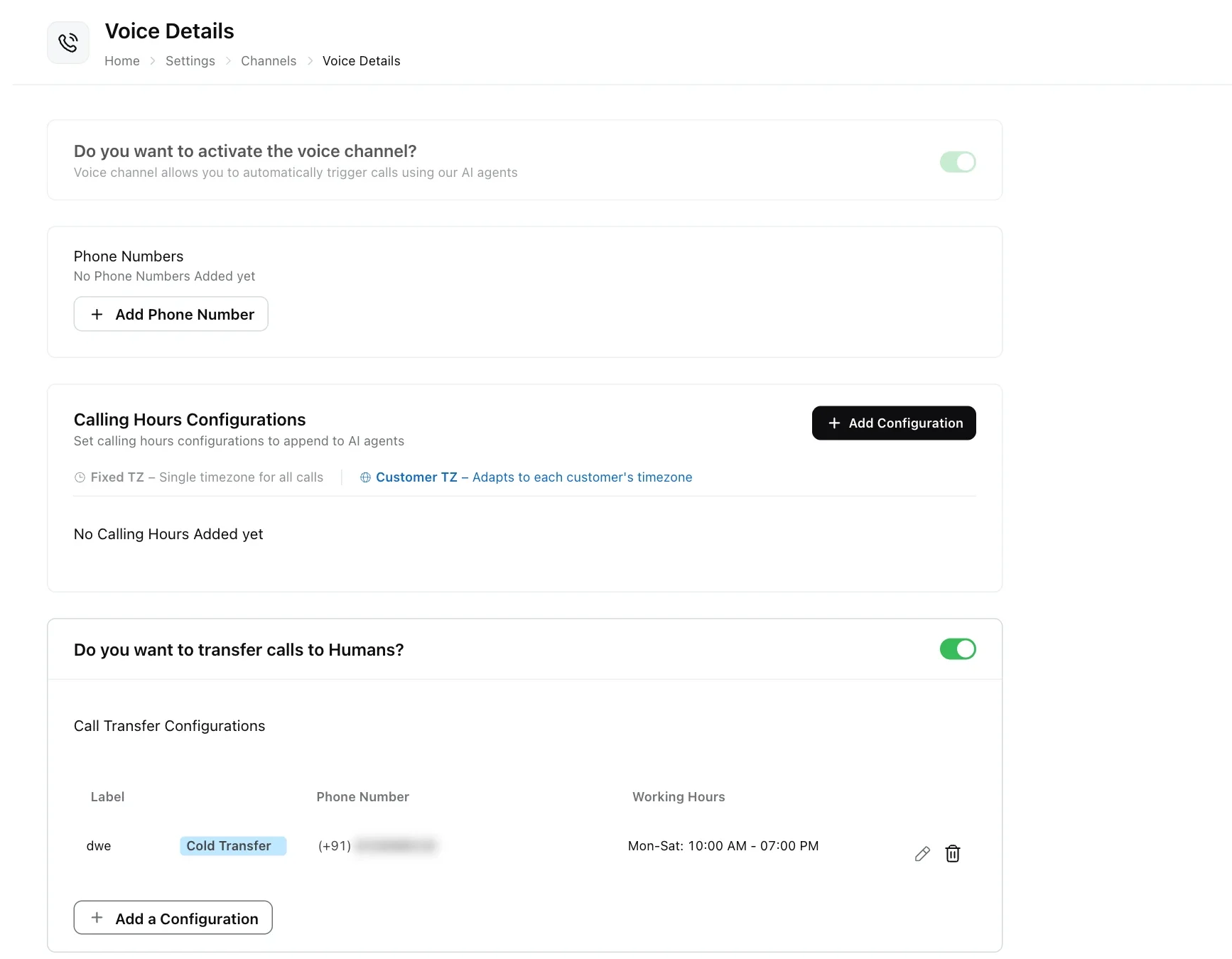
Switch on Do you want to activate the voice channel? at the top of the Voice page. The voice channel lets you trigger calls automatically using AI agents.
Add a phone number
Click Add Phone Number under Phone Numbers, choose Twilio or Exotel, and enter the provider’s details. The fields and steps for each provider are in Telephony.
Calling hours configurations
A calling hours configuration is a reusable schedule that says on which days and between which times calls may be placed. You create it once here, then attach it to any voice agent.
Start a configuration
Under Calling Hours Configurations, click Add Configuration.
Name it
Enter a Label (required, unique in your workspace) and an optional Description, then click Next.
Choose the timezone mode
Choose Fixed Timezone or Customer’s Local Timezone (shown as Fixed TZ / Customer TZ). The difference is explained below.
Set the schedule
Under Calling Days, select the days calls can be made and set a start and end time for each. Start must be before end. Then click Save.
The two timezone modes:
| Mode | How it works | Example |
|---|---|---|
| Fixed Timezone | All calls follow one timezone that you pick. | 9 AM to 6 PM India time, wherever the customer is. |
| Customer’s Local Timezone | Times apply in each customer’s own timezone. | 9 AM to 6 PM arrives as local time for a customer in New York, London or Tokyo. |
With Customer’s Local Timezone, Robylon reads the customer’s timezone from the CUSTOMER_TIMEZONE variable. If it is missing, the configuration’s own timezone is used.
To use a configuration, open a voice agent and pick it under Calling Hour Config. See Call settings.
Transfer calls to a human
Switch on Do you want to transfer calls to Humans?, then add a call transfer configuration with the numbers calls should go to. A voice agent hands a call over when its Human agent handover tool is on and pointed at this configuration.
Turn on transfers
Switch on Do you want to transfer calls to Humans?. While it is off, voice agents cannot hand calls over.
Step 1: Label, Description & Phone numbers
Under Call Transfer Configurations, click Add a Configuration. Enter a Label (required), an optional Description, and at least one phone number under Add Phone Numbers.
Step 2: Working hours & Out of Office Settings
Under Working Hours, pick a Timezone and the Working Days when your team can take calls, with a start and end time for each day. If no day is selected, the whole week (24x7) counts as working time. Under Out of Office Settings, switch on Voice Assignment if calls should still be transferred outside working hours, and write the Agent unavailability message the caller hears when nobody is available.
Step 3: Transfer Settings
Choose the Type of transfer (Cold Transfer or Warm Transfer) and save.
Connect it to an agent
In the voice agent, add the Human agent handover tool and choose this configuration. See Prompt and tools.
When the agent hands a call over, the caller hears the handover tool’s message (see Should we speak during tool call), then the call is passed to one of the numbers in the configuration.
If a transfer is requested outside working hours and Voice Assignment is off, or the configuration has no numbers, the call is not transferred. The caller hears the Agent unavailability message (or, if it is empty, a short “all our agents are busy” message from the agent in the caller’s language), and the call ends.
Call customers from the inbox
Switch on Do you want to allow humans to make calls? to show a call button in the inbox, so agents can phone a customer from a conversation. Calls go out from a number whose Use this number for includes Human.
A Twilio number used by Human needs a Twilio API Key SID and Twilio API Key Secret as well, so your team can call from the browser. The fields appear in the Twilio form when you select Human.
Switch on Do you want to generate transcripts & summaries of these calls? to have Robylon transcribe and summarise those agent calls from their recordings. It only works while human calling is also on.