
Macros
Create macros that bundle actions like sending a message, calling an API, changing status and assigning, and run them from the composer, the right panel or on many conversations at once.
A macro bundles several actions an agent often does together into one click. For example, a “Refund approved” macro can call your order system to issue the refund, send the customer a confirmation, set a property, add an internal note and close the conversation.
Agents can run a macro from three places: the lightning icon in the composer, a button in the right panel, or Bulk actions on many conversations at once.
Open it from Settings → Inbox & Productivity → Macros.
How do I create a macro?
Click Create Macro, name it, choose the channel group, add actions, and publish it.
Name it
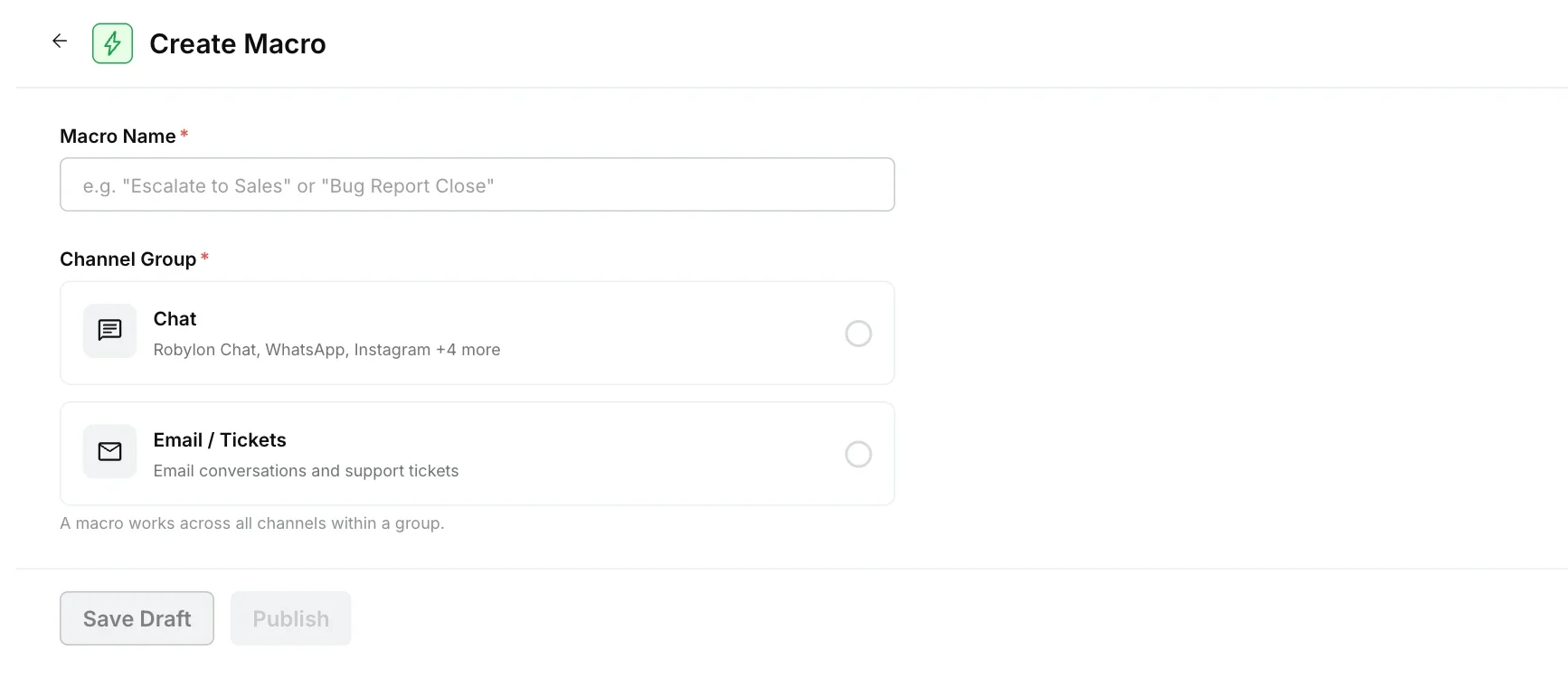
Click Create Macro and enter a Macro Name that says what it does, such as “Refund approved”. Names must be unique in your workspace.
Choose the channel group
Under Channel Group, choose Chat (Robylon Chat, WhatsApp, Instagram and other messaging channels) or Email / Tickets. A macro works across all channels in its group, and only on conversations in that group.
Decide if it blocks replies (chat only)
For chat macros, turn on Blocking macro if agents should not reply while the macro runs, for example when it calls an API whose result you need first. The composer is locked until the macro finishes. Email macros never block.
Add actions
Click Add Action and pick an action. Repeat for each step. Actions run one at a time, in the order listed.
Save or publish
Click Save Draft to keep working on it later, or Publish to make it available to agents. Only published (Live) macros can be run.
Which actions can a macro run?
| Action | What it does |
|---|---|
| Send Message | Sends a message to the customer. On email, it sends an email reply. |
| Internal Note | Adds a note only your team can see. |
| Update Status | Changes the conversation status, for example to Closed. |
| Update Property | Sets a property value. |
| Assign To | Assigns the conversation to an agent. |
| Call API | Calls one of your APIs, for example to create a return in your order system. It can save values from the response into variables for later steps. |
| Add Intent | Adds an intent to the conversation. |
How do agents run a macro from the composer?
Click the lightning icon (Run macro) in the composer, search for the macro and pick it. The list shows only live macros for the conversation’s channel group.
If the macro calls an API, a Run macro panel opens first. It shows the APIs the macro will call and any values the agent needs to fill in. The agent completes the form and clicks Run macro. See how agents fill in values.
How do I add a macro to the right panel?
Add it to the Actions section of the inbox panel. Agents then see the macro as a button in the right panel of every conversation of that type, and run it in one click, with the same input form when it calls an API.
Open the inbox panel settings
Go to Settings → Inbox & Productivity → Inbox Panel and pick the Panel Type: Chat, Email or Reviews.
Add an action group
In the Actions section, click Add Action Group, then pick the macros to show. Only live macros for that panel’s channel group are offered: the Chat and Reviews panels use Chat macros, and the Email panel uses Email / Tickets macros. Each macro can appear once.
Save
Click Save. The buttons appear for agents straight away.
Right panel actions show only to the agent assigned to the conversation, and not while the AI agent is still handling it. The Voice panel has no Actions section. See Inbox panel.
How do I run a macro on many conversations at once?
Select the conversations in the inbox and choose Run Macro from Bulk actions.
Select the conversations
In the Unified Inbox, tick Click to Select at the top of the list and select the conversations.
Pick the macro
Open Bulk actions, choose Run Macro and pick the macro. If it asks for values, fill them in once. They are used for every selected conversation.
Run it
Click Run. Robylon runs the macro on each conversation in the background, 15 at a time, and notifies you of progress as each batch finishes.
Each conversation is checked on its own. A conversation that is closed, or in a different channel group from the macro, is skipped, and the rest still run. One bulk run uses one macro.
Can agents fill in values when a macro runs?
Yes. For each parameter of a Call API action, you choose where its value comes from under Value Source:
| Value Source | What happens when the macro runs |
|---|---|
| Fixed Value | Always sends the value you typed. |
| Get from Variable | Sends the value of a variable in the conversation, such as the order ID. |
| Agent enters at runtime | Asks the agent for the value before the macro runs. |
For Agent enters at runtime, set the Input Type: Free Text lets the agent type any value, and Dropdown options gives them a list to choose from. For a fixed or variable value, turn on Agent can edit to show it in the form with its current value filled in, so the agent can check it or change it before running.
The form appears wherever the macro is run: the composer, the right panel and bulk actions.
What happens if an action fails?
If a Call API action fails, the macro stops and the actions after it are not run. The macro editor warns you of this on the step. Actions that already ran are not undone.
If any other action fails, such as sending a message or updating a property, Robylon records the error and carries on with the next action.
After every run, the conversation shows the macro’s result: who ran it, which actions were applied and which failed or were skipped.
Where can I see how often a macro is used?
The Macros list shows each macro’s channel group, status (for example Live or Draft) and how many times it has been run. Every conversation in a bulk run counts once.
Macros, canned responses or automations?
- Use a canned response to insert a saved message you can edit before sending.
- Use a macro when an agent decides to run several actions at once, on one conversation or many.
- Use a simple automation when the actions should run automatically on a trigger, with no agent involved.