
Languages
Choose the default language for your AI persona, the other languages your chatbot can answer in, and whether human agents can reply in their own language with auto-translation.
The Languages page sets which languages your AI replies in. You choose one default language, which the dashboard describes as the “Default language for the AI persona”, and any number of supported languages. When a customer writes in a supported language, the chatbot replies in that language. When it cannot tell the language, or the customer uses one you have not selected, it replies in the default language.
Open it from Settings → General → Languages. The same page has the Send messages in Human Agent’s language toggle, which lets your team reply in their own language and have replies translated for the customer.
Set up languages
Pick a default language, add the other languages you want to support, choose whether agents can reply in their own language, and save.
Open Languages
In the dashboard, click Settings in the left sidebar, then General → Languages.
Choose a default language
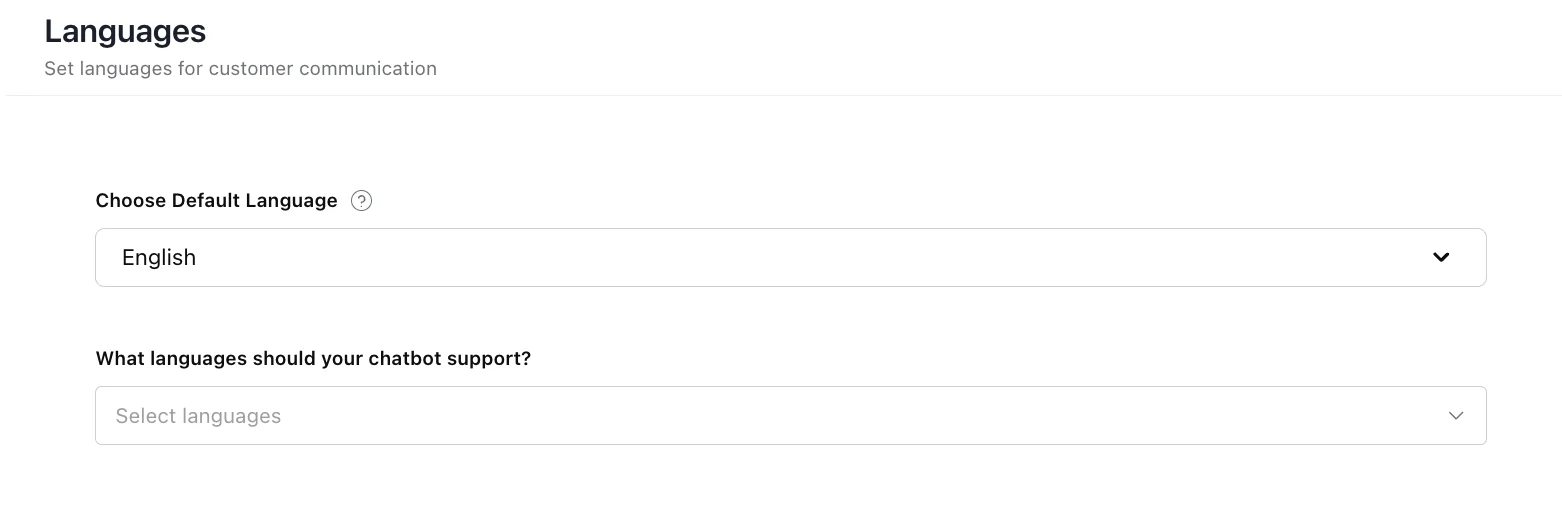
Under Choose default language, select the default language for your AI persona. This is the language AI replies fall back to.
Add supported languages
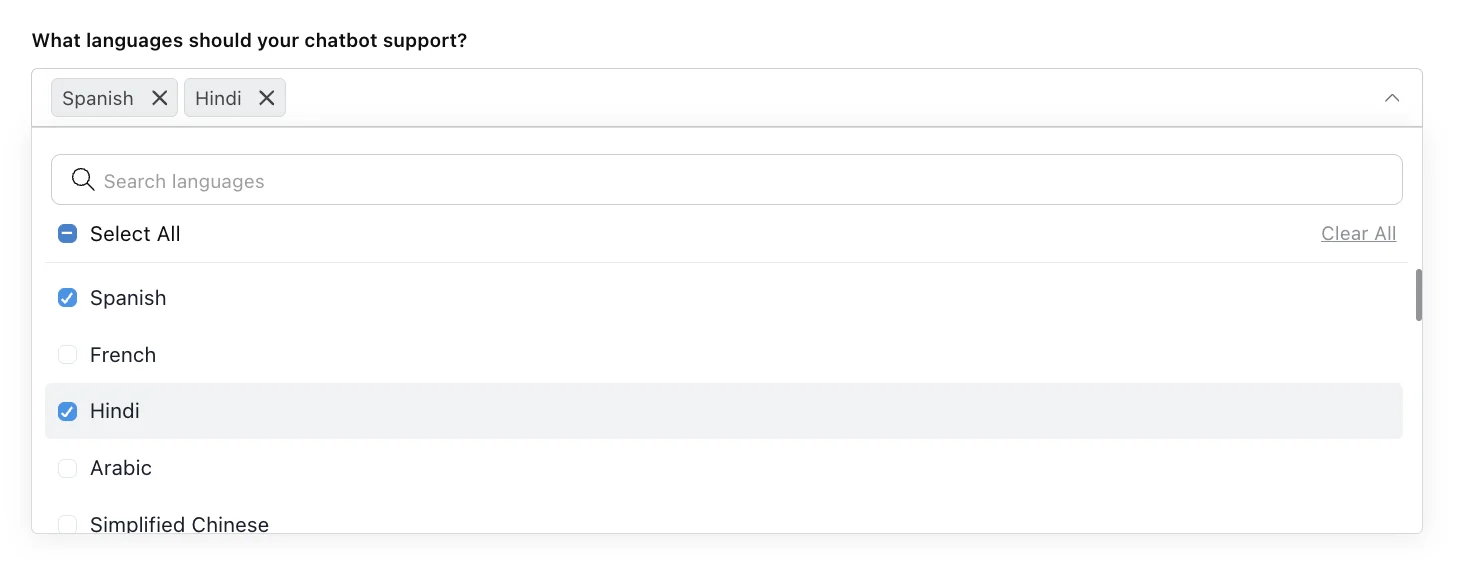
Under What languages should your chatbot support?, select every other language your customers use. You can search the list or use Select All.
Choose whether agents reply in their own language
Turn Send messages in Human Agent’s language on or off. See how it works.
Save
Click Save. The chatbot starts using the new languages straight away.
Default and supported languages
The default language is the default language for the AI persona. It is the language AI replies fall back to when the customer’s language cannot be detected, or when the customer writes in a language that is not on your supported list.
Supported languages are the extra languages the chatbot can understand and reply in. Add the ones your customers actually use: every language you add is one the chatbot will answer in, so it should also be a language your Knowledge Base and your team can back up.
Available languages
These languages are available:
| Group | Languages |
|---|---|
| Most used | English, Spanish, French, Hindi, Arabic |
| Chinese | Simplified Chinese, Traditional Chinese |
| European | Bosnian, Bulgarian, Catalan, Croatian, Czech, Danish, Dutch, Estonian, Finnish, German, German (Formal), Greek, Hungarian, Latvian, Lithuanian, Norwegian, Polish, Portuguese, Romanian, Russian, Serbian, Slovenian, Swedish, Ukrainian |
| Asian | Bengali, Kannada, Japanese, Korean, Malay, Marathi, Mongolian, Tamil, Telugu, Thai, Vietnamese |
| Middle Eastern | Hebrew, Persian |
| Other | Brazilian Portuguese, Indonesian, Italian, Swahili, Turkish |
Languages on other channels
These settings apply to AI replies on other channels through the channel’s AI persona. On any channel, AI replies follow the languages chosen here when the AI persona for that channel has its language fields set. If the persona has no languages set, these settings do not change the AI’s replies on that channel. See AI personas.
Every text field in the chatbot widget, including its title and welcome message, can be translated into every language selected here, along with CSAT survey text. Translation is switched on per workspace and is available on request, email support@robylon.ai.
Voice agents are separate: they choose their language through their speech-to-text and text-to-speech settings, covered in the Voice section.
Send messages in Human Agent’s language
It lets your human agents write replies in their own language and have Robylon translate each reply into the customer’s language before it is sent. Turn it off if your agents prefer to write directly in the customer’s language.
When the toggle is on:
- Each agent writes in their Conversation language. Agents set it from their avatar at the bottom of the left sidebar, then Account Settings → Preferences → Conversation language.
- Before a reply goes out, Robylon detects the customer’s language and translates the reply into it. This applies to replies in chat conversations and on email tickets.
- When the agent’s conversation language is the same as the customer’s, the reply is sent as written.
- If a translation fails, the reply is not sent.
When the toggle is off, agent replies are sent exactly as written.
The toggle is saved with the rest of the page when you click Save.
Agents can also turn on Read messages in my language in the same Preferences section of their account settings. It translates incoming customer messages into their conversation language, and is separate from this toggle.