
Set up the Robylon MCP server
To connect an AI tool to Robylon, add the server URL below to the tool, sign in with your own Robylon account, and tick the workspaces to include. There is no API key to copy or store.
https://api.robylon.ai/mcp/The URL is the same for every workspace. The workspaces a connection can read are decided when you sign in, not by the URL.
What do I need before I connect?
You need four things:
- An Admin or Super-admin role in at least one workspace. Agents cannot connect.
- A customer account. Accounts on a Robylon internal seat cannot connect, whatever their role.
- An AI tool that supports remote MCP servers with OAuth sign-in. Claude, Claude Code, ChatGPT, Codex, Gemini CLI and Cursor all do. Tools that only accept an API key cannot connect.
- New connections allowed in the workspace. An admin can turn this off on the Robylon MCP settings page.
How do I connect an AI tool to Robylon?
Add the server URL to your tool, then approve the connection in Robylon.
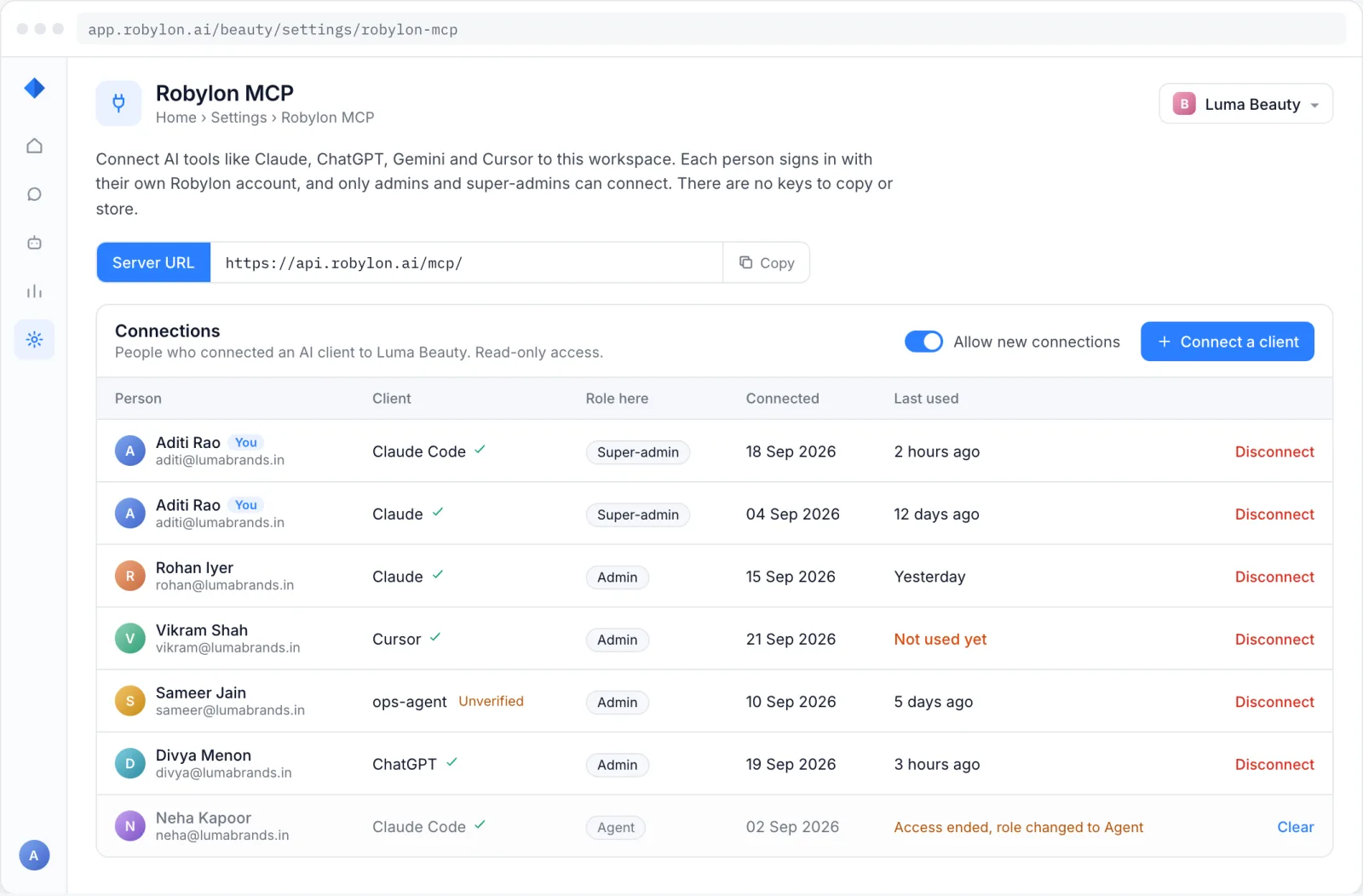
Open Robylon MCP
In Robylon, go to Settings → Robylon MCP and click Connect a client.
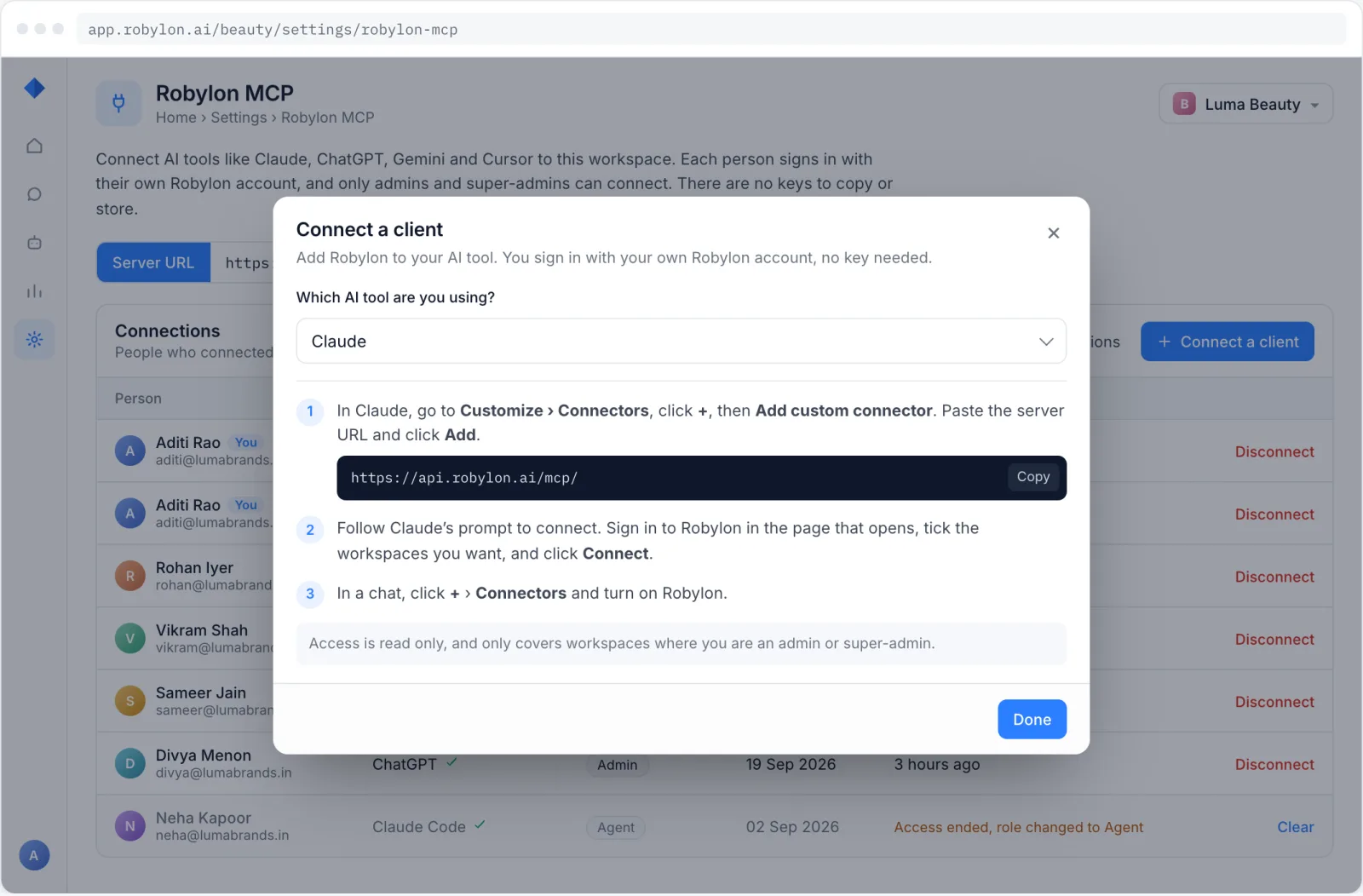
Choose your AI tool
Pick your tool, like Claude, ChatGPT, etc. and follow its steps. Every tool comes down to adding the server URL.
Authenticate
Your tool opens a Robylon login page to authenticate access to the MCP server.
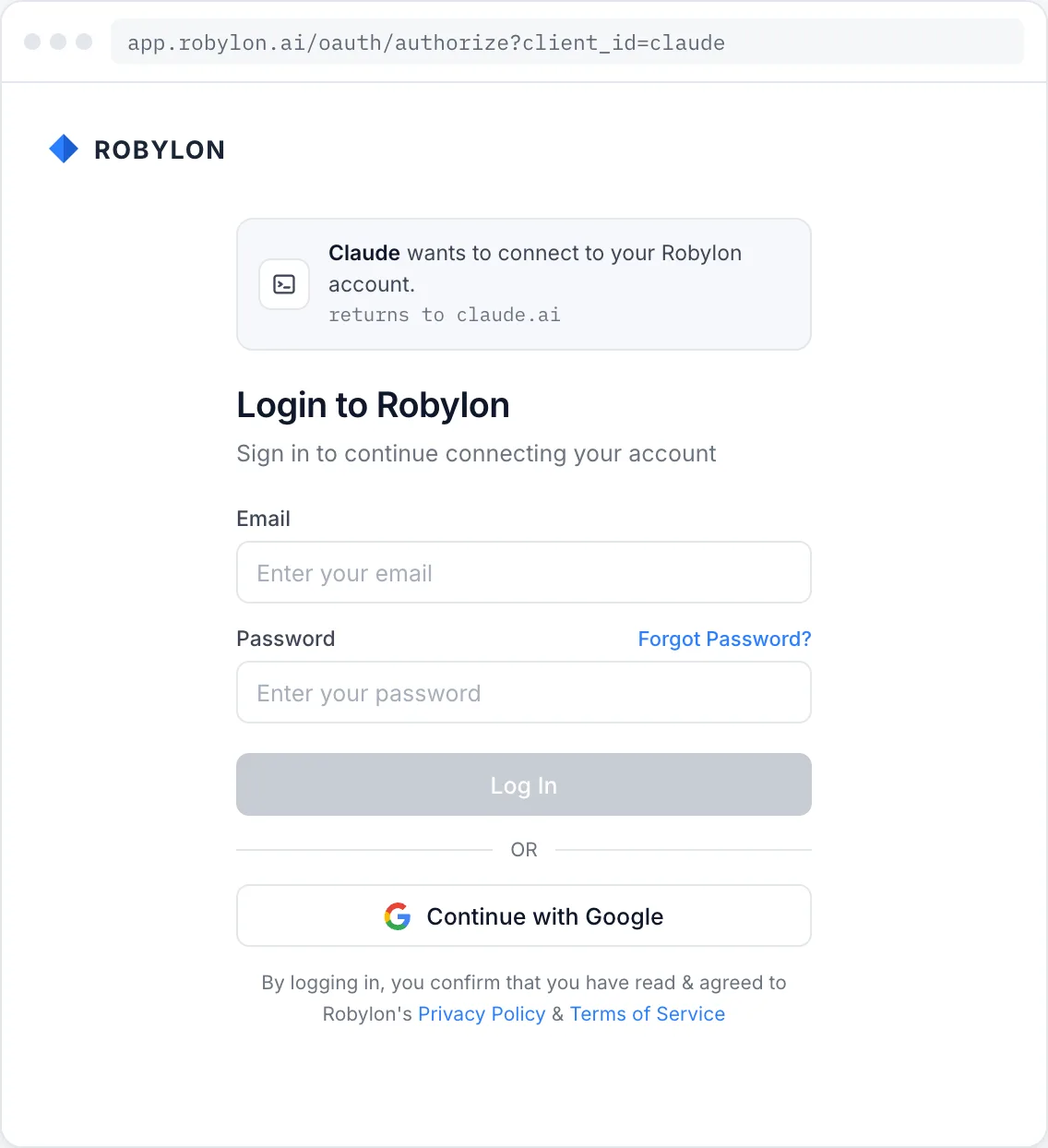
Sign in
Sign in to Robylon with your email and password or with Google. If you are already signed in, this step is skipped.
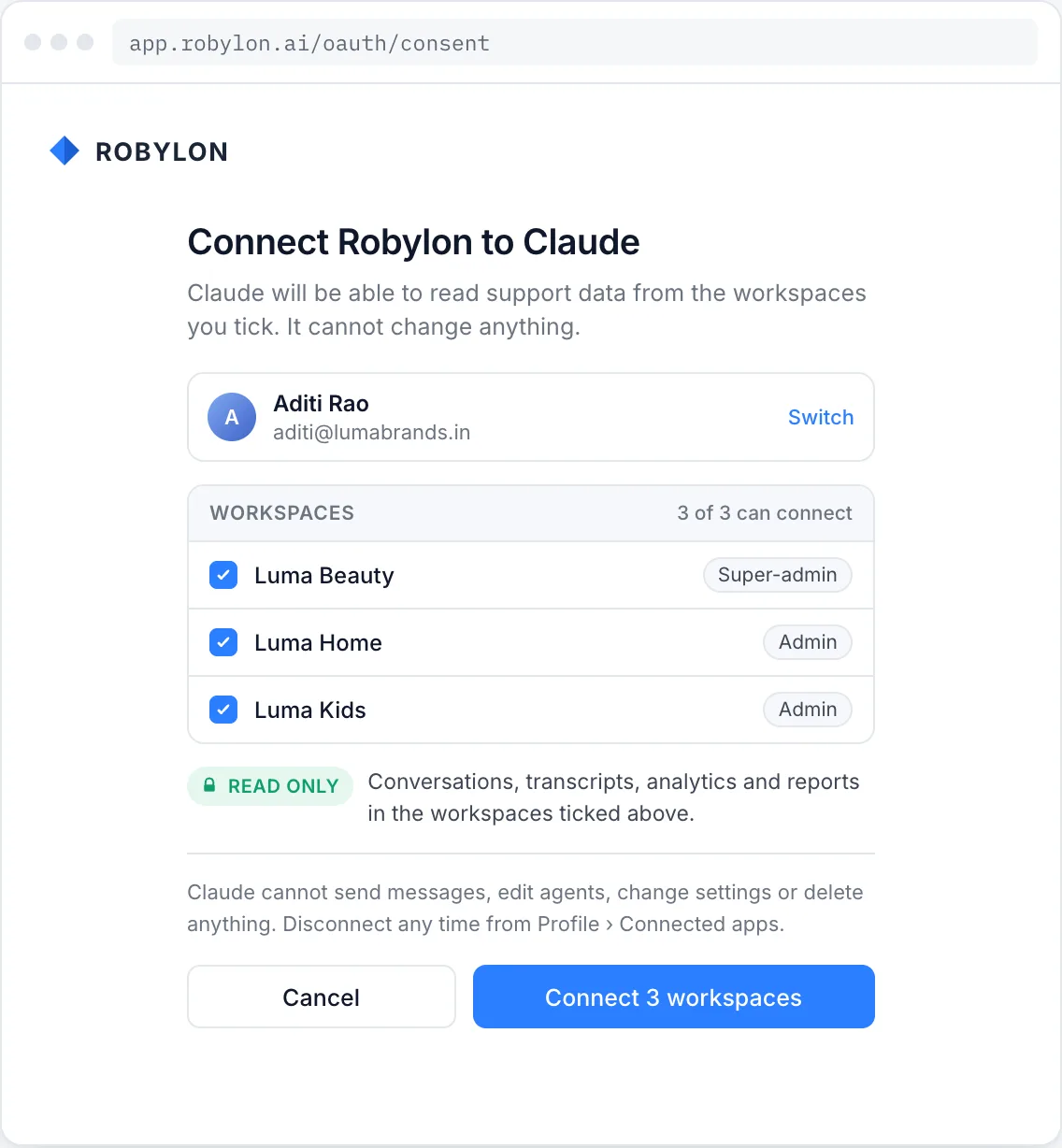
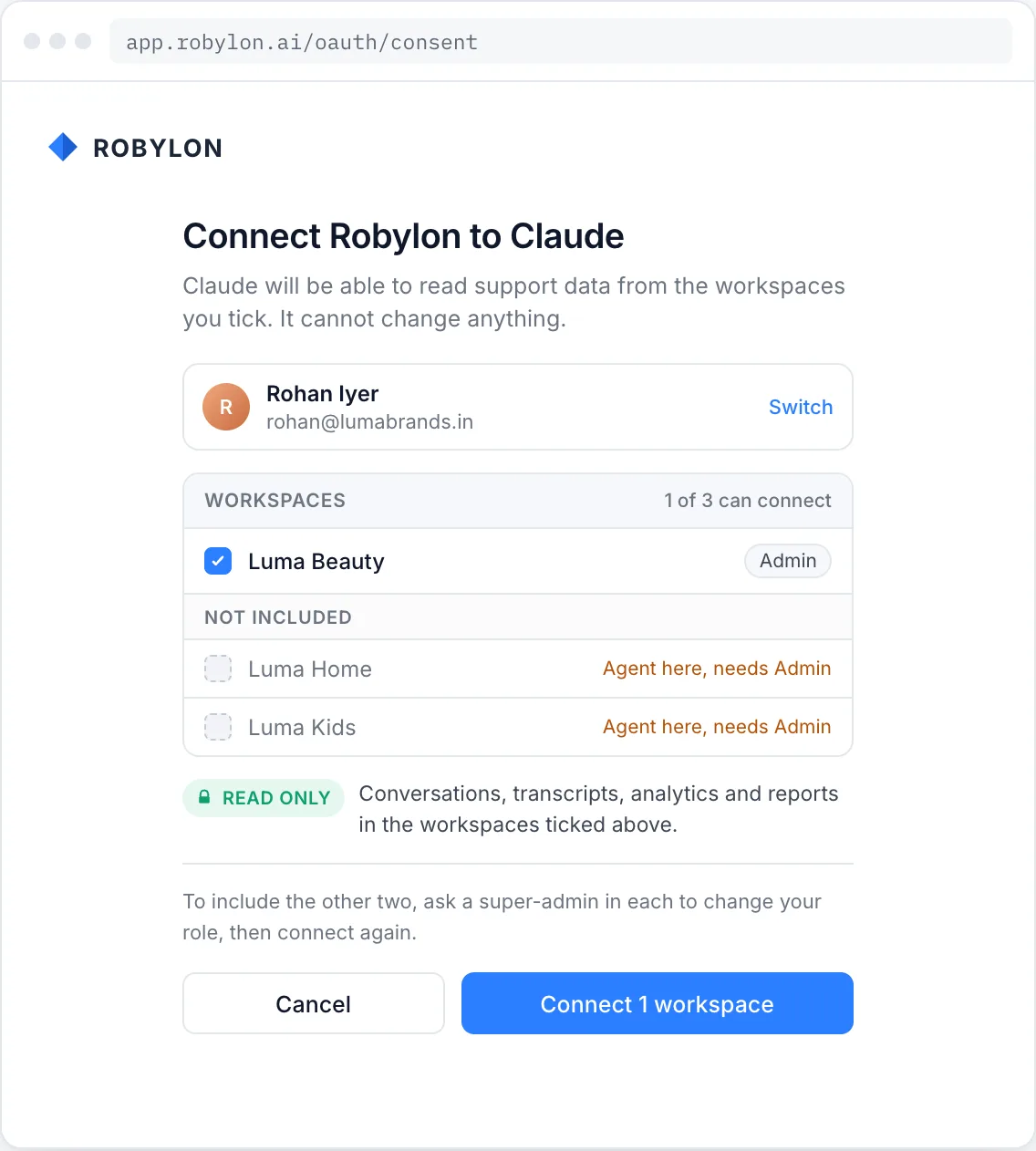
Choose workspaces and connect
Tick the workspaces to include and click Connect. You are sent back to your tool with the connection live.
Which workspaces does a connection include?
A connection includes only the workspaces you tick when you connect, and only those where you are an Admin or Super-admin. Roles are checked per workspace.
- Eligible workspaces are ticked by default. Untick any you want to leave out. You must keep at least one.
- Other workspaces are listed as Not included, with your role in each, so you can see why.
- A connection only ever shrinks. If your role in a workspace drops to Agent, that workspace is removed from the connection on your next request. If you later become an admin in a workspace, it is not added on its own: connect again to include it.
For example, someone who is an Admin in one workspace and an Agent in two others can connect the first. The other two show as Not included.
What can a connected AI tool do?
It can only read. A connected tool uses three read-only tools to read analytics, search conversations and read transcripts in the workspaces you included. It cannot reply to customers, edit AI agents, change settings or delete anything. See the MCP server overview for what it can read.
Every request belongs to the person who connected, so admins can see who is reading which workspace, and ending one person’s access affects nobody else.
How do I see and disconnect connections?
Admins manage connections per workspace.
| Where | Who sees it | What it shows | What Disconnect does |
|---|---|---|---|
| Settings → Robylon MCP | Admins and Super-admins of the workspace | Everyone connected to this workspace: person, AI tool, role, when they connected and when the connection was last used | Removes this workspace from that person’s connection. Their other workspaces are managed by those workspaces’ admins. |
Disconnecting takes effect straight away: the tool’s next request fails.
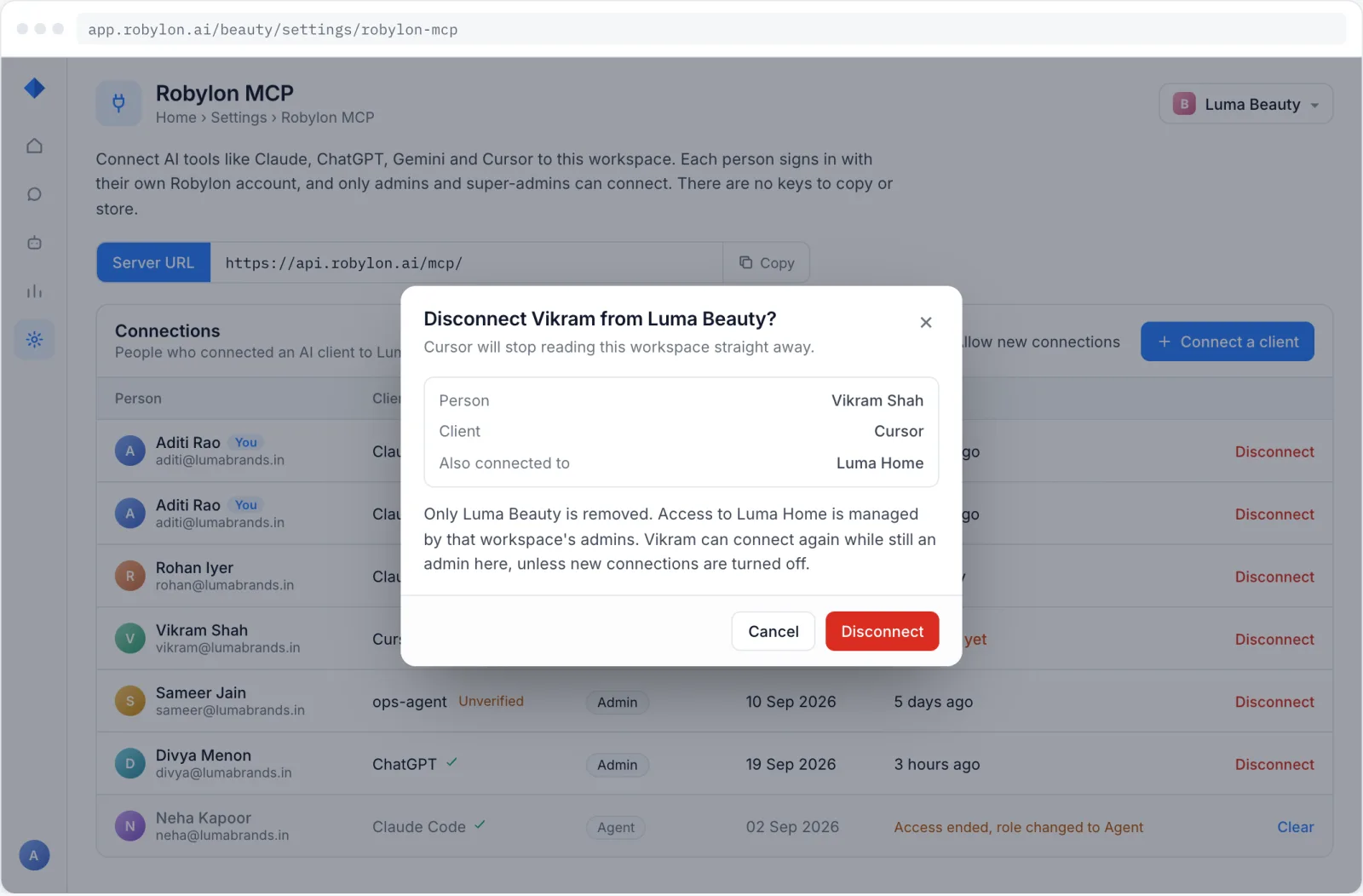
On the Robylon MCP page, Allow new connections turns off new connections to the workspace. Existing connections keep working until you disconnect them.
Which AI tools can I connect?
Any tool that supports remote MCP servers with OAuth sign-in. These have step-by-step guides:
| AI tool | Guide |
|---|---|
| Claude (web and desktop) | Connect Claude |
| Claude Code | Connect Claude Code |
| ChatGPT | Connect ChatGPT |
| Codex | Connect Codex |
| Gemini CLI | Connect Gemini CLI |
| Cursor | Connect Cursor |
For any other tool, add a remote MCP server in its settings, paste the server URL, and sign in to Robylon when the tool asks.
Why can’t I connect?
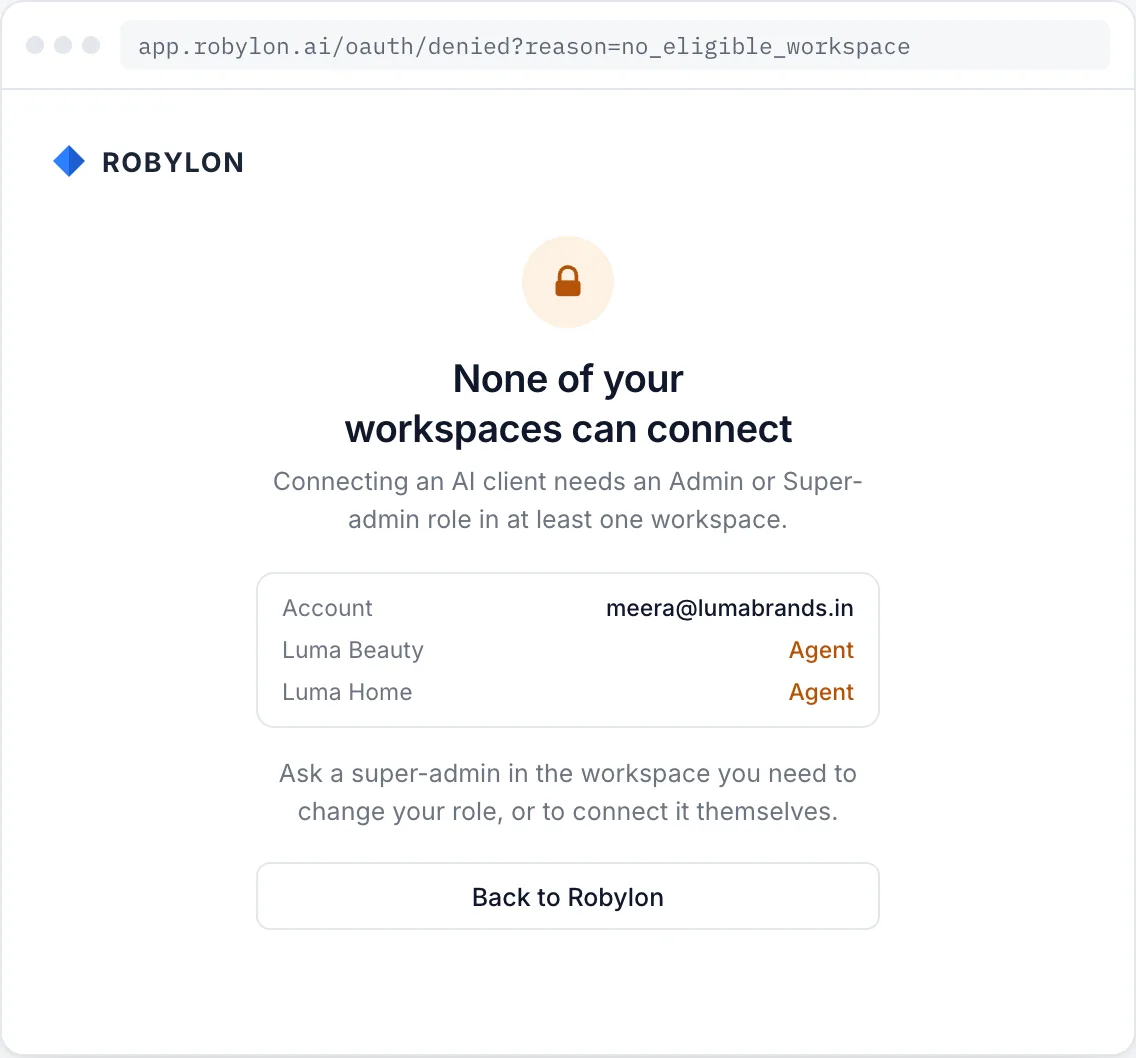
The page Robylon shows tells you which of these applies.
| Message | Why | What to do |
|---|---|---|
| None of your workspaces can connect | You are an Agent in every workspace you belong to. | Ask a Super-admin in the workspace you need to change your role, or to connect it themselves. |
| Robylon staff accounts can’t connect | Your account holds a Robylon internal seat. | Work in customer workspaces from the Robylon dashboard instead. |
| This link has expired | Connection links work once and expire after a few minutes. | Start again from your AI tool to get a new link. |
| This tool is already connected | You connected from the same tool before. | Click Reconnect. It replaces the old connection and lets you choose workspaces again. |
| Connect a client is greyed out | New connections are turned off for this workspace. | Ask an admin to turn on Allow new connections. |
| A workspace is missing from answers | It was not ticked, or your role there changed. | Connect again and tick it. You must be an Admin or Super-admin there. |