
Testing
Test a voice agent with a real phone call, a browser web call or a text chat, and use each test to refine the prompt, voice and settings before going live.
Test a voice agent before it calls real customers. Robylon gives you three ways: a real phone call, a call in your browser, and a text chat. Tests use the agent’s current draft, so you can try changes before publishing them.
Use Test Call and Test Chat at the top of the voice agent builder.
Which test should I use?
| Test | What it checks | Best for |
|---|---|---|
| Test phone call | The full experience on a real phone line: voice, speech recognition, latency and telephony. | Final checks before going live, and checking how the call sounds on a mobile network. |
| Test web call | The voice and conversation through your computer’s microphone and speakers. | Quick voice checks while you tune the prompt, voice and transcriber settings. |
| Test chat | The conversation logic only, as text. No speech is generated. | Fast iteration on the prompt, flow, and when functions and tools are used. |
How do I make a test phone call?
Open Test Call
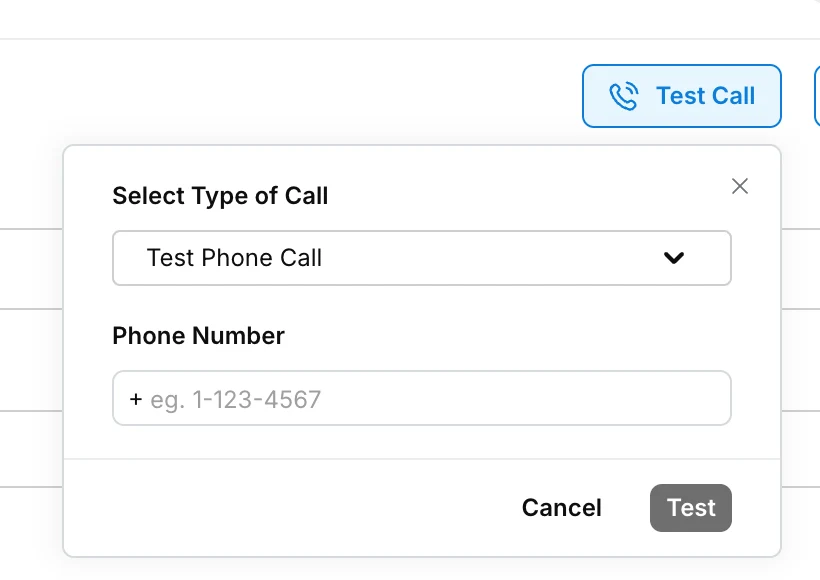
In the voice agent, click Test Call and choose Test Phone Call in Select Type of Call.
Enter your number
Enter your mobile number with its country code in Phone Number, for example +14155550123.
Fill in the variables
Enter values for the agent’s variables, such as the customer name, so the call sounds like a real one.
Answer the call
Click Test Now. Robylon calls you. Answer and talk to the agent as a customer would.
How do I make a test web call?
Click Test Call and choose Test Web Call in Select Type of Call. The call starts in your browser (it can take 6 to 10 seconds to connect): allow microphone access when asked, then talk to the agent through your computer. No phone number is needed.
How do I test with chat?
Click Test Chat and type as the customer would speak. The agent replies in text using the same prompt, functions and tools. It is the quickest way to test many scenarios, because nothing is spoken.
What should I test before going live?
Work through the calls your agent will really get, not just the easy path:
- The main goal: the customer agrees, and the agent completes the task and ends the call properly.
- Objections and refusals: the customer says no, is annoyed, or asks why they are being called.
- Off-topic questions: the customer asks something outside the script.
- Interruptions and pauses: talk over the agent, go quiet, ask it to wait.
- Languages: switch language mid-call if your callers do.
- Hand-offs: ask for a person, and check the transfer.
- Voicemail: let a call go to voicemail and check the agent leaves a message and hangs up.
- Numbers and names: amounts, dates and product names are heard and spoken correctly.
How do I improve the agent after testing?
Change one thing at a time and test again:
| Problem | Where to fix it |
|---|---|
| Says the wrong thing, or goes off script | The prompt, see Prompt and tools |
| Mishears the caller | Provider, language and Boosted Keywords, see Speech to text |
| Cuts callers off, or replies too slowly | Silence seconds, Interruption min words and Smart Turn Detection, see Speech to text |
| Long pauses before answering | A faster model, shorter replies asked for in the prompt, or Optimize Streaming Latency, see LLM and Text to speech |
| Sounds robotic or mispronounces words | Voice and voice settings, see Text to speech |
| Hangs up too early or too late | Call Timeout Settings, see Call settings |
When you are happy, publish the agent. To try the published agent from your own system first, trigger a call through the API with is_test_call set to false to your own number. With is_test_call set to true, the API uses the draft instead. See Triggering calls.