
Product FAQs
Place an AI-powered FAQ box on your product pages that suggests questions for each product and answers them in place.
A Product FAQ is a small chat box you place inside your product pages, rather than a floating chatbot. It shows suggested questions for the product the shopper is looking at, and answers them in place. Shoppers get answers about size, materials, delivery or returns without leaving the page.
Open it from Settings → Integrations → Product FAQs.
How is a Product FAQ different from the chatbot?
The chatbot is a launcher in the corner of every page. A Product FAQ is embedded inside the page layout, usually near the product description, and is built for product detail pages. It shows smart suggestions: questions for that page that the shopper can tap. A suggestion disappears once it is sent.
How do I set up a Product FAQ?
Create the FAQ, style it, connect a workflow for its content, then add the embed code to your product pages.
Create the FAQ
Go to Settings → Integrations → Product FAQs and click Create Product FAQ.
Fill in the General tab
Enter an FAQ name, for example “Mattress product page FAQ”, and a Description of which product pages it is for.
Style it on the Appearance tab
Set the colours, heading and spacing. See the table below.
Connect the content in Workflows
On the Content tab, click Open Workflows. See How do I choose what the FAQ says?
Save and install
Click Save FAQ, then copy the code from the Installation tab onto your product page template.
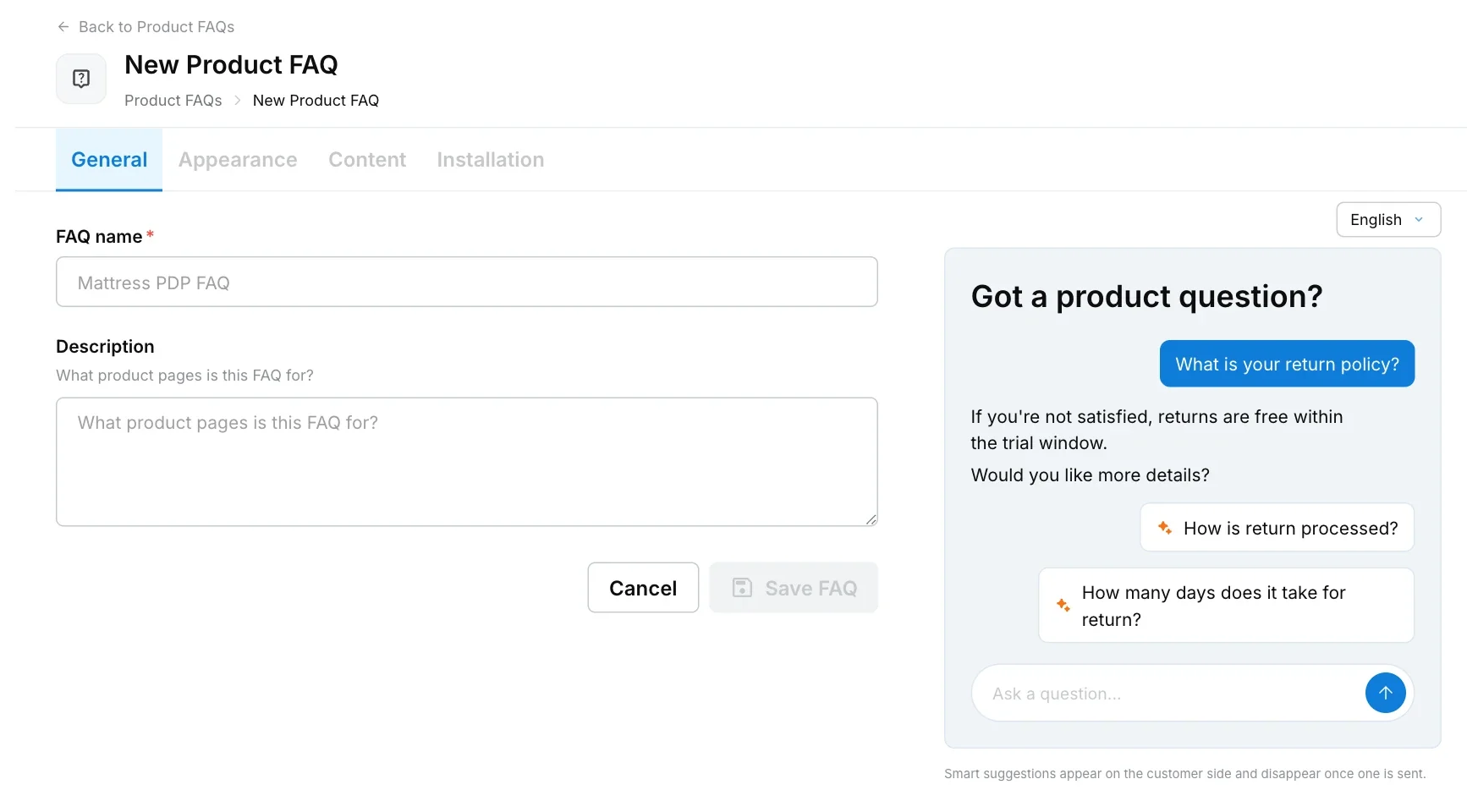
What can I change on the Appearance tab?
| Setting | What it does | Default |
|---|---|---|
| Brand color | The accent colour of the FAQ box. | |
| Heading title | The heading above the box. | Got a product question? |
| Heading text color | The colour of the heading. | |
| Heading font size (pixels) | The size of the heading. | 24 |
| Input placeholder | The grey text in the question box. | Ask a question… |
| Container background color | The background of the box. | |
| Container border color | The border colour of the box. | |
| Container border radius | How rounded the corners are. | 8 |
| Margin (pixels) | Space outside the box, set for the top, right, bottom and left. | |
| Padding (pixels) | Space inside the box, set for the top, right, bottom and left. | 20 |
Use Reset to Prev to undo your latest changes, or Reset to Default to start again.
How do I choose what the FAQ says?
The FAQ’s content lives in a workflow, not on the Product FAQ page. The first message, buttons, forms, smart suggestions and everything that follows are built in a workflow. In the workflow trigger picker, choose the Robylon Chat channel and the trigger When the embedded FAQ chatbot loads on a page (the Product FAQ Content tab calls it “When a customer asks a Product FAQ”). Select your FAQ in that trigger to connect them.
The trigger’s first message can include:
- Text: with Content type set to Static (exactly what you write) or AI generated.
- Smart Suggestion: questions the shopper can tap. Set the Number of suggestions (1 to 5, default 1), write Guidelines for AI-generated suggestions, and fill in one fallback question per suggestion. Fallbacks are shown while suggestions for a new page are being prepared.
AI-generated content is created from the product page URL where the FAQ is embedded, using that product’s data in your Knowledge Base.
Can Product FAQs answer price and stock questions?
Yes, if you connect a Shopify store. Robylon syncs your product catalogue into the Knowledge Base, including price, currency, availability and tags, so answers about price and stock use your real data. See Shopify.
The sync starts on its own when you connect the store, then refreshes once a day. Products appear in the Knowledge Base in a folder called Product Related FAQs. Shopify is the only store that syncs a catalogue today.
How do I add the Product FAQ to my product pages?
Copy the two snippets from the Installation tab. Add the loader script before the closing </body> tag, then place the div where the FAQ box should appear:
<script
  async
  src="https://cdn.robylon.ai/inline-bot/latest/inline-embed.min.js"
></script>

<div
  data-robylon-embed="YOUR_FAQ_ID"
  data-robylon-org="YOUR_ORG_ID"
></div>
The Installation tab fills in your FAQ ID and organization ID. Add the code to your product page template so it appears on every product page.