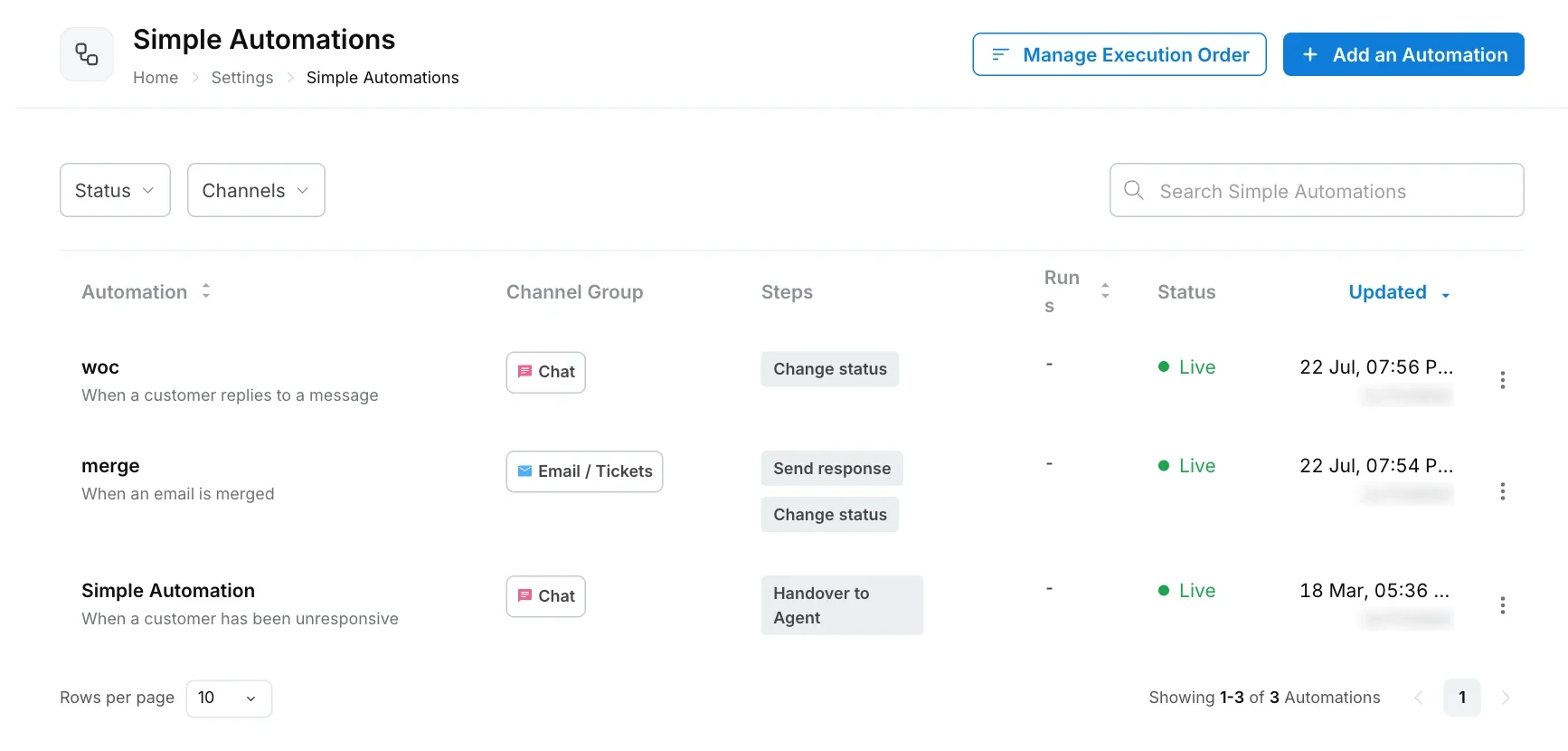
Simple automations
Understand what simple automations do, how they differ from workflows, and whether you can go live with simple automations alone.
A simple automation is a rule of the form “when this happens, do these steps”. For example: when a customer has been silent for 5 minutes, send a reminder, then close the chat. Simple automations take repetitive clicks off your team, reply to customers faster, and keep your inbox tidy.
Open them from Settings → Workflows & AI Agents → Simple Automations.
Can I go live with simple automations only, without a workflow?
Partly. Simple automations run on their own for events such as a status change, a new ticket, or a silent customer in a chat handled by your team. But they only send fixed messages and take fixed actions. They cannot understand a customer’s question or hold a conversation.
To answer customers in the chatbot, you need an AI agent or a workflow as well. A typical setup is:
- An AI agent or workflow that talks to the customer.
- Simple automations around it for housekeeping: reminders, closing inactive chats, tagging and routing tickets.
Some simple automation triggers also depend on a workflow or AI agent running, so they never fire without one:
| Trigger | Needs a workflow or AI agent? |
|---|---|
| When there is a technical glitch in the chat | Yes. It fires when the main workflow fails. |
| When the AI limit is exhausted in a conversation | Yes. It fires during an AI agent conversation. |
| When a customer has been unresponsive, for chats handled by the bot | Yes. It fires while a workflow or AI agent is waiting for the customer’s reply. |
| When a customer has been unresponsive, for chats handled by human agents | No |
| When a human agent changes the chat status | No |
| When an agent has been unresponsive | No |
| When a customer replies to a message | No |
| When a ticket is created, and other email and ticket triggers | No |
Customers’ first messages always go to your workflow, not to a simple automation. There is no simple automation that greets a customer or replies to their first message on its own.
How are simple automations different from workflows?
A simple automation is one trigger followed by a short, straight list of steps. A workflow is a full conversation flow that can branch, ask questions, call AI and wait for answers.
| Simple automation | Workflow | |
|---|---|---|
| Shape | One trigger, then steps in order | Many steps with branches and loops |
| Talks to customers | Sends fixed messages | Holds a conversation, asks questions, uses AI |
| Conditions | Trigger properties and conditions (up to 2 groups) | Logic steps anywhere in the flow |
| Best for | Reminders, closing chats, tagging and routing | Resolving a customer’s request end to end |
| Built in | Settings → Workflows & AI Agents → Simple Automations | Settings → Workflows & AI Agents → Workflows |
A simple automation runs as its own separate run, alongside any workflow on the same conversation. Its runs are counted in the Runs column of the Simple Automations list.
What can a simple automation do?
Each automation belongs to one channel group, and each group has its own triggers and steps.
| Group | Channels | Example triggers | Example steps |
|---|---|---|---|
| Chat | Chatbot (Robylon Chat), WhatsApp, Facebook, Instagram, Slack | Customer unresponsive, status changed | Send a message, snooze, hand over, change status, send an email, call an API |
| Email / Tickets | Email, Zendesk and other helpdesks | Ticket created, ticket updated, time conditions, CSAT response received | Add tag, change status, assign, send response, merge, mark as spam |
| Reviews | Google Play Store, Google My Business and App Store, once connected | A human agent changes the chat status, customer unresponsive, technical glitch in the chat | The same steps as Chat |
The full list of triggers and steps is in Create a simple automation.
What are some common simple automations?
- Close a chat after the customer goes quiet, after first sending a reminder.
- Tell the customer when their conversation is marked as resolved.
- Hand the chat to your team when the AI limit is reached.
- Tag billing emails and set them to pending.
- Mark promotional emails as spam.
See Simple automation examples for step-by-step setups.
What do the statuses mean?
| Status | Meaning |
|---|---|
| Draft | Saved but not running. New automations start as drafts. |
| Live | Published and running. |
| Paused | Unpublished. It stops running until you publish it again. |
If you edit a live automation, publish it again for the changes to take effect.