
Bubble
Add the Robylon chatbot to your Bubble app by pasting the JavaScript snippet into an HTML element.
To add the Robylon chatbot to a Bubble app, copy the chatbot’s JavaScript snippet from Robylon and paste it into an HTML element on your page. You need edit access to the Bubble app.
How do I copy the chatbot snippet from Robylon?
Go to Settings → Channels → Chatbot, click your chatbot, open the Install tab, choose Web → Bubble, and copy the snippet. It already contains your Chatbot ID. See Installation for what the snippet does.
How do I add the chatbot to my Bubble app?
Add an HTML element to the page and paste the snippet into it.
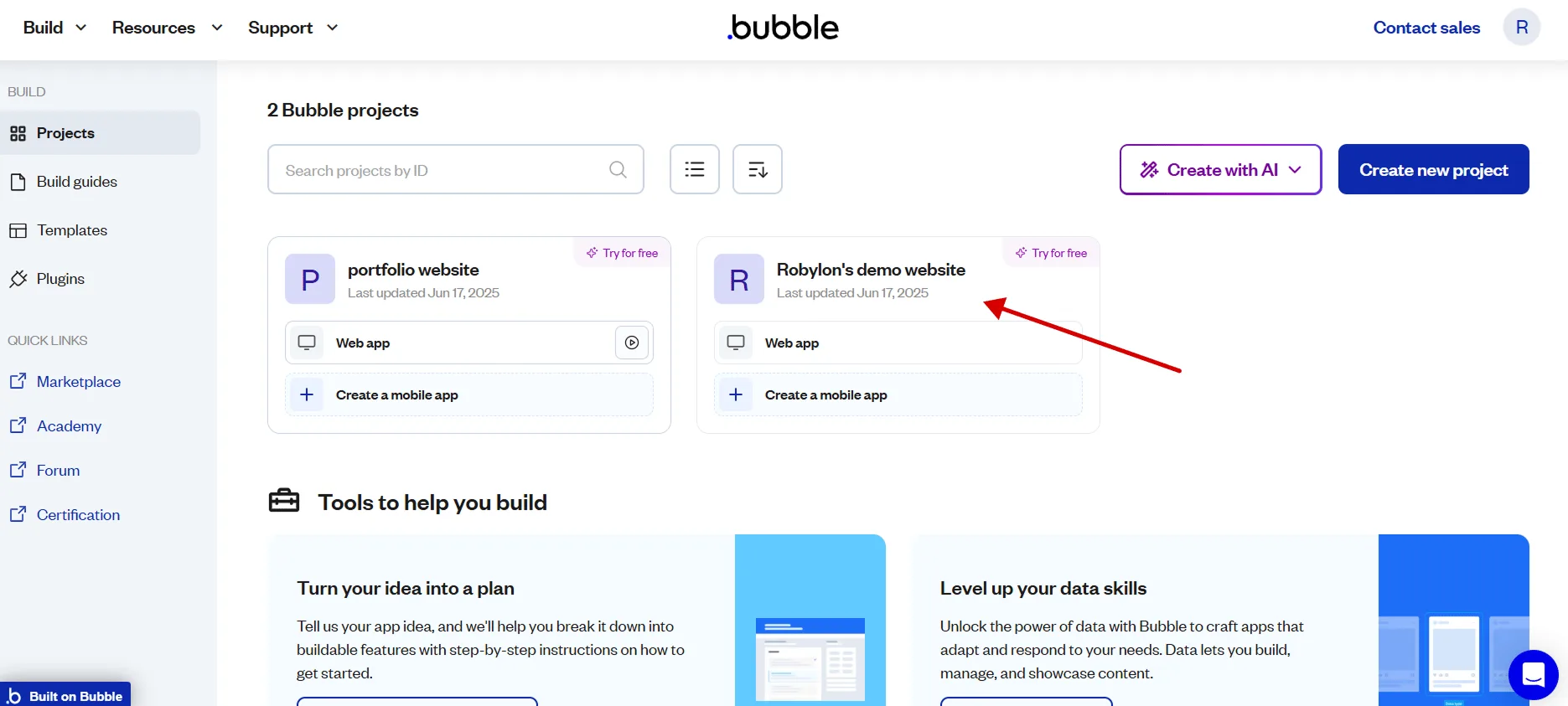
Open your app in the Bubble editor
Sign in to Bubble and open the app you want to add the chatbot to.
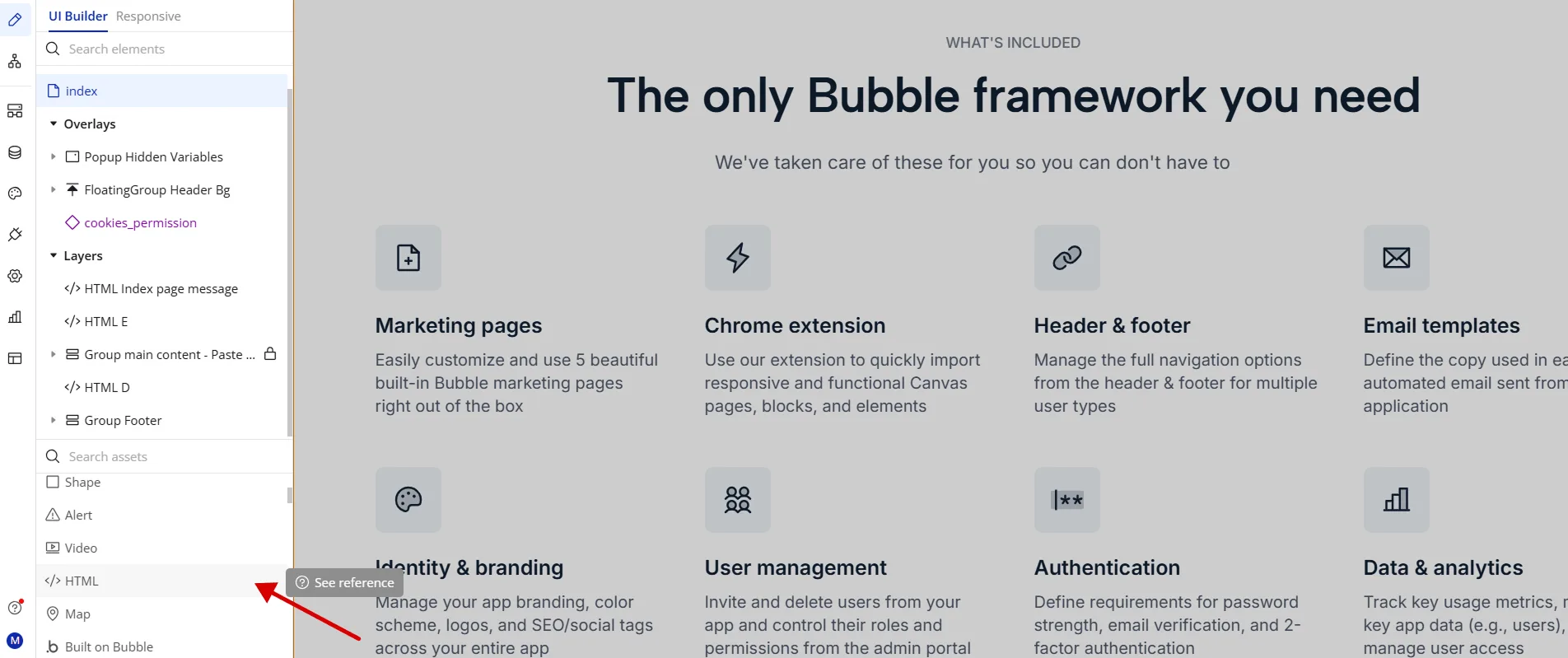
Add an HTML element
In the editor’s left sidebar, find the HTML element and drag it onto the page. Add it to every page where the chatbot should appear.
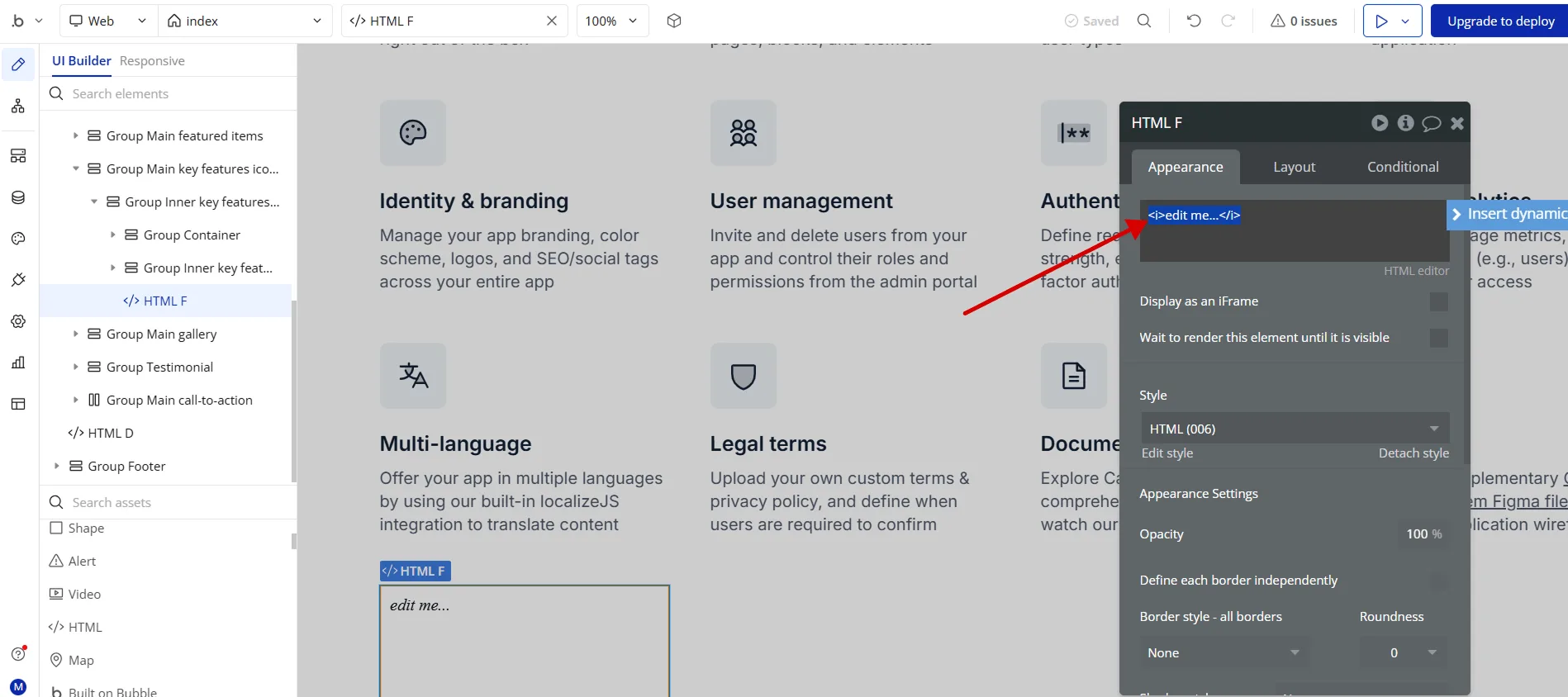
Open the element's editor
Double-click the HTML element to open its code editor.
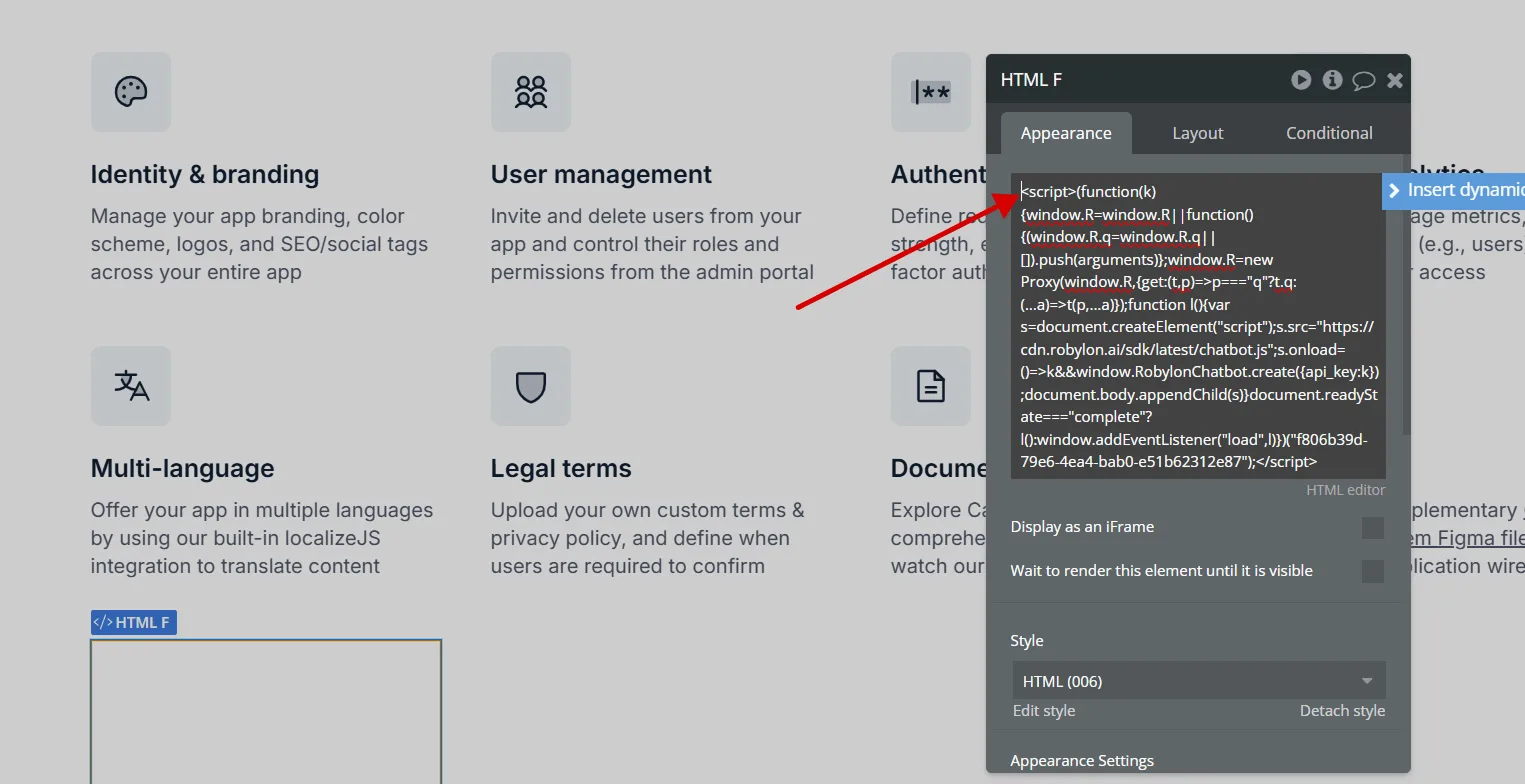
Paste the snippet
Paste the Robylon snippet into the editor.
Preview and test
Preview your app. The chatbot launcher appears in the corner of the page. Open it and send a test message.
If the launcher does not appear, see How do I know the chatbot is installed correctly?