
Usage
See how many AI credits and voice minutes your workspace uses, where they go by channel and AI model, and cap how much AI a single conversation can use.
The Usage page shows how much of your plan your workspace is using: AI credits for chat, email and other AI work, and voice minutes for calls. Check it to understand your bill, spot unusual spikes, and decide whether to set limits.
Open it from Settings → Account → Usage. The page has two tabs: Overview and Usage Settings.
What are credits?
Credits are the unit Robylon uses to measure AI usage. Every time your AI agents handle a conversation, Robylon deducts credits. There are two kinds:
- Base credits: a flat charge for AI-handled conversations and replies, whatever the model.
- Usage credits: a charge for the AI work in each reply. Usage credits depend on the model used.
Voice calls are measured separately, in minutes.
What does the Usage overview show?
Pick the period in the date picker in the top right corner. The Overview tab then shows two sections.
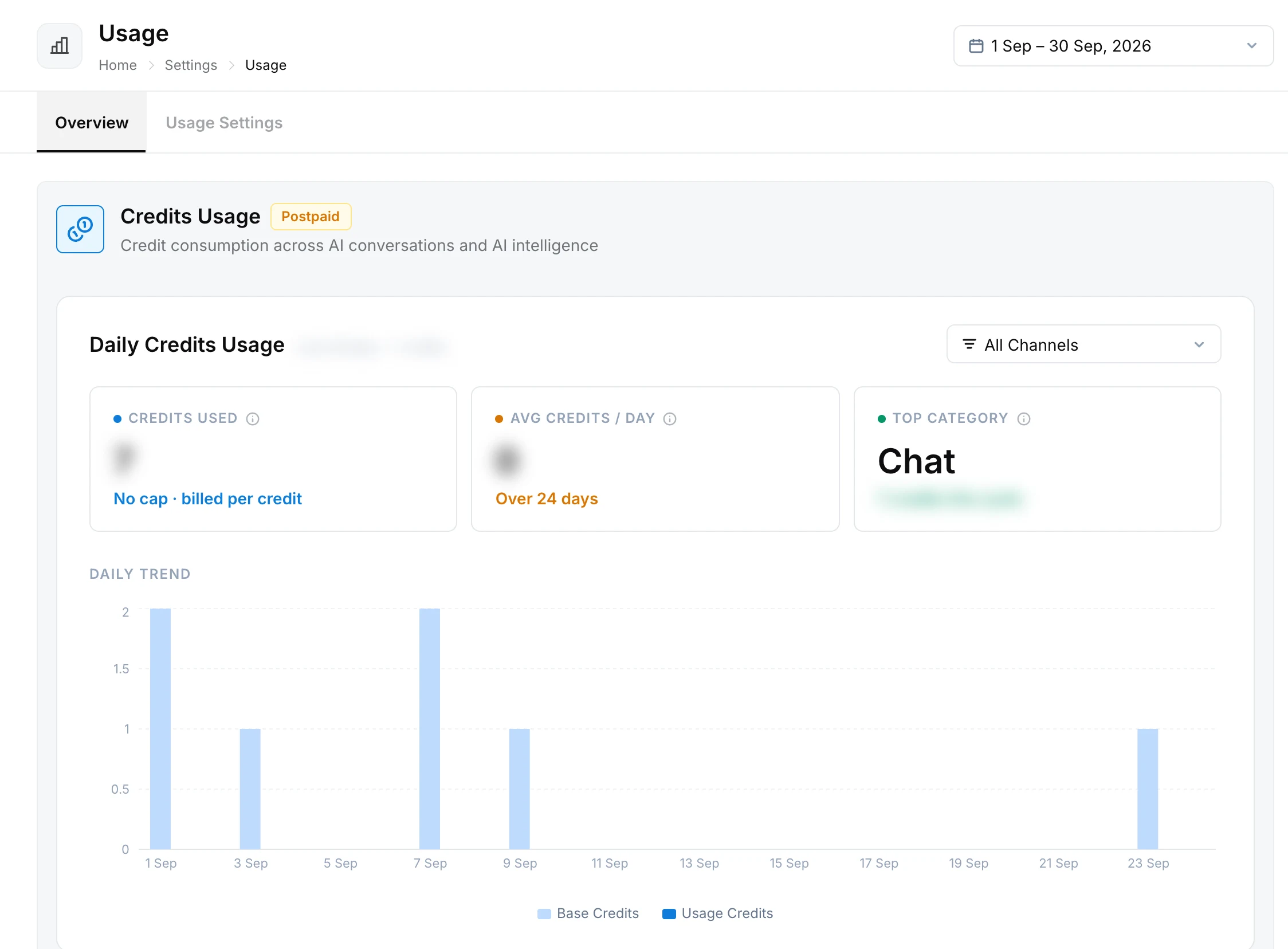
Credits Usage covers credit consumption across AI conversations and AI intelligence:
| Card | What it shows |
|---|---|
| Daily Credits Usage | Credits Used in the period, Avg Credits / Day, the Top Category, and a daily trend split into base credits and usage credits. Filter by channel with All Channels. |
| Credit Distribution | The share of credits spent on Chat, Email, AI Intelligence, Live Agents and Others |
| Model Usage | Total credits spent on AI models, how many models were used, the top model’s share, and credits per model and provider |
| Monthly Credits Usage | Base and usage credits for each of the last six billing cycles |
Voice Usage covers voice minutes consumed:
| Card | What it shows |
|---|---|
| Daily Voice Usage | Minutes Used in the period, Avg Minutes / Day and a daily trend |
| Monthly Voice Usage | Minutes for each of the last six billing cycles |
Each section shows how it is billed. Postpaid means usage is billed after the fact. “No cap · billed per credit” or “Billed per minute” means there is no hard limit and every credit or minute used is billed.
Where do my credits go?
Start with Credit Distribution to see which area uses the most, then Model Usage to see which models drive the cost.
- Chat or Email is the top category: this is normal for most workspaces. If it grows faster than your conversation volume, look for long conversations where the AI loops or repeats itself in transcripts.
- One large model has most of the share: check whether every agent needs it. A smaller model is often enough for simple tasks such as triage. See model comparison.
- A sudden spike on one day: compare it with the Analytics dashboard for the same day. A campaign, an outage on your side or a spam wave can all push usage up.
How do I limit how much AI one conversation can use?
Set a conversation limit in the Usage Settings tab. It caps the AI in any single conversation, so one long or abusive conversation cannot use a large number of credits.
Open Usage Settings
Go to Settings → Account → Usage and open the Usage Settings tab. Under Conversation Limits, click Add limit.
Choose the channels
Under Channels, pick Chat (live chat and messaging, such as the chatbot and WhatsApp) or Email / Tickets (email and helpdesk tickets, such as Email and Zendesk). Each channel group can have one limit.
Choose the limit
Under Limit per conversation, pick Number of AI turns or Total credits, and enter the maximum. It applies to each conversation on its own.
Save
Click Save. The limit appears in the list with its channels, limit and status.
When a conversation reaches its limit, the AI stops replying in that conversation. By default the customer is told and the conversation is handed over to your team’s default group. You can change what happens in simple automations.
With no limits set, conversations can use unlimited AI.
How do I get more credits or minutes?
See Billing.