
Framer
Add the Robylon chatbot to your Framer site by pasting the snippet into the site's custom code settings.
To add the Robylon chatbot to a Framer site, copy the chatbot’s snippet from Robylon and paste it into your site’s Custom Code settings. You need edit access to the Framer project.
How do I copy the chatbot snippet from Robylon?
Go to Settings → Channels → Chatbot, click your chatbot, open the Install tab, choose Web → Framer, and copy the snippet. It already contains your Chatbot ID. See Installation for what the snippet does.
How do I add the chatbot to my Framer site?
Paste the snippet into the custom code section of your site settings, then publish.
Open your project
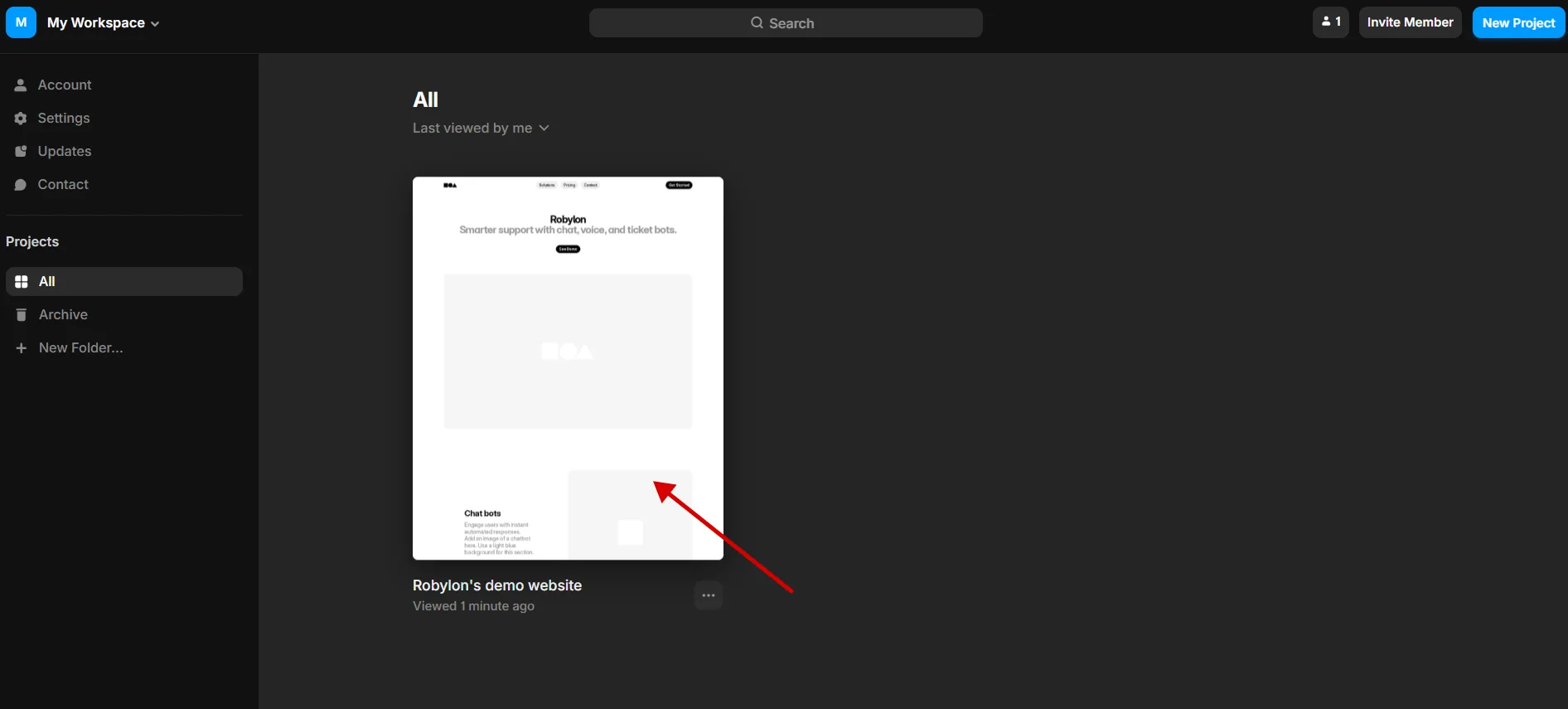
Sign in to Framer and open the site you want to add the chatbot to.
Open the site settings
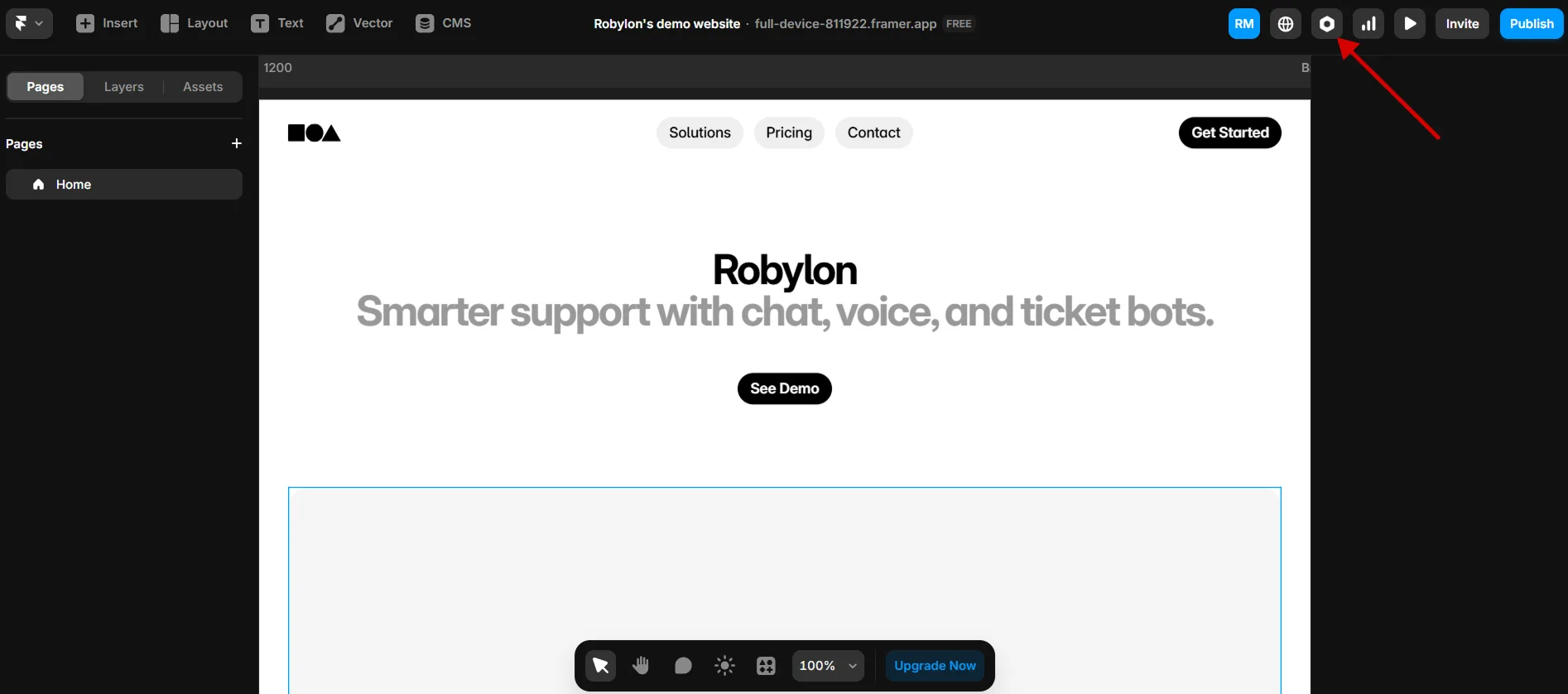
Click the settings icon in the top right of the Framer editor.
Paste the snippet into Custom Code
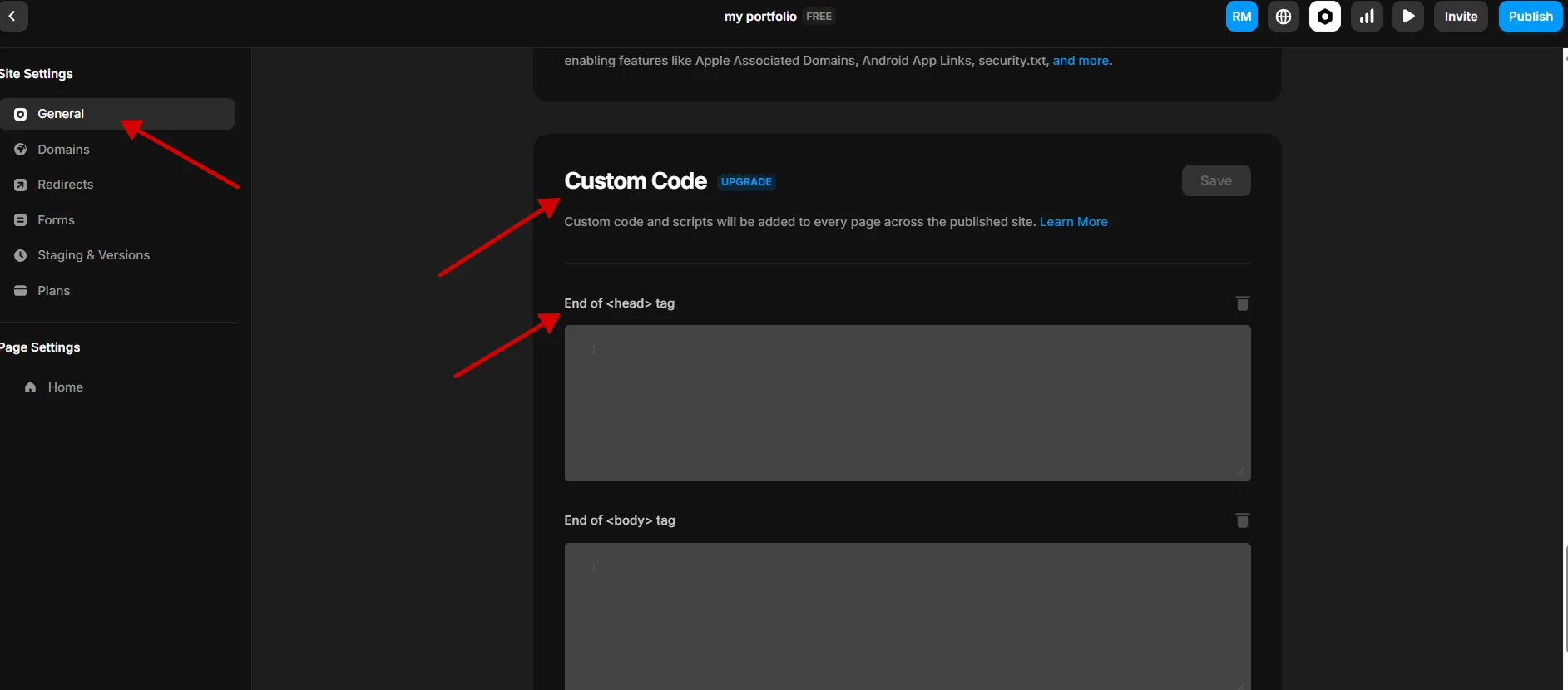
Open General in the settings sidebar and scroll to Custom Code. Paste the Robylon snippet in the field for the end of the <head> tag.
Save and publish
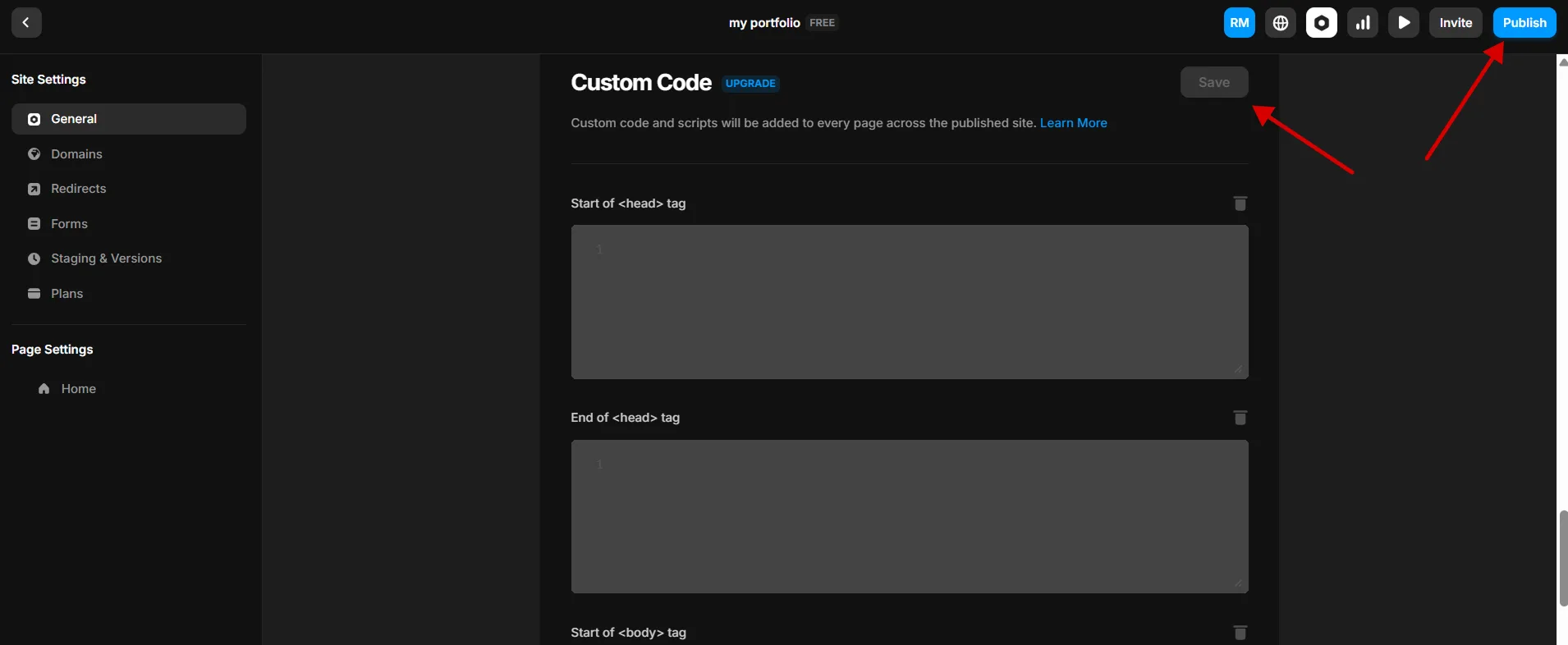
Save the settings and publish your site.
Test
Open your published site. The chatbot launcher appears in the corner of the page. Open it and send a test message.
If the launcher does not appear, see How do I know the chatbot is installed correctly?