
Add sources
The sources you can add to your Knowledge Base (Q&As, CSV uploads, files, Google Drive and web pages) and how to add each one.
Your Knowledge Base is the content your AI agents answer from. The better your sources, the better the answers.
To add a source, go to Knowledge → Source in the left sidebar and click Add Source.
Sources you can add
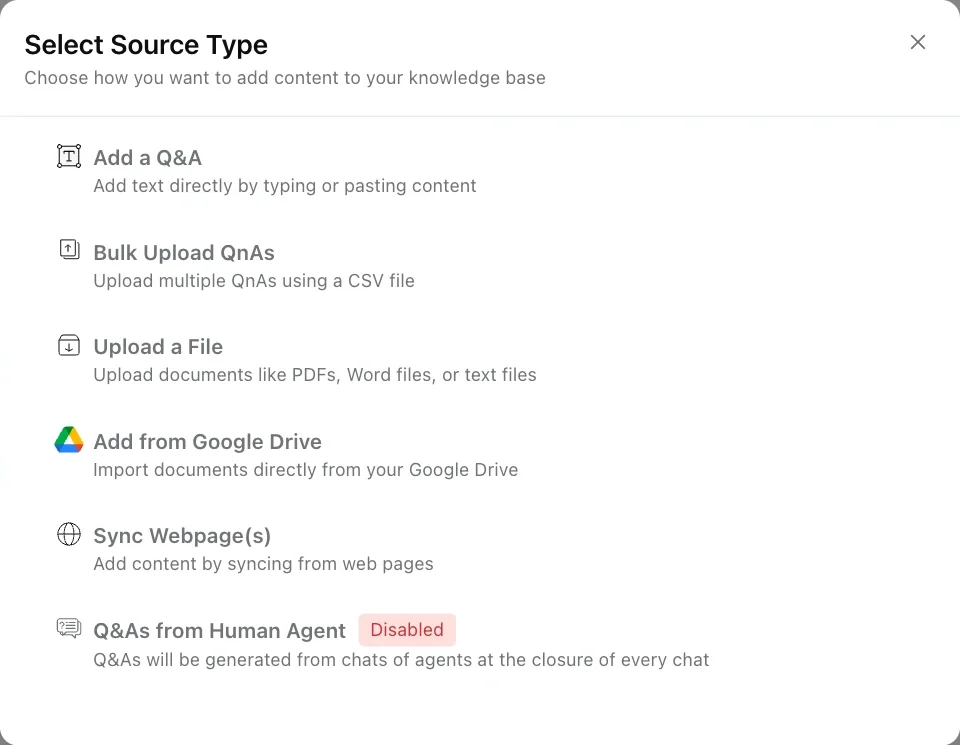
There are six kinds of source. Pick the one that matches the content you already have.
| Source | What it is | Use it for |
|---|---|---|
| Add a Q&A | One question and the exact answer you want given. | Your top questions, and anything where the wording matters, for example refund rules. |
| Bulk Upload QnAs | Many Q&As at once, from a CSV file. | Moving an existing FAQ list into Robylon. |
| Upload a File | A .pdf, .txt or .docx document, up to 50 MB. | Policies, manuals and guides you already have as files. |
| Add from Google Drive | Files or folders from a connected Google Drive. | Documents your team keeps editing. |
| Sync Webpage(s) | Public pages from your website. | Your help centre, FAQ pages and product pages. |
| Q&As from Human Agent | Q&As written from your teammates’ best replies. | Capturing answers that aren’t written down anywhere. See Q&As from human agents. |
Add a Q&A
Choose Add a Q&A, write the question and answer, and click Add Q&A.
Write the question
Enter a Title, then the Question a customer would ask. Click Add question for other ways of asking it, or Generate variants using AI.
Write the answer
Enter the Answer. Generate with AI drafts one you can edit.
Save
Click Add Q&A. It can be used in answers straight away.
You can also add Custom Instructions (how the agent should use this answer, see Custom instructions), a Reference Link sent with the answer, and KB Tags to limit when it is used.
Upload many Q&As at once
Choose Bulk Upload QnAs, click Download Sample CSV, fill in one Q&A per row, and upload it. Robylon shows every row before saving, so you can untick or fix any, then click Save.
What goes in the CSV
| Column | What to put in it |
|---|---|
qna_id |
Leave blank. |
question |
The main question. |
answer |
The answer the agent should give. |
alt_q_1 to alt_q_5 |
Up to five other ways customers ask the same question. |
tags |
Optional plain labels, separated by commas. These are not KB tags. |
- Keep the sample’s column headers exactly as they are, and save your spreadsheet as CSV.
- Uploading never deletes anything, and duplicates are not detected. Search your sources first so you don’t add the same question twice.
- KB tags you pick on the review step apply to every Q&A in the file.
Upload a file
Choose Upload a File, drag in your documents or click Select from Device, and click Add File(s). Each file shows Processing while Robylon reads it, then Enabled once the agent can use it.
Uploaded files don’t update themselves. To change one, upload the new version and delete the old one, or keep the document in Google Drive instead.
Add files from Google Drive
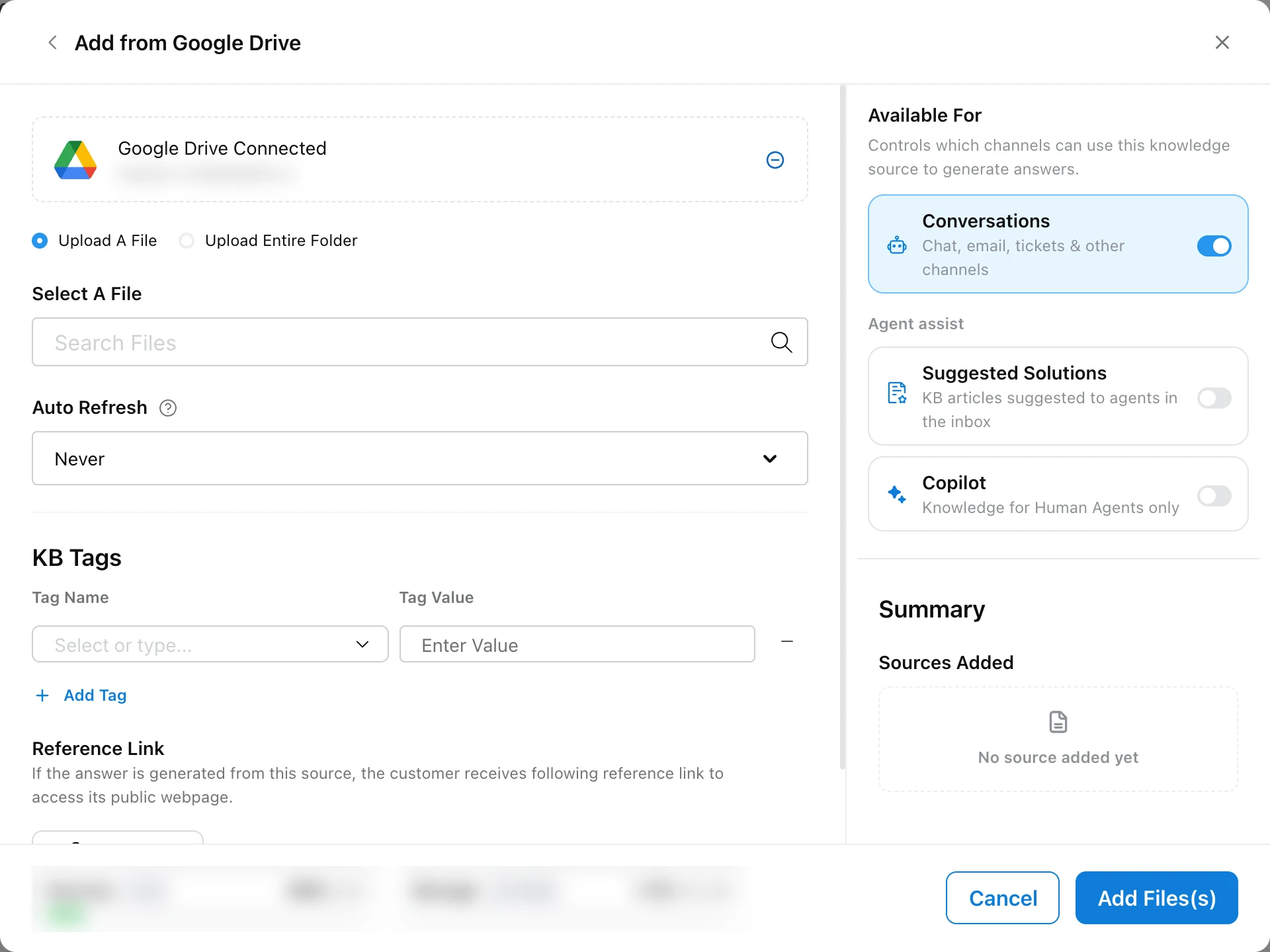
Choose Add from Google Drive, click Connect and sign in to the Google account that owns the files. Then pick single files with Upload A File, or a folder with Upload Entire Folder, and click Add Files(s). PDF, Docx and Google Doc files are supported.
Set Auto Refresh to have Robylon check the files for changes every Monday, month or quarter. Whether Auto Refresh is available depends on your plan and usage. See Keeping sources up to date.
Add pages from your website
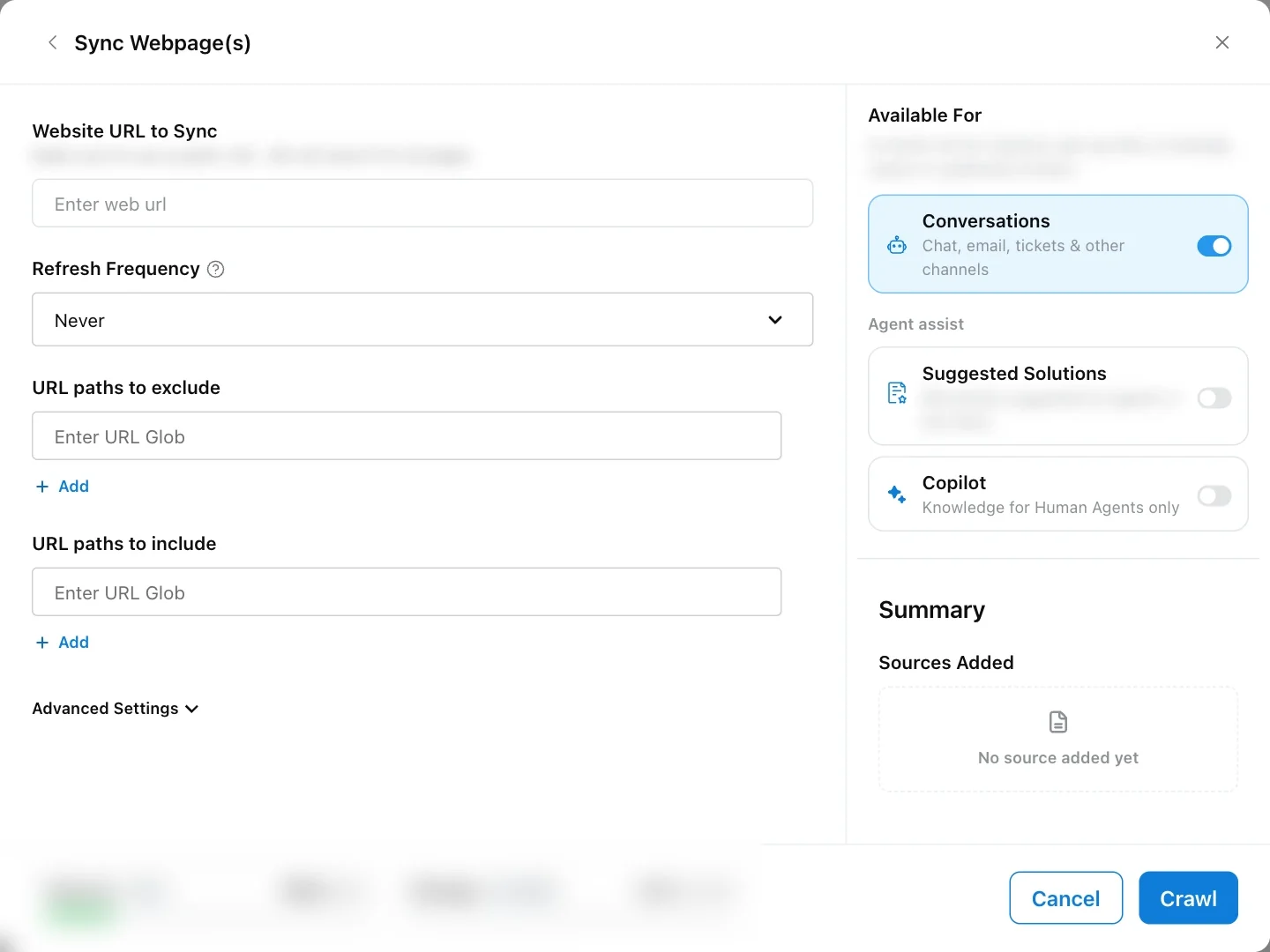
Choose Sync Webpage(s), enter your site’s address in Website URL to Sync, and click Crawl. When it finishes, tick the pages you want under Page List and click Add Sources.
Set Refresh Frequency to sync the pages again every Monday, month or quarter. See Keeping sources up to date.
Crawl limits and advanced settings
- A crawl adds up to 200 pages. For bigger sites, run one crawl per section.
- Only public pages can be read. Pages behind a login are skipped.
- Pages you already added are skipped, so overlapping crawls don’t create duplicates.
- URL paths to include and URL paths to exclude narrow the crawl, for example
https://help.example.com/articles/*or*/careers*. Without an include path, only pages under the address you entered are crawled.
| Advanced setting | What it does |
|---|---|
| Additional URLs | Comma-separated pages to add even if the crawl would not find them. |
| Wait to load CSS selector | Waits for an element, for example #article-body, before reading pages that load with JavaScript. |
| Use XML Sitemap | Also reads your sitemap.xml to find pages. Off by default. |
Source limits
Each plan limits the number of sources and their total size. The Source Count and Source Size cards at the top of the Source page show what you have used. Every Q&A and every web page counts as one source. See Manage your Knowledge Base.
Related guides
- Keep sources up to date
- Manage your Knowledge Base: statuses, tags and where each source is used
- Bulk testing: check answers before you go live