
Wix
Add the Robylon chatbot to your Wix site with Wix's Custom Code setting, then publish.
To add the Robylon chatbot to a Wix site, copy the chatbot’s snippet from Robylon and add it through Wix’s Custom Code setting. You need admin access to the Wix site.
How do I copy the chatbot snippet from Robylon?
Go to Settings → Channels → Chatbot, click your chatbot, open the Install tab, choose Web → Wix, and copy the snippet. It already contains your Chatbot ID. See Installation for what the snippet does.
How do I add the chatbot to my Wix site?
Add the snippet as custom code, choose the pages, then publish.
Open your site
Sign in to Wix, open your site and click Design Site (or Edit Site).
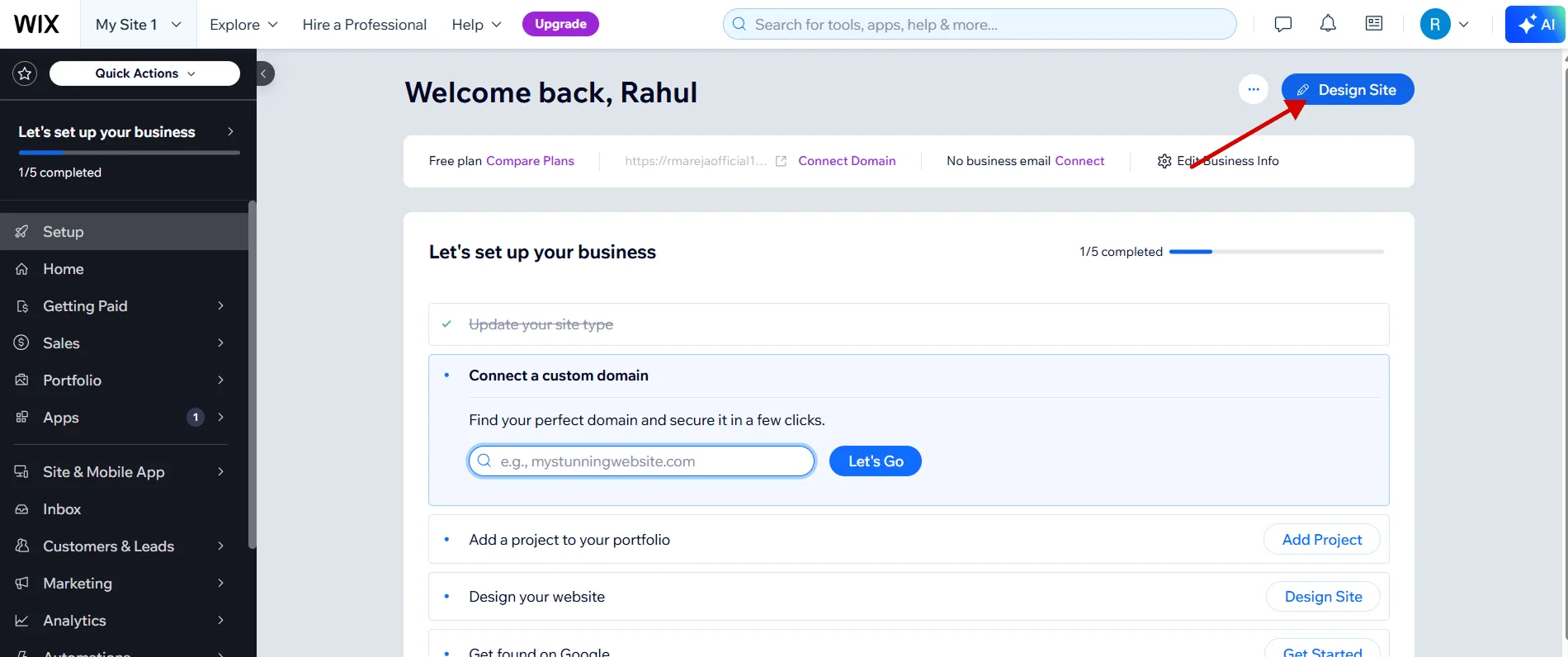
Open Custom Code
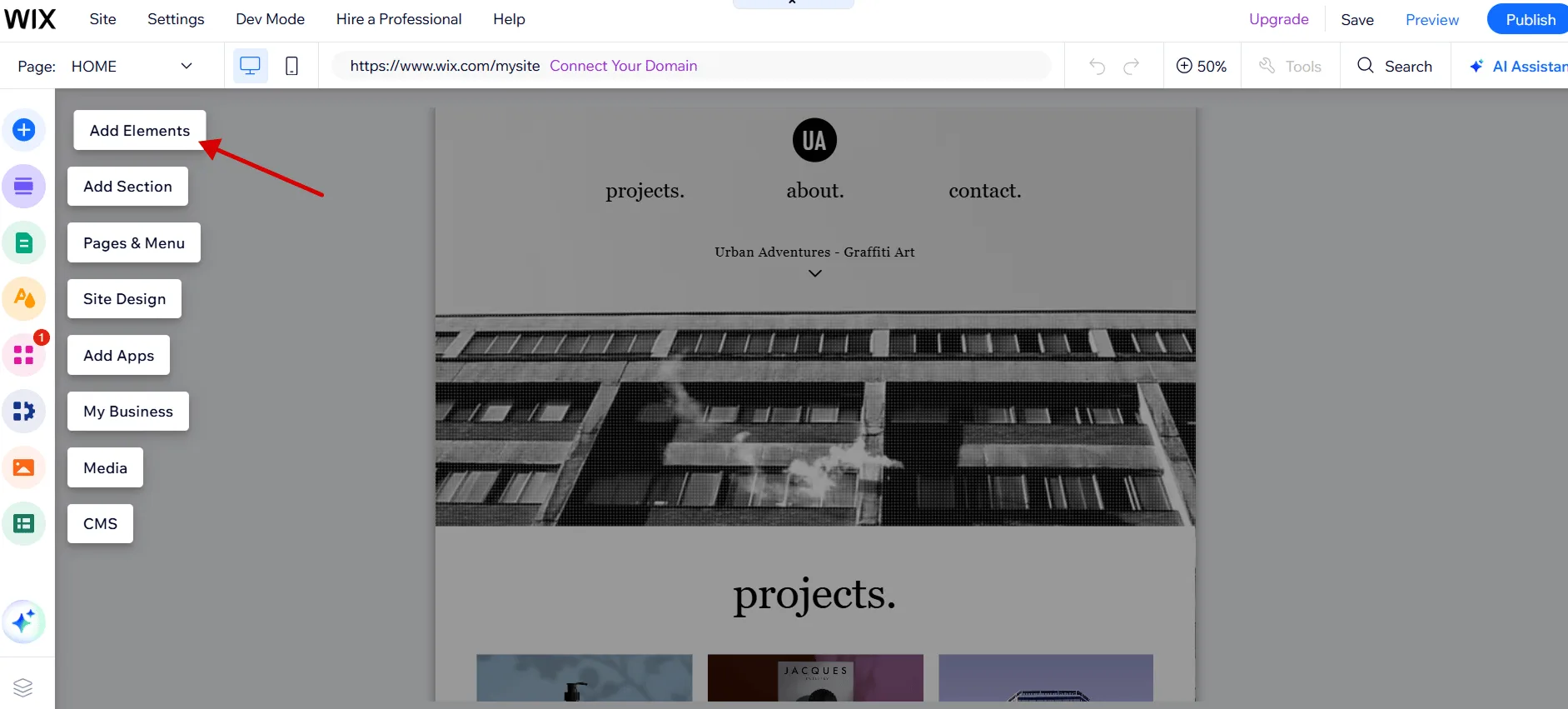
Click Add Elements (the plus icon) in the left sidebar, then Embed Code → Marketing Tools → Custom Code.
Add the snippet
Click + Add Custom Code, paste the Robylon snippet, and give it a name such as “Robylon chatbot”.
Choose pages and placement
Under Add Code to Pages, choose All pages or the pages you want. Under Place Code, choose Head.
Apply and publish
Click Apply, publish your site, and open it to check that the chatbot launcher appears and answers a test message.
If the launcher does not appear, see How do I know the chatbot is installed correctly?