
Click to Improve
Correct a Knowledge Base answer from the conversation it appeared in. See which sources it used, rewrite the question and answer, and save it as a Q&A.
Click to Improve lets you fix a Knowledge Base answer from the conversation where you saw it. You see the sources the agent used, rewrite the question and the answer the way they should be, and save the result as a Q&A. Next time a customer asks something similar, the agent answers from your Q&A.
It is the fastest way to tune answers while you test your agent before going live, and it works just as well on real conversations afterwards.
The Click to Improve link appears under AI answers that came from the Knowledge Base when you open a conversation in the dashboard, in Transcripts or in the Inbox. When one answer was sent as several messages, the link appears under the last of them.
Find answers to review
In Transcripts, filter by KB answer and choose Available. The list then shows only conversations where the AI answered from the Knowledge Base, which are the ones with a Click to Improve link. Choose Unavailable to see conversations the AI could not answer from the Knowledge Base. See transcripts.
Fix an answer
Click Click to Improve under the answer, edit the question and answer, and click Add Q&A.
Find the answer
Open the conversation in Transcripts and scroll to the AI answer you want to fix.
Open Click to Improve
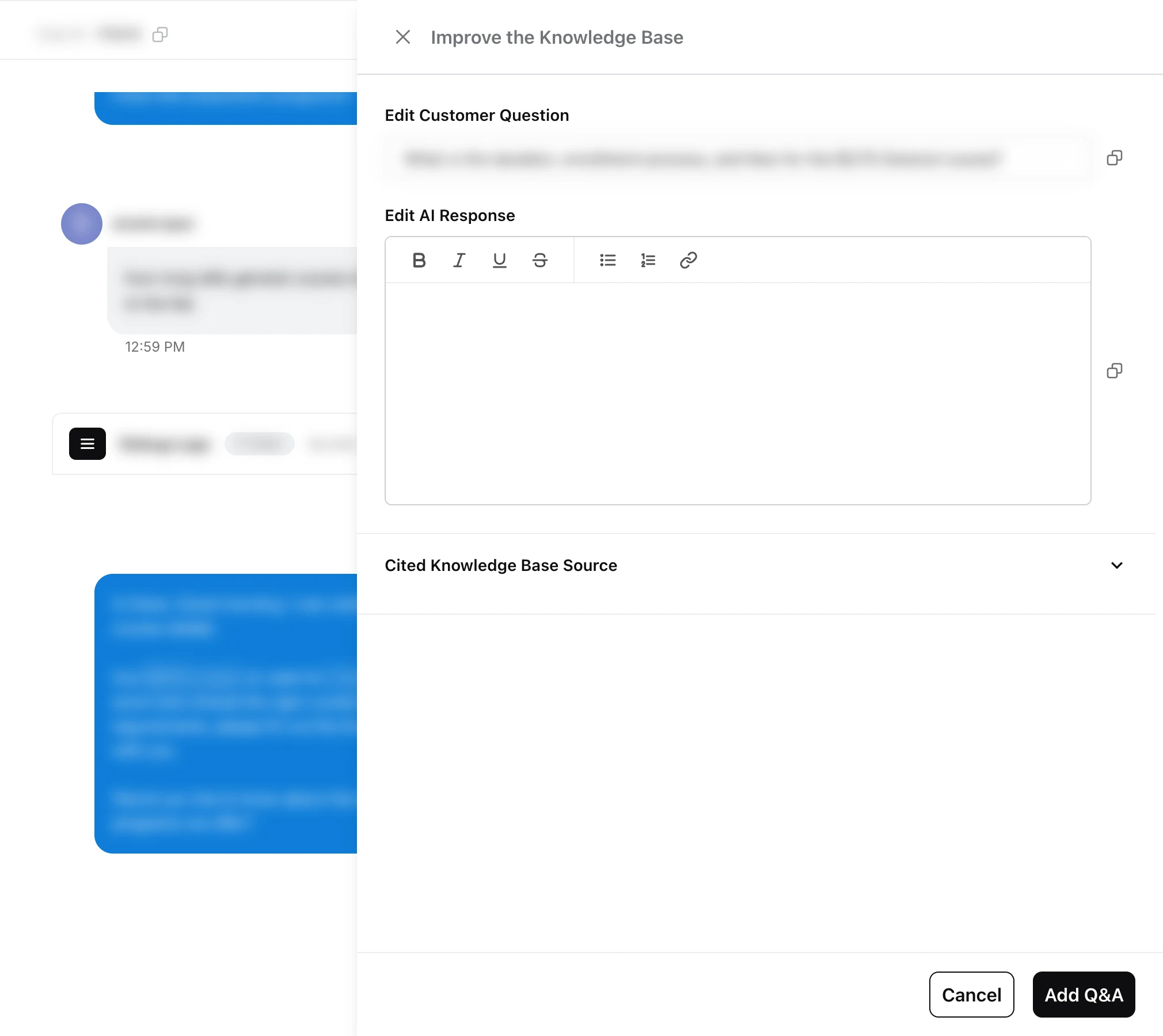
Click Click to Improve under the answer. The Improve the Knowledge Base panel opens beside the conversation.
Check the sources
Expand Cited Knowledge Base Source to see which sources and passages the agent used. This tells you why it answered the way it did.
Edit the question
Edit Customer Question is filled in with what the customer asked. Rewrite it as a general question any customer might ask, without names or order numbers.
Edit the answer
Edit AI Response is filled in with the agent’s answer. Rewrite it into the answer you want customers to get.
Save
Click Add Q&A. The new Q&A is live straight away.
Your original sources are not changed. The fix is saved as a separate Q&A, and because the agent is told to prefer Q&As over documents, it wins the next time the same question comes up.
What the sources tell you
The cited sources point to the right fix:
| What you see | What it means | What to do |
|---|---|---|
| The right source, but the answer is wrong or incomplete | The content is unclear or split across sections | Save a Q&A with the correct answer, then tidy the source |
| An old or wrong source | Out-of-date content is still live | Save a Q&A, then update or delete the old source |
| No relevant source at all | The Knowledge Base does not cover this | Save a Q&A, and add a proper source if the topic is broad |
Who can use Click to Improve
Click to Improve is available to teammates with the Supervisor role or higher. Teammates with the Agent role can use it too if full agent access is switched on for your workspace. This is available on request: email support@robylon.ai.
Write a good fix
- Make the question general. “Where is my order 48213?” should become “How do I track my order?”
- Answer completely in one place. Include the steps, limits and links the customer needs.
- Add alternate questions later by opening the Q&A from Knowledge → Source, so customers who phrase it differently still reach it.
- Check your fix by asking the question again in a test conversation.
For many answers at once, use bulk testing. For questions the agent could not answer at all, see KB gap.