
Reports
Create one-time or scheduled CSV reports of chats, tickets, agents, voice calls, WhatsApp delivery and more, send them to your team by email, and download past reports.
Reports export your Robylon data as a CSV file and email it to you or your team. Send one straight away, or schedule it to arrive daily, weekly, every two weeks or monthly. Use reports when you need the raw data in a spreadsheet or BI tool, or when people who do not log in to Robylon need the numbers.
Open it from Analytics & Insights → Reports.
What can I export in a report?
Each report pulls one data source. Pick a ready-made template, or build a custom report from any source and choose its columns.
| Data source | One row per | Templates |
|---|---|---|
| Chat Data | Chat conversation | Daily Chat Summary, Chat CSAT Report, Bot Performance, Full Chat Export |
| Tickets Data | Email or helpdesk ticket | Ticket Summary, SLA Compliance |
| Assigned Agents : Chat | Agent (chat performance) | Agent Scorecard |
| Assigned Agents : Tickets | Agent (ticket performance) | |
| Agent Attendance | Agent status change (login, logout, breaks) | Agent Attendance Log |
| Agent Productivity Hourly | Agent per hour (volume, performance, quality, utilization) | Hourly Agent Productivity |
| Voice Calls | Voice call | Daily Call Log, Voice Campaign Results |
| WhatsApp Delivery | WhatsApp template message | WhatsApp Delivery Summary, Full WhatsApp Export |
| KB Gaps | Question the Knowledge Base could not answer | KB Gaps Weekly |
| Workflow Executions | Run of a workflow | Workflow execution Log |
| Campaign Summary | Outbound campaign | Daily Campaign Tracker, Weekly Campaign Review |
| Evaluation Runs | Evaluation run | Evaluation Runs Log |
Templates are grouped into the categories Chat, Tickets, Agents, Voice, WhatsApp, AI, Campaigns, Executions and Evaluations. A category only appears when your workspace uses it: for example, Voice appears once you have an active voice channel, and Evaluations once you have run an evaluation.
How do I create a report?
Choose the data, then choose how it is delivered.
Open Create Report
Go to Analytics & Insights → Reports and click + Create Report.
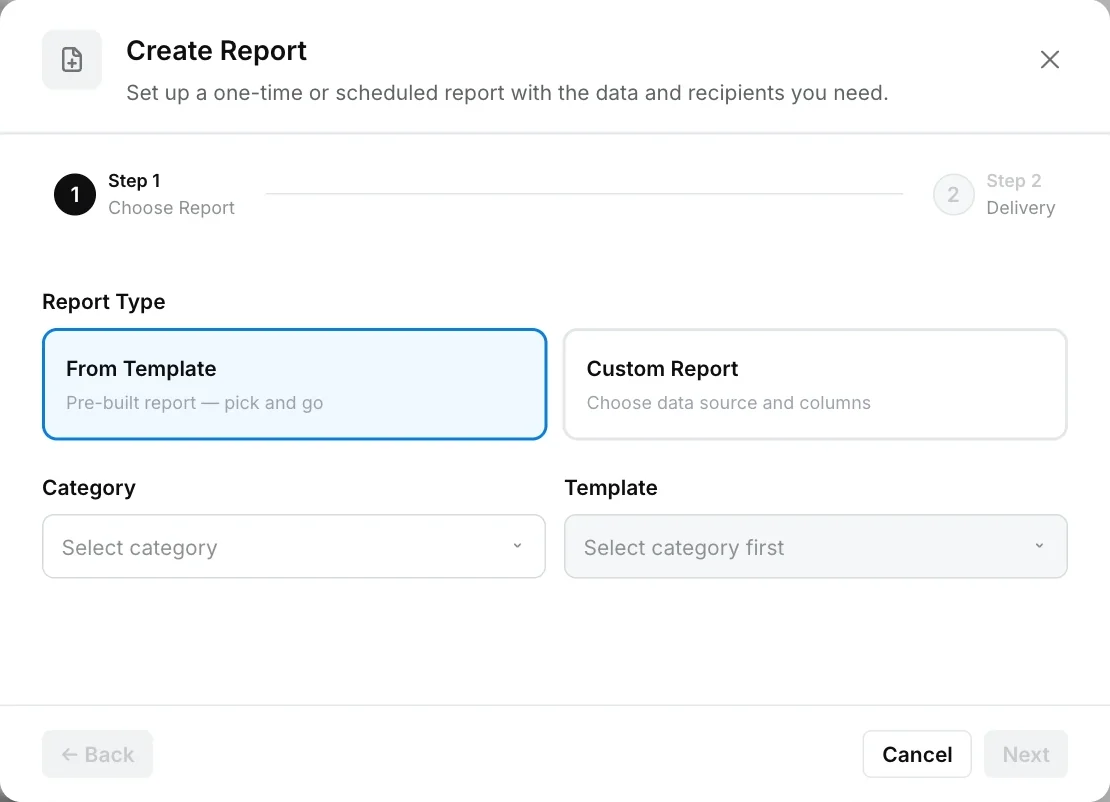
Choose a template or a custom report
Under Report Type, pick From Template (a pre-built report) or Custom Report (you choose the data source and columns).
- From Template: select a Category, then a Template.
- Custom Report: select a Data Source. The number of available columns is shown next to each source.
Name the report and set the time range
Edit the Report Title and choose a Time Range: Today, Yesterday, Last 7 days, Last 30 days, Last 90 days, This month, Last month or Custom range. Click Next.
Select columns (custom reports only)
Tick the columns you want. They are grouped (for chats: Identifiers, Customer, Timings, Status, CSAT, Agent, Counts, Content, Links, Classification, Closure, Metadata, Tags, Resolution, Metrics). Select All adds every column. Click Next.
Choose delivery
Pick Email Now to send the report once, straight away, or Schedule to Email for recurring delivery (see below). Check the Summary box, then click Generate & Email or Create Schedule.
Report titles must be unique in your workspace. After you create a scheduled report you can change its title, report time, recipients and (for custom reports) columns, but not its frequency, timezone, report type, template or data source. To change those, create a new report.
How do I schedule a report?
Choose Schedule to Email in the Delivery step, then set:
| Field | What it does |
|---|---|
| Frequency | Daily, Weekly, Bi-weekly (every two weeks) or Monthly |
| Timezone | The timezone the send time and the report’s date range use |
| Report Time | The time of day the report is generated and sent (default 08:00) |
| Recipients | Type an email address and click Add. Add as many as you need. |
Robylon checks for due reports every 10 minutes, so a scheduled report can arrive up to about 10 minutes after the report time.
| Frequency | Sent on | Data covered |
|---|---|---|
| Daily | Every day | The 24 hours before the report time |
| Weekly | Every Monday | The 7 days before it is sent |
| Bi-weekly | Every other Monday | The 7 days before it is sent, so the week in between is not covered |
| Monthly | The same date each month as the day you created it | The month since that date in the previous month |
The data a scheduled report covers comes from its frequency. The Time Range you choose in Step 1 applies to Email Now reports.
What happens when I click Email Now?
Robylon generates the report immediately and emails it to you, the person who created it. The report appears in the list with the frequency On Demand.
For a custom date range on a one-time report, the range can be at most 31 days, and the end date cannot be before the start date.
One-time reports cannot be edited, paused or deleted once they are created. They stay in the list so you can download them again.
How do I receive and download a report?
Recipients get an email from noreply@robylon.ai with the subject “Robylon Report”, the report type and the date range. The email contains a download link to the CSV file. The link in the email works for 15 days.
To download a report from the dashboard, open Analytics & Insights → Reports, click the actions menu (three dots) at the end of the report’s row, and choose Download. The dashboard creates a fresh link each time, so you can still download reports whose email link has expired. A one-time report can be downloaded once its status is Sent.
To download an earlier run of a scheduled report, choose History in the same menu. Delivery History lists the latest runs by date, each with a .csv download button.
The file is a CSV, so it opens in Excel, Google Sheets or any BI tool.
How do I manage my reports?
The Reports page lists every report with its Name (and number of columns), Report Type, Frequency, Recipients, Status and Last Sent.
- Filter by Frequency (Daily, Weekly, Bi-weekly, Monthly) or Status (Active, Paused, Processing, Sent, Failed), or search by name.
- Edit a scheduled report by clicking its row.
- The actions menu (three dots) on a scheduled report has Download, History, Pause (or Resume) and Delete. A one-time report only has Download.
- Pause a scheduled report to stop sending it without losing its setup, then Resume it later.
- Delete a scheduled report you no longer need.
| Status | Meaning |
|---|---|
| Active | A scheduled report that will send at its next report time |
| Paused | A scheduled report that is switched off |
| Processing | A one-time report that is being generated |
| Sent | A one-time report that was generated and emailed |
| Failed | A one-time report that could not be generated. Try again, and contact support@robylon.ai if it keeps failing. |
Which fields are in a chat report?
The Chat Data source has these columns. Templates pre-select a subset: Full Chat Export includes all of them.
| Group | Columns |
|---|---|
| Identifiers | Session ID, Chat ID, Organization ID |
| Customer | User ID, User Name, User Email, User Mobile, User OS, User Browser |
| Timings | Created At, First User Message At, Ended At, Last Message At, Last Bot Message At, Last User Message At, Last Agent Message At, Last Read At, Agent Handover At, Agent First Message At |
| Status | Status, Resolution Status |
| CSAT | CSAT ID, CSAT Rating, CSAT Rating String, CSAT Survey Sent At, CSAT Survey Submitted At, CSAT Form Submitted At |
| Agent | Agent Name, Agent Email |
| Counts | Message Count, Bot Message Count, User Message Count, Agent Message Count |
| Content | Last Message |
| Links | Ticket ID |
| Classification | Intents |
| Closure | Chat Auto Closed, Chat Closed By, Closure Reason |
| Metadata | Is Test Chat, Automation Recipe, Chat Provider, Custom Variables |
| Tags | Tag 1, Tag 2, All Tags |
| Resolution | Handled By Bot, Resolved By Bot, Resolved By Agent |
| Metrics | Bot First Response Time (secs), Human Agent First Response Time (secs), Bot Resolution Time (secs), Agent Resolution Time (secs), Total Resolution Time (secs) |
Reports contain customer names, emails and phone numbers. Only send them to people who are allowed to see that data, and check your privacy settings.