
Evaluations
Create evaluations that have an AI model review conversations against your criteria, returning pass or fail, a score or written analysis, on demand or on a schedule.
An evaluation is a check that an AI model runs on your conversations. You describe what to look for, such as “Did the agent confirm the order number before cancelling?”, and choose the kind of result you want: pass or fail, a score, or a written analysis. Robylon then reviews conversations for you, so you can check hundreds instead of reading a handful.
Open it from Settings → AI Intelligence → Evaluations.
What can an evaluation return?
Choose one Metric for each evaluation:
| Metric | Result | Good for |
|---|---|---|
| Binary | Pass or Fail | Rules that are either followed or not: “Did the agent ask for consent before sharing the tracking link?” |
| Rating | A whole number on a scale you set, 1 to 5 by default | Quality you want to trend over time: “How well did the agent resolve the issue?” |
| Text | Free-form written output, as bullet points or a paragraph | Open questions: “Why did this customer ask for a human?” |
Every result also comes with the model’s reason, so you can see why a conversation passed, failed or got its score.
How do I create an evaluation?
Click Create Evaluation, describe what to check, pick a model and metric, and publish.
Start a new evaluation
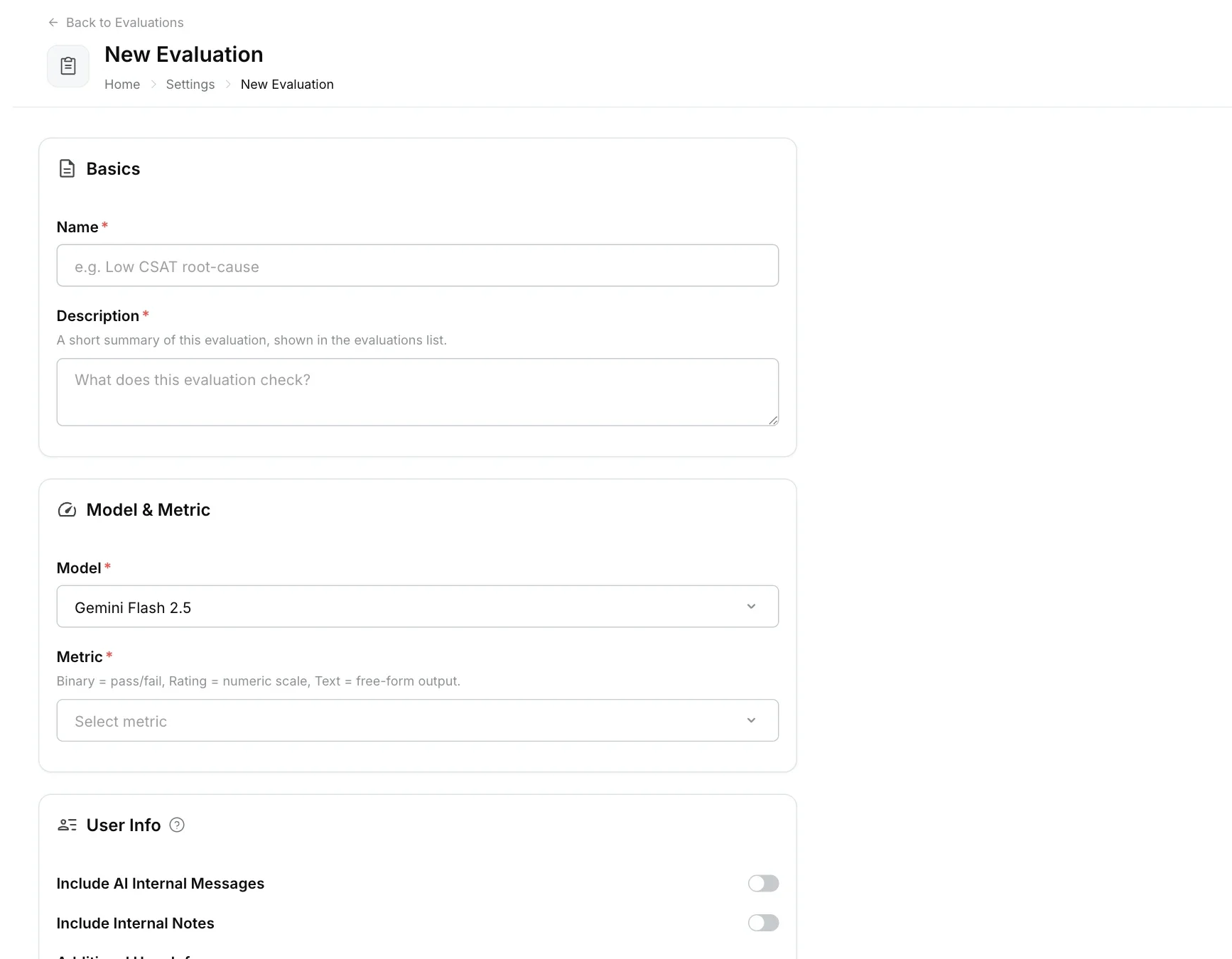
Go to Settings → AI Intelligence → Evaluations and click Create Evaluation.
Name and describe it
Under Basics, enter a Name (up to 100 characters, unique in your workspace) and a Description, the short summary shown in the evaluations list.
Choose the model and metric
Under Model & Metric, choose the Model that will review conversations, then the Metric. For Binary, describe what a pass and a fail look like. For Rating, set the lowest and highest values and what each means. For Text, choose the Output Format: Bullet points or Paragraph.
Choose what the model reads
The conversation history (customer and agent replies) is always included. Under User Info, you can also include AI Internal Messages (the agent’s internal steps), Internal Notes and Additional User Info.
Write the criteria
In Additional Instructions, write exactly what the model should check and how to judge it. Robylon’s own evaluation prompt wraps your instructions, so results stay consistent from week to week.
Set up auto-run (optional)
Turn on Auto-Run This Evaluation to run it on a schedule. See How do I run an evaluation automatically?
Create and publish
Click Create Evaluation. Test it, then Publish it to make it live.
How do I test an evaluation before using it?
Use Test. It runs the evaluation on your most recently updated closed chat, completed call or email ticket, so you can check the result and the reason before running it on more conversations. Adjust the instructions until the result matches what you would have decided yourself.
How do drafts and published versions work?
Each evaluation has a draft and a live version. Save keeps your changes in the draft. Publish makes the draft the live version that runs on conversations, and saves a version you can refer back to. On an existing evaluation, View Live Version shows what is currently running.
The evaluations list shows each one’s Type, Status (Live, Paused or draft), whether Auto-Run is on, how many Runs it has done, and when it was last updated.
Which conversations can be evaluated?
Closed chats, completed voice calls and email tickets. For voice calls, the call recording can be included for the model to listen to.
How do I run an evaluation on specific conversations?
Select the conversations in Transcripts or the inbox and choose Run evaluations. Evaluations do not run automatically when a conversation closes; use auto-run for that.
How do I run an evaluation automatically?
Turn on Auto-Run This Evaluation and choose how often it runs, how many conversations it may run on, and which conversations qualify.
- Frequency: every 12 hours or every 24 hours (the default).
- Limit: the most conversations it may evaluate per week or per month.
- Conditions: only evaluate conversations that match, for example by CSAT rating, who closed it (AI or Human), Channel, Tags or Properties. Combine conditions with and/or.
Each run picks conversations updated since the last run that this evaluation has not already reviewed, oldest first, until it reaches its limit. It does not sample at random.
Where do I see the results?
- On each conversation: the Evaluations section of the conversation panel lists every evaluation run on it, with its result, and when and by whom it ran.
- In filters: filter Transcripts and the inbox by Evaluations to find conversations an evaluation has run on, and by evaluation result under Evaluation.
What are system evaluations?
Some workspaces have four built-in evaluations, marked System in the list:
| Evaluation | What it returns |
|---|---|
| Chat Human Handover | Whether each closed chat was deflected by the AI or handed over to a human, and the main reason for the handover. |
| Email Human Handover | The same, for closed email tickets. |
| Chat CSAT | Whether each rated chat’s rating was positive (4 or 5) or negative (1 to 3), and the main driver behind it. |
| Email CSAT | The same, for rated email tickets. |
System evaluations are available on request: email support@robylon.ai. They cannot be archived, and only their model, criteria and a few settings can be edited.