
Bulk testing
Upload a CSV of real customer questions, let the KB agent answer every one, then grade each answer, see its sources and export the results.
Bulk testing shows you how your AI agent answers dozens or hundreds of questions at once, before customers see those answers. Upload a list of questions, the KB agent answers each one from your Knowledge Base, and you grade the answers and check the sources behind them.
Open it from Knowledge → Testing.
Run a test
Create a test, upload a CSV of questions, and click Start Test.
Prepare your questions
Make a CSV file with a column headed Question and one question per row. Click Download Sample CSV in the next step if you want a template.
Create the test
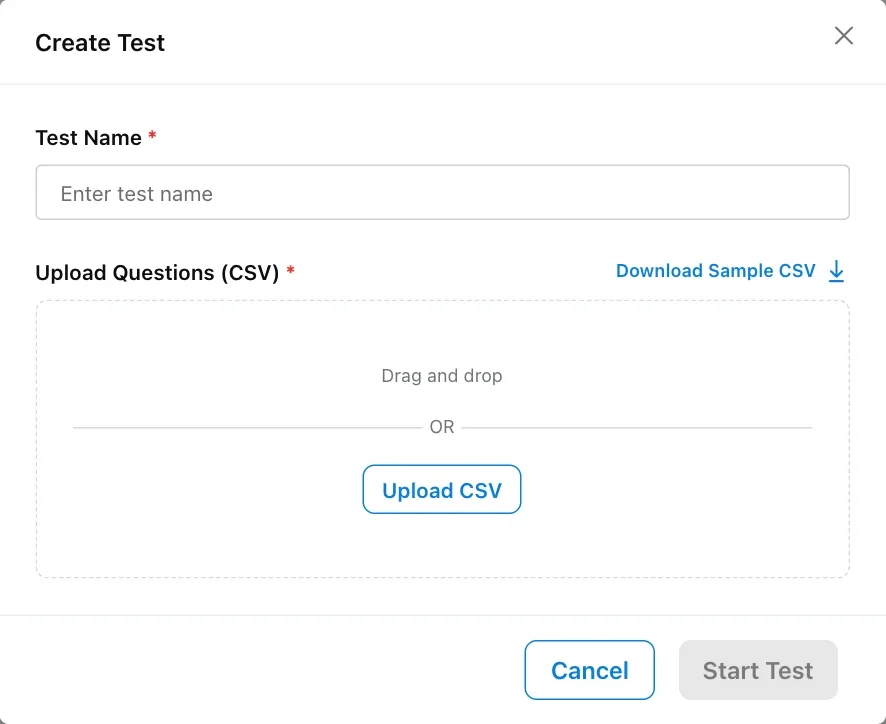
Go to Knowledge → Testing and click Create Test.
Name it and upload
Enter a Test Name, then drag your CSV into Upload Questions (CSV) or click Upload CSV.
Start
Click Start Test. The test appears in the list as Running while the KB agent answers the questions in the background, five at a time.
There is no fixed limit on the number of questions. Larger files simply take longer to finish.
If the upload is rejected, check that the file is a CSV, is not empty, and has a Question column header (upper or lower case both work).
The questions are answered by the Knowledge Base Agent with its live (published) settings, so unpublished draft changes are not tested. Each question is asked on its own, with no conversation history and no customer variables, so sources limited by KB tags to particular customers are not filtered for the test.
Where good test questions come from
Use the questions your customers really ask, in their words:
- Your existing support inbox: export the first message of recent tickets or chats.
- Your FAQ and help centre: each article title, rewritten as a customer would ask it.
- Tricky cases: vague questions (“it’s not working”), misspellings, two questions in one message, and questions your Knowledge Base should not answer.
Start with 50 to 100 of your most common questions. That is enough to spot gaps without a long review.
Test statuses
| Status | Meaning |
|---|---|
| Running | The KB agent is still answering the questions. |
| Pending Review | All answers are ready and none has been graded yet. |
| Partially Reviewed | Some answers have been graded. |
| Reviewed | Every answer has been graded. |
The test list shows each test’s Name, Total Questions, Status and Run Date. Use the Status filter and search to find a test.
Review the answers
Open a test, click a question, check the answer and its sources, and grade it.
The test page shows the total number of questions at the top, with a bar that breaks them down by rating, and a list of every question with its Answer Status and Answer Rating. Answer Status tells you whether the agent produced an answer at all: Available or Not Available.
Click a question to open the Evaluate Answer panel:
Read the answer
The question and the agent’s answer are shown at the top.
Check the sources
Expand Cited KB Source to see the sources and passages the agent used.
Grade it
Under Review Answer, choose Good, Acceptable or Poor. For a poor answer, open Select reasons and pick one or more reasons from the table below.
Add a note (optional)
Use Add internal note to record what the right answer should be.
Your rating, reasons and note are saved automatically as you make them. There is no Save button and no way to grade several questions at once.
Fix what the test finds
The reason you chose points to the fix:
| Reason | Fix |
|---|---|
| Didn’t use the correct content | Update or delete the old or unrelated source, or use KB tags and custom instructions to point the topic to the right one |
| Used the content incorrectly | Add a Q&A with the right answer, and a custom instruction if it keeps happening |
| Didn’t clarify the customer’s question | Add alternate questions to the Q&A, or an instruction on when to ask a clarifying question |
| Tone wasn’t right | Add a tone rule to the KB agent’s custom instructions |
| Answer length is too long or short | Add a length rule to the KB agent’s custom instructions |
| Didn’t speak in the right language | Add a language rule to the KB agent’s custom instructions |
| Other | Record the problem in the internal note |
| No answer at all (Not Available) | Add a source or a Q&A |
Then run the same CSV again as a new test and compare the results.
Export results
Select one or more tests in the list and click Download, or open a test and use its download button. You get a zip file with one CSV per test, with these columns: Question, Answer, Answer Rating, Answer Status, Internal Note and Reason. Every question is included, graded or not.
To delete tests, select them and click Delete, then confirm.
Test again after going live
Test again whenever you change your Knowledge Base or instructions in a big way. Keep your question file and re-run it. After launch, also watch real conversations with KB gap and transcripts.