
Forms
Build forms that collect names, emails, phone numbers and other details inside a chat, and show them through an AI agent or workflow.
A chatbot form collects structured details from a customer inside the chat, such as their name, email, phone number or order number. Forms are useful for lead capture, callback requests and any case where you need exact details rather than free text.
Open chat forms from Settings → Inbox & Productivity → Forms.
Robylon also has website forms, which you embed on a page of your site and which create email tickets. See website forms.
How do I create a chatbot form?
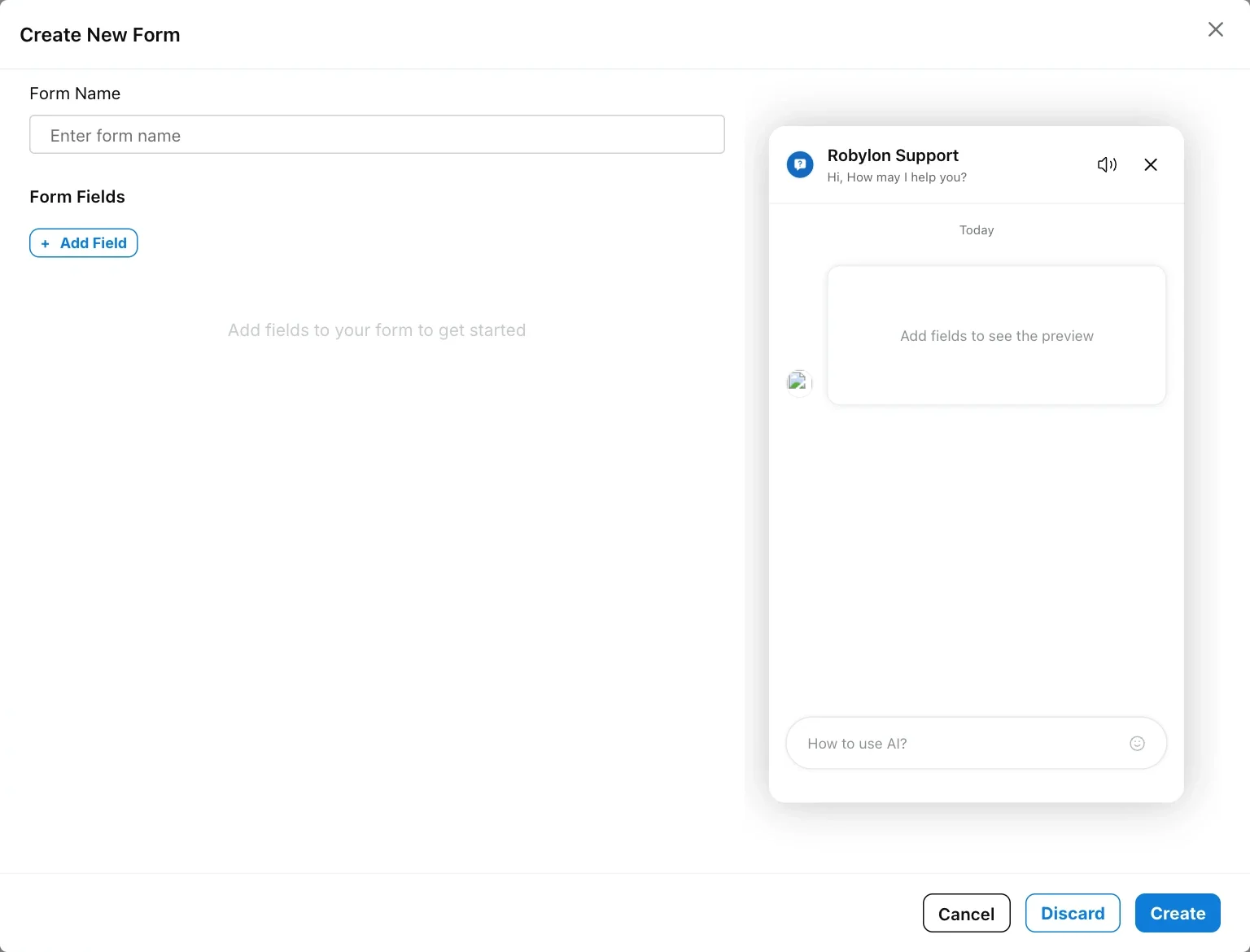
Name the form, add fields, check the preview and click Create.
Open Forms
Go to Settings → Inbox & Productivity → Forms and click + Create Form.
Name the form
Enter a Form Name you will recognise later, for example “Callback request”.
Add fields
Click Add Field and pick a ready-made field or Add Custom Field. Repeat for each field.
Check the preview
The chat preview on the right shows the form as the customer will see it, with a Submit button.
Save
Click Create.
Which fields can I add?
You can add ready-made fields or build your own.
| Group | Ready-made fields |
|---|---|
| Person Data | Full Name, Email, Phone |
| Company Data | Company Name, Company Size, Industry, Website |
A custom field has these settings:
| Setting | What it does |
|---|---|
| Field Name | The label the customer sees. |
| Description | Help text shown to the customer under the field. |
| Field Type | Text, Email, Number, Phone or Boolean (yes or no). |
| Validation Description | Any rule the value must follow, in plain words, for example “10-digit mobile number”. |
| Is this a required field? | When on, the customer cannot submit without filling it in. |
Email and phone fields are checked for a valid format before the form is accepted.
How do I show a form in the chat?
Connect the form to an AI agent or a workflow. A form on its own does not appear in the chatbot.
- Through an AI agent: create a tool of type Forms (“Create a tool using form inputs”), pick the form, and add the tool to a custom AI agent. The agent shows the form when the conversation calls for it, and can fill in details the customer has already given. See Tools.
- Through a workflow: add the Form step from the Listen steps. On the canvas it shows as Send Form. It shows the form and waits for the customer to submit it, with No Match and No Reply paths. See Listen steps.
Where do form submissions go?
Each submission is saved against the form and added to the conversation as a message, so agents can see what the customer entered.
To see all submissions, open Contacts → Leads in the left sidebar. Choose a form under Forms, set the date range, and search the list. Click Download to save the submissions as a CSV file.