
Unified inbox
Find your way around Robylon's unified inbox, switch between default, personal and shared views, filter and sort conversations, and save a filter as a view.
The unified inbox is where your team reads and answers every customer conversation, from chat, WhatsApp, Instagram, email and voice, in one list. It shows conversations the AI handled on its own as well as the ones handed to a human.
Open it from the Inbox icon in the left sidebar. Email tickets appear here too, see Tickets.
How is the inbox laid out?
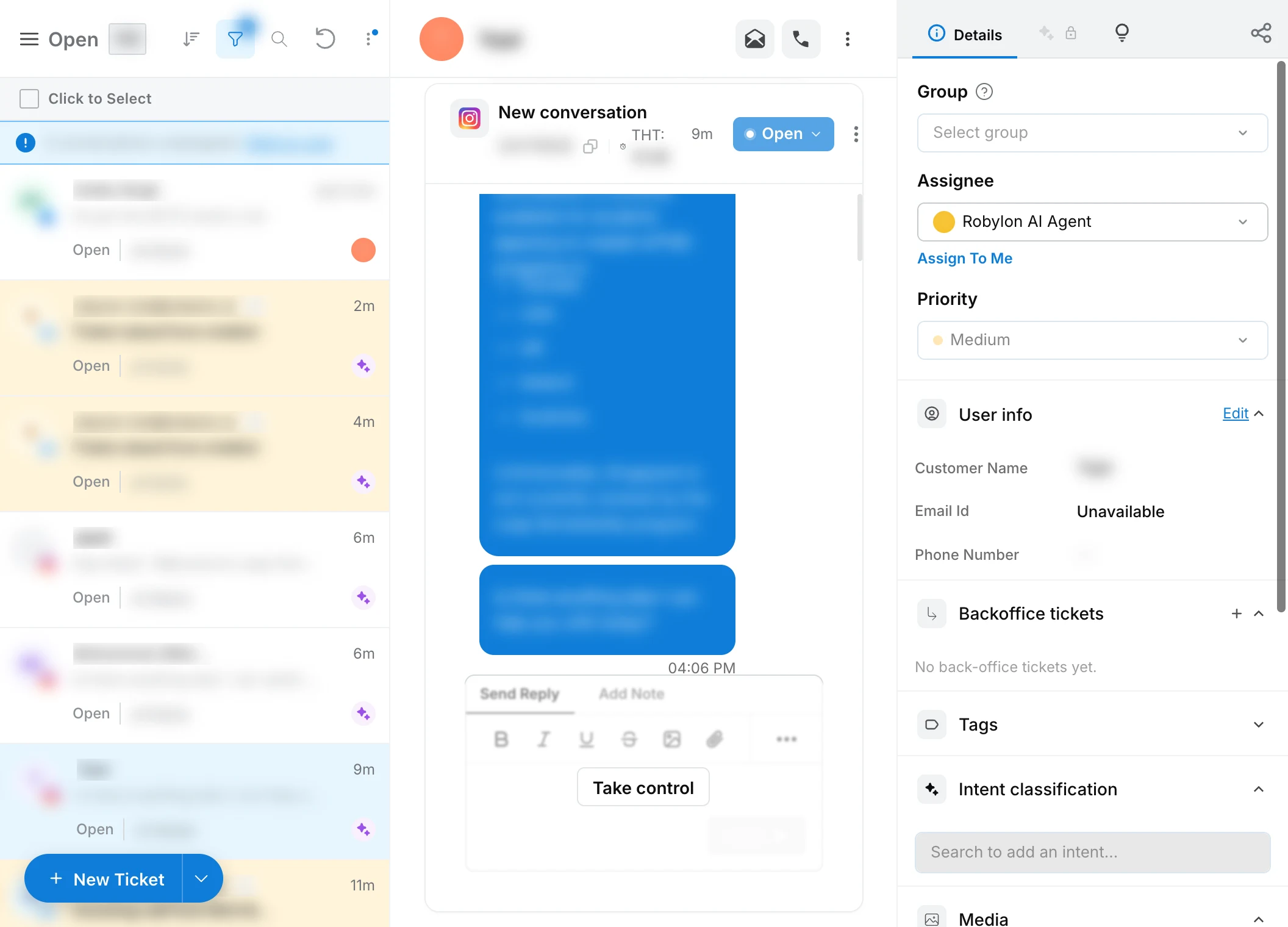
The inbox has three panes:
| Pane | What it shows |
|---|---|
| Conversation list (left) | One row per conversation: customer name or phone number, channel icon, latest message, status, conversation ID and the assignee’s avatar. New conversations and ones that need a first reply are highlighted. |
| Conversation (centre) | The messages, the composer for replying, and the customer’s earlier conversations. |
| Details panel (right) | Group, assignee and priority, customer info, properties, tags, intents and more. The layout is set in Inbox panel. |
A banner above the list tells you how many conversations are unassigned. Click Click to view to open them.
Which conversations can I see?
It depends on the teammate’s role:
| Role | Sees |
|---|---|
| Agent | Conversations assigned to them, plus unassigned ones, including the Unassigned view. Agents do not see conversations assigned to other teammates. |
| Supervisor, Admin, Super Admin | Every conversation. |
What are views?
A view is a saved list of conversations. Click the menu icon at the top left of the conversation list to open the Views panel. Each view shows a live count of the conversations in it.
There are three kinds:
- Default views: built in, the same for everyone.
- Personal views: views you create for yourself.
- Shared views: views shared with the whole team. Add one with Add Shared View.
The default views are:
| View | Shows |
|---|---|
| Assigned to me | Conversations assigned to you. |
| All | Every conversation, whatever its status or assignee. |
| Open | Conversations that are still active. |
| Unassigned | Conversations waiting for an agent. Watch this to keep first response times low. |
| Closed | Resolved conversations, kept for reference and reporting. |
| Waiting on agent | Conversations where the customer spoke last and your team owes a reply. |
| Waiting on customer | Conversations where your team replied and is waiting for the customer. |
To open the inbox on a particular view every time, open the three-dot menu next to it and choose Set as default. The default view is marked with a star.
How do I filter conversations?
Click the funnel icon at the top of the conversation list to open Apply Filters, set the filters you need and click Apply. Clear All resets them. The funnel shows how many filters are active.
| Group | Filters |
|---|---|
| General | Date Range (by Last activity, Created at, Handover at or Closed at), Channel, Handled By (AI or human), Human Agents, Agent Groups, Evaluations, Status, Priority, Test conversations |
| Chat | Chat Insights Available, Chat Net Sentiment Score, Chat Sentiment Shift Score, User Turns |
| CSAT | CSAT Rating, CSAT Form, and conditions on CSAT responses |
| Voice | Voice Call Direction, Voice Call Status, Exclude test voice calls, Voice Calling Numbers, Voice User Turns, Voice Call Duration, Voice AI Agents |
| Intent Classification | Intents assigned to the conversation |
| General tags | Tags added to the conversation |
| Properties & Entities | Conditions on any property or entity |
| Evaluation | Conditions on evaluation results |
To search for a specific customer or conversation, use the search icon next to the funnel.
Search looks up free text as well as email, phone number, user ID, chat ID and voice call ID.
How do I save a filter as a view?
Set your filters, then click Save as View at the bottom of the Apply Filters drawer. The view appears under Personal views. Use the + next to Personal views to start a new one.
How do I sort the list?
Click the sort icon at the top of the list. Sort by Last activity, Created, Handover at or Closed at, and choose Newest first or Oldest first.
Can I act on many conversations at once?
Yes. Tick Click to Select at the top of the list, select the conversations, and choose an action from Bulk actions. Bulk actions are part of the Advanced and Expert seats.
| Group | Actions |
|---|---|
| Triage | Change Status, Assign to an agent, Assign to a group |
| Respond | Send Reply, Run Macro |
| Analyze | Run Evaluations, Download Transcripts |
What can I do from an open conversation?
Reply, add internal notes, run macros and change the assignee from the conversation itself. The three-dot menus at the top of the conversation have the rest:
| Action | What it does |
|---|---|
| Share | Copies a link to the conversation that only your workspace can open. |
| Copy Transcript | Copies the messages with sender names and times. |
| Export as .txt, Export as .pdf | Downloads the conversation. |
| Merge ticket | Merges this conversation into another ticket. |
| View all conversations | Loads the customer’s other conversations from the last 30 days. |
| Mark as test user | Leaves the customer’s conversations out of analytics. |
| Block / Unblock channels | Blocks the customer on WhatsApp or email. |
See Viewing and sharing conversations for replying, notes and transfers.
What happens when I block a customer?
The customer can no longer reach you on the channel you block, and their open conversations on it are closed.
- WhatsApp: Robylon places the block with Meta, so their messages stop reaching your number. Meta only accepts a block within 24 hours of the customer’s last message. If it fails, Robylon retries the next time they write in.
- Email: new emails from their address are dropped and do not create tickets.
- Open conversations on the blocked channel close straight away, with no closing message, CSAT survey or notification. Past conversations and the customer’s other channels are not affected.
Block only real abuse or spam, because a blocked customer gets no message telling them. To reverse it, choose Block / Unblock channels again and unblock the channel. See Users and leads.
How do I start a new conversation or ticket?
Use the New Ticket button at the bottom of the list. Its menu also offers New WhatsApp conversation and New call. Pin the action you use most to make it the button’s default. See Tickets.