
Q&As from human agents
Turn your teammates' closed chats into Q&As automatically. Choose whose chats to learn from, set a cap of up to 500, and review each Q&A before it goes live.
Q&As from Human Agent turns the answers your teammates give into Knowledge Base Q&As. When a chat handled by a teammate you selected is closed, Robylon reads it, pulls out the questions the customer asked and the answers your teammate gave, and saves them as Q&As. Your AI agents can then answer those questions themselves next time.
Set it up from Knowledge → Source → Add Source → Q&As from Human Agent.
Turn it on
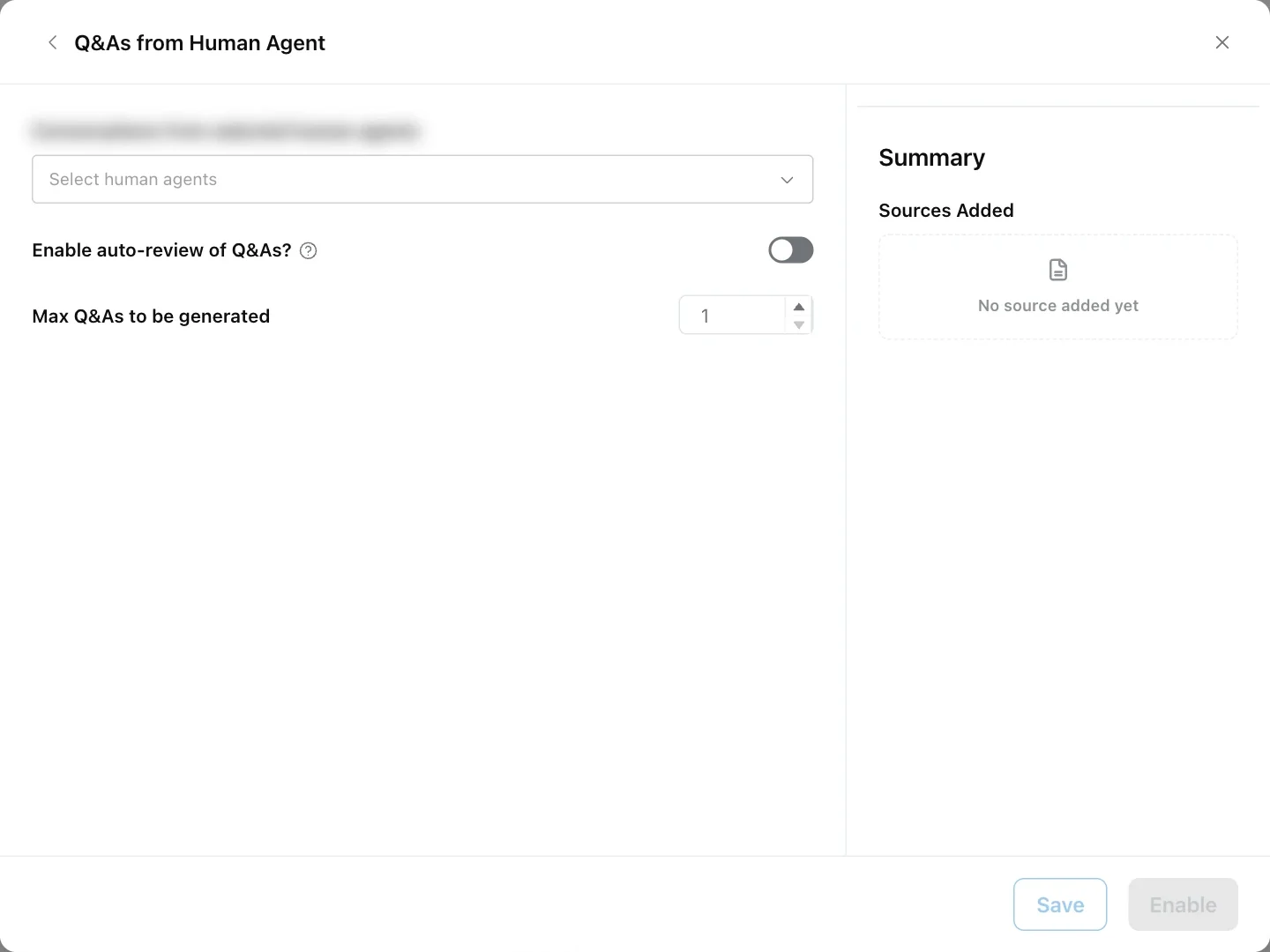
Choose the teammates to learn from, decide whether Q&As need review, set a maximum, and click Enable.
Open the setup form
Go to Knowledge → Source, click Add Source and choose Q&As from Human Agent. Until it is set up, the option shows a Not Enabled Yet badge.
Choose the teammates
In Conversations from selected human agents, select one or more teammates. Only closed chats handled by these teammates are used.
Choose whether to review
Enable auto-review of Q&As? is on by default, which adds new Q&As straight to the Knowledge Base, live. Turn it off to review every Q&A before the AI uses it.
Set a maximum
In Max Q&As to be generated, enter a number from 1 to 500. The default is 500. Generation stops when this many Q&As have been created.
Enable
Click Enable to start, or Save to keep the settings without starting.
Once enabled, a folder called Q&As from Human Agents appears at the top of your source list. Every generated Q&A goes into it.
Chats it learns from
It learns only from chats that were handed over to one of your selected teammates and then closed. Robylon processes each chat once, when it closes. Chats handled only by the AI are never used.
From each chat Robylon:
- Creates at most 10 Q&As.
- Removes the customer’s personal details, so the Q&A applies to every customer.
- Keeps the language of the chat. A chat in Hindi produces a Hindi Q&A.
- Skips very short exchanges. The question must be longer than 10 characters and the answer longer than 20.
Avoiding duplicates
It does not create duplicates. Before saving a Q&A, Robylon compares its question with your existing Knowledge Base and keeps it only if it is related to content you already have, without repeating it:
- Nearly the same as existing content: dropped as a duplicate, and your existing content is kept.
- On a topic your Knowledge Base does not cover at all: also dropped. Q&As are only generated for topics your sources already touch on.
- Related but not the same: kept.
To capture answers on brand new topics, add a source or a Q&A for the topic yourself.
Review generated Q&As
Open the Q&As from Human Agents folder, click a Q&A, edit it if needed, and click Mark as Approved.
Each Q&A has one of two statuses:
| Status | Meaning |
|---|---|
| Pending for Review | Created while auto-review was off. The AI does not use it until you approve it. |
| Reviewed | Approved by a teammate, or created while auto-review was on. The AI can use it. |
When you open a Q&A you can edit its Name, Question(s), Answer, Custom Instructions and KB tags, and see a link to the chat it came from. Then choose:
- Mark as Approved: makes it live.
- Save for Later: keeps your edits without approving it.
- Discard: deletes it, after a confirmation.
To approve many at once, tick them in the folder and click Mark as Reviewed. Use Download and Delete in the same toolbar to export or remove the ones you select.
The folder itself shows Pending Review on the source list while any Q&A inside it is waiting, and Enabled once all have been reviewed.
Change the settings or stop it
Open the Q&As from Human Agents folder and click Q&A Settings. You can change the teammates, auto-review and the maximum, then click Save. Click Stop to pause generation, or Start to resume it.
Stopping does not delete any Q&As already in the folder. To remove them all, delete the folder from the source list.
Get good results
- Pick your strongest teammates. The Q&As are only as good as the replies they learn from.
- Turn auto-review off at first. Review the first batch, and turn auto-review back on only once you trust the output.
- Start with a low maximum, for example 100, and raise it once you are happy with the quality.
- Review regularly. Pending Q&As do nothing until someone approves them.