
Post-call analysis
Extract outcomes from every voice call as entities, run a follow-up workflow when a call ends, and define what a successful call means for your agent.
Set this up in the voice agent under Post Call Analysis and Call Success Evaluation.
What can post-call analysis do?
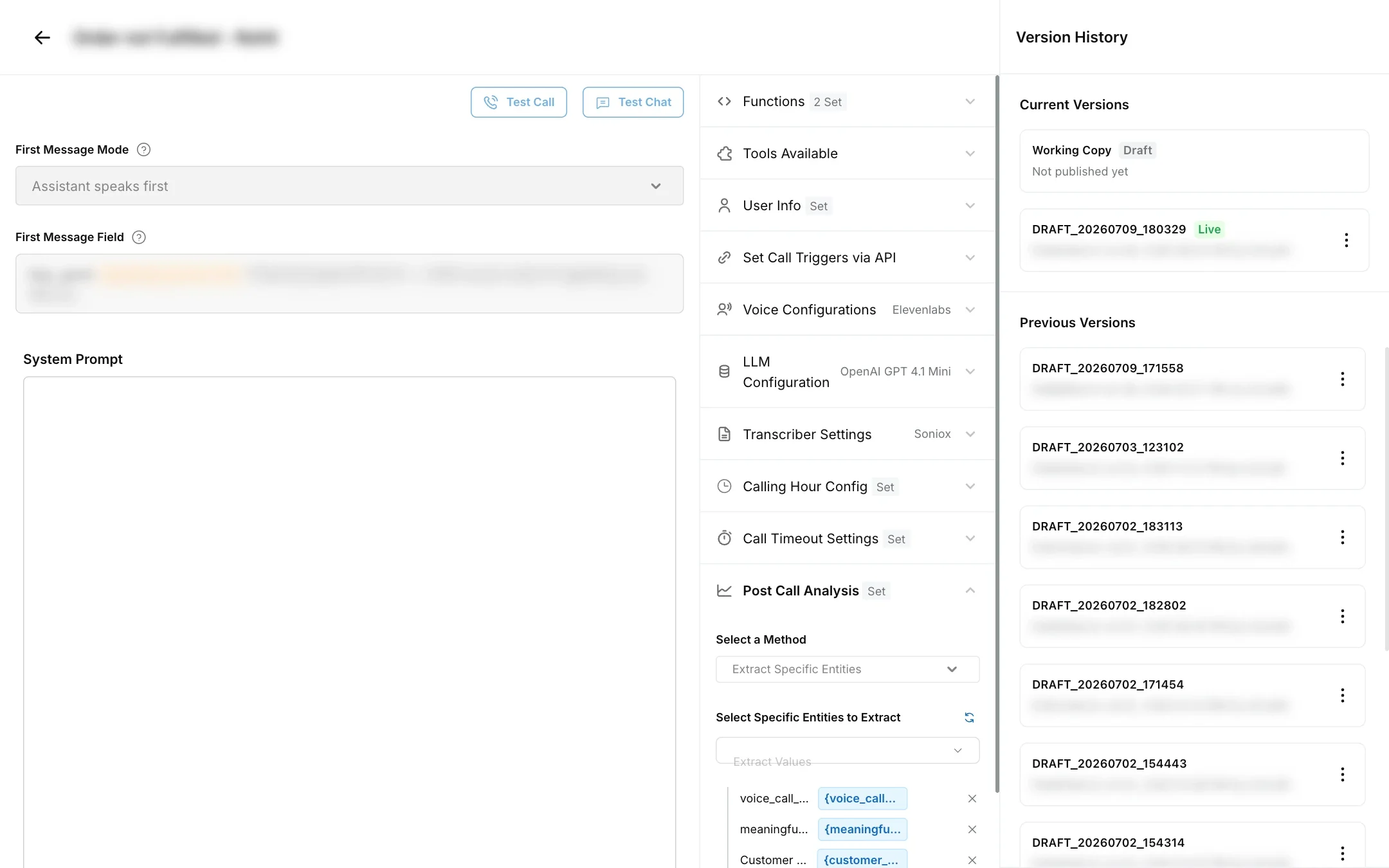
Choose one of two methods in Select a Method:
| Method | What it does | Use it when |
|---|---|---|
| Extract Specific Entities | Reads the transcript and fills in the entities you choose, such as “customer agreed to buy” or “promised payment date”. | You want structured answers from every call, for reporting or later use. |
| Workflow | Runs a workflow of your choice after the call, with the call’s details as variables. Only workflows that have Voice as a channel can be picked. | You want to act on the call, for example update your CRM, send a WhatsApp follow-up or create a ticket. |
Every analysed call also gets a short summary of 30 to 50 words, saved as voice_call_summary_default.
How do I extract entities from calls?
Pick the entities to extract in the agent, creating any that do not exist yet.
Choose the method
In Post Call Analysis, set Select a Method to Extract Specific Entities.
Select the entities
Under Select Specific Entities to Extract, tick the entities this agent should fill in. Use Create an Entity to add a new one (see below).
Add instructions (optional)
In Custom entity instructions, add any rules for the extraction, for example “If the customer asks for a callback, set the decision to callback, not declined”.
Save and publish
Save the agent and publish it so new calls use the settings.
Extraction runs on calls that connected and finished. Calls that were not answered or failed are not analysed.
The extracted values are saved with the call’s ticket, among that conversation’s entities.
How do I create an entity?
Entities are managed in Settings → Data & Developer → Entities. Click Add Entity and fill in:
| Field | What to enter |
|---|---|
| Name | The entity’s name in Robylon. It must be unique, and a variable with the same name is created so you can use the value in workflows. |
| Display Name | How the entity is referred to in AI search and conversations. |
| Data Type | Custom, Number, Name, Alphanumeric or Email. |
| Description | Required. Tell the AI exactly what to capture and how, for example “Whether the customer agreed to the refund. Answer yes, no or undecided.” |
| Entity Synonyms | Other ways people describe the same thing, to improve accuracy. |
| Examples | At least one Positive Example (a passage and the value that should be extracted from it) or Negative Example (a passage where it should not be). |
The description and examples do most of the work. Be specific about the allowed answers, so values are consistent across calls and easy to report on.
See Variables for more on entities.
How do I run a workflow after a call?
Set Select a Method to Workflow and choose the workflow under Workflow. It runs after each call that connected and finished (not for unanswered or failed calls), and receives the call’s details as variables:
| Variable | Contains |
|---|---|
voice_call_status |
The call’s status |
voice_call_end_reason |
Why the call ended |
voice_call_start_at, voice_call_end_at |
When the call started and ended |
voice_call_request_start_at |
When the call was requested |
voice_call_duration |
The call’s length |
voice_call_number, user_phone_number |
The number called |
voice_dial_num |
The number the call was made from |
voice_agent_id |
The voice agent |
voice_call_transcript |
The transcript |
voice_call_summary |
The call summary |
voice_call_count |
How many dials the request has made |
voice_recording_url |
The recording |
voice_call_id |
The call’s ID |
voice_call_metadata |
Other call details |
Use them in the workflow to update another system, message the customer, or open a ticket for your team. See Workflows.
The two methods are separate: choose one per agent.
How does call success evaluation work?
Write a prompt in Call Success Evaluation that defines a successful call for this agent. After each call, Robylon reads the transcript with your prompt and the agent’s own prompt, and marks the call as successful or not successful, with a short explanation.
A good success prompt names the outcomes that count, and those that do not:
Mark the call successful if the customer agrees to pay, gives a date to pay, or asks for a payment link. Mark it unsuccessful if they refuse, say they have already paid without details, or ask not to be called again.
As a rule of thumb, a call is successful when its objective is met, the customer commits to something, or there is a clear next step to follow up on.
Call success is evaluated only for agents that also have Post Call Analysis set, and only when Call Success Rate is switched on under Enable Voice Insights in Configure Insights. The result shows on the call as Call Success Evaluation: Successful or Not Successful.