
Credentials
Store API tokens and passwords safely as credentials, use them in your APIs and tools, and control who can see and change them.
Robylon has two kinds of secret, going in opposite directions:
- Credentials are secrets Robylon uses to call other systems, for example your store’s API token. You store them once and insert them into APIs and tools without anyone seeing the value.
- API keys are keys your systems use to call Robylon, for example to trigger an outbound call or fetch analytics.
Open them from Settings → Data & Developer → Credentials and Settings → Data & Developer → API Keys.
Add a credential
Open Credentials
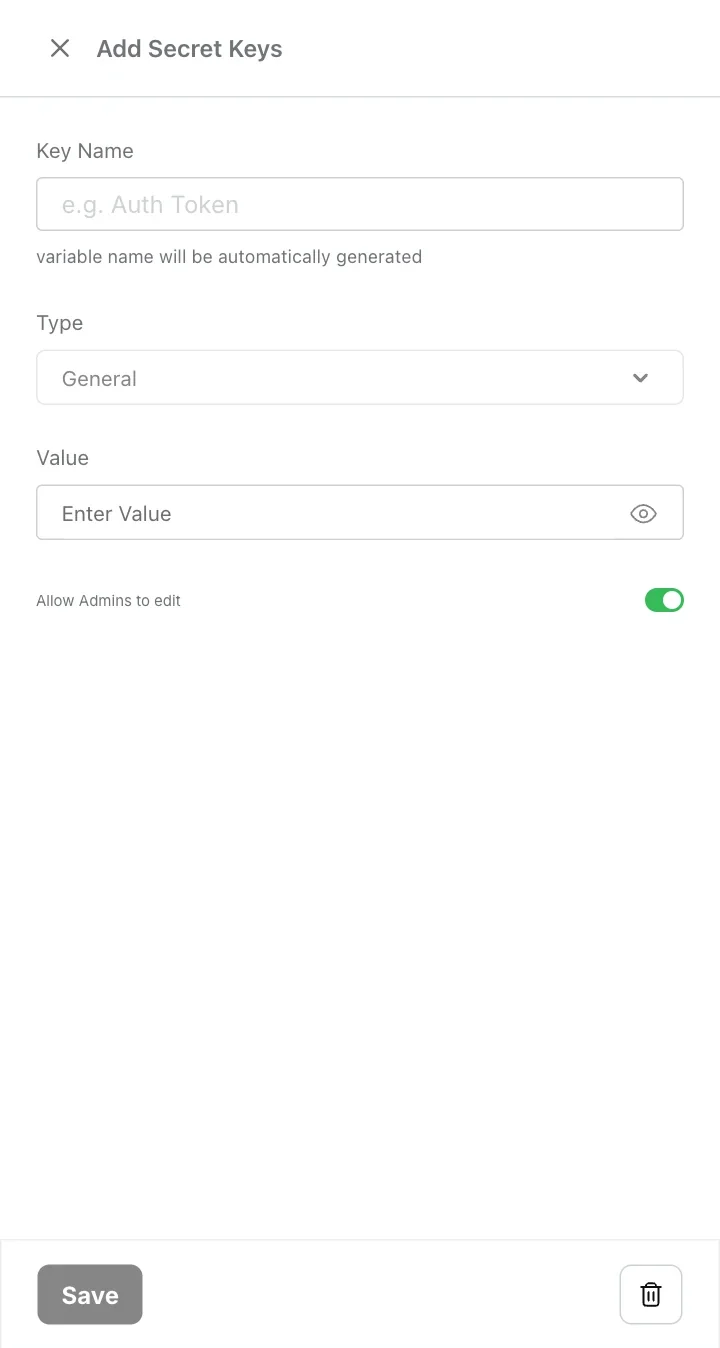
Go to Settings → Data & Developer → Credentials and click Create New Key.
Name it
Enter a Key Name, for example “Store API token”. Robylon creates a variable name from it automatically, in lower case with underscores: store_api_token.
Paste the value
Paste the secret into Value. Use the eye icon to check what you pasted.
Choose who can edit it
Leave Allow Admins to edit on if admins should be able to see and change the value. Turn it off to limit it to super admins.
Save
Click Save.
Use a credential in an API or tool
Insert it like any other variable. In an API’s headers, parameters or body, type { and pick the credential’s variable, for example in an Authorization header: Bearer {store_api_token}.
Robylon fills in the real value only when the request is sent. The value is never shown in the API, in the workflow, or in saved run data.
Credential access by role
| Role | Can create | Can see the value and edit |
|---|---|---|
| Super Admin | Yes | Yes, including the saved value. |
| Admin | Yes | Only if Allow Admins to edit is on. Otherwise the value is masked. |
| Agent and Supervisor | No | No |
Values are encrypted when stored.
Credential types
Credentials you add yourself have the type General. Credentials Robylon creates when you connect an integration, for example a WhatsApp number, have the type Integration.
API keys
API keys, which let your own systems call Robylon, have their own page: see API keys.