
All channels
See every channel Robylon can answer on, from chat, email, voice and WhatsApp to Instagram, helpdesks and app store reviews, and how to connect each one.
A channel is a place where customers reach you. Robylon supports Chatbot, Email, Voice, WhatsApp, Instagram, Facebook, Twilio Text (SMS), YouTube, Freshdesk, Zendesk, Zoho Desk, Salesforce Ticket, Vtiger, Intercom, Freshchat, SalesIQ, Google Play Store, App Store and Google My Business. Robylon is an AI customer support platform that resolves tickets across email, chat, voice and WhatsApp, and it can also work inside the helpdesk and messaging tools you already use.
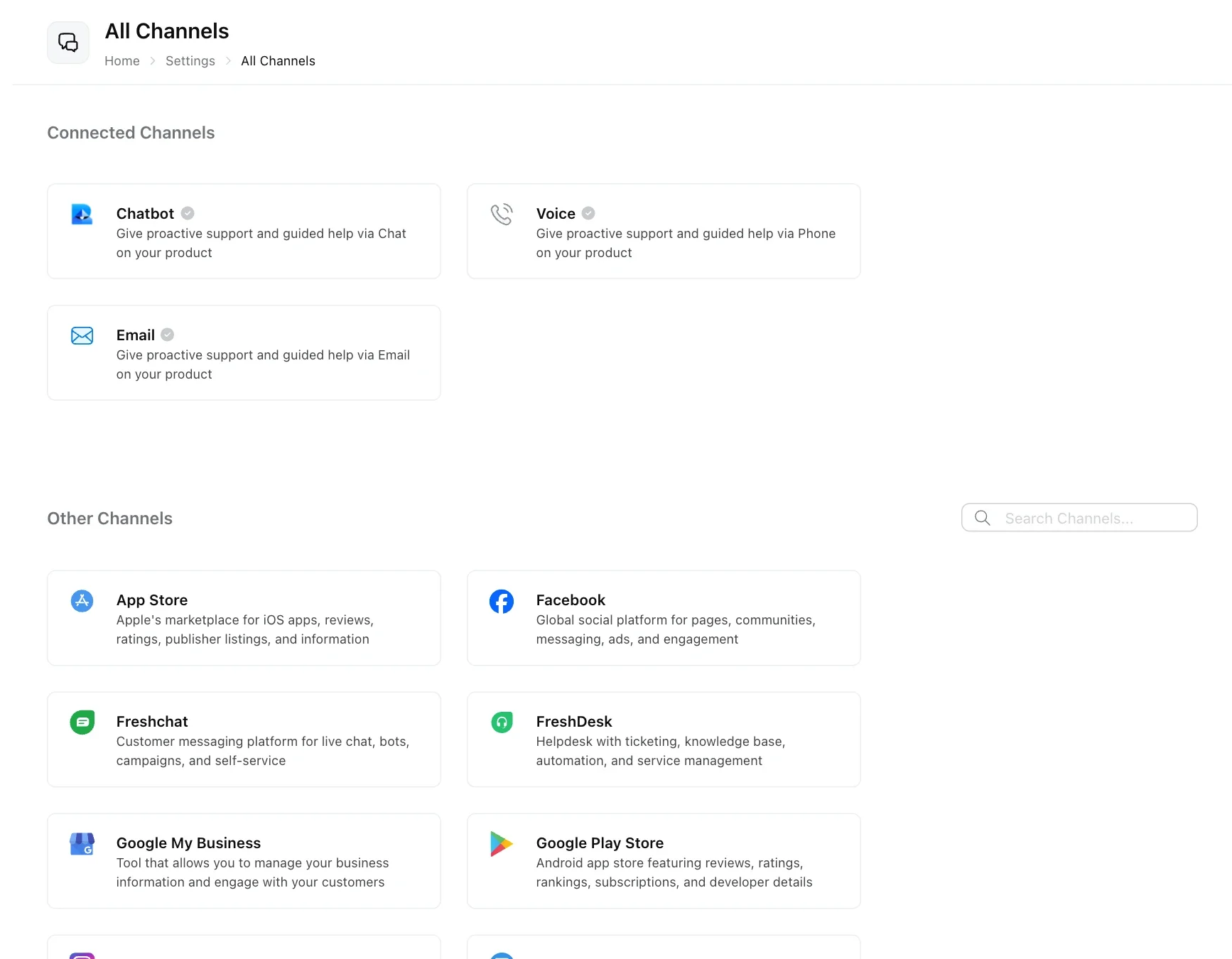
Open the full list from Settings → Channels → All Channels.
The All Channels page
It has two lists:
- Connected Channels: channels already set up in your workspace. Click one to manage it.
- Other Channels: channels you can still connect.
The main channels also have their own pages in the Channels menu: Chatbot, Voice, WhatsApp, YouTube and Email.
Channels you can connect
| Group | Channels | Guide |
|---|---|---|
| Robylon’s own channels | Chatbot (website and app chat), Email, Voice | Chatbot, Email, Voice |
| Messaging apps | WhatsApp, Instagram, Facebook, Twilio Text (SMS) | WhatsApp, Social engagement |
| Video | YouTube comments | YouTube |
| Helpdesks and ticketing | Freshdesk, Zendesk, Zoho Desk, Salesforce Ticket, Vtiger | Connect steps |
| Chat platforms | Intercom, Freshchat, SalesIQ | Connect steps |
| Reviews | Google Play Store, App Store, Google My Business | Reviews |
When Robylon connects to a helpdesk or chat platform, it answers conversations inside that tool: the AI replies there, and your team keeps working where they already are.
Slack and Microsoft Teams are set up under Settings → Integrations instead. See Slack and Microsoft Teams.
Need a channel that is not listed? The Robylon team can build custom connections for clients. Email support@robylon.ai.
Connect a channel
Click the channel under Other Channels and follow its connection steps. Some channels ask you to sign in to the other service and approve access. Helpdesks, chat platforms and Twilio Text instead show an Allow Access form that asks for details from your account there, for example an API key, a domain or an account ID.
Open the channel
Go to Settings → Channels → All Channels and click the channel under Other Channels.
Sign in or enter credentials
Sign in to the service and approve the permissions Robylon asks for, or fill in the details the Allow Access form asks for. Store keys you also use elsewhere in Credentials.
Check it is connected
The channel moves to Connected Channels.
Let the AI answer
Add the channel as a trigger in a workflow, and pick the AI agent with a Default Agent on the trigger or a Handover to AI action. See How a conversation reaches an AI agent. A connected channel is not answered by the AI until you do.
Channels and integrations
Channels are where customers talk to you. Integrations connect Robylon to third-party tools, for example your online store, so AI agents and workflows can look up and change data there. See all integrations.