
Connect WhatsApp
Connect a WhatsApp Business number to Robylon through Meta, set up its business profile and AI behaviour, and understand the 24-hour reply window.
Robylon connects to the WhatsApp Business Platform (Cloud API) hosted by Meta, through Meta’s own sign-up flow.
Open it from Settings → Channels → WhatsApp.
What do I need before connecting?
- A Meta Business account (Meta Business Suite), and permission to manage it.
- A phone number for WhatsApp Business that can receive a verification code by SMS or call. Robylon uses Meta’s standard sign-up, which does not accept a number that is currently registered in the WhatsApp or WhatsApp Business app. Delete that account first, or use a new number.
- A display name for your business that follows Meta’s display name rules.
How do I connect a WhatsApp number?
Click Add WhatsApp Number and complete Meta’s sign-up in the window that opens.
Start the connection
Go to Settings → Channels → WhatsApp and click Add WhatsApp Number. A Facebook window opens. Allow pop-ups for the Robylon dashboard if it does not appear.
Log in and choose your business
Log in to Facebook with an account that manages your Meta Business account, then select the business, or create one.
Choose the WhatsApp Business account and number
Select or create a WhatsApp Business account (WABA), then add and verify your phone number with the code Meta sends.
Approve access
Review and approve the permissions Robylon asks for. The window closes.
Check the number
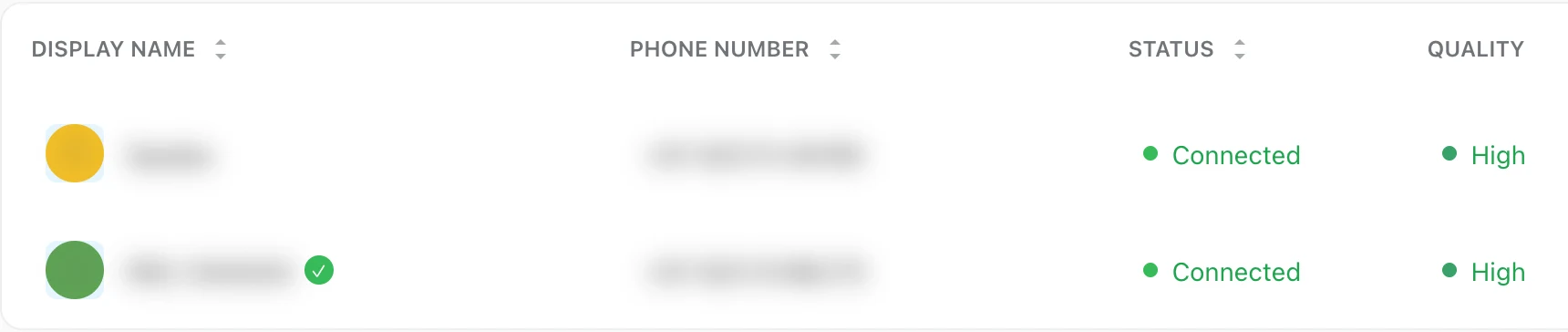
The number appears in the list with its Display Name, Phone Number, Status and Quality. A status of Connected means it is ready.
When you connect, Robylon subscribes to your account’s messages and registers the number on the Cloud API for you. You do not need to set up a webhook in Meta.
If connecting fails, Robylon shows why. The two most common messages are that it could not subscribe to WhatsApp webhooks for the account (messages to the number will not reach Robylon), and that the number could not be registered on the Cloud API (it can neither send nor receive). Try again, and contact support if it keeps failing.
Can I connect more than one number?
Yes, as long as all numbers belong to the same WhatsApp Business account. To move to a different WhatsApp Business account, remove all existing numbers first.
Removing a number stops Robylon receiving its messages. Removing the last number turns off the WhatsApp channel and removes Robylon’s access to your Meta account.
How do I make the AI reply on WhatsApp?
Add a trigger for the number to your workflow. Connecting a number does not by itself make the AI reply, and you do not need to change your AI agent.
Open the workflow
Open the workflow that handles your WhatsApp conversations in Settings → Workflows & AI Agents → Workflows.
Add a WhatsApp trigger
Add a new trigger and attach the WhatsApp number you connected.
Publish
Publish the workflow. Messages to that number are now answered by it.
Do this each time you connect a new number. Conversations the AI hands over go to your team in the inbox, following your assignment rules.
What can I change on the business profile?
Click a number in the list to open its settings. The Profile tab has:
| Section | What it holds |
|---|---|
| Business Profile | What customers see on WhatsApp: Profile Image (.png or .jpg, up to 5 MB), Display Name and Phone Number (both read-only), and About, a short status under your name (up to 139 characters). |
| Account Details | Read-only IDs for integrations and debugging: WABA ID, Phone Number ID, BSP Provider (Meta Cloud API) and Webhook URL. |
| Quality & Messaging Limits | Your number’s status from Meta, updated periodically: Quality Rating, Messaging Limit and Account Tier. Use View in Meta for details. |
| QR Code & Chat Link | A QR code and a wa.me link customers can use to message you. Add an optional Pre-filled Message to pre-type the first message for them. |
Click Save after changing the profile. The About text and profile picture are sent to WhatsApp. The display name shown is the one Meta has verified for the number; change it in Meta, not in Robylon.
What is the messaging limit?
The messaging limit is how many customers you can start conversations with, using templates, in 24 hours. Meta sets it per number: 50, 250, 1K, 10K, 100K or Unlimited. The limit shown in Robylon comes from Meta.
To raise it, keep a high quality rating and open 1,000 or more business-initiated conversations in a 30-day period. Replies to customers who message you first do not count toward the limit.
What does the Behavior tab control?
The Behavior tab decides how the AI handles media on this number:
| Setting | What it does |
|---|---|
| Process images and documents | Lets the AI agent read images, PDFs, spreadsheets and other files customers send, and respond to them. |
| Process voice notes | Lets the AI agent transcribe voice messages and respond to them. The first 120 seconds of each voice note are transcribed. |
Click Save after changing them.
On a new number whose Behavior settings have never been changed, voice notes are transcribed and images and documents are not, even though both toggles start in the off position. Once you turn a setting on or off and save, your choice applies.
The Widget and Install tabs add a WhatsApp button to your website. See WhatsApp website widget.
What is the 24-hour window?
You can send any message to a customer within 24 hours of their last message to you. After 24 hours, WhatsApp only allows approved template messages until the customer writes again.
In Robylon:
- When the window has closed on an open conversation, the reply box in the inbox is disabled for your team. Send a template to restart the conversation.
- Conversations are not closed automatically when the window ends.
See WhatsApp templates.
Which message types are supported?
Customers can send: text, images, videos, voice notes and audio, documents (PDF, Word, Excel, PowerPoint and text files), and taps on buttons, lists and template buttons.
The AI and your team can send: text and media, with up to 3 reply buttons. More than 3 options are sent as a list. Templates can also include carousels of up to 8 cards.
WhatsApp’s own limits apply: a message body can have up to 1,024 characters, a footer up to 60, and a button title up to 20.