
Website widget
Add a WhatsApp button or chat widget to your website that opens a conversation with your connected WhatsApp number, and match it to your brand.
The WhatsApp widget puts a button on your website that opens a chat with your business on WhatsApp. Customers keep the conversation on their phone, and your AI agent and team answer it like any other WhatsApp message.
Set it up in Settings → Channels → WhatsApp: click a number, then use the Widget and Install tabs.
Which widget type should I use?
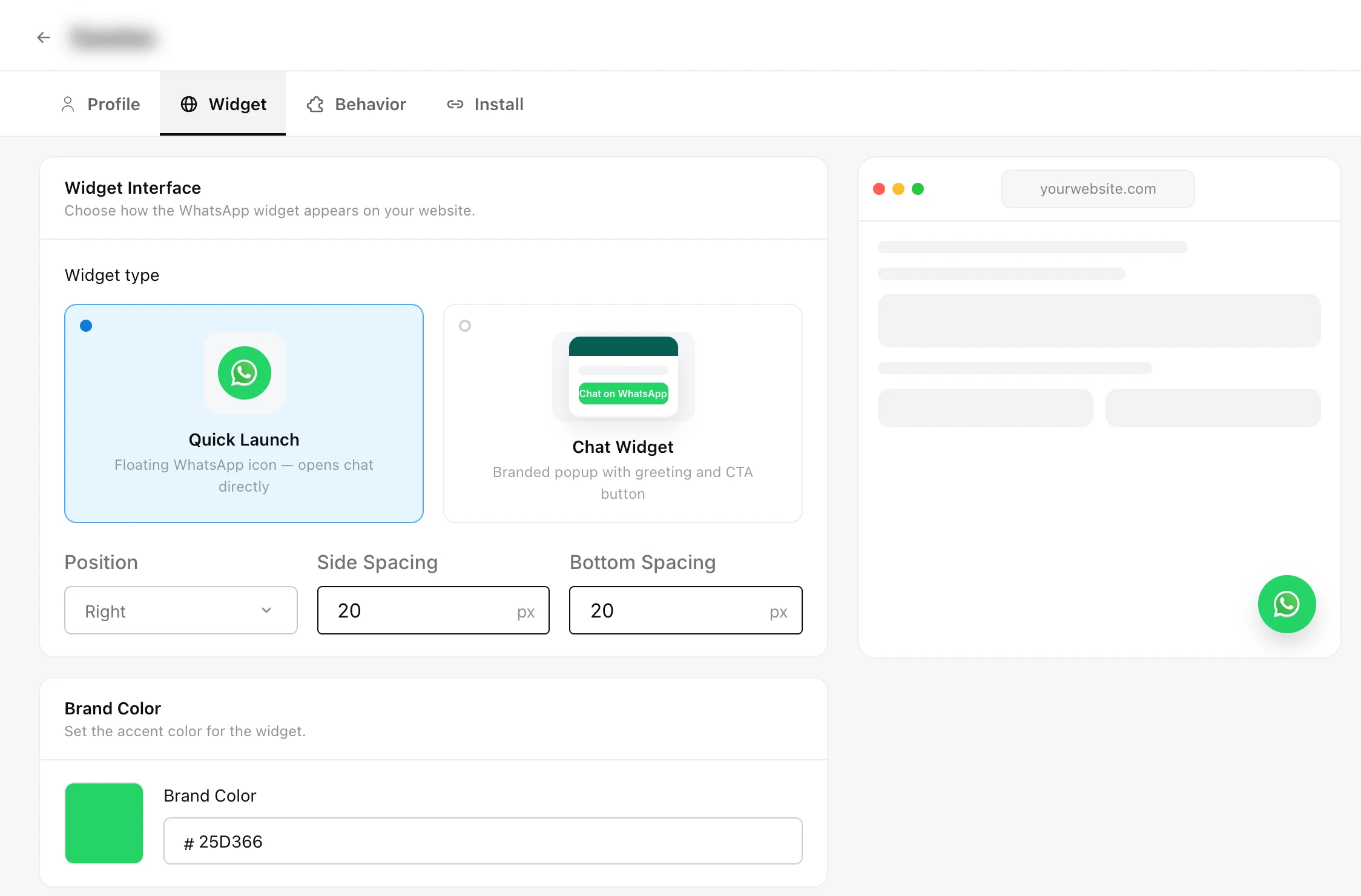
Choose a Widget type on the Widget tab:
| Type | What customers see |
|---|---|
| Quick Launch | A floating WhatsApp icon that opens the chat directly. |
| Chat Widget | A branded pop-up with a greeting and a button to start the chat. |
A preview on the right shows how it looks on a page.
How do I style the widget?
On the Widget tab:
- Position: Right or Left, with Side Spacing and Bottom Spacing in pixels (20 px by default).
- Launcher type: Icon Only, Text Only or Text + Icon.
- Launcher icon: upload your own icon: PNG, JPG or GIF, up to 5 MB, 128 x 128 px recommended.
- Launcher icon size: from 1x (default) to 3x.
For Quick Launch, also set the Brand Color, the accent colour as a hex code. The default is WhatsApp green, #25D366.
For Chat Widget, the Branding section sets what the pop-up shows:
- Title and Subtitle, such as a greeting and your usual reply time.
- Button Content, the label on the button that opens WhatsApp, such as “Chat on WhatsApp”.
- Brand Color and Title Bar Color.
The Footer section for Chat Widget lets you show Powered by Robylon, and add a Custom Footer Link with Link Text and a Link, such as your privacy policy or FAQs.
Click Save when you are done.
How do I install the widget on my website?
Copy the script from the Install tab and paste it into your site.
Copy the script
Open the Install tab and copy the code under Javascript.
Paste it into your site
Paste it before the closing </head> tag on every page where the widget should appear. On most website builders, use the setting for custom code in the site header.
Check your site
Publish your site and open it. The WhatsApp button appears in the position you chose.
The script is filled in with this number’s ID, so each number has its own script. It is a separate script from the Robylon chatbot’s.
You can use the WhatsApp widget and the Robylon chatbot on the same page. Set a different Position for each, or adjust their spacing, so the two buttons do not overlap.
Can I share a WhatsApp link instead?
Yes. The Profile tab has a QR code and a chat link under QR Code & Chat Link. Use them in emails, on packaging or in store, with an optional pre-filled message. See Connect WhatsApp.