
Connect Instagram and Facebook
Connect an Instagram business account or a Facebook Page by signing in with Facebook, see which permissions Robylon asks for, and fix common connection errors.
Connect Instagram and Facebook from Settings → Channels → All Channels by clicking Instagram or Facebook and signing in with Facebook. Robylon then receives the DMs, comments and mentions for the accounts you approve.
Instagram and Facebook are two separate channels. Connecting Instagram brings in Instagram DMs, comments and mentions. Connecting Facebook brings in Messenger conversations and comments on your Facebook Page, which you reply to from the unified inbox. Facebook comments do not appear on the Social engagement (Comments & Mentions) page, which covers Instagram only. Connect both if you want both.
What do I need before I connect?
You need a Facebook account with access to the right Facebook Page:
- For Instagram: a professional Instagram account (Business or Creator) linked to a Facebook Page, and a Facebook account that manages that Page.
- For Facebook: a Facebook account that manages the Page you want to connect.
How do I connect an Instagram account?
Sign in with Facebook and tick both the Facebook Page and the Instagram account it is linked to.
Open the channel
Go to Settings → Channels → All Channels and click Instagram under Other Channels. You can also click Add Instagram account on the Comments & Mentions page in Social engagement.
Sign in with Facebook
A Facebook window opens. Sign in with the Facebook account that manages the Page linked to your Instagram account. Allow pop-ups for app.robylon.ai if nothing opens.
Choose the Page and Instagram account
When Facebook asks which accounts Robylon may use, tick the Facebook Page and the Instagram account linked to it. Approve the permissions.
Check it is connected
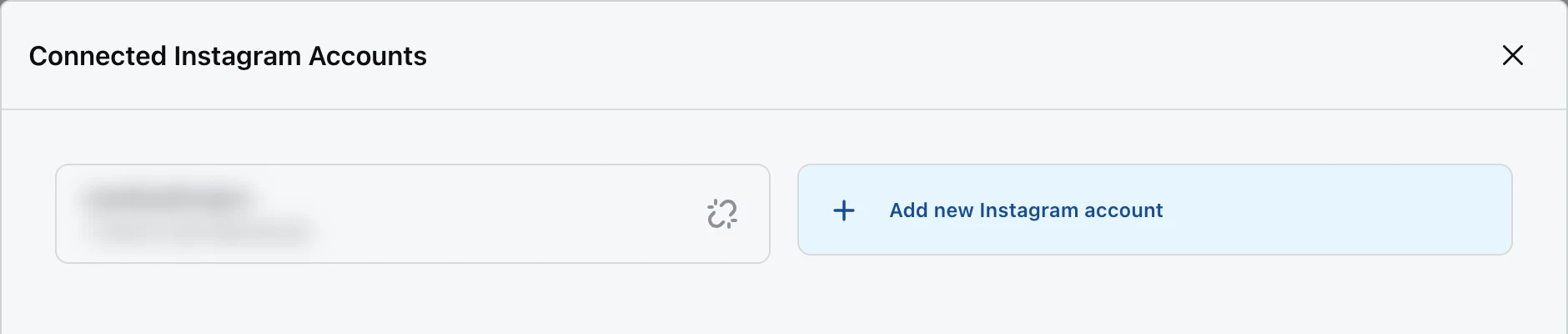
The window shows Authentication Successful and closes. Instagram moves to Connected Channels. Click it to see your accounts under Connected Instagram Accounts, listed by Instagram username.
Robylon connects every Instagram professional account you ticked that is linked to one of your Pages. Pages you ticked without a linked Instagram account are skipped.
How do I connect a Facebook Page?
Sign in with Facebook and tick the Pages you want Robylon to answer.
Open the channel
Go to Settings → Channels → All Channels and click Facebook under Other Channels.
Sign in and choose Pages
Sign in with a Facebook account that manages the Page, tick the Pages Robylon may use, and approve the permissions.
Check it is connected
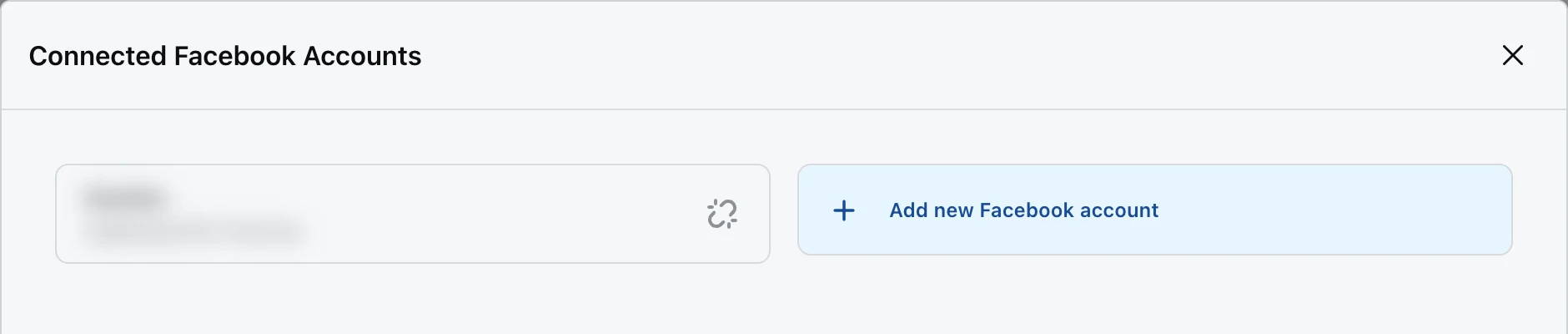
Facebook moves to Connected Channels. Click it to see each connected Page by name.
Every Page you tick is connected.
Which permissions does Robylon ask for?
Facebook shows these permissions during sign-in. Robylon uses them to read and answer your messages and comments.
| Permission | What Robylon uses it for |
|---|---|
pages_show_list |
List the Pages you manage so you can pick one. |
pages_messaging |
Receive and send direct messages. |
pages_manage_metadata |
Subscribe to your Page so Meta sends new messages, comments and mentions to Robylon. |
pages_read_engagement |
Read posts and comments on your Page. |
business_management |
See Pages and accounts owned through Meta Business. |
instagram_basic |
Instagram only: read your Instagram username and posts. |
instagram_manage_messages |
Instagram only: receive and send Instagram DMs. |
instagram_manage_comments |
Instagram only: read, reply to and hide comments. |
If you untick a permission, the features that need it will not work. Connect again and approve all permissions to fix it.
What happens after I connect?
Robylon subscribes each connected Page to Meta’s updates for messages, comments and mentions. From then on:
- New DMs, Messenger messages and Facebook Page comments appear as conversations in the unified inbox. See Instagram and Facebook DMs.
- Instagram posts, comments and mentions appear in Social engagement. Facebook comments do not.
- The accounts can be picked in workflow triggers, under Instagram or Facebook.
Connecting does not make the AI reply. Messages are only answered automatically once a published workflow has a trigger for the account. See how the AI answers DMs.
Can I connect more than one account?
Yes. Open the connected channel from Connected Channels and click Add new Instagram account or Add new Facebook account, then sign in again.
Each sign-in replaces the list of connected accounts with the accounts from that sign-in:
- Instagram: tick every account you want to keep, not only the new one.
- Facebook: if you tick a Page that is already connected, the whole connection fails. The easiest way to change Pages is to disconnect them all and then connect once with every Page you want ticked.
How do I disconnect an account?
Open the channel from Connected Channels, click the icon next to the account, and confirm with Disconnect.
Robylon warns that disconnecting will remove the account from all linked issues and workflows. Workflows that use the account stop receiving its messages. When you disconnect the last account, the channel moves back to Other Channels.
Disconnecting removes the account from Robylon only. To remove Robylon’s access completely, also remove Robylon from Business Integrations in your Facebook settings.
Why did the connection fail?
If sign-in fails, the Facebook window shows Authentication Unsuccessful and closes, and no account is added. The usual causes:
| Cause | What to do |
|---|---|
| The Instagram account is a personal account, or is not linked to a Facebook Page. | Switch it to a Business or Creator account and link it to a Page in Instagram or Meta Business Suite, then connect again. |
| You did not tick both the Page and the Instagram account during sign-in. | Connect again and tick both. |
| Your Facebook account does not manage the Page. | Ask a Page admin to give you access, or ask them to connect. |
| The Instagram account is already connected to another Robylon workspace. | Disconnect it from that workspace first. An Instagram account can belong to one workspace at a time. |
| A Facebook Page you ticked is already connected to a Robylon workspace, including this one. | Untick that Page when you sign in, or disconnect it first and then connect again. |
| You declined permissions. | Connect again and approve all permissions. |
If the window does not open at all, allow pop-ups for app.robylon.ai in your browser.