
Analytics dashboard
Read the Analytics dashboard, choose which widgets it shows, change the date range, and understand what each metric for agents, chat, tickets, voice and sales attribution means.
The Analytics dashboard shows how your AI agents and your team are performing across every channel: how many conversations came in, how many the AI resolved on its own, how fast your team replied, and how satisfied customers were. Use it to spot problems early and to decide what to improve next.
Open it from Analytics & Insights → Analytics in the left sidebar.
The Analytics dashboard
The dashboard is a set of widgets grouped into five sections. Each section collapses, and shows how many of its widgets are switched on (for example “8 of 9”).
| Section | What it covers |
|---|---|
| Human Agents | Your live agents on chat and email: who is online, queue depth and per-agent performance |
| Chat | Every channel in the Chat group (Chatbot, WhatsApp, Instagram, Facebook, Twilio Text, YouTube and connected chat platforms): volume, AI resolution, CSAT, intents and WhatsApp template delivery |
| Tickets | Email and helpdesk tickets (Email, Zoho Desk, Freshdesk, Zendesk): volume, resolution, backlog, triage, CSAT and intents |
| Voice | Your voice AI agent: triggers, pickups, call duration and phone numbers |
| Sales attribution | Revenue, cost and ROI of outbound campaigns |
The line under the page title (“Refreshed less than a minute ago”) tells you how fresh the numbers are.
The other items under Analytics & Insights are separate pages: Insights (see Insights), Social (see Social analytics), KB Analytics (see how it differs from KB Gap), Ratings & Reviews (see Ratings & Reviews), and Reports (see scheduled and on-demand reports).
Change the date range
Use the date picker in the top right corner. Pick a preset or choose your own dates, then click Apply Range.
The presets are Today, Yesterday, Last 7 days, Last 15 days and Last 30 days. The date range applies to every widget on the page.
Next to the date picker, Aggregation sets how the trend charts group data: Daily, Weekly or Monthly. Use Daily for short ranges and Weekly or Monthly to see longer trends without noise.
Some widgets also have their own filters: a channel filter (All Channels), an intent filter (All Intents) or tabs (All channels, Chat, Email on Agent Performance). These only change that widget.
Dates follow your own timezone from your profile. If you have not set one, the dashboard uses the organization timezone from brand info.
Choose which widgets appear
Click the settings (gear) icon in the top right corner to open Configure Dashboard. Switch widgets on or off, then click Save.
Open Configure Dashboard
Click the gear icon next to the date picker. The panel shows how many widgets are enabled in total (for example “22 of 29 widgets enabled”).
Find the widgets
Expand a section (Human Agents, Chat, Tickets, Voice, Sales attribution) or type in Search widgets…. Each section has an Enable all or Disable all shortcut.
Switch widgets on or off
Turn on the widgets you want to see and turn off the ones you do not use.
Save
Click Save. Click Cancel to close the panel without changing anything.
You can also drag a widget by its move handle (the four-way arrow in its top right corner) to change its position on the page.
The dashboard layout is shared by the whole workspace. When anyone saves a change in Configure Dashboard, everyone in the workspace sees the same widgets.
Human Agents widgets
These widgets cover your live agents across chat and email.
| Widget | What it shows |
|---|---|
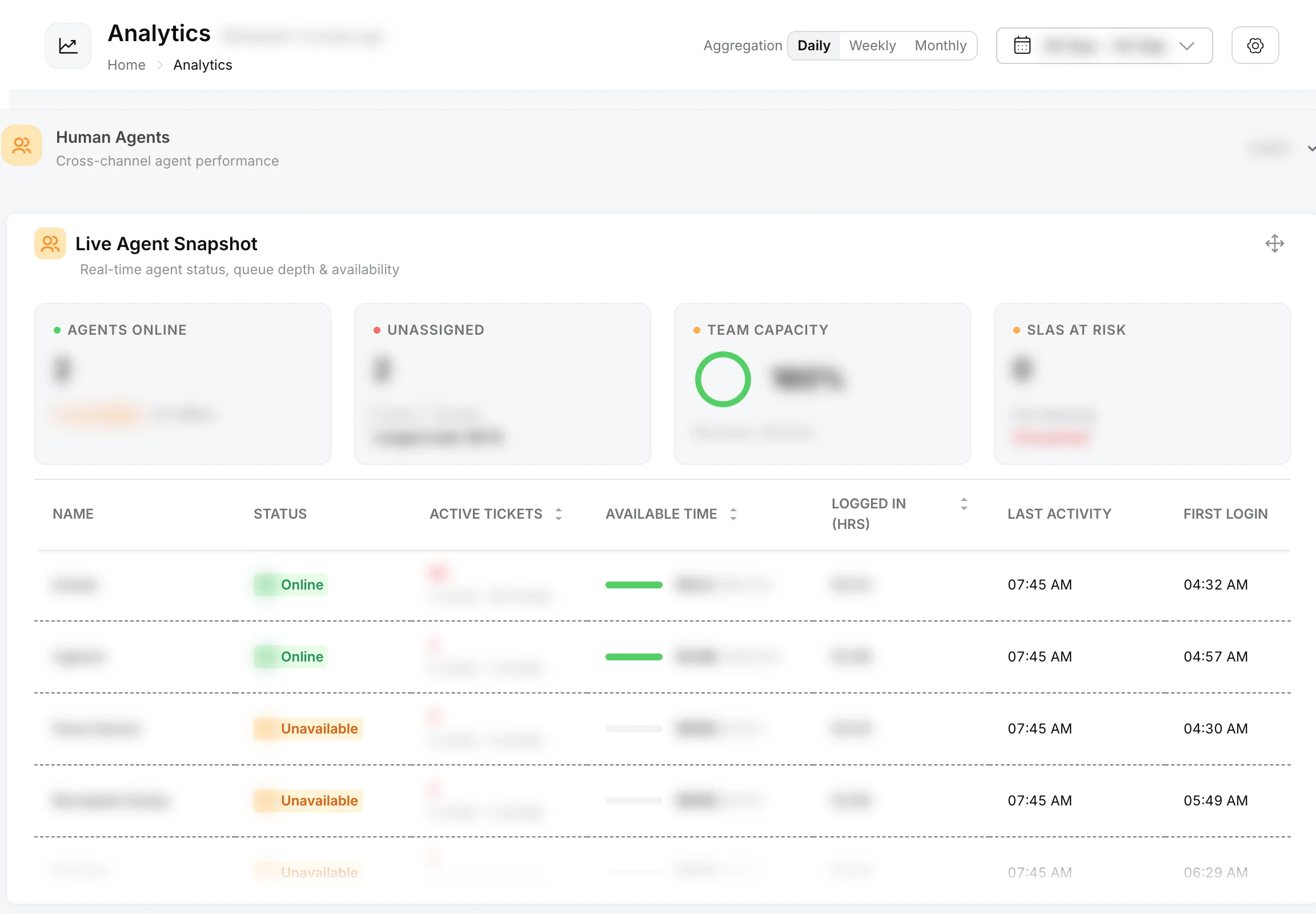
| Live Agent Snapshot | Real-time status of every agent: Agents Online, Unassigned conversations (chats and emails waiting, with the longest wait), Team Capacity and SLAs at Risk (in warning and breached). The table lists each agent’s status, active tickets, available time, logged-in hours, last activity and first login. |
| Agent Performance | Per-agent results for the selected dates: tickets handled (split by chat and email), resolved (count and rate), CSAT and SLA breaches. Resolved counts conversations assigned to the agent that have been closed, whoever closed them. Filter with the All channels, Chat and Email tabs. |
| SLA Performance | SLA compliance KPIs, daily trends by trigger type, and performance per SLA policy. See SLAs. |
Available time is time the agent spent in an available status. To change the statuses agents can pick, see agent statuses. Team Capacity counts only agents who are online: it is their open chats and emails as a share of their combined chat and email assignment limits.
Chat widgets
Chat covers every channel in the Chat group: Chatbot, WhatsApp, Instagram, Facebook, Twilio Text, YouTube and connected chat platforms.
| Widget | What it shows |
|---|---|
| Chat Overview | Total Chats (closed and open), Bot Closed (share closed by the AI versus by agents) and Avg. CSAT, with a volume trend |
| Bot Resolution | Bot Resolution Rate (chats the AI resolved versus escalated to an agent) and Avg. Bot Handle Time for AI-resolved chats |
| Agent Resolution | Escalation timings: time in the bot, time in the queue and time with the agent |
| CSAT Overview | Avg. CSAT, Response Rate (ratings received out of surveys sent), bot versus agent CSAT, and the rating distribution from 5 stars to 1 star |
| Intent Analytics | Conversation volume by intent, with deflection rate and CSAT per intent, and the best and worst intents |
| Chat Widget Engagement | Funnel, trend and proactive message performance for the web chatbot |
| Template Delivery Rates | WhatsApp template messages sent, delivered, read and failed, per template (last 14 days) |
| Message Funnel | WhatsApp template messages from sent to delivered to read to replied |
| Failure Reasons | Why WhatsApp messages failed, with Meta’s error code and how many messages each reason affected |
Deflection in Intent Analytics means the conversation was closed without going to a human agent. A low deflection rate on one intent is a strong sign that the AI is missing knowledge or a workflow for it: check Knowledge Base gaps for that topic.
CSAT ratings come from your CSAT forms. Avg. CSAT is the share of ratings that are 4 or 5 stars.
The CSAT widgets have a Based on option that sets which date a rating is counted against:
- Conversation created at (the default): when the conversation started.
- CSAT survey sent at: when the survey was sent.
- CSAT survey submitted at: when the customer submitted the rating. With this option there is no Response Rate, because only rated conversations have a submitted date.
Tickets widgets
Tickets covers email and helpdesk channels.
| Widget | What it shows |
|---|---|
| Ticket Resolution | Tickets created, notes added, replies sent and first response time |
| Ticket Reply Resolution Trend | Daily replies, notes and ticket volume |
| Email Overview | Total Tickets (closed and open), Bot Closed and Avg. CSAT |
| Resolution & Backlog | Response speed, resolution efficiency and how long unresolved tickets have been open |
| Ticket Triage | How incoming tickets are filtered before they reach agents: total received, spam, duplicates, merged and filtered, and how many were Actionable |
| CSAT Overview | Satisfaction across AI-closed and agent-closed tickets |
| Ticket Issue Types | Tickets broken down by issue category |
| Intent Analytics | Ticket volume by intent, with bot close rate and CSAT per intent |
Use Ticket Triage to see how much noise the AI removes before a human looks at the queue. A falling Actionable share usually means more spam or duplicate emails are arriving.
Voice widgets
Voice covers calls made and received by your voice agents. Filter by agent with All agents.
| Widget | What it shows |
|---|---|
| Voice Overview | Unique triggers, pickup rate and success rate |
| Pickup Analytics | Pickup performance by hour, first-try pickup rate and retries needed per pickup |
| Call Duration | How long picked-up calls lasted, grouped into duration ranges |
| Phone Number Analytics | Pickup and performance per calling number |
If retries per pickup rise or first-try pickups drop, try different calling hours in call settings, or check the reputation of the calling number in telephony. Many very short calls usually mean the opening line is not working: review it in prompt and tools.
A call counts as successful when call success evaluation marks it successful. The success rate is the share of picked-up calls that were successful.
Sales attribution widgets
The Sales attribution widgets show the revenue, cost and ROI of your outbound campaigns, based on orders in your Shopify store. See Revenue attribution for what each widget shows and how orders are attributed.
Improve your AI agent with analytics
Start from the numbers that show where customers are not getting help, then open the conversations behind them.
- Low bot resolution or deflection on an intent: the AI cannot answer that topic. Check Knowledge Base gaps and add the missing content.
- Low bot CSAT: read the low-rated conversations in transcripts to see what went wrong.
- Long queue times or many unassigned conversations: review assignment, queues and business hours.
- SLAs at risk: check the policies in SLAs and how many agents are online.
To share these numbers outside Robylon, send a scheduled report by email.
To ask about these numbers in plain language, connect an AI assistant, for example Claude or ChatGPT, through the Robylon MCP server. It reads the same dashboard cards, so its figures match what you see here.