
CSAT forms
Create a customer satisfaction survey for the chatbot, WhatsApp or email, choose its rating scale and follow-up questions, set when it is sent, and see where the results appear.
A CSAT (customer satisfaction) survey asks customers to rate their support experience right after a conversation ends. It is the quickest way to see how happy customers are with your AI agents and your team, and to find conversations that went wrong.
Open it from Settings → Inbox & Productivity → CSAT Survey.
How does CSAT work in Robylon?
You create one survey form per channel. When a conversation on that channel is closed, Robylon sends the survey automatically:
| Channel | How the survey reaches the customer |
|---|---|
| Chatbot | Shown in the chat window when the chat is closed. |
| Sent as a WhatsApp message when the chat is closed. | |
| Sent as a survey email (or embedded in an email) when the ticket reaches the status you choose. |
Rules for when the survey is shown or skipped are covered in When is the survey sent?
How do I create a CSAT form?
Name the form, choose its channel, set the rating question, and save.
Open CSAT Survey
Go to Settings → Inbox & Productivity → CSAT Survey and click Create CSAT Form.
Fill in the form details
Enter a Form Name, for example “Post-chat CSAT”, and choose the Channel: Chatbot, WhatsApp or Email.
Set the questions
Set the rating question and its Rating Type, and add any follow-up questions. See the options below.
Set when it is sent
For chat forms, add Trigger Rules. For email forms, set the Sending Rules. Both are explained in When is the survey sent?
Save
Click Save. The preview on the right shows the survey as the customer will see it.
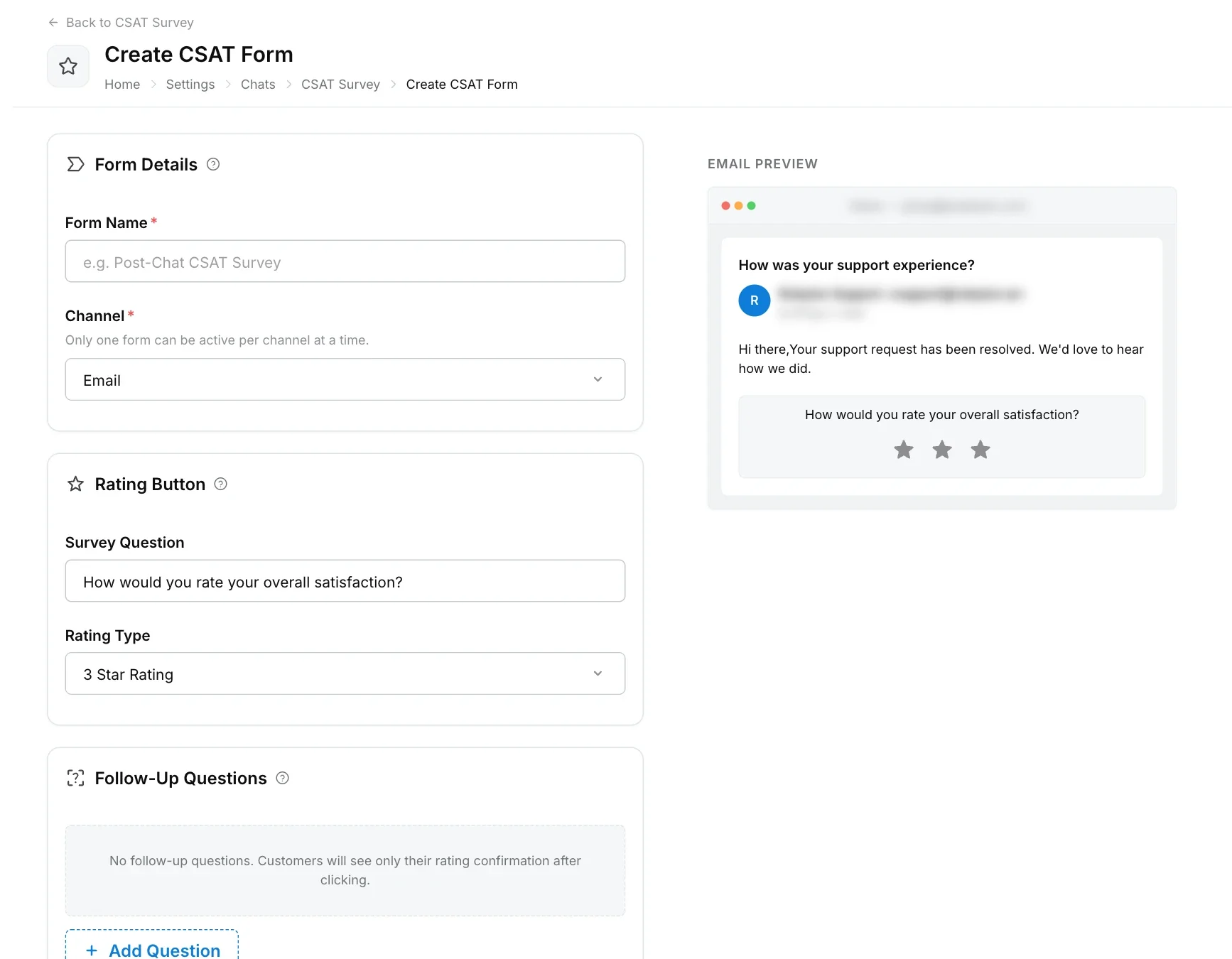
Which rating types and questions can I use?
Every form has one main rating question. Choose its Rating Type:
| Rating type | What the customer sees |
|---|---|
| 3 Star Rating | Three stars |
| 5 Star Rating | Five stars |
| Thumbs Up / Down | A thumbs up and a thumbs down |
| Emoji Scale | Five faces from unhappy to happy |
| 1-5 Numeric | Numbers from 1 to 5 |
Chat and WhatsApp forms can have up to 3 questions shown after the conversation closes.
Email forms show the rating buttons inside the survey email. After the customer clicks a rating, a landing page can show up to 5 Follow-Up Questions. Each follow-up question has a Type:
- Text Input: a free-text answer.
- Single Select: pick one option from a list you write.
- Rating Scale: another rating.
Use Show When to show a follow-up question always, or only for certain rating values. For example, ask “What could we improve?” only when the rating is low.
On WhatsApp, a 5 Star Rating is shown as a list the customer picks from. Other rating types are shown as reply buttons.
When is the survey sent?
A chat or WhatsApp survey is shown on every chat closure unless a Trigger Rule skips it. An email survey is sent when the ticket’s status changes to the status you choose in Sending Rules. Both are set on each form in Settings → Inbox & Productivity → CSAT Survey. Rules keep your CSAT score about real conversations, so customers who said “hi” and left are not asked.
How do I skip the survey for some chats?
Add trigger rules to the Chatbot or WhatsApp form. If any rule matches, the survey is not shown.
Open the form
Go to Settings → Inbox & Productivity → CSAT Survey and click the Chatbot or WhatsApp form.
Add a condition
Under Trigger Rules, click Add Condition and pick a rule from the table below.
Set the value and scope
Enter the number of messages or minutes, and choose whether the rule applies to chats handled by the AI Agent, a Human Agent or Both. Each rule has its own scope.
Save
Click Save.
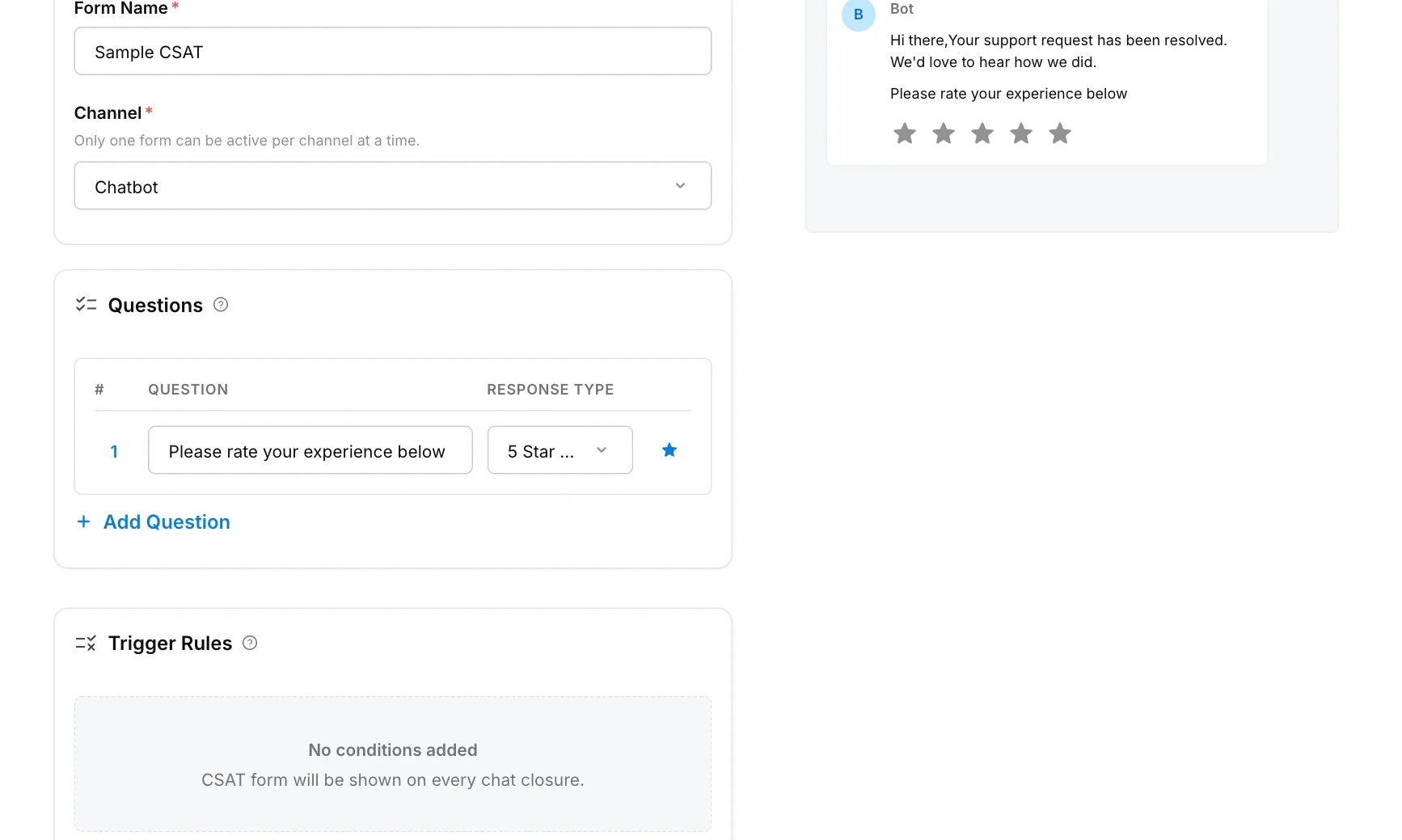
Each rule describes a case where the survey is not shown:
| Rule | Skips the survey when |
|---|---|
| Bot sent fewer than X messages and Agent sent fewer than X messages after handoff | The customer sent fewer than X messages in the whole conversation. Both rules count the customer’s messages, not the AI agent’s or your team’s. |
| Customer was inactive for more than X minutes (before the bot or an agent closed) | More than X minutes passed between the customer’s last message and the moment the survey would be shown. |
| Auto-hide CSAT if not rated within X minutes (after the bot or an agent closed) | The survey stays in the chat, but a rating given more than X minutes after the chat closed is not accepted. |
| Skip if closed while in queue | The chat was closed before it was handed over to a human or assigned to an agent. |
| Skip if system auto-closed | Robylon closed the chat automatically because the customer was inactive. Chats closed by a simple automation or a workflow still get the survey. |
A conversation counts as an AI agent conversation if it was never handed over to a human. Once it has been handed over, rules scoped to Human Agent apply.
When is the survey email sent?
When a ticket’s status changes to the status you choose under Sending Rules on the email form.
All sending rules
| Setting | What it does |
|---|---|
| Send When Ticket Status Changes To | The ticket status that sends the survey, for example Resolved. |
| Send Frequency | Send once per ticket: only the first time the ticket reaches that status, so reopens do not send more surveys. Send every time status changes: a new survey each time, tracked separately in CSAT reports. |
| If A CSAT Form Was Already Sent On This Ticket | Do not send the survey email, or Send anyway. |
| Minimum Agent Replies In Ticket | Only send if an agent replied at least this many times. |
| Send As A Separate Survey Email | Sends a dedicated survey email. The survey can also be embedded in other emails whatever this is set to. |
| Email Content | The Subject Line and Email Body. Type { to insert variables. |
| Ticket Filters | Only send for tickets matching these properties. Leave empty to send for all tickets. |
| Survey Link Expires After | Under Additional Conditions, choose how long the survey link stays valid. |
For how email tickets and statuses work, see Email and Tickets.
Where do I see CSAT results?
- Analytics: the CSAT overview shows your overall CSAT, the split between AI agent and team (bot and human), and the trend over time. See Analytics.
- Inbox: filter conversations by CSAT rating to read the ones with low scores. See Unified inbox.
- Reports: scheduled reports include each conversation’s CSAT rating. See Reports.
- Transcripts: conversations rated 3 or lower are set to Needs Review, so you can find them in Transcripts.
The CSAT Survey list also shows each form’s Responses count.
Can I trigger actions when a customer submits a rating?
Yes, for email tickets. A simple automation with the trigger When a CSAT response is received can act on the rating, for example tagging the ticket or alerting a group when the rating is low. See Simple automations.