
Brand info and timezone
Set your company's legal name, brand name, description, website and icon, and choose the timezone your organization and your teammates work in.
Brand Info is where you tell Robylon who your company is. Your AI agents use the brand name and description as context when they reply, and customers see the brand name and icon in the chatbot. The same page sets your organization’s timezone.
Open it from Settings → General → Brand Info. The Email domains tab on the same page is covered in email domains.
Fill in your brand info
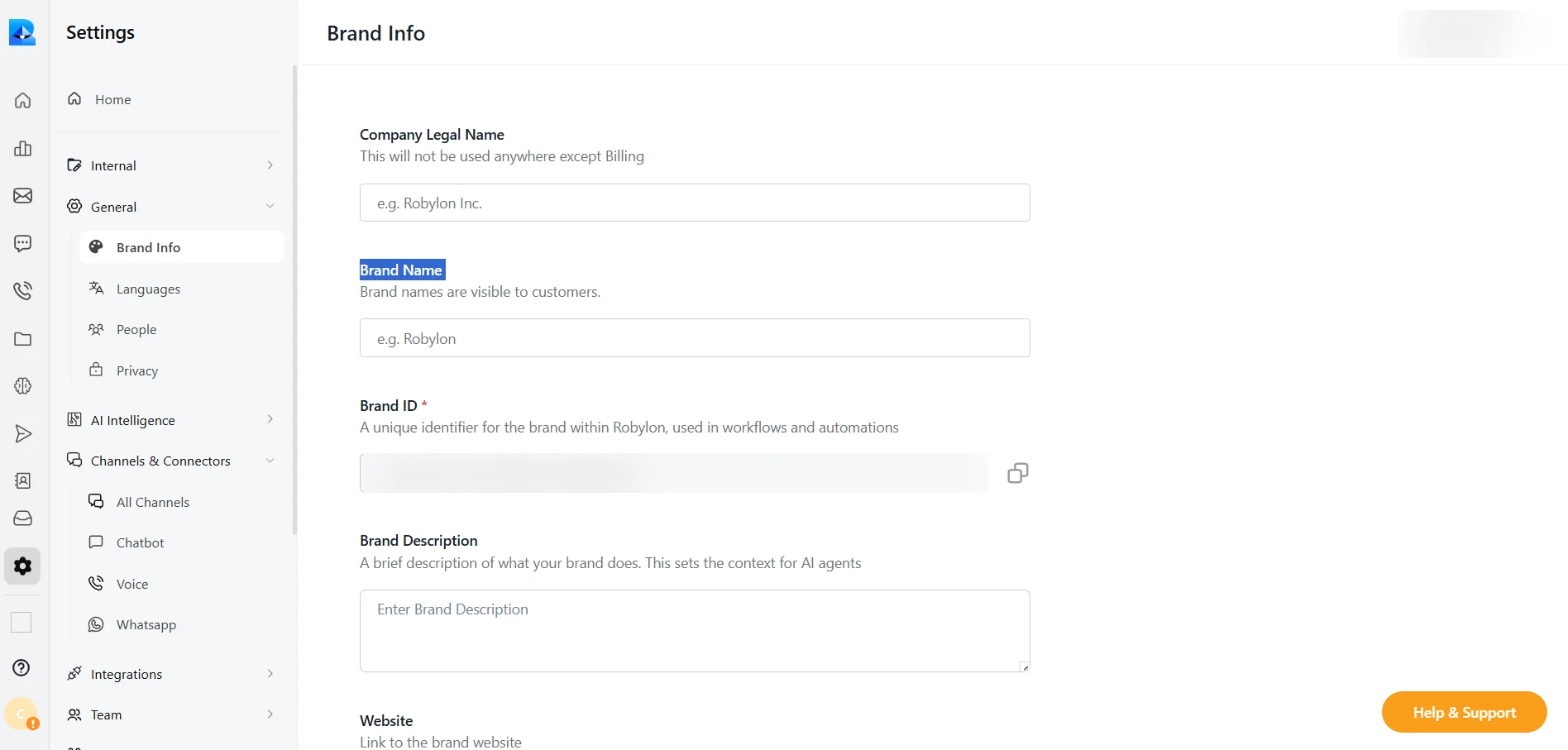
Fill in each field on the General tab and click Save. Only Brand ID is filled in for you.
Open Brand Info
In the dashboard, click Settings in the left sidebar, then General → Brand Info.
Add your company and brand details
Enter your company legal name, brand name and a short brand description.
Add your website, icon and timezone
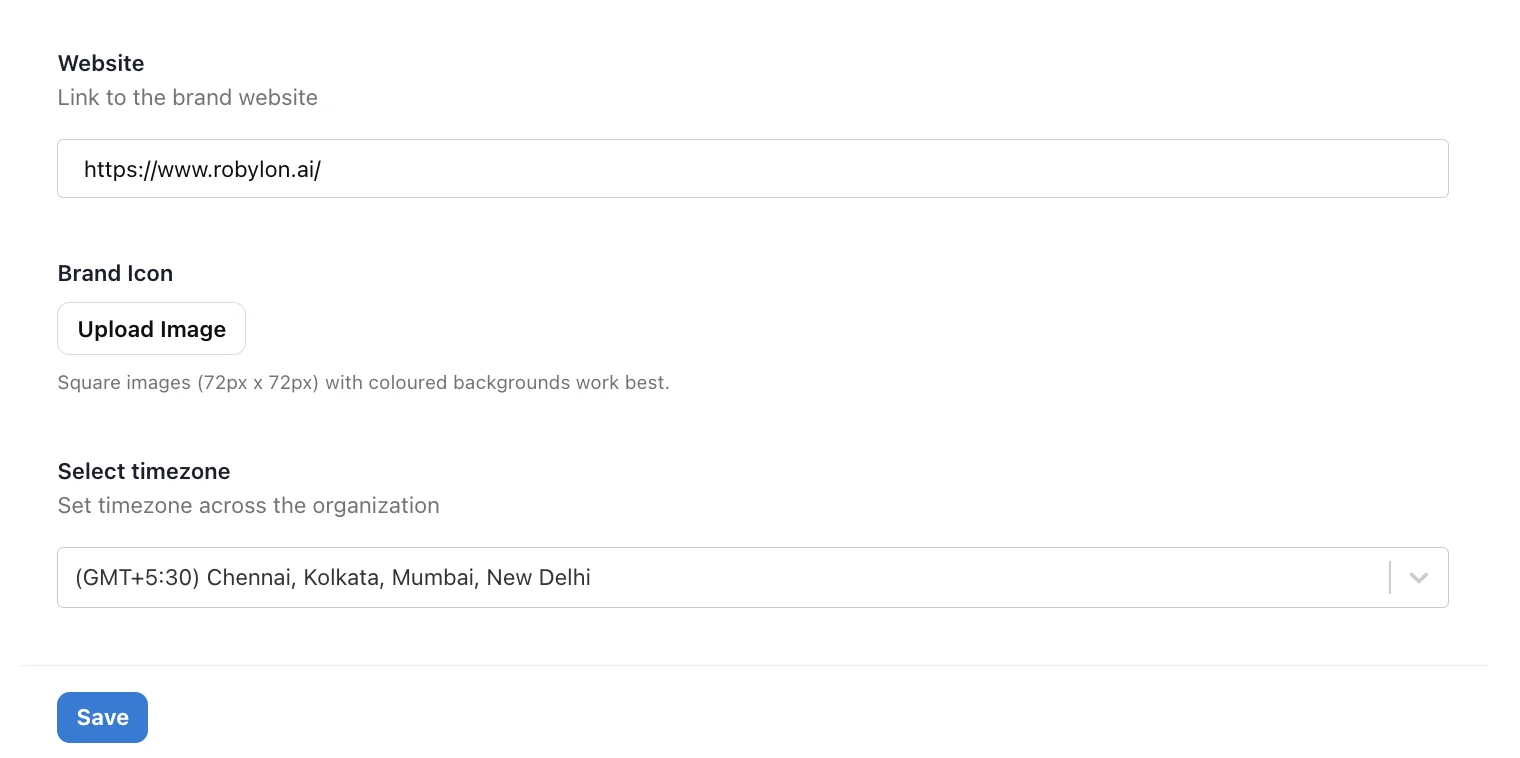
Enter your website address, upload a brand icon and select your organization’s timezone.
Save
Click Save. If you changed the timezone, Robylon asks whether to apply it to every user. See how the timezone works.
Brand info fields
| Field | What it is for | Seen by customers? |
|---|---|---|
| Company Legal Name | Your registered company name. Used only for billing. | No |
| Brand Name | The name your AI agents and chatbot use for your business. | Yes |
| Brand ID | A unique ID for your brand, created by Robylon. You cannot edit it. Copy it with the copy button when a workflow or automation asks for it. | No |
| Brand Description | A short description of what your business does. AI agents use it as background context, so a clear description gives more accurate answers. | No |
| Website | Your main website address. | No |
| Brand Icon | Your logo, shown in the chatbot and other customer-facing places. Use a square image, 72 × 72 pixels, with a coloured background. | Yes |
| Timezone | The timezone your organization works in. | No |
How the organization timezone works
The organization timezone is the default time for your whole account. Robylon uses it for timestamps on conversations and for the date ranges in analytics.
When you save a new timezone, Robylon asks whether to update it for all users:
- Yes: every current teammate’s timezone changes to the new organization timezone.
- No: only the organization timezone changes. Teammates keep the timezone they already have.
Teammate timezones
Every teammate has a personal timezone, separate from the organization’s. Robylon uses it to show that person times and analytics date ranges in their own local time, which matters when your team works across countries.
Teammates change their own timezone from their profile:
Open your profile
Click your avatar at the bottom of the left sidebar, then Account Settings.
Change the timezone
Under Account Information, click Timezone and pick your timezone. It saves as soon as you choose it.
A teammate who has never set a timezone uses the organization timezone. A teammate’s timezone also changes to match the organization’s when an admin saves a new organization timezone and chooses Yes to update all users.