
Shopify
Connect your Shopify store through a custom app from the Robylon team, so AI agents and your team can look up orders and customers, take actions like cancelling an order, and start workflows from store events.
Connecting Shopify gives Robylon access to your store’s orders, products, customers and more. AI agents can answer “where is my order?” with real data, your team sees the customer’s orders next to each ticket and can act on them, and store events such as a new order can start workflows.
Open it from Settings → Integrations → Shopify.
How do I connect my Shopify store?
Email support@robylon.ai to connect your store. The Robylon team sends you a custom app URL for your Shopify store; open it, sign in to your Shopify admin if asked, and install the app.
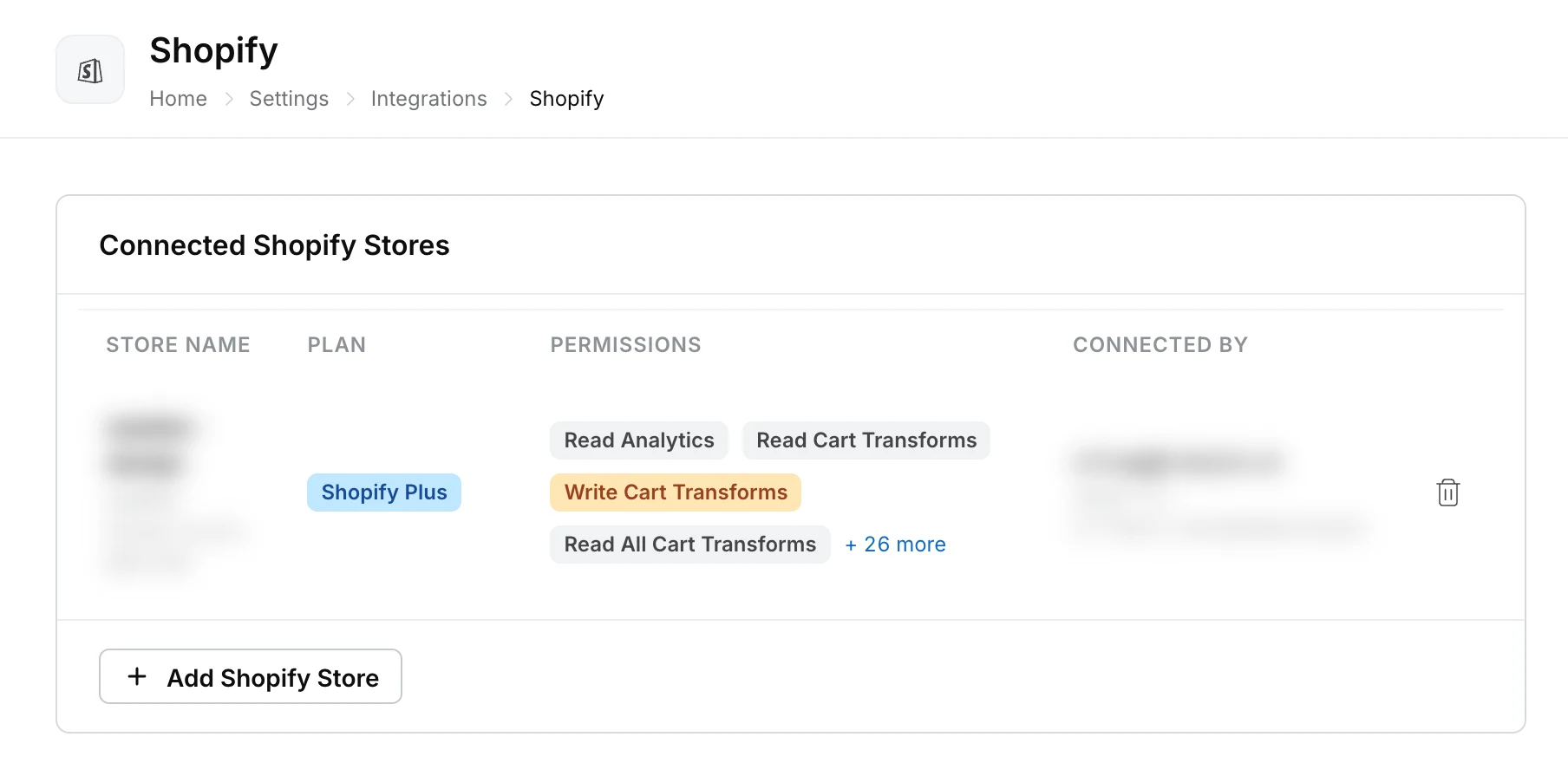
Once the app is installed, the store appears under Connected Shopify Stores in Settings → Integrations → Shopify, with its Store Name, Shopify Plan, Permissions and who connected it.
Which permissions should I grant?
Tell the Robylon team which permissions your agents need when you ask for the app. Read permissions let the AI and your team see data; write permissions let them change it.
| Group | Permission | Allows |
|---|---|---|
| Orders & Fulfillments | read_orders |
View order details, history and notes |
write_orders |
Edit notes and tags, cancel orders | |
read_draft_orders |
View draft and pending orders | |
write_draft_orders |
Create, edit and delete draft orders | |
read_returns |
View return requests and their status | |
write_returns |
Create, approve and decline returns | |
| Products & Inventory | read_products |
View product details and variants |
read_inventory |
View stock levels and locations | |
write_inventory |
Update stock levels and adjustments | |
| Customers & Addresses | read_customers |
View customer details and addresses |
write_customers |
Edit customer details and addresses | |
| Discounts & Gift Cards | read_discounts |
View discount codes and price rules |
write_discounts |
Create, edit and delete discounts | |
read_gift_cards |
View gift card details and balances | |
| Analytics | read_analytics |
View store analytics and reports |
For order tracking, read_orders, read_customers and read_products are usually enough. Add write permissions only for the actions you want agents to take.
What can my team do with Shopify in a ticket?
The inbox side panel shows the customer’s Shopify data next to the conversation: contact details, customer properties, their orders with fulfilment, shipping, payment and refund details, and payment history.
From the panel, your team can:
- open the customer or order in Shopify (View customer in Shopify, View on Shopify)
- edit the customer’s contact details (this updates their Shopify profile for all their orders)
- edit order tags and the order note
- edit the shipping address
- cancel an order (not available once the order is fulfilled)
- mark an order as paid, send an invoice, or resend the order confirmation (only for orders with an outstanding balance; the customer receives an email with a Shopify invoice link)
Each action needs the matching write permission. See Inbox panel to choose which sections are shown.
How do AI agents use Shopify?
AI agents use Shopify through tools, such as looking up an order or a customer, or cancelling an order. Ask the Robylon team to add the Shopify tools you need to your agent, then say in the agent’s prompt when to use them. See Tools.
Can Shopify events start workflows?
Yes. These store events can trigger a workflow:
- an order is created
- an order is updated
- an order is cancelled
- a refund is created
- a customer is created
For example, send a WhatsApp message when an order is cancelled, or have a voice agent call a customer about a failed delivery. See Triggers.
What else uses the Shopify connection?
- Campaign revenue: orders are matched to WhatsApp campaigns to report the revenue each campaign drove. See WhatsApp campaigns.
- Audiences: build campaign audiences from your store’s customers. See WhatsApp campaigns.