
Ticket templates
Create internal ticket templates that pre-fill the subject, body and properties of tickets your team logs often, and set reply and forward templates for email.
Ticket templates save agents from typing the same ticket over and over. An internal ticket template pre-fills a new ticket’s subject, description and properties. Response templates add standard text to the top of every email reply or forward.
Open it from Settings → Inbox & Productivity → Ticket Templates. It has two tabs: Internal Ticket Templates and Response Templates.
How do I create an internal ticket template?
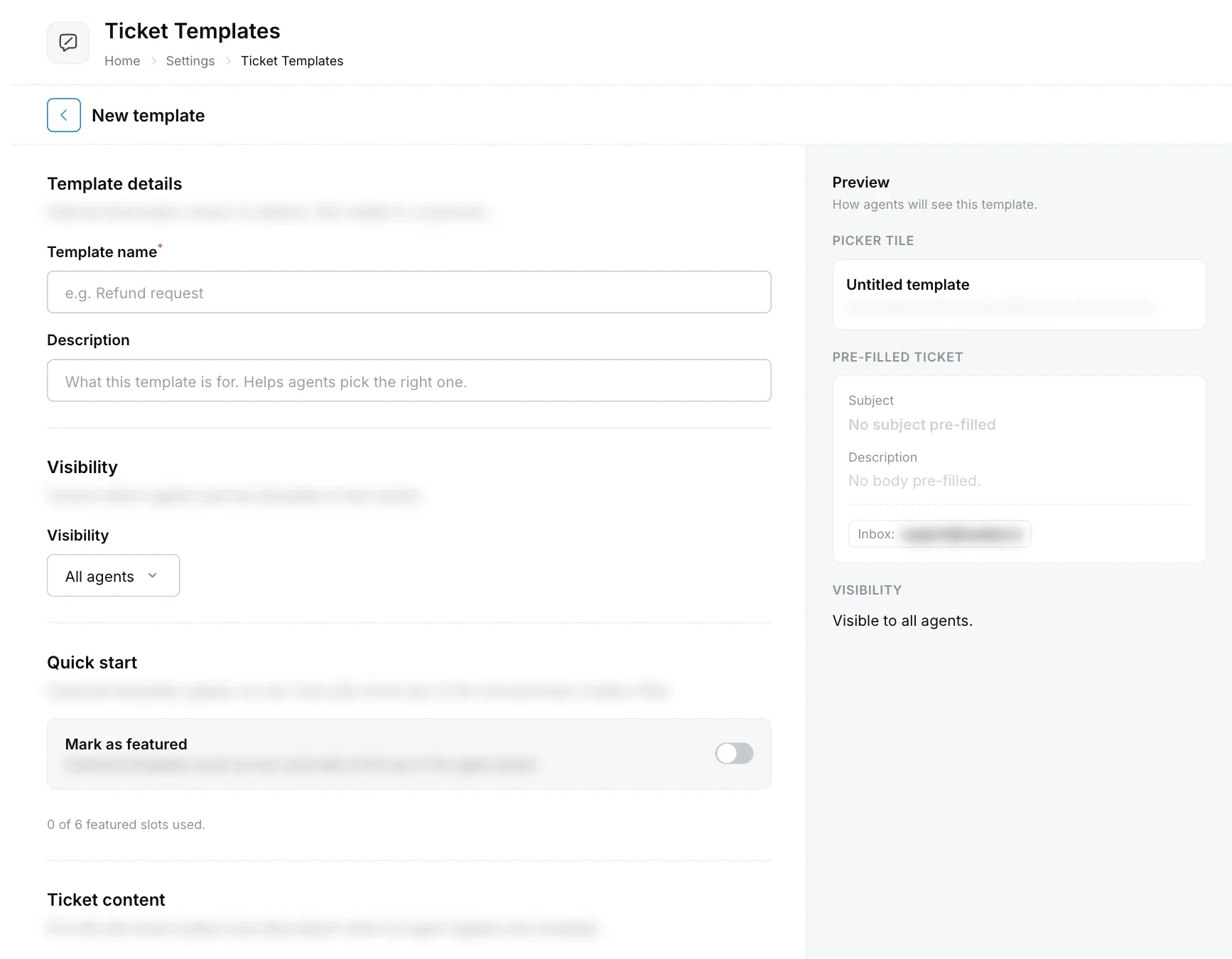
Click Create Template, fill in the template details and the ticket content, and click Create template. A preview on the right shows how agents will see it.
Start a template
On the Internal Ticket Templates tab, click Create Template.
Add template details
Enter a Template name (required) and a Description. Admins see these; customers never do. The description appears on the template’s tile in the agent’s picker, so say when to use it.
Choose who can use it
Under Visibility, choose which agents see this template in their picker (for example All agents).
Feature it (optional)
Turn on Mark as featured to show the template as a one-click pill at the top of the new ticket flow. You can feature up to 6 templates.
Write the ticket content
Choose the Internal email the ticket is received at (leave empty to use the workspace default), then write the Subject and Description body to pre-fill.
Set default properties
Under Default properties, required properties appear automatically. Use Add property to set defaults for other properties. Agents can change these values when they create the ticket.
Save
Click Create template.
How do agents use a template?
When an agent clicks New Ticket in the inbox, featured templates appear as pills and Browse all templates lists the rest. Picking one fills in the subject, description, mailbox and property defaults. See Tickets.
The template list shows each template’s visibility, status and how often it has been used.
What are response templates?
Response templates are boilerplate inserted above the signature when an agent opens an email composer. There are two:
| Template | Inserted when |
|---|---|
| Reply Template | An agent replies to a ticket. |
| Forward Template | An agent forwards a ticket. |
Open the Response Templates tab and add the message for each. A template marked Not Added is not inserted.
Click a template’s row to edit it. Templates support variables, such as the customer’s name, and are available only on the Robylon Email channel.