
Users and leads
Find every customer who has contacted you, see their details and conversation history, understand how Robylon merges duplicate contacts, and view and download leads collected by chatbot forms.
Contacts are the people who talk to you. Robylon keeps two lists: Users, one profile for every customer who has had a conversation on any channel, and Leads, the answers people submit through forms in your chatbot.
Open them from Contacts in the left sidebar, then choose Users or Leads.
What is the difference between users and leads?
A user is a person. Robylon creates a user contact automatically the first time someone starts a conversation, on any channel, and adds every later conversation to the same profile.
A lead is a form submission. When a visitor fills in a chatbot form, their answers are saved as a lead against that form. Leads are reported per form, so you can see how many people each form captured.
| Users | Leads | |
|---|---|---|
| What it is | One profile per customer | One entry per form submission |
| Created by | Any conversation: chatbot, WhatsApp, Instagram, email, voice | A visitor submitting a chatbot form |
| Holds | User attributes and conversation history | The answers given in the form |
| Where | Contacts → Users | Contacts → Leads |
Where do users come from?
Every conversation is linked to a user contact. Robylon identifies the person from what the channel gives it:
- Chatbot: the details your website passes through the Chat SDK (client user ID, email, name, phone), or an anonymous visitor profile if the visitor is not logged in. See chatbot installation.
- WhatsApp and voice: the phone number.
- Email and helpdesk tickets: the sender’s email address.
- Social channels: the customer’s account on that platform.
Robylon then fills in the profile with user attributes: some captured automatically (browser, country, first and last contacted), and some looked up from your own systems.
What does the Users list show?
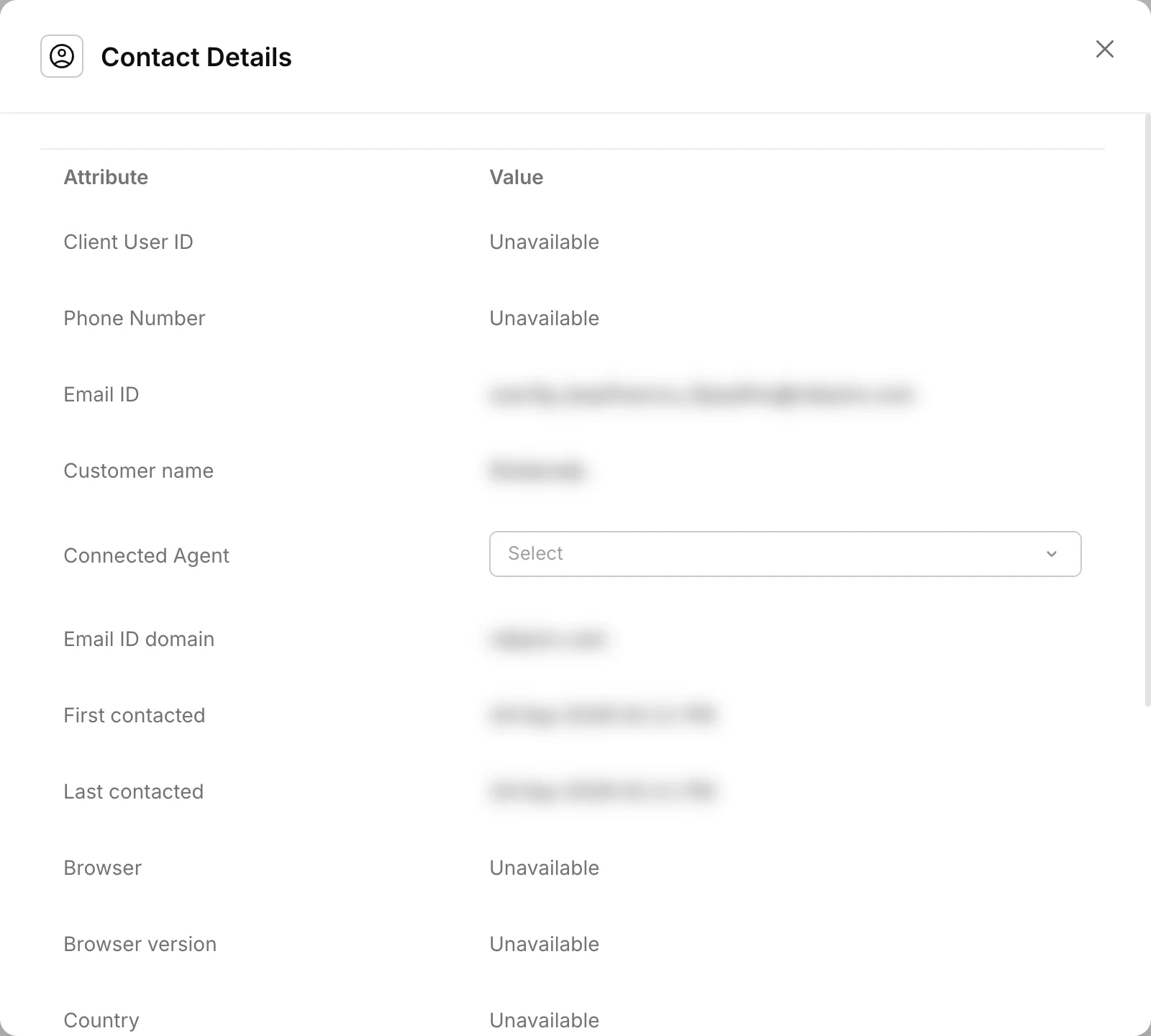
The list shows each contact’s Name, Phone / Email, Channels, number of Conversations and Last Contacted date. Click a contact to open Contact Details, a table of every attribute and its value. You can change the contact’s Connected Agent there.
Use the filters above the list to narrow it down:
| Filter | Options |
|---|---|
| All Contacts | Users (real customers) or Test Users (contacts marked as test) |
| Channels | The channels the contact has used |
| Block Status | Blocked or Not Blocked |
| Total Conversations | Less than 2, 3 to 5, Greater than 5 |
| Assigned Agent | The contact’s connected agent |
How do contacts connect to conversations?
Each conversation in the Unified Inbox belongs to one user contact. When an agent opens a conversation, the user info panel shows that contact’s attributes, and the contact’s Total conversations and Channels interacted update with every new conversation.
Because the same person can reach you on several channels, their profile brings those conversations together. Workflows can also write to user attributes during a conversation with the Update User Info action.
A contact can also have a Connected Agent: the human agent assigned to them for sticky assignment. It is set automatically when an agent handles the customer’s chat, and can be changed by hand.
Contact Details shows attributes only, not conversations. To read a customer’s earlier conversations, open one of their conversations in the inbox and turn on View all conversations in the three-dot menu of the conversation header. See working with conversations.
How does Robylon merge duplicate contacts?
When a customer reaches you with an identifier that already belongs to another contact, Robylon merges the two into one profile automatically. The oldest contact survives, and everything from the other contact moves onto it. The rules are in Settings → General → People, under Cross-Channel Merge Rules.
Merging is switched on per workspace. If duplicates are not merging for you, email support@robylon.ai. There is no button for agents to merge two contacts by hand.
Which identifiers are matched?
| Priority | Identifier | How it is compared |
|---|---|---|
| 1 | Client user ID | The ID your website or app passes for a logged-in user. Always used (locked). Compared exactly, so ABC123 and abc123 are different. |
| 2 | Email Address | Compared ignoring capital letters and spaces. |
| 3 | Phone Number | Compared in international format, so +91 98199 03303 and 9819903303 match. A number without a country code is read as an Indian (+91) number. |
You can drag Email Address and Phone Number to swap their order, but you cannot switch either of them off. Obvious placeholders, such as test@test.com, noreply@ addresses or 1234567890, are ignored and never cause a merge.
When does Robylon check for a match?
Every time a customer gets in touch or is identified:
- Chatbot: when your site or app passes the customer’s details to the chatbot. An email or phone number a visitor simply types into the chat is shown on their profile but is not used for merging, because it is not verified.
- Email: when an email arrives.
- WhatsApp and voice calls: by phone number.
- Instagram and Facebook: by the customer’s account on that platform.
- Workflows: when an Update User Info action sets an email, phone number or client user ID that already belongs to another contact.
What if the identifiers point to different contacts?
- Any single match is enough. If the email matches one contact and the phone number matches another, all of them merge into the oldest. The priority order does not pick one contact over another.
- A different client user ID does not stop a merge. If the email matches but the client user IDs differ, the contacts still merge. The surviving contact keeps its client user ID, and the other one is kept as an alternate so it still finds this contact next time.
- The same client user ID with a new email is not a merge. The contact’s email is updated to the new one, and the old email is kept as an alternate.
What happens to the merged contact’s data?
| Data | After the merge |
|---|---|
| Conversations, tickets, calls and notes | All move to the surviving contact. Replies keep going to the email address, number or account each conversation started on. |
| Total conversations | The two counts are added together. |
| Channels interacted | Combined. |
| Name, email and phone number | Taken from whichever contact was in touch most recently, when it has a value. Older values are kept as alternates. |
| Other user attributes | The surviving contact’s values win. Attributes only the other contact had are added. |
| Connected Agent | The surviving contact’s agent is kept, or the other one if it had none. |
| Test user | If either contact was a test user, the merged contact is one. |
| Blocked channels | A channel blocked on either contact stays blocked. |
Merge direction is set to Merge newer into older, which is why the oldest contact always survives. Merge older into newer is listed but locked.
Can agents see that a merge happened?
Yes. The conversation gets a note from Robylon AI, “Contact name was merged into name”, and email tickets show the same event in their timeline. The user info panel in the inbox also shows a banner while the merge is in progress and when it is complete.
Can a merge be undone?
No. The merged-away contact is archived, not deleted, but there is no way to split it back out in the dashboard. Check that your client user IDs are unique per customer before passing them to the chatbot, because customers sharing one ID are treated as a single contact.
How do I mark a contact as a test user or block them?
Use the actions menu (three dots) at the end of the contact’s row on Contacts → Users, or the three-dot menu in the conversation header in the inbox. Choose Mark as Test User or Block / Unblock Channels.
Test users are contacts you use to try out the chatbot or workflows, such as your own team. Marking a contact as a test user moves them to the Test Users view, and you can choose to apply the flag to their past conversations too. Test conversations are left out of the Analytics dashboard and flagged in reports (the Is Test Chat column).
Blocking a contact stops them reaching you on a channel. Blocking works per channel and is available for WhatsApp and email, so Block / Unblock Channels only appears for contacts who have used one of them. When you block a channel:
- WhatsApp: the block is placed with Meta, so the contact’s messages no longer reach your number. Meta only accepts a block within 24 hours of the contact’s last message. If it fails, Robylon retries when the contact next writes in.
- Email: new emails from the contact’s address are dropped and do not create tickets.
- Open conversations on that channel are closed straight away, with no closing message, CSAT survey or notification. Past conversations are not changed, and the contact’s other channels stay open.
- Campaigns skip the contact on the blocked channel.
Unblocking lifts the block, including at Meta for WhatsApp.
How do I see and download leads?
Open Contacts → Leads, select a form, and set the date range.
Open Leads
Go to Contacts → Leads. The top of the page shows Total Leads and Collected Via Forms. Both count every lead from all your forms, whatever form or dates you select below.
Pick a form
Use the Forms dropdown to choose the form you want. Leads only appear once a form is selected.
Set the date range
Use the date picker to choose the period the list shows. The default is the last month.
Download
Tick the leads you want and click Download. With nothing ticked, Download exports every lead that form has collected, whatever the date range. The file is a CSV named after the form and the day you downloaded it.
To create or change the forms that collect leads, see chatbot forms.