
Keep sources up to date
Refresh synced web pages and Google Drive files on a schedule or on demand, choose whether new pages are added, and review pages that disappeared or failed.
Your website and your Google Drive documents change. Refreshing re-reads them so your AI agents answer from the current version, not the one you added months ago. You can refresh on a schedule, refresh right now, and review any pages that a refresh could not find.
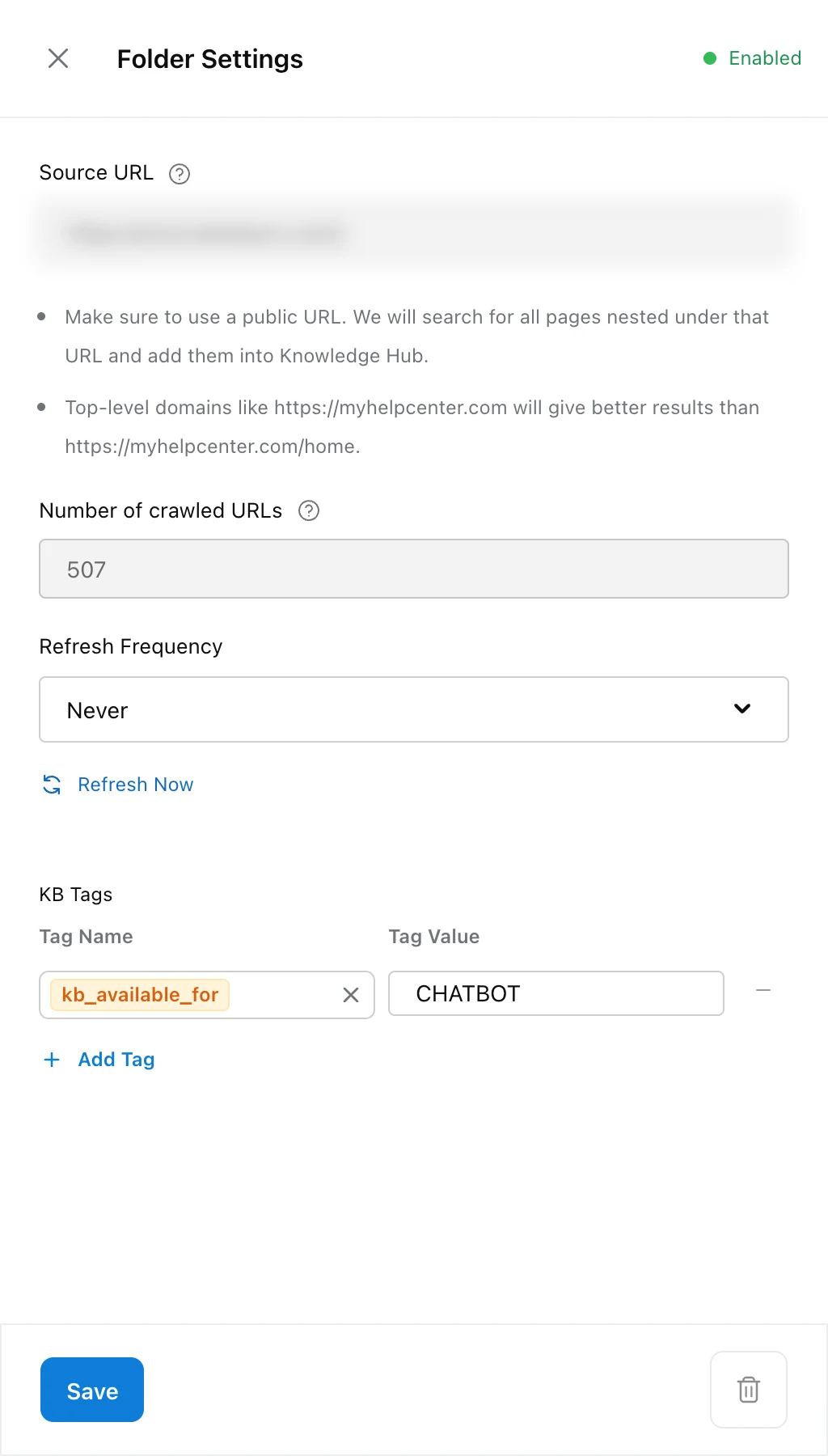
Refresh is set per source. For a synced website, open the website’s folder from Knowledge → Source and click Folder Settings. For a Google Drive document, click it in the source list.
Which sources can be refreshed?
Only synced web pages and Google Drive files can be refreshed, because Robylon can go back to the original and read it again.
| Source type | Can it be refreshed? | How to update it instead |
|---|---|---|
| Sync Webpage(s) | Yes, scheduled or manual | Not needed |
| Add from Google Drive | Yes | Not needed |
| Upload a File | No | Upload the new version and delete the old one |
| Q&A and Bulk Upload QnAs | No | Edit the Q&A, or upload a CSV with its qna_id |
Whether refresh is available depends on your plan and usage. When it is not, both scheduled and manual refresh are unavailable and the refresh options are locked. For plan questions, contact your account manager or support@robylon.ai.
How do I refresh a Google Drive document?
Choose Auto Refresh when you add the document, or change it later:
- Go to Knowledge → Source and click the Google Drive document.
- In the panel, under Details, choose a Refresh Frequency: Never, Every monday, First of every month or First of every quarter.
- To refresh it straight away, click Refresh Now under the frequency. Robylon shows “Source will be refreshed in few minutes”.
How do I refresh a website on a schedule?
Pick a Refresh Frequency when you add the website, or change it later in the folder’s settings.
Open the website's folder
Go to Knowledge → Source and click the website. Each synced website appears as a folder with its URL as the name.
Open Folder Settings
Click Folder Settings at the top right.
Choose a frequency
Under Refresh Frequency, choose Never, Every monday, First of every month or First of every quarter.
Choose Static or Dynamic
Choose whether a refresh can add new pages. See Static or Dynamic.
Save
Click Save.
Scheduled refreshes only run on sources whose status is Enabled. A source that is still processing, has failed, or is waiting for review is skipped until it is back to Enabled.
Scheduled refreshes start on the chosen day, using UTC dates. There is no fixed time of day.
Single pages inside a website folder follow the folder’s schedule. Their panel shows the frequency but you cannot change it there.
Should I choose Static or Dynamic?
Choose Static if the set of pages you synced is the set you want. Choose Dynamic if new pages on your site should be added automatically.
| Option | What a refresh does | Use it when |
|---|---|---|
| Static (default) | Re-reads only the pages already in your Knowledge Base. New pages on your site are never added. | You hand-picked pages, or your site has sections you do not want the agent to use. |
| Dynamic | Crawls the site again from the source URL, re-reads existing pages, and adds any new pages it finds straight away as Enabled. New pages show a “new” badge for 7 days. | Your help centre grows regularly and every new article should be answerable. |
With Dynamic, new pages go live without a review step. If your site has pages the agent should not use, exclude them with URL paths to exclude when you add the website, or use Static.
How do I refresh a source right now?
For a website, open the folder, click Folder Settings, then click Refresh Now. The Refresh Webpage? dialog asks for a Refresh Type: Static (Update existing pages only) or Dynamic (Crawl for new and deleted pages). It starts on the folder’s current setting. Your choice applies to this refresh only. Click Start Refresh.
For a Google Drive document, click it in the source list and click Refresh Now.
The source shows as Refreshing while it runs and goes back to Enabled when it finishes. You cannot refresh a single page of a website on its own. Refresh the whole folder instead.
What happens when a page disappears or cannot be read?
Robylon does not delete it for you. The page is set to Pending Review, and so is its website folder, until someone decides whether to keep it or remove it.
A page goes to Pending Review when a refresh finds that:
- It is no longer linked from your site. It may have been deleted, moved or unpublished.
- It could not be read. The page errored, timed out or now needs a login.
- It is a new page (Dynamic only) that could not be read.
Until you decide, the page stays in your Knowledge Base as it was. Nothing expires or is removed automatically.
How do I review pages after a refresh?
Filter your sources by Pending Review, open the website folder, and keep or remove each flagged page. Flagged pages show a Not Found badge.
Find sources waiting for review
On Knowledge → Source, open the Status filter and choose Pending Review.
Open the folder
Click the website folder. Pages waiting for a decision are marked Pending Review.
Check each page
Open the live page in your browser. If it moved, add the new address with Add Source → Sync Webpage(s). If it was removed on purpose, the old content should go too.
Keep or remove
Click a page to open it. Its panel shows Pending Review and Url not found. Click Keep to return it to Enabled, or Remove and confirm to delete it. To keep several pages at once, tick them in the folder and click the Keep button in the toolbar. To delete several, tick them and click Delete.
The dashboard does not say which of the reasons above applied to a page. Check the live page to find out.
What if a refresh fails?
Robylon retries a failed refresh up to 5 times. If it still fails, the source keeps its previous content and goes back to Enabled, so the agent keeps answering from the last good version.
A refresh also fails if the new content would take you over your plan’s storage limit. Remove sources you no longer need, then refresh again.
A failed refresh is shown at the top of the source’s panel: “Update failed on (date) due to size limit.” or “Update failed on (date) due to technical issue.” For a Google Drive document that failed for a technical issue, the message has a Refresh Now link to try again.
What should I read next?
- Add sources: set up a website sync, including include and exclude paths.
- Managing your Knowledge Base: every source status and what it means.