
Tags
Create tags, add them to conversations by hand or automatically, and use them to filter, route and report on conversations.
Tags are short labels, such as “Refund”, “VIP” or “Bug”, that say what a conversation is about. Statuses tell you where a conversation is in its lifecycle; tags tell you its topic. Use them to filter the inbox, trigger automations and see in reports what customers contact you about.
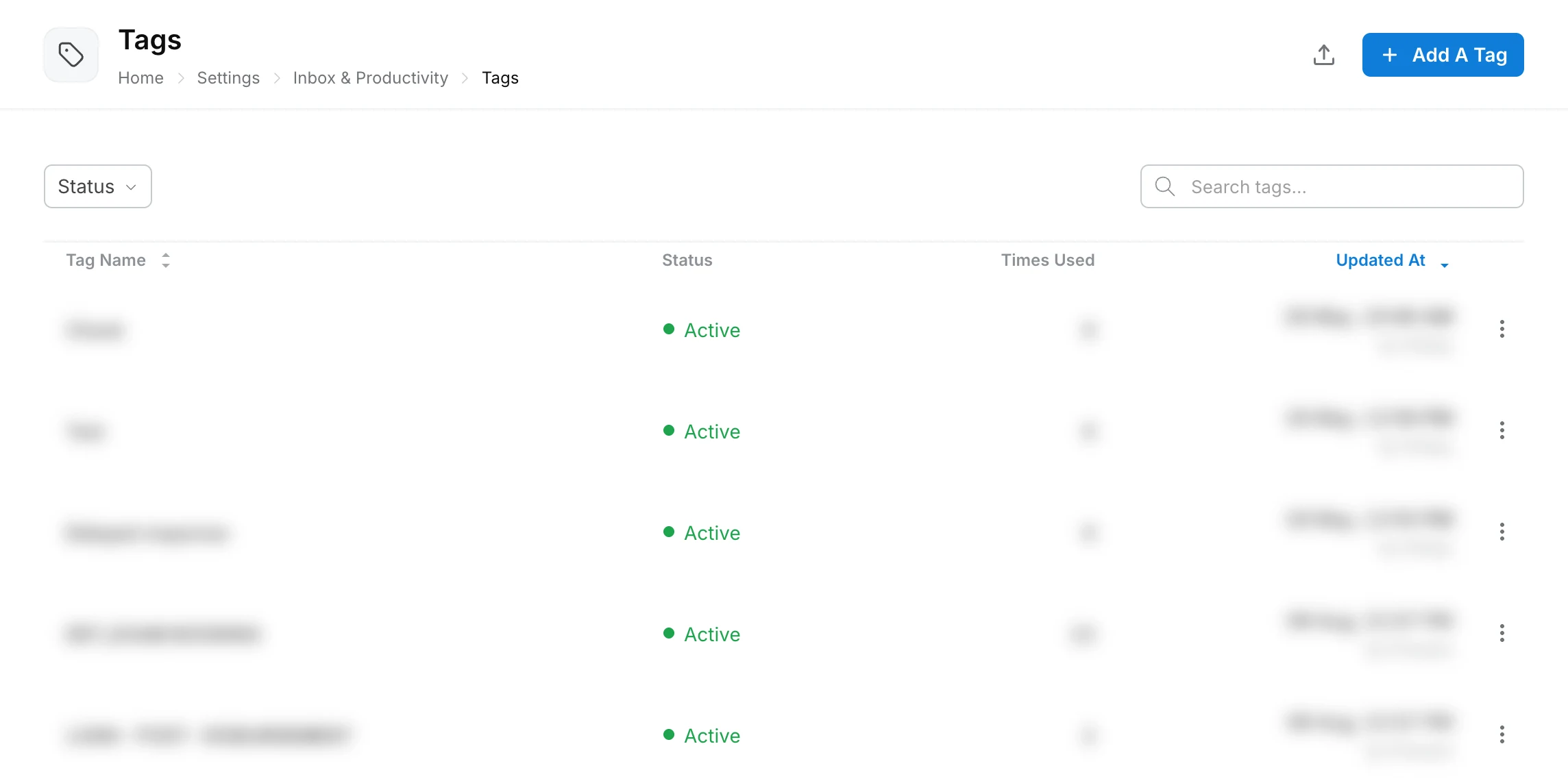
Create and manage tags from Settings → Inbox & Productivity → Tags.
How are tags different from intents?
Tags are single-level labels, such as “Refund” or “VIP”, that anyone can add. Intents are a separate feature: they can have up to three levels, can be filled by AI, and can differ per channel. See Intents.
How do tags get onto a conversation?
By hand, or automatically:
- By hand: open the conversation in the inbox and pick tags in the Tags section of the right-hand panel. A conversation can have several tags.
- Workflows: an Add tag action tags the conversation when the workflow reaches it. If the tag does not exist yet, Robylon creates it. See workflows.
- Simple automations: an add-tag step tags email tickets that match the automation’s trigger and conditions. See simple automations.
How do I create tags?
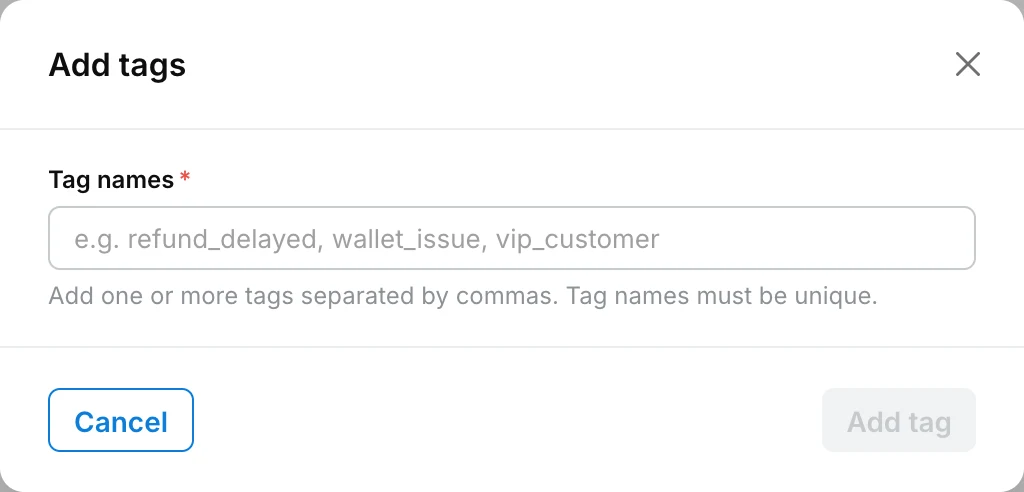
Click Add A Tag, type one or more names separated by commas, and click Add tag. Tag names must be unique.
Open Tags
Go to Settings → Inbox & Productivity → Tags and click Add A Tag.
Enter tag names
Under Tag names, type the tags, separated by commas, for example Refund, Exchange, Delivery delay, VIP.
Add them
Click Add tag. The tags appear in the list with their status, how many times each has been used, and when it was last updated.
Where can I use tags?
- Inbox filters: filter by tags. See filters.
- Evaluations: run quality checks only on conversations with certain tags.
- Reports: conversation exports include the first two tags and all tags of each conversation. See reports.
How should I name tags?
- Pick one name per topic. Decide between “Refund” and “Refunds” so your data is not split across two tags.
- Start small. 10 to 15 broad tags are easier to use and report on than 100 narrow ones. Use intents for detail.
- Review regularly. Check the Times Used column each month; rename or remove tags nobody uses.