
Version history
See every published version of an AI agent, preview an older version, and restore it to your working copy.
Every time you publish an AI agent, Robylon saves a copy of that version. Version history lets you see what an agent looked like at any point, and bring an older version back if a change made things worse.
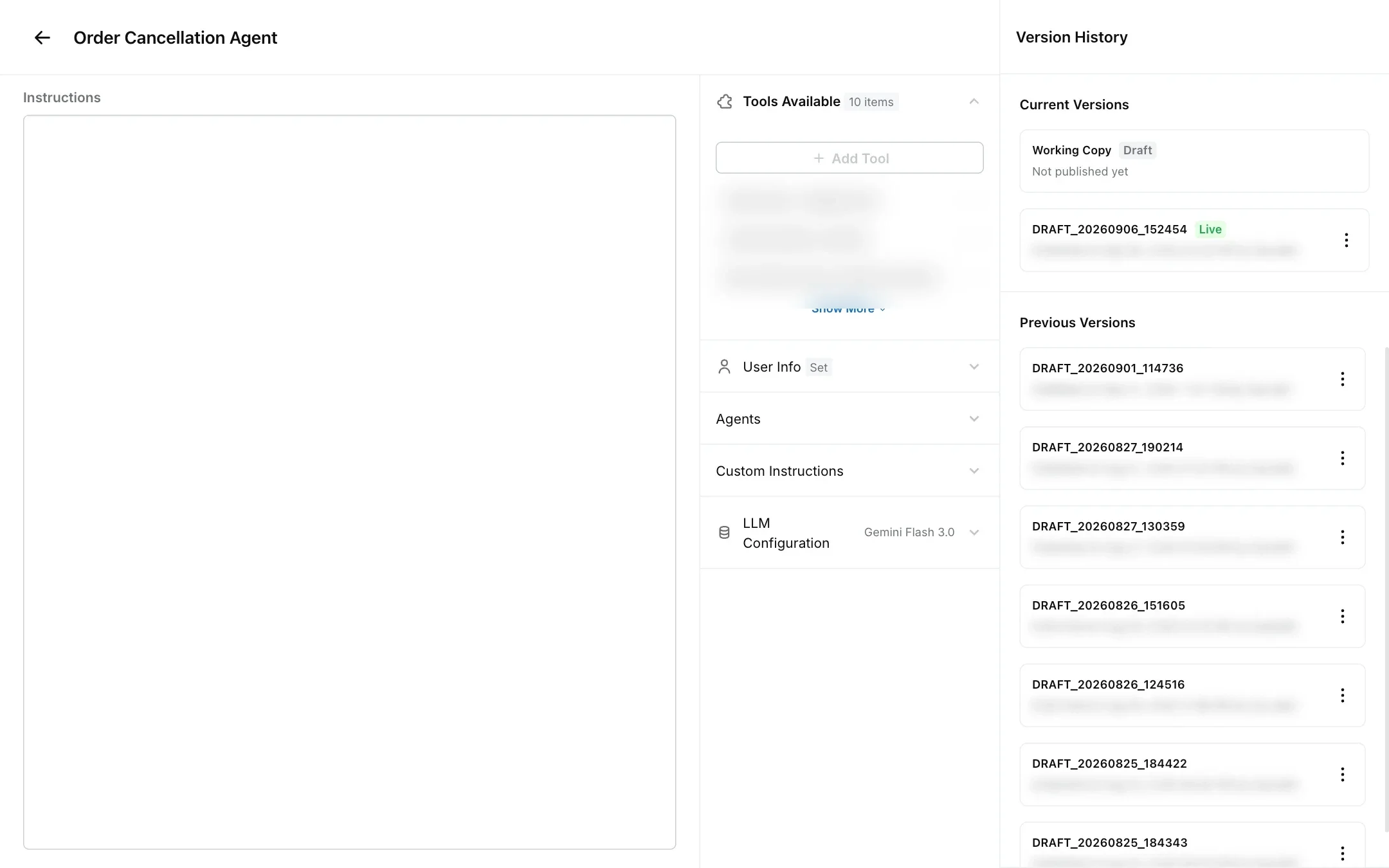
Open an agent from Settings → Workflows & AI Agents → AI Agents, then click the History icon (the clock) at the top of the agent panel.
Workflows have their own, separate history. See workflow version history.
How do drafts and published versions work?
Each agent has two current versions:
- Working Copy: the draft you edit. Changes you save here do not reach customers. It shows Not published yet until you publish it.
- Live: the version customers are talking to right now. It is read-only.
When you publish the working copy, it becomes the new live version and the previous live version moves to Previous Versions. Each version shows its name and when and by whom it was published, for example “Published at Sep 11 by Alex”.
When you pause a live agent, the latest version is marked as unpublished and the agent stops answering customers.
How do I look at an older version?
Click the version in the Version History panel. The agent panel switches to that version’s instructions, tools, user info and model settings so you can read them. Nothing changes until you restore it.
How do I restore an older version?
Restoring copies the older version into your working copy. You then publish it to make it live.
Open the version
In Version History, click the version you want, or open its menu (⋮).
Restore it
Click Restore, or Restore this version from the menu. The version’s settings replace your working copy.
Check and publish
Review the working copy, then publish it. Until you publish, customers keep talking to the current live version.
What does a version include?
A version saves the agent’s full configuration at the moment it was published: its instructions, custom instructions, user info, the tools it uses, the agents it can hand over to, its channels and its model settings.
A version records which tools the agent uses, not the tools’ own settings. Changes you save to a tool in Settings → Data & Developer → Tools apply straight away, and restoring an older agent version does not undo them.
Can I name a version?
Yes. When you click Publish, enter a name under New Version. Robylon suggests one based on the date and time, such as v1_20260911_101940, and you can replace it with your own, such as “Added refund steps”. Versions published without a name get one automatically, such as v-20260911-101940.