
Groups
Create groups of agents, choose which channels each group handles, set its working hours and decide how chats and emails are assigned inside the group.
A group is a team of agents that handles the same kind of work, such as a chat team, an email team or a refunds team. Each group has its own members, working hours and assignment rules, so conversations reach the right people in the right way.
Open it from Settings → Team → Groups.
What does a group control?
A group decides four things for the conversations routed to it:
- Who can be assigned: the agents in the group.
- When the group is available: its working hours and holiday calendar.
- Which channels it routes: chat, email or both.
- How work is assigned: manual, round robin or balanced, plus welcome and unavailability messages.
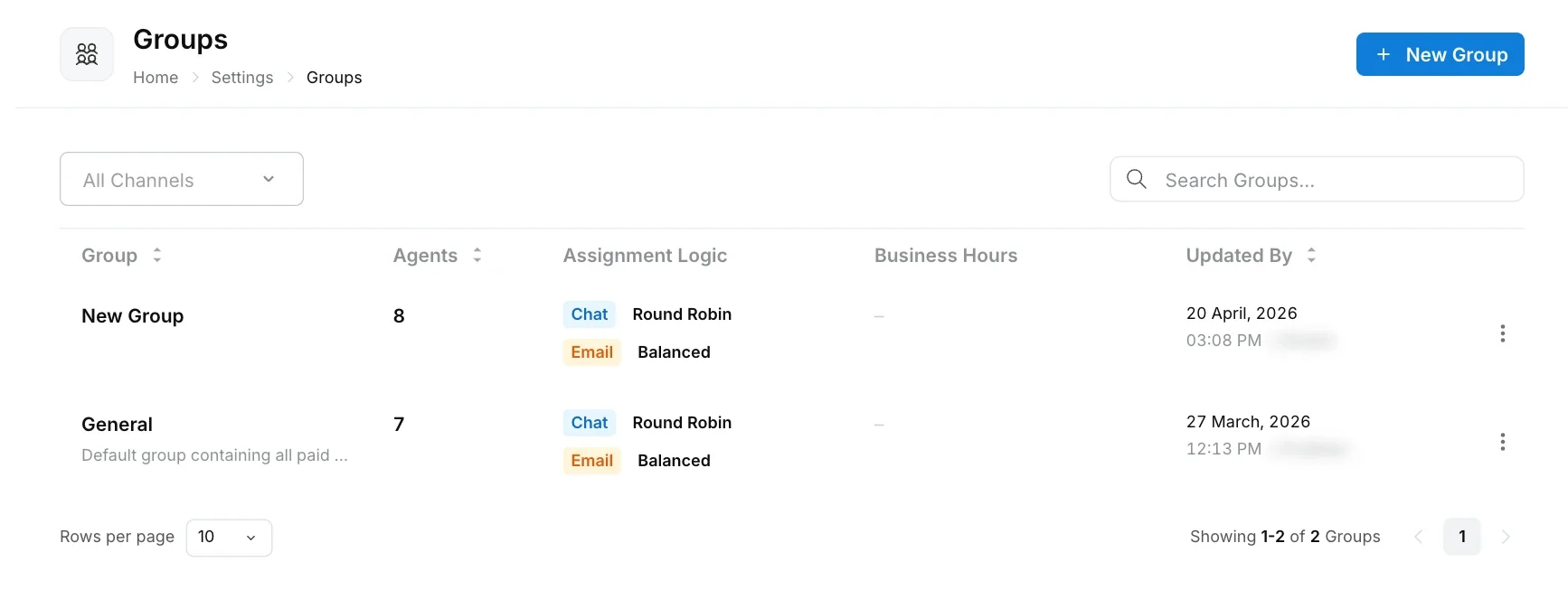
Every workspace has a General group, the default group containing all paid agents. The Groups list shows each group’s number of agents, its assignment logic per channel, its business hours and who last updated it.
How do I create a group?
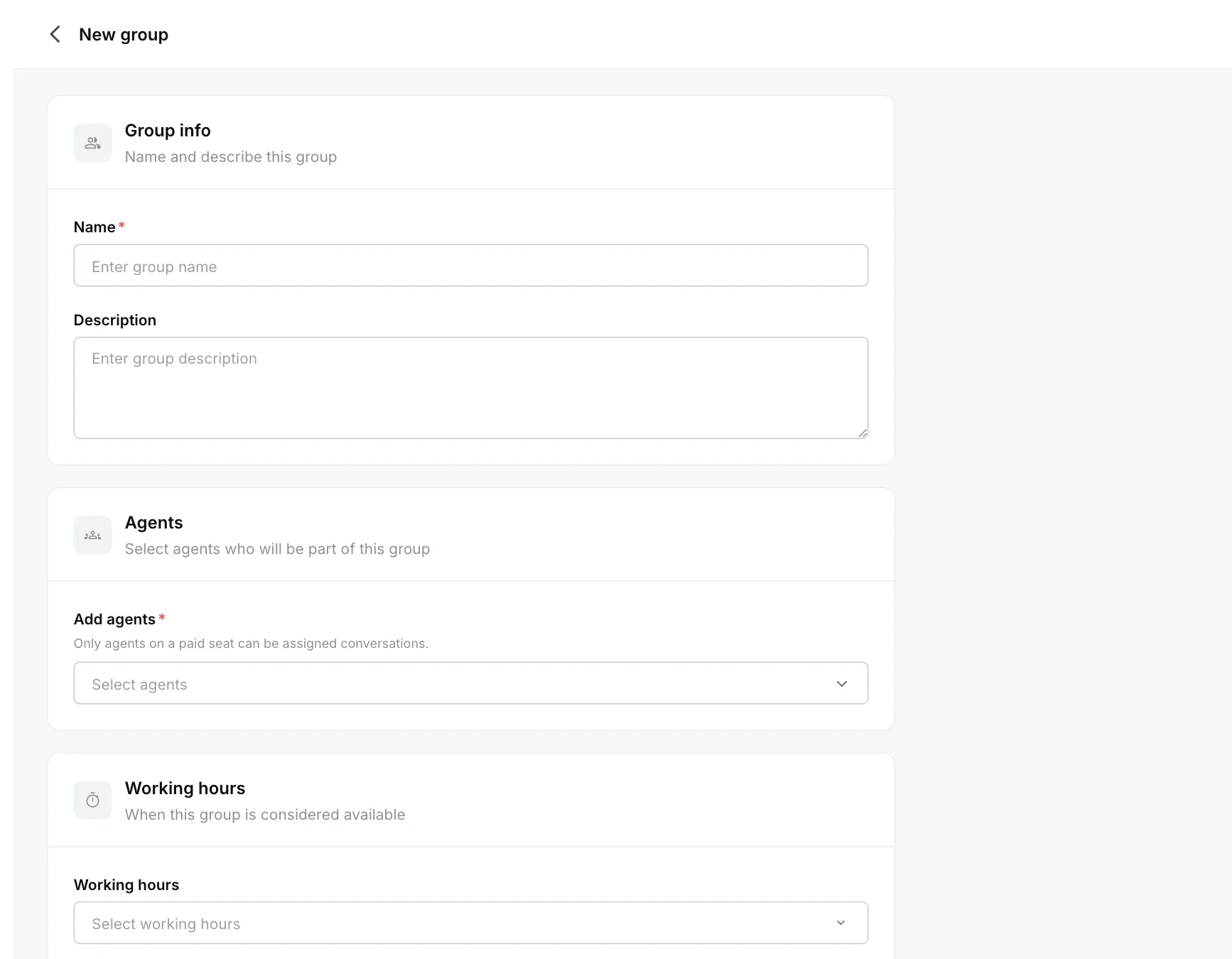
Click New Group, name the group, add agents, choose its working hours and channels, set the assignment rules and click Save group.
Name the group
Go to Settings → Team → Groups and click New Group. Under Group info, enter a Name (required) and an optional Description, for example “Refunds team: handles refund and return questions”.
Add agents
Under Agents, pick the teammates in Add agents. Only agents on a paid seat can be assigned conversations, so Lite teammates will not receive work. See seat types.
Choose working hours
Under Working hours, select a Working hours schedule and a Holiday calendar. These decide when the group counts as available. Create schedules first in Business hours.
Choose channels
Under Channels, turn on Chat (live chat, WhatsApp, Instagram and other messaging channels), Email (email tickets and the shared inbox), or both. Only connected channels can be turned on.
Set chat and email assignment
For each channel you turned on, choose the assignment logic and the other options described below.
Save
Click Save group.
Which assignment logic should I choose?
Pick Balanced if you want work spread by current workload, Round Robin for strict turns, and Manual if a supervisor hands out work or agents pick it themselves.
| Assignment logic | What happens |
|---|---|
| Manual | Conversations are not auto-assigned. Agents pick them up, or a supervisor assigns them. |
| Round Robin | Conversations go to teammates in sequential order. |
| Balanced | Each conversation goes to the teammate with the fewest active tickets. |
Round Robin and Balanced only assign to agents who are available (their status allows replies, see agent statuses) and who are below their assignment limit.
What are the other chat assignment options?
Under Chat assignment, you can also set:
| Option | What it does |
|---|---|
| Assign to | The roles that chats in this group can be assigned to (for example only Agents, or Agents and Supervisors). |
| Statuses counted toward limit | Which conversation statuses count toward an agent’s limit: Open, In Progress, Waiting on Agent. Leave empty to count all statuses. |
| Allow reassignment | Lets the assignee reassign the conversation to another agent. Choose which Roles that can reassign: Super admin, Admin, Supervisor, Agent. |
| Welcome message | Sent to the customer automatically when a chat is assigned to an agent. |
| Agent unavailability message | Sent to the customer when no agent is available to take the chat, for example outside working hours or when every agent is at their limit. |
What are the email assignment options?
Under Email assignment, you get the same Assignment logic, Assign to and Allow reassignment options as chat, plus Auto-acknowledgment: a reply sent automatically when an email arrives during working hours, before an agent is assigned.
How do conversations reach a group?
A conversation reaches a group through a queue, or directly when a workflow or AI agent hands it over to a named group. If no queue matches, the conversation goes to the default queue, which uses the conversation’s own group. If it has none, it goes to the General group.