
WordPress
Add the Robylon chatbot to your WordPress site with a code snippet plugin such as WPCode.
To add the Robylon chatbot to a WordPress site, copy the chatbot’s snippet from Robylon and add it with a code snippet plugin. This guide uses the free WPCode plugin. You need admin access to WordPress.
How do I copy the chatbot snippet from Robylon?
Go to Settings → Channels → Chatbot, click your chatbot, open the Install tab, choose Web → Wordpress, and copy the snippet. It already contains your Chatbot ID. See Installation for what the snippet does.
How do I install the WPCode plugin?
If you already have a plugin for adding code to your site, skip to the next section.
Add a new plugin
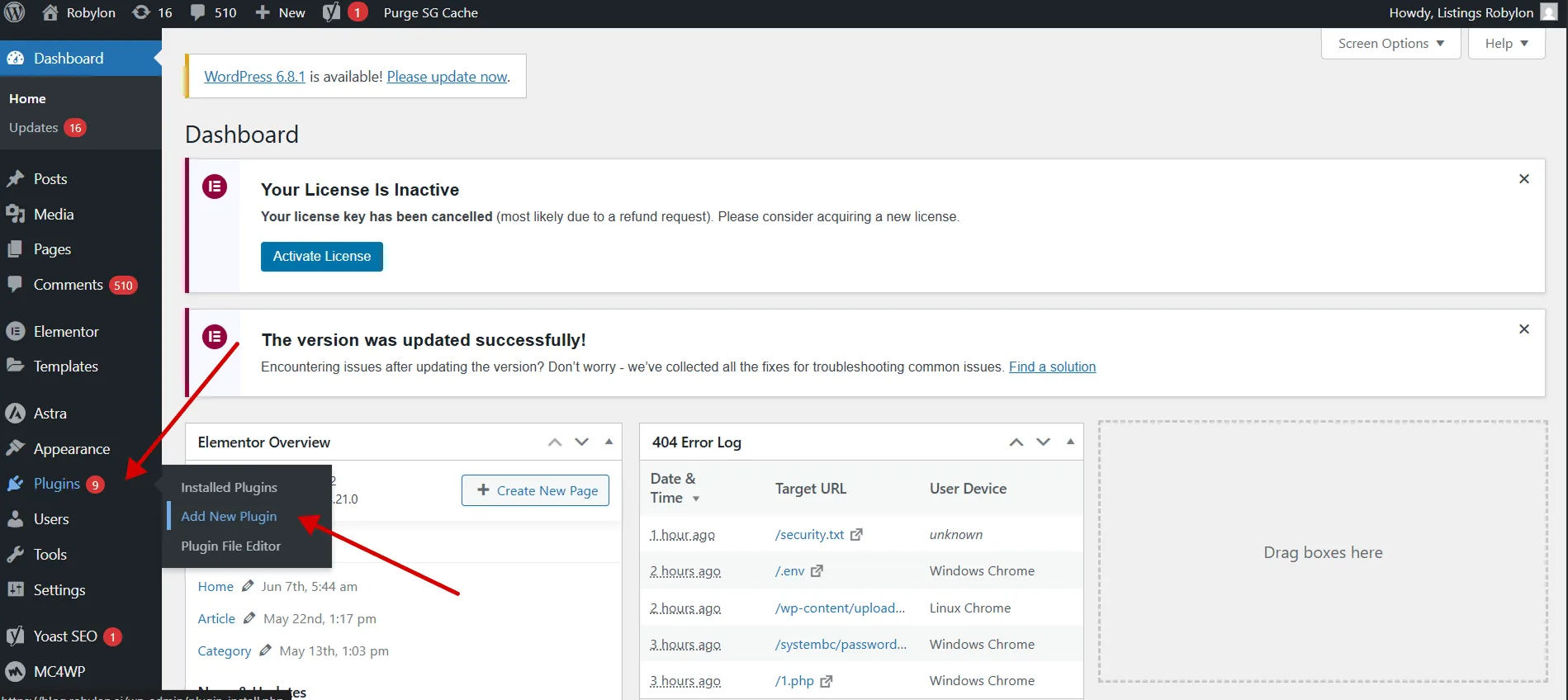
In your WordPress admin, go to Plugins → Add New Plugin.
Install WPCode
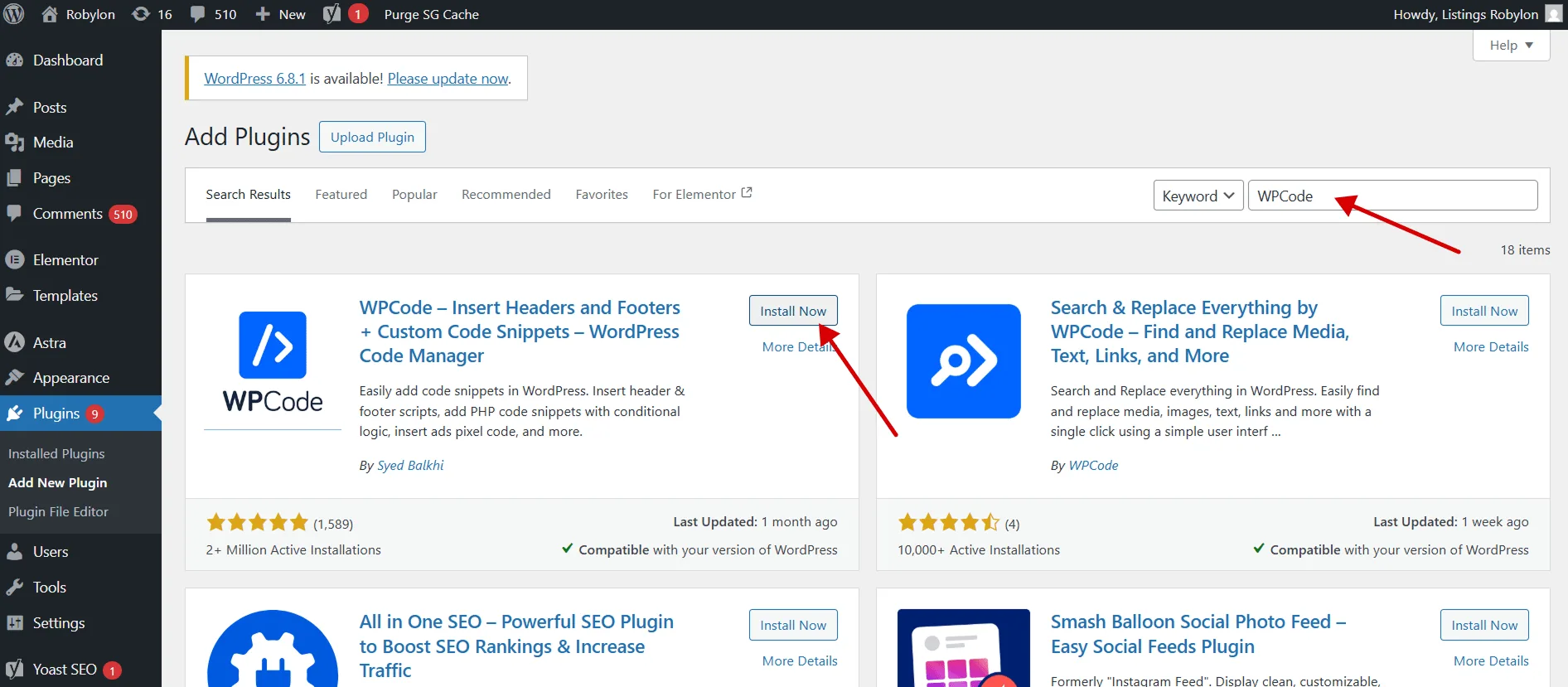
Search for WPCode and click Install Now.
Activate it
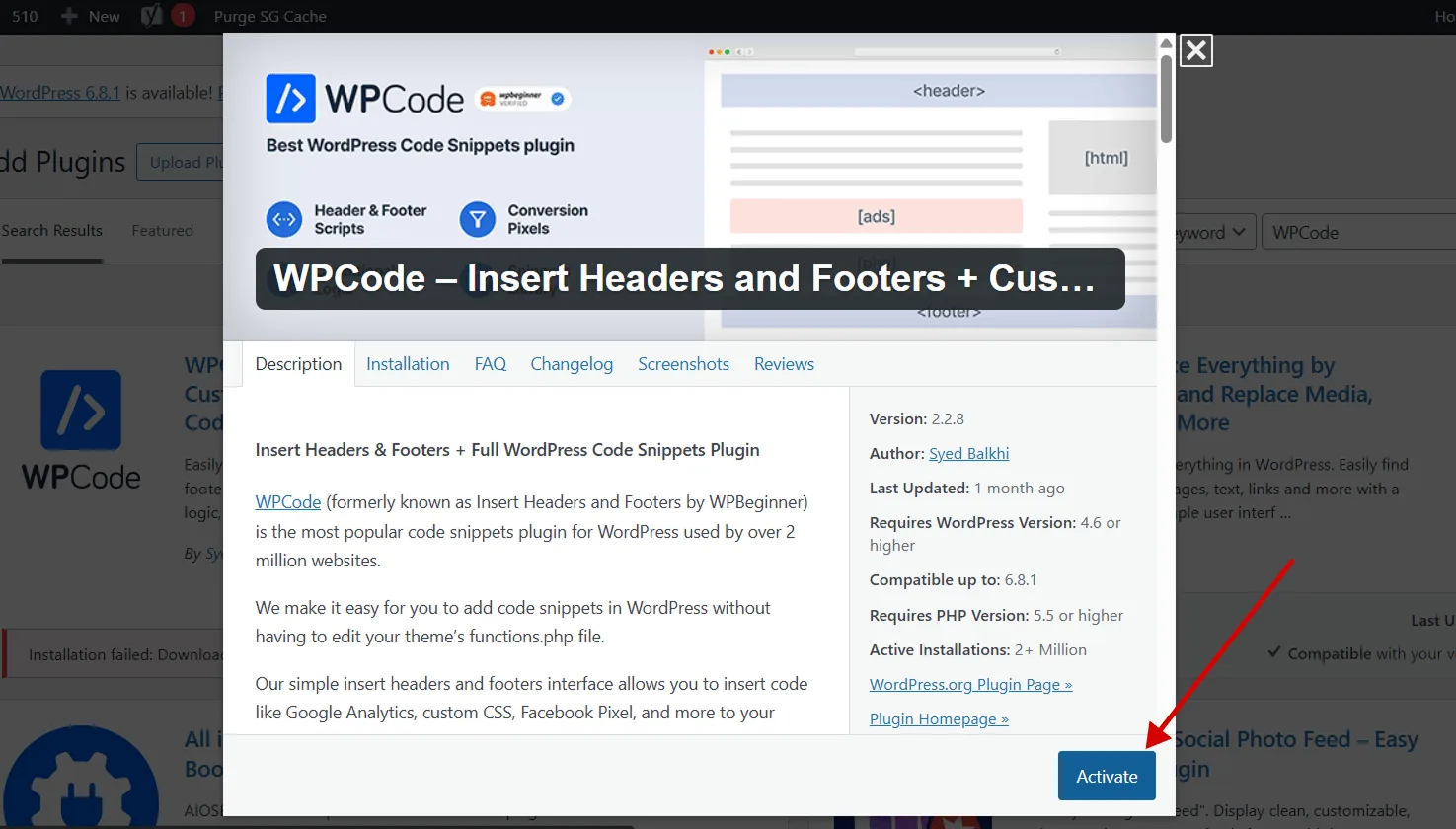
Click Activate. WPCode then appears in Installed Plugins and adds a Code Snippets menu.
How do I add the chatbot to my WordPress site?
Create a custom snippet with the Robylon code and set it to insert automatically.
Open Code Snippets
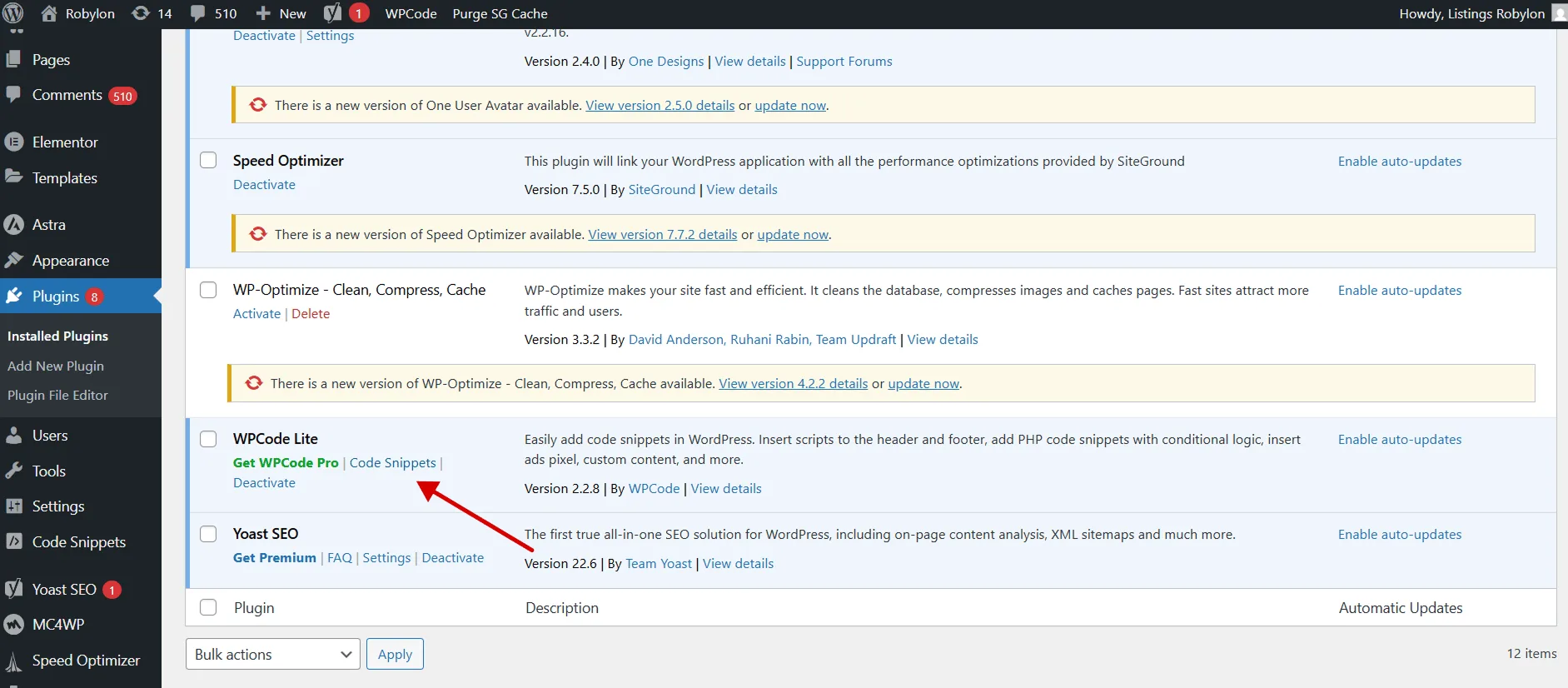
In your WordPress admin, click Code Snippets.
Add a custom snippet
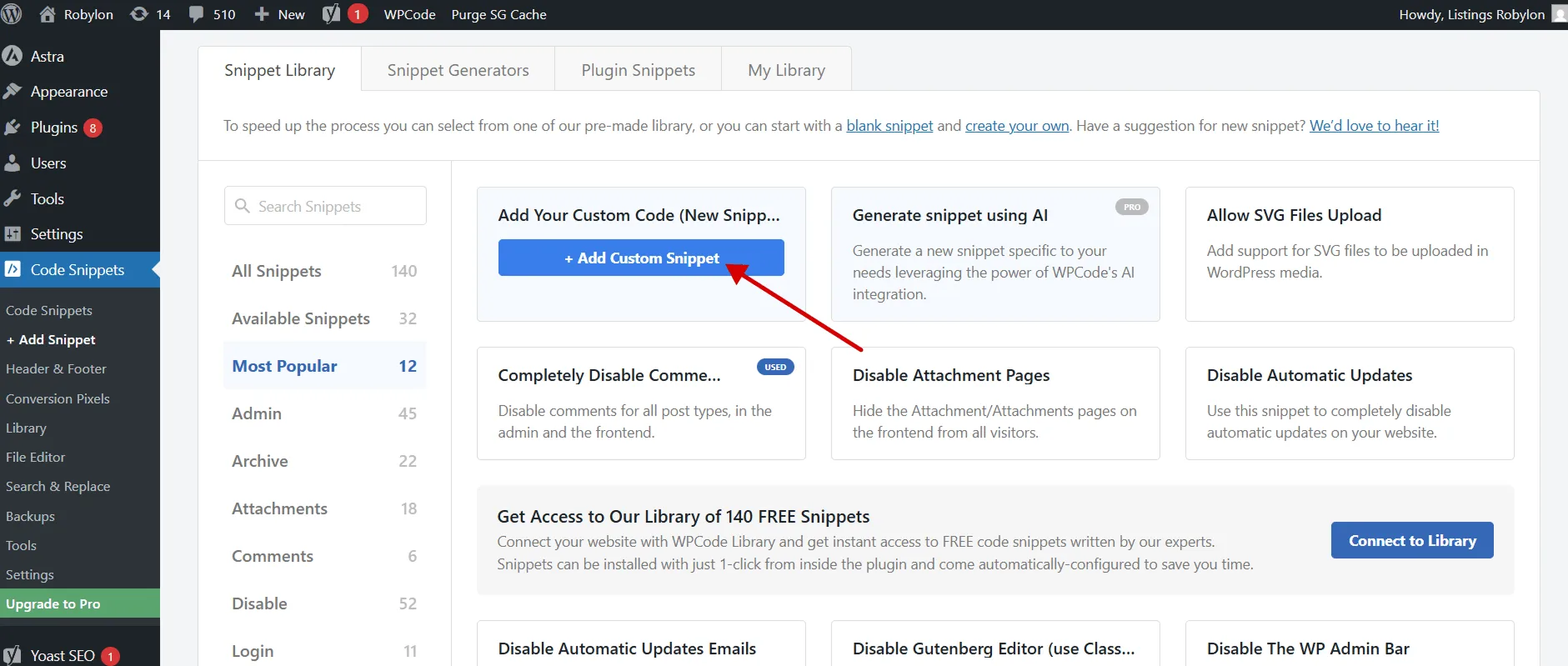
Click Add New, then + Add Custom Snippet.
Choose the code type
Choose HTML Snippet, because the Robylon code includes its own <script> tag. The JavaScript Snippet type adds a second <script> tag around the code, which stops it working.
Paste the snippet and save
Give the snippet a title such as “Robylon chatbot”, paste the Robylon code, and save.
Insert it automatically
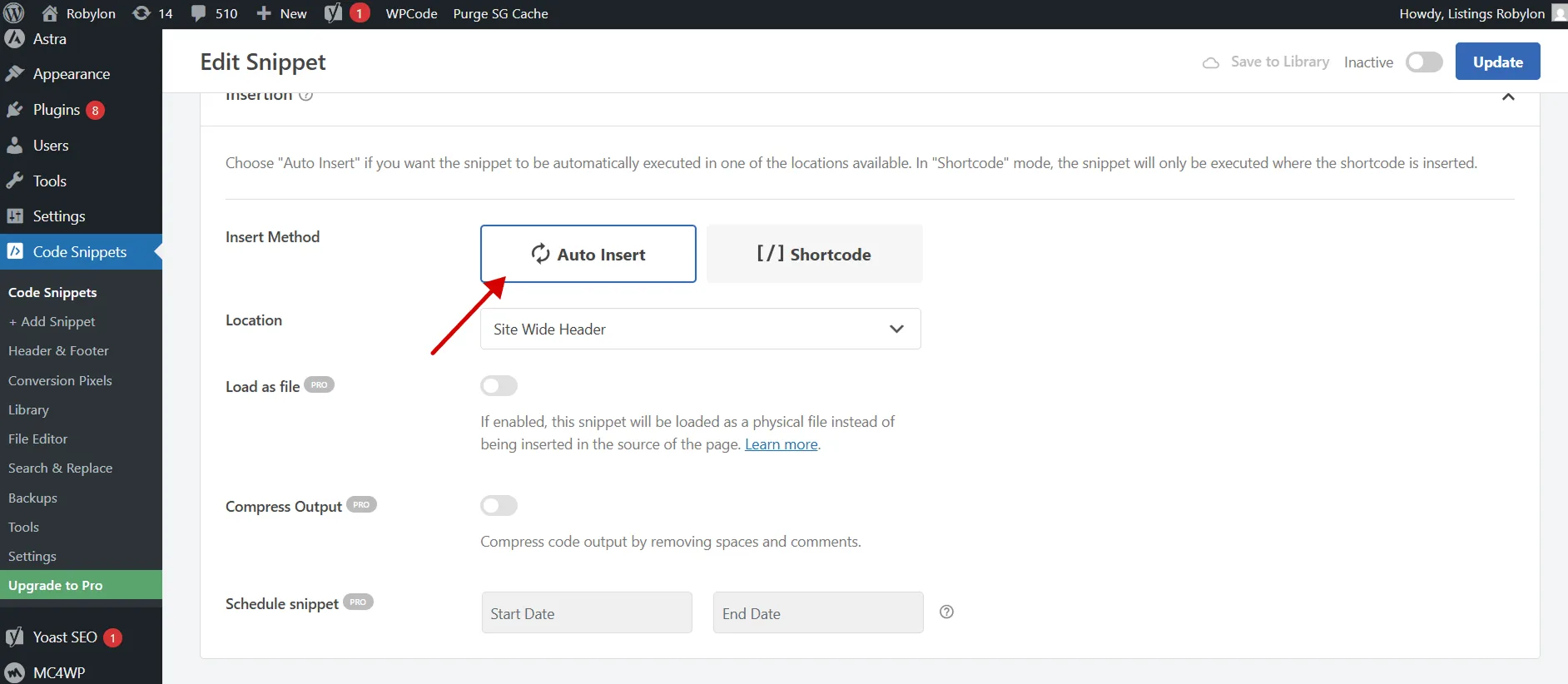
Under Insertion, choose Auto Insert and a location in the site header, then make the snippet Active.
Test
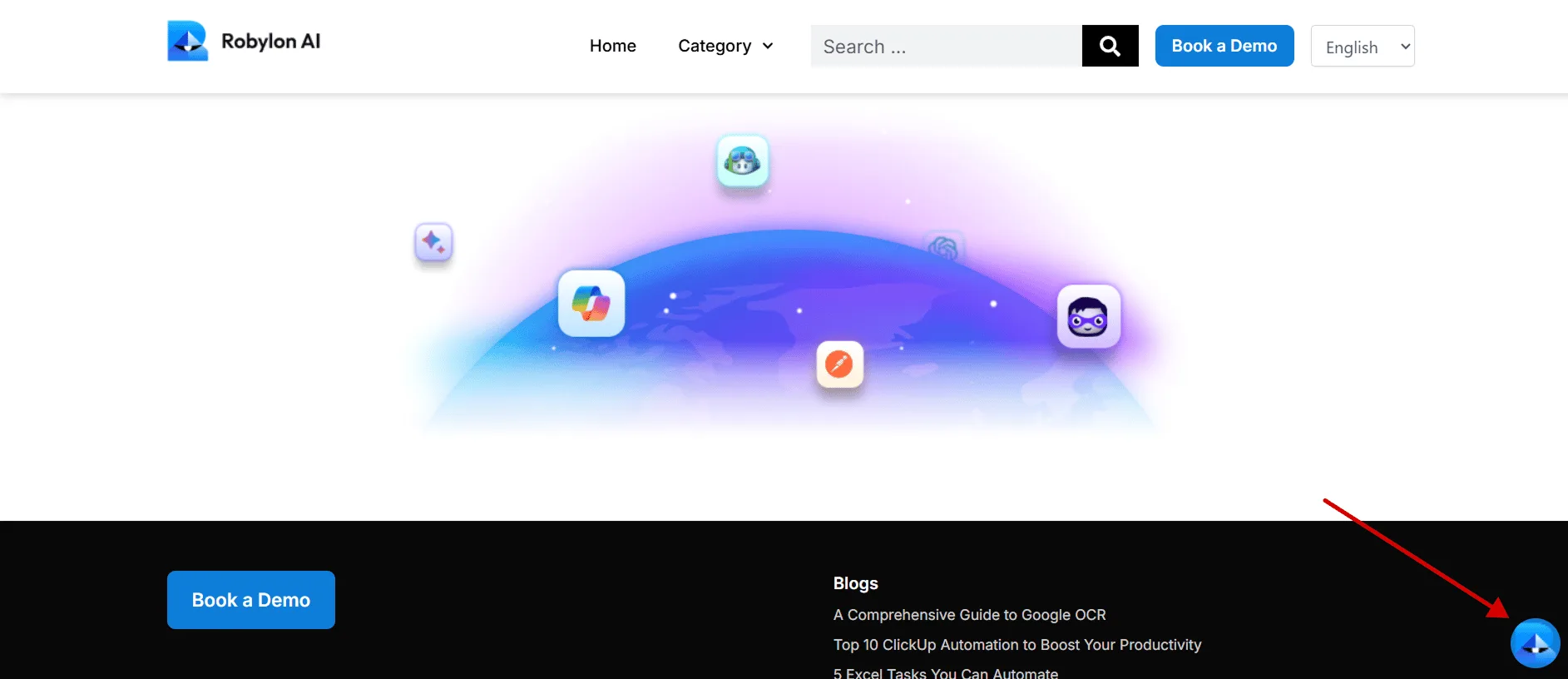
Open your site. The chatbot launcher appears in the corner of the page. Open it and send a test message.
If the launcher does not appear, see How do I know the chatbot is installed correctly?