
Runs
Find any workflow run by customer, status, trigger or execution ID, follow its steps, and stop a run that is stuck.
Every time a workflow or simple automation starts, Robylon records a run. The Runs page lists them all, so you can check that a workflow fired, see which steps it took, and find where it failed.
Open it from Settings → Workflows & AI Agents → Runs.
What does the Runs list show?
Each row is one run, newest first:
| Column | What it shows |
|---|---|
| Customer | The customer the run was for, or N/A when there is none, such as a store event. |
| Status | Where the run is now. See statuses. |
| Workflow | The workflow or simple automation that ran. |
| Execution ID | The run’s unique ID. Click the copy icon to copy it. |
| Last Activity | When the run last did something. |
| Duration | How long the run took, or has been running. |
Click the refresh icon to load new runs.
How do I find a specific run?
Use the filters and search at the top of the page:
- Date & time: Last 15 minutes, Last 1 hour, Last 24 hours, Last 7 days, or a custom range of up to 7 days. Until you pick a range, the list shows the last 5 days.
- Status: one or more run statuses.
- Trigger: the channel or source that started the run, such as Robylon Email, WhatsApp, Shopify, API or Simple Automations.
- Workflow: one or more workflows.
- Search: a customer’s name, mobile number or email, or an execution ID. Search looks across all dates, not just the selected range.
What do the run statuses mean?
| Status | Meaning |
|---|---|
| Not Running | The run has not started. |
| Queued | Waiting to start. |
| Preparing | Getting ready to run. |
| Running | Running now. |
| Paused | Waiting, for example on a Delay block, a customer’s reply, or a snooze. It resumes on its own. |
| Success | Finished normally. |
| Failed | Stopped because of an error. |
| Stopping | A stop was requested and the run is ending. |
| Stopped | Stopped by a teammate. |
How do I see what happened in a run?
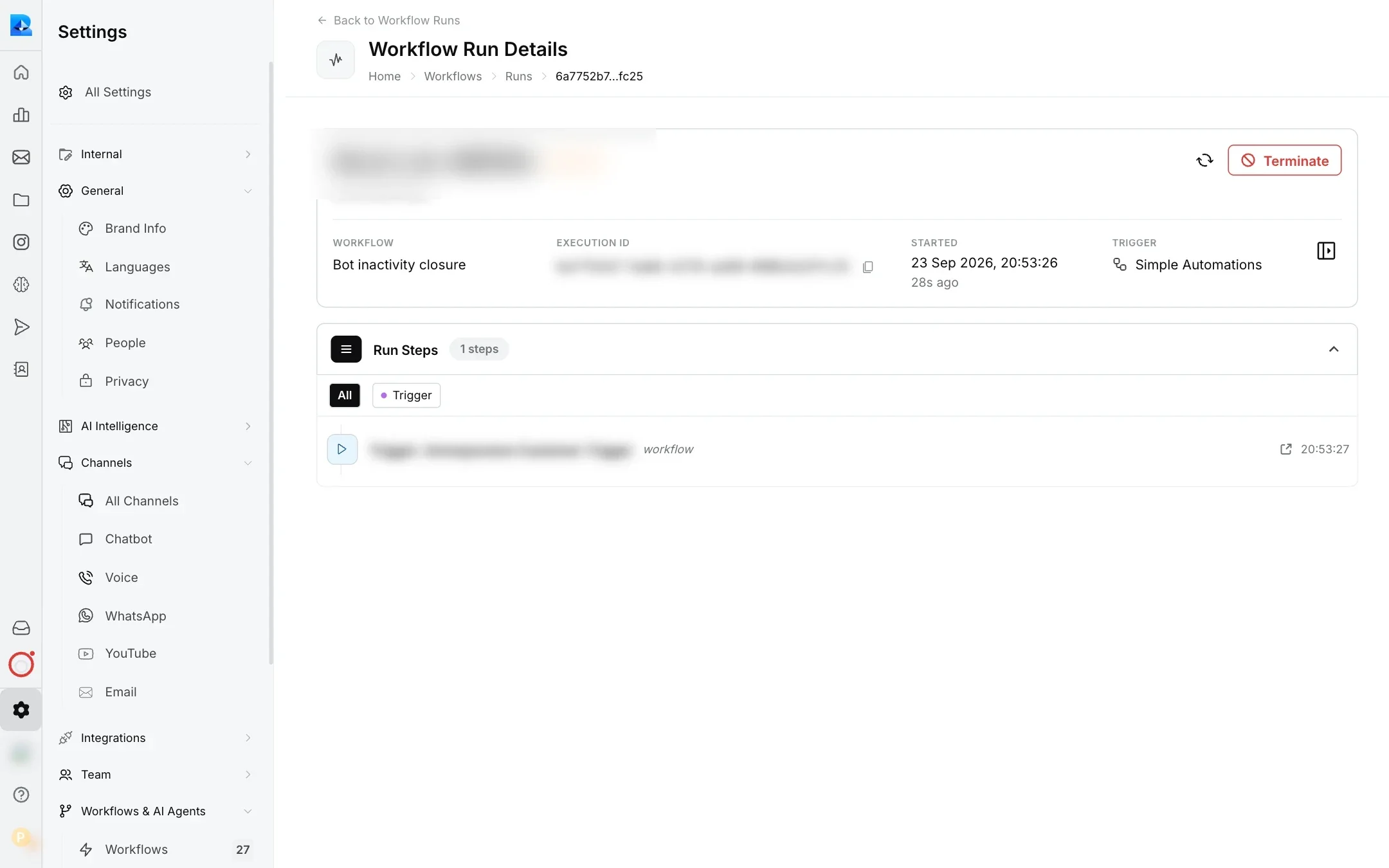
Click the run to open Workflow Run Details. The top shows the customer, status, workflow, execution ID, start time and trigger. Below, Run Steps lists every step in order, with its type, when it ran and how long it took. Filter the steps by type to find, for example, every API call.
Click an API step to see its URL, the Request & Body, the Response headers and body, and the Variables captured from response.
When the trigger sent data, such as a Shopify event or an API call, click the View trigger payload icon to open the Trigger Payload panel with the full data.
How do I stop a run?
Open the run and click Terminate. This is available while a run is running or paused, for example to stop a follow-up that should no longer be sent.
You need permission to run workflows to stop a run, and permission to view execution history to see runs at all.
How long are runs kept?
Runs of workflows started by an API or webhook trigger are kept for 30 days. This does not apply to workflows started by channel triggers, such as a new chat or a new ticket.