
Privacy and PII masking
Hide customers' personal information, such as addresses and phone numbers, from teammates who do not need to see it, and choose which roles can see it.
PII masking hides customers’ personally identifiable information (PII) from teammates who do not need to see it. When it is on, you choose two things: which roles can see PII, and which kinds of PII to mask. Everyone in any other role sees those details masked.
Open it from Settings → General → Privacy. PII masking is off until you turn it on.
How do I turn on PII masking?
Switch on the privacy setting, choose the roles that can see PII, choose the fields to mask, and save.
Open Privacy settings
In the dashboard, click Settings in the left sidebar, then General → Privacy.
Turn on masking
Switch on Set privacy settings to mask personally identifiable information (PII).
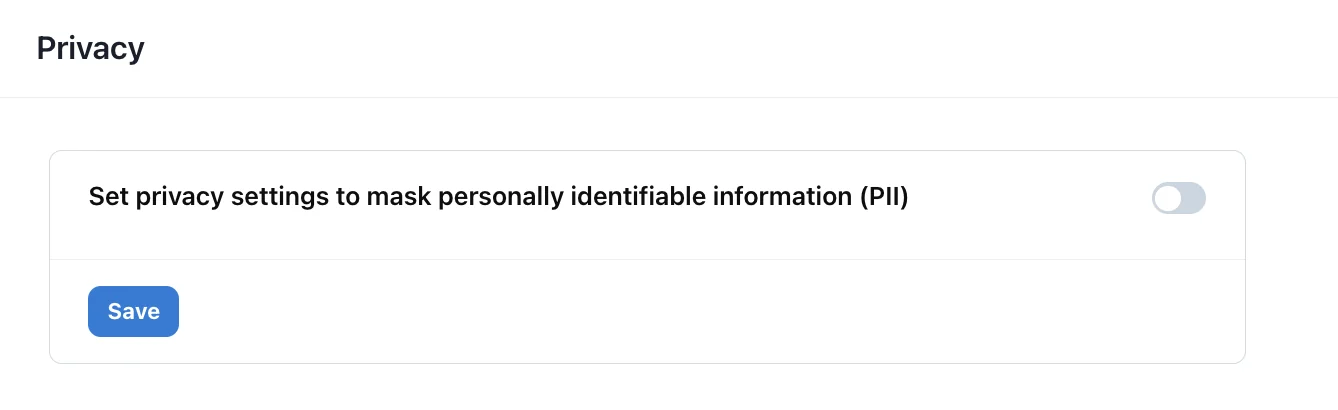
Choose the roles that can see PII
Under Select roles with access to PII, select the roles that need to see customers’ real details. The roles are Super Admin, Admin, Supervisor and Agent.
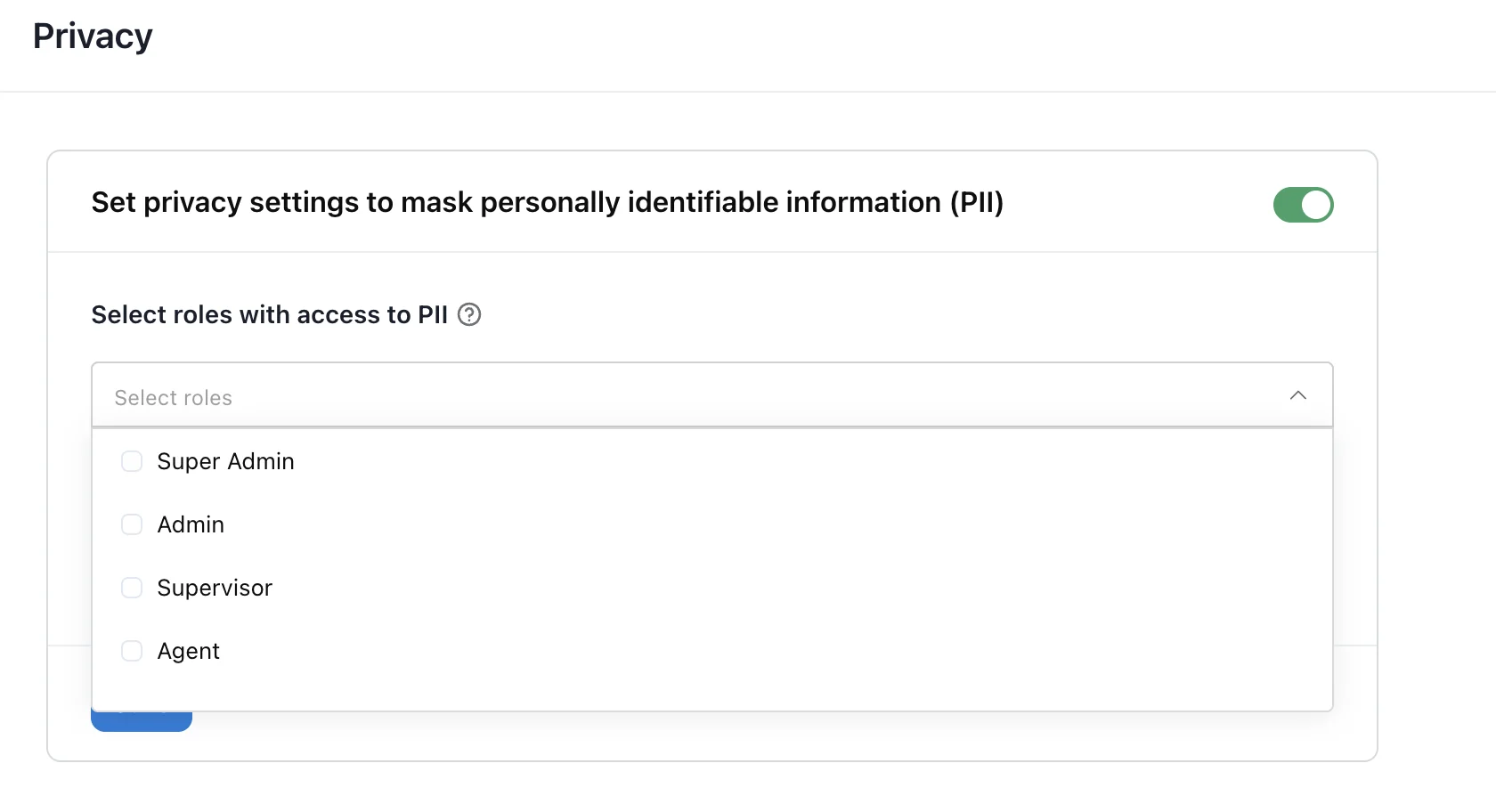
Choose the fields to mask
Under Select PII fields to mask, select each kind of information to hide. The full list is below. Use Select All to mask every field.
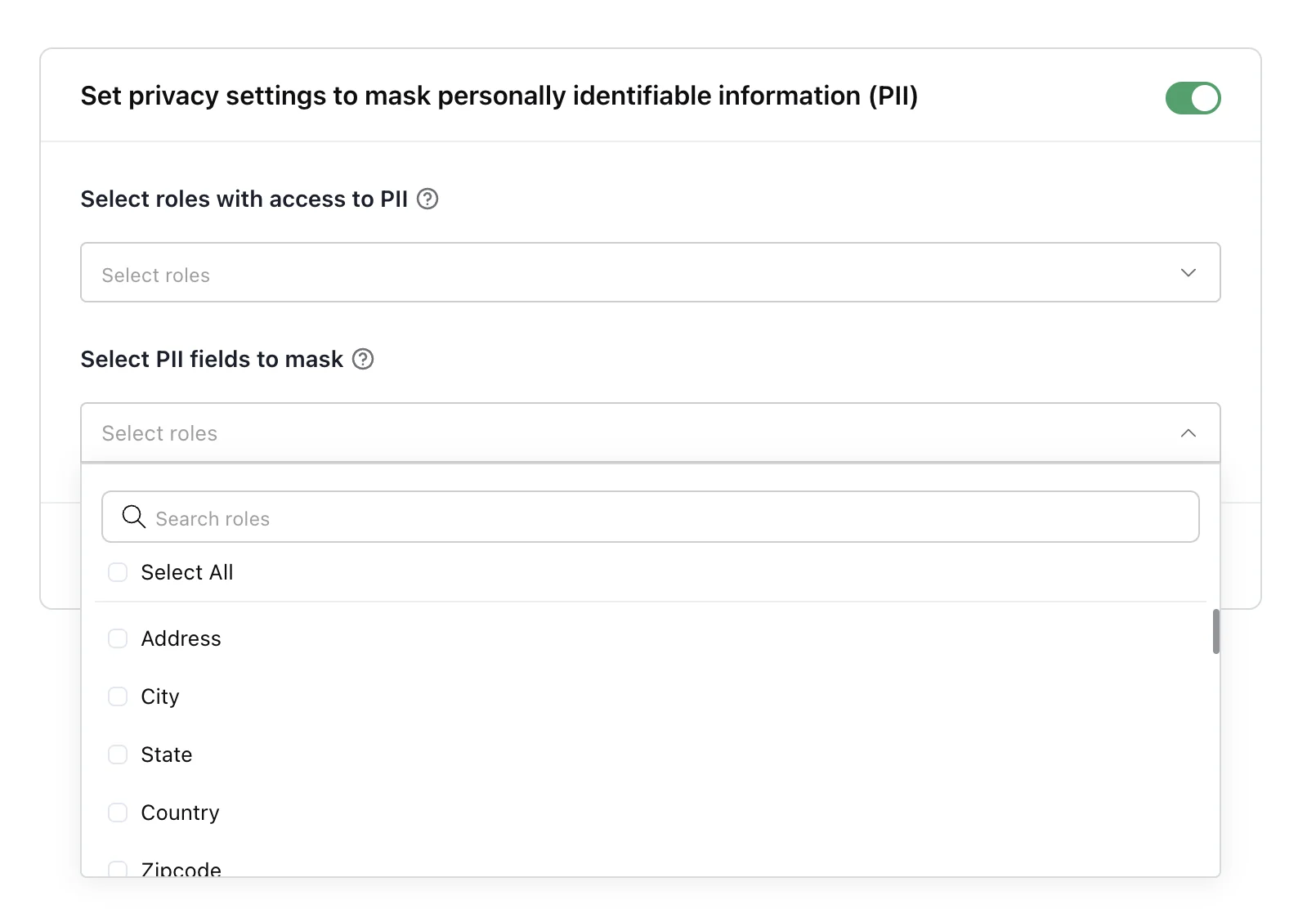
Save
Click Save. The new settings apply to everyone in your organization.
Which kinds of information can be masked?
You can mask any of these 27 kinds of information:
| Group | Fields |
|---|---|
| Identity | Name, Username, Email, Phone, Mobile Number |
| Address and location | Address, City, State, Country, Zipcode, Location, Timezone |
| Financial | Credit Card, Bank Account |
| Government IDs | Passport Number, Driver License, Aadhaar Number, PAN Number, SSN |
| Work | Organization, Company, Employer |
| Technical | IP, IPv6, Device ID, Session ID, Timestamp |
Who sees masked information?
Anyone whose role is not selected under Select roles with access to PII always sees the selected fields masked. They cannot turn masking off.
Teammates whose role is selected also start with details masked, but they can reveal them. In the inbox, open the settings menu and switch off Restricted view (“Mask PII across conversations”). Switch it back on at any time, for example before sharing your screen.
| Your role is… | You see PII | You can switch masking on or off |
|---|---|---|
| Selected under roles with access to PII | Masked at first, real details once you turn off Restricted view | Yes |
| Not selected | No, always masked | No |
If masking is switched off for the organization, everyone sees customers’ details.
How does Robylon find PII in a conversation?
Robylon uses an AI model to detect the kinds of information you selected, wherever they appear: in customer details and inside the text of messages. That means an address a customer types in the middle of a chat is masked too, not just the address field on their profile.
Because detection is automatic, it can occasionally miss an unusual format or mask something that only looks like PII. If you see either, report it through Help & Support.
Where does masking apply?
Masking applies in the Unified Inbox and on tickets: the conversation list, the messages, and the customer details panel. It also applies to voice call logs and to voice call translations.
Periodic reports work differently: they always show customer names, email addresses and phone numbers partly masked, for everyone, whatever your privacy settings are.
Should I turn on PII masking?
Turn it on if teammates such as agents or outsourced support staff do not need customers’ full details to do their job. It lowers the risk of personal data being copied, screenshotted or exposed, and it helps you meet data protection rules that expect access to personal data to be limited to people who need it.
A common setup is to give access to Super Admin and Admin only, and mask the fields agents do not need for the conversations they handle.