
Templates
Create WhatsApp message templates, submit them to Meta for approval, track their performance, and send them from the inbox, workflows, voice agents, campaigns or the API.
A WhatsApp template is a message you have pre-approved with Meta. You need one to message a customer first, or to reply after the 24-hour window has closed. Robylon lets you create templates, submit them for review, and see how each one performs.
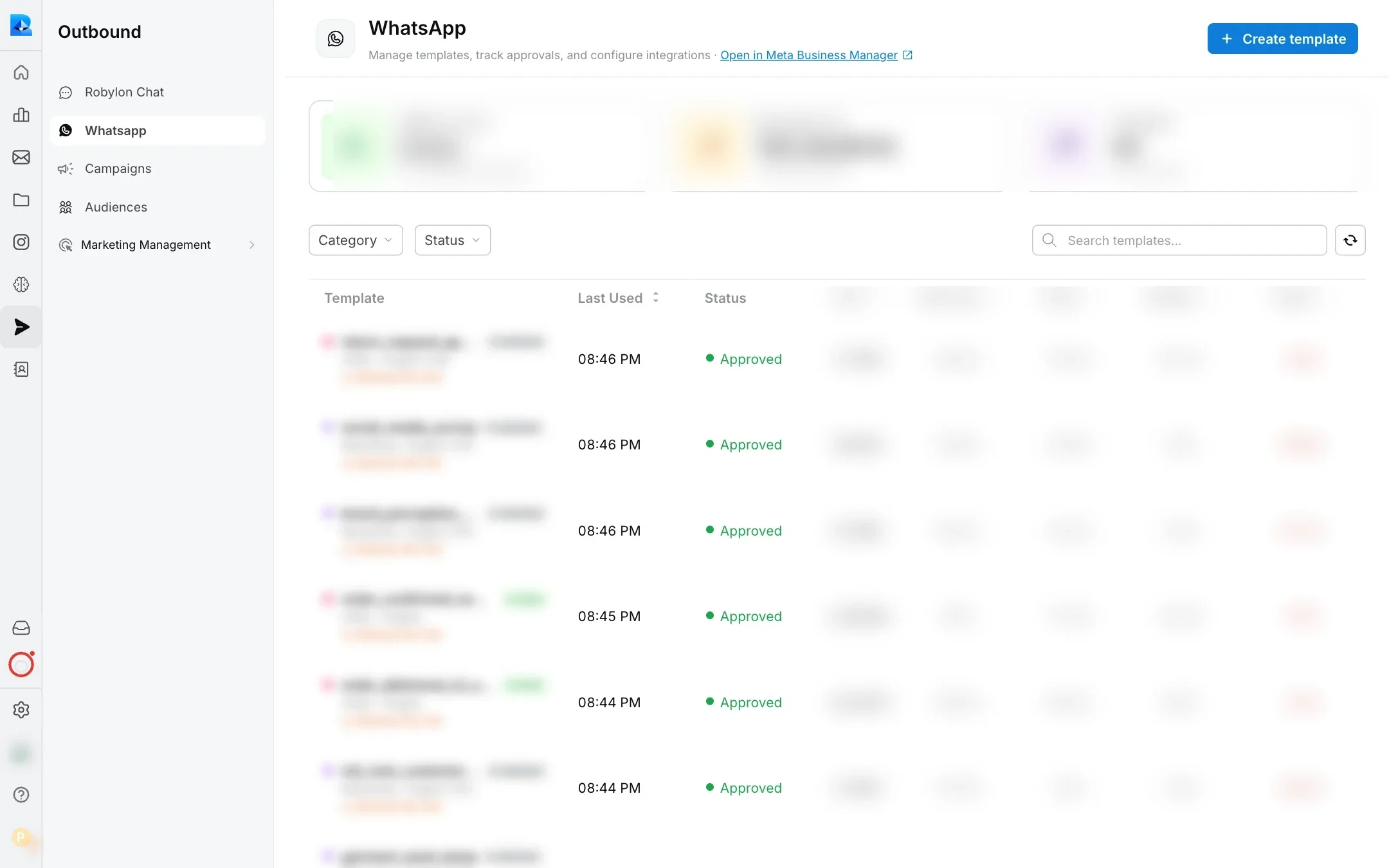
Open templates from Outbound → WhatsApp in the left navigation.
What does the templates page show?
The top of the page shows your WhatsApp Business account, its messaging tier, and how many templates you have and how many are approved. Use Open in Meta Business Manager to manage the account in Meta.
The list shows each template with:
| Column | What it shows |
|---|---|
| Template | The name, Meta’s quality rating for it, its category and language, and whether a backup template is set. |
| Last Used | When it was last sent. |
| Status | Meta’s review status, such as Approved, Pending or Rejected. |
| Sent, Delivered, Read, Replied, Failed | How many were sent, and the share delivered, read, replied to and failed. |
Filter by Category and Status. Robylon refreshes templates from Meta each time you open the list, so templates created in Meta Business Manager appear here too.
How do I create a template?
Choose a category and type, write the content, and submit it to Meta for review.
Start a template
In Outbound → WhatsApp, click Create template.
Choose the category and type
Choose Marketing or Utility, then the type of message, and click Continue. See which category to choose.
Name it and pick the language
Enter a Name (up to 512 characters) and choose the Language. The name and language cannot be changed later.
Write the content
Add an optional Header (text up to 60 characters, or an image, video or document), the Body (required), and an optional Footer (up to 60 characters). Use Add variable to insert placeholders that are filled in when the message is sent.
Add buttons (optional)
Add up to 10 buttons: Custom (a quick reply), Visit website, Call on WhatsApp or Call phone number. With more than 3 buttons, WhatsApp shows them as a list.
Set the options
For Utility templates, you can set a custom Message validity period. Turn on Live agent access to let your team send this template from inside a conversation.
Submit
Check the Template preview and click Submit for review. The template is sent to Meta with the status Pending.
You can only send a template once Meta approves it. If a template is rejected, Robylon shows Meta’s reason. Fix the content and submit again.
Which category should I choose?
| Category | For | Types |
|---|---|---|
| Marketing | Welcome messages, promotions, offers, coupons, newsletters and announcements. | Default (media and custom buttons), Calling permissions request (asks customers if you can call them on WhatsApp). Catalog is coming soon. |
| Utility | Messages about an existing order or account: order confirmations, account updates, receipts, appointment reminders, billing. | Default, Calling permissions request. |
Choose honestly: Meta can reject a template, or change its category, if the content does not match. Marketing templates also need the customer to have agreed to receive marketing messages.
How do variables work in templates?
Variables are placeholders filled with real values when a template is sent, such as the customer’s name or an order number. Choose the Type of variable for the template:
- Number: placeholders are numbered,
{{1}},{{2}}and so on. - Name: placeholders have names, such as
{{customer_name}}.
Enter a sample value for each variable under Variable Samples before you submit, so Meta’s reviewers can see what a real message looks like. Use made-up values, not real customer information.
Can I edit a template after it is approved?
Yes, but only its content and category. The name and language are fixed. Any edit sends the template back to Meta for review, so it is Pending again until approved.
What is a backup template?
A backup is a second template Robylon sends instead of the main one when Meta rates the main template Red, pauses it or disables it. A Yellow rating still sends the main template. Without a backup, the remaining messages in a campaign fail if the template is paused mid-send.
Set the backup on the template’s own page, under Backup Template. Only approved templates in the same language and category can be chosen. The templates list shows Backup Not Set for templates without one, and the campaign form links to the template page with Add A Backup. In a campaign, you fill in the backup’s variables separately. See WhatsApp campaigns.
Where can I send templates from?
- The inbox: agents can send templates with Live agent access turned on, in an open conversation or to start a new one. See Unified inbox.
- Workflows: use the send WhatsApp template action. See Workflows.
- Voice agents: the WhatsApp outbound message function sends a template during a call. See Prompt and tools.
- Campaigns: send a template to an audience. See WhatsApp campaigns.
- The API: send a template from your own systems (below).
- A webhook: let another system, such as your store, trigger the template (below).
How do I send a template with the API?
Open the template from the list and go to its Integrations tab. Under API Access it shows the Endpoint and a Sample Payload already filled in with the template’s IDs. Send a POST request to https://api.robylon.ai/chat/outbound/whatsapp/send/ with your API key in the X-API-Key header:
{
  "template_id": "YOUR_TEMPLATE_ID",
  "recipient_phone_number": "+15551234567",
  "waba_id": "YOUR_WABA_ID",
  "phone_no_id": "YOUR_PHONE_NUMBER_ID",
  "template_variables": {}
}
The phone number must include the country code. Your WABA ID and Phone Number ID are also on the number’s Profile tab in Settings → Channels → WhatsApp. Create API keys as described in API keys.
If the template has variables, the sample payload lists them in template_variables, grouped under body, header and buttons. Keep the variables in the order the sample payload lists them, and put the value to send in each one’s value field:
"template_variables": {
  "body": {
    "variables": [
      { "position": 1, "value": "Priya" }
    ]
  }
}
If the request fails, the response has status 400 and an error message.
Can another system trigger a template with a webhook?
Yes. On the template’s Integrations tab, Webhook Trigger gives you a Webhook URL. Point Shopify, Razorpay or any system that sends outgoing webhooks to it, and Robylon sends this template to the phone number in each payload.
Under Payload Mapping, set the Incoming Field that holds the recipient’s phone number and each template variable. Use dot notation for nested fields, such as order.customer.phone. Click Save Webhook Configuration.