# Ticket Templates: Pre-fill Tickets and Reply Boilerplate
Create internal ticket templates that pre-fill the subject, body and properties of tickets your team logs often, and set reply and forward templates for email.
> Source: https://www.robylon.ai/docs/inbox/ticket-templates
> Section: Inbox and tickets
Ticket templates save agents from typing the same ticket over and over. An internal ticket template pre-fills a new ticket's subject, description and properties. Response templates add standard text to the top of every email reply or forward.
Open it from **Settings → Inbox & Productivity → Ticket Templates**. It has two tabs: **Internal Ticket Templates** and **Response Templates**.
## How do I create an internal ticket template?
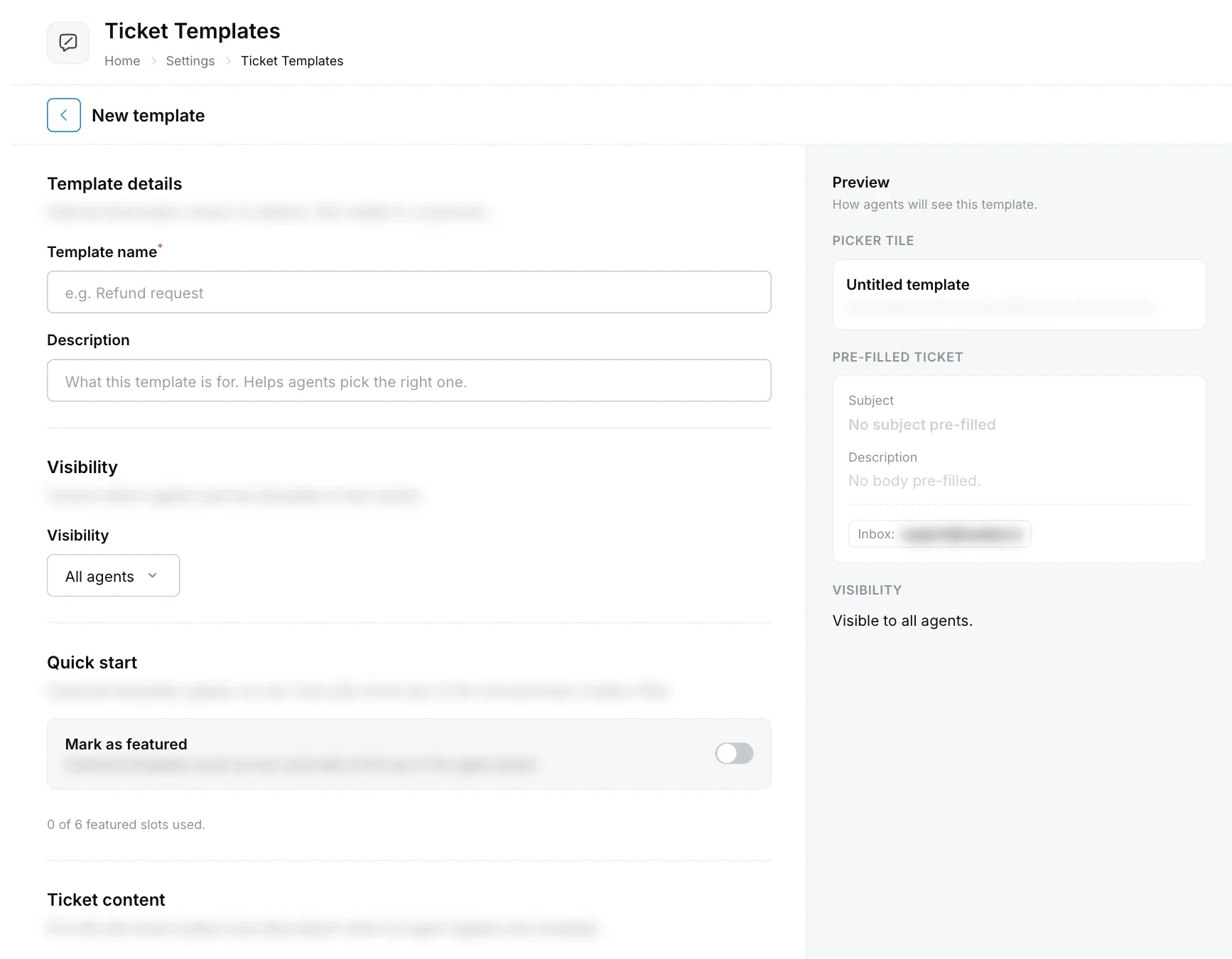
Click **Create Template**, fill in the template details and the ticket content, and click **Create template**. A preview on the right shows how agents will see it.
On the **Internal Ticket Templates** tab, click **Create Template**.
Enter a **Template name** (required) and a **Description**. Admins see these; customers never do. The description appears on the template's tile in the agent's picker, so say when to use it.
Under **Visibility**, choose which agents see this template in their picker (for example **All agents**).
Turn on **Mark as featured** to show the template as a one-click pill at the top of the new ticket flow. You can feature up to 6 templates.
Choose the **Internal email** the ticket is received at (leave empty to use the workspace default), then write the **Subject** and **Description body** to pre-fill.
Under **Default properties**, required properties appear automatically. Use **Add property** to set defaults for other properties. Agents can change these values when they create the ticket.
Click **Create template**.
 ## How do agents use a template?
When an agent clicks **New Ticket** in the inbox, featured templates appear as pills and **Browse all templates** lists the rest. Picking one fills in the subject, description, mailbox and property defaults. See [Tickets](https://www.robylon.ai/docs/inbox/tickets#how-do-i-create-a-ticket).
The template list shows each template's visibility, status and how often it has been used.
## What are response templates?
Response templates are boilerplate inserted above the signature when an agent opens an email composer. There are two:
| Template | Inserted when |
| --- | --- |
| Reply Template | An agent replies to a ticket. |
| Forward Template | An agent forwards a ticket. |
Open the **Response Templates** tab and add the message for each. A template marked **Not Added** is not inserted.
Click a template's row to edit it. Templates support variables, such as the customer's name, and are available only on the **Robylon Email** channel.
## How do agents use a template?
When an agent clicks **New Ticket** in the inbox, featured templates appear as pills and **Browse all templates** lists the rest. Picking one fills in the subject, description, mailbox and property defaults. See [Tickets](https://www.robylon.ai/docs/inbox/tickets#how-do-i-create-a-ticket).
The template list shows each template's visibility, status and how often it has been used.
## What are response templates?
Response templates are boilerplate inserted above the signature when an agent opens an email composer. There are two:
| Template | Inserted when |
| --- | --- |
| Reply Template | An agent replies to a ticket. |
| Forward Template | An agent forwards a ticket. |
Open the **Response Templates** tab and add the message for each. A template marked **Not Added** is not inserted.
Click a template's row to edit it. Templates support variables, such as the customer's name, and are available only on the **Robylon Email** channel.