# Tags: Label Conversations in Robylon
Create tags, add them to conversations by hand or automatically, and use them to filter, route and report on conversations.
> Source: https://www.robylon.ai/docs/inbox/tags
> Section: Inbox and tickets
Tags are short labels, such as "Refund", "VIP" or "Bug", that say what a conversation is about. Statuses tell you where a conversation is in its lifecycle; tags tell you its topic. Use them to filter the inbox, trigger automations and see in reports what customers contact you about.
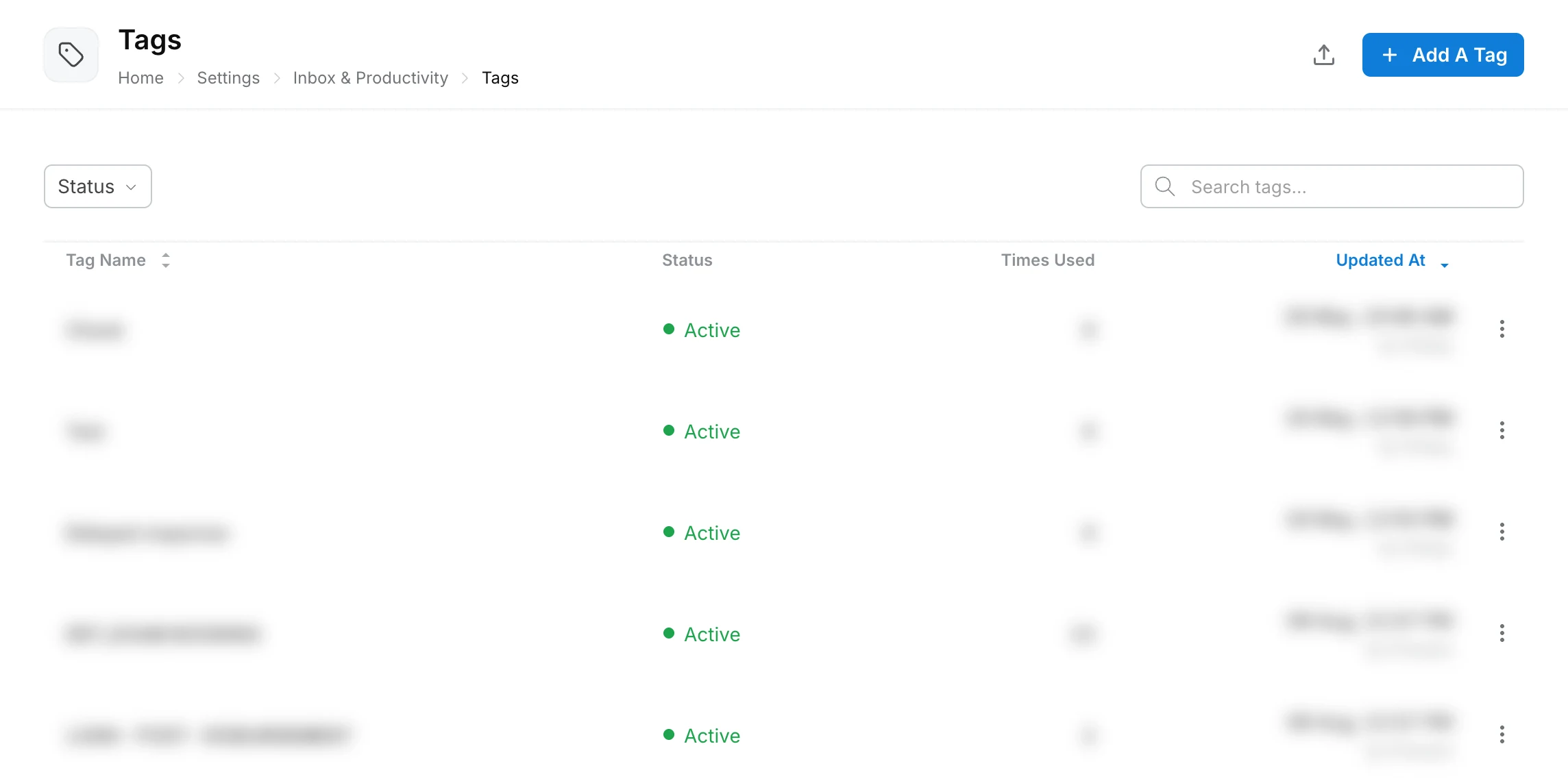
Create and manage tags from **Settings → Inbox & Productivity → Tags**.
## How are tags different from intents?
Tags are single-level labels, such as "Refund" or "VIP", that anyone can add. Intents are a separate feature: they can have up to three levels, can be filled by AI, and can differ per channel. See [Intents](https://www.robylon.ai/docs/inbox/intents).
## How do tags get onto a conversation?
By hand, or automatically:
* **By hand:** open the conversation in the inbox and pick tags in the **Tags** section of the right-hand panel. A conversation can have several tags.
* **Workflows:** an **Add tag** action tags the conversation when the workflow reaches it. If the tag does not exist yet, Robylon creates it. See [workflows](https://www.robylon.ai/docs/product/product).
* **Simple automations:** an add-tag step tags email tickets that match the automation's trigger and conditions. See [simple automations](https://www.robylon.ai/docs/simple-automations).
## How do I create tags?
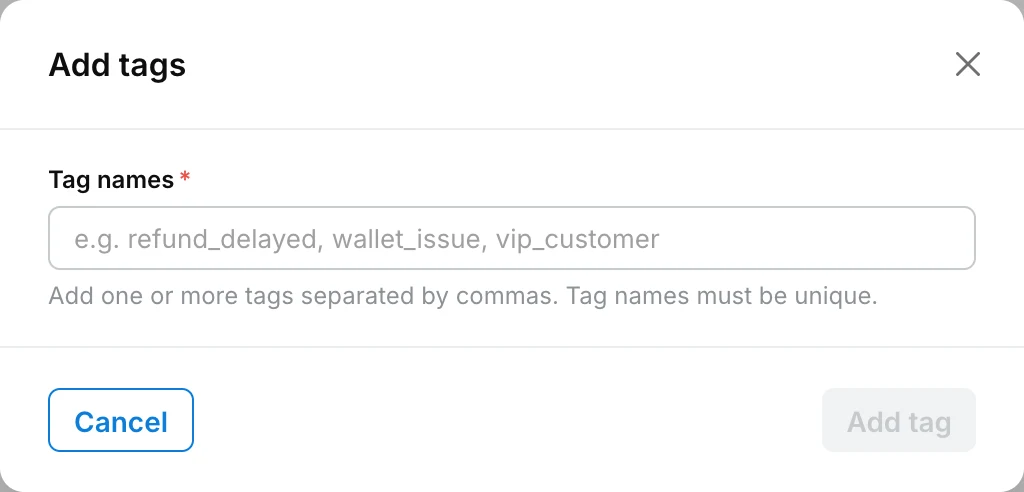
Click **Add A Tag**, type one or more names separated by commas, and click **Add tag**. Tag names must be unique.
Go to **Settings → Inbox & Productivity → Tags** and click **Add A Tag**.
Under **Tag names**, type the tags, separated by commas, for example `Refund, Exchange, Delivery delay, VIP`.
Click **Add tag**. The tags appear in the list with their status, how many times each has been used, and when it was last updated.
 ## Where can I use tags?
* **Inbox filters:** filter by tags. See [filters](https://www.robylon.ai/docs/inbox/unified-inbox#how-do-i-filter-conversations).
* **Evaluations:** run quality checks only on conversations with certain tags.
* **Reports:** conversation exports include the first two tags and all tags of each conversation. See [reports](https://www.robylon.ai/docs/analytics/reports).
## How should I name tags?
* **Pick one name per topic.** Decide between "Refund" and "Refunds" so your data is not split across two tags.
* **Start small.** 10 to 15 broad tags are easier to use and report on than 100 narrow ones. Use [intents](https://www.robylon.ai/docs/inbox/intents) for detail.
* **Review regularly.** Check the **Times Used** column each month; rename or remove tags nobody uses.
## Where can I use tags?
* **Inbox filters:** filter by tags. See [filters](https://www.robylon.ai/docs/inbox/unified-inbox#how-do-i-filter-conversations).
* **Evaluations:** run quality checks only on conversations with certain tags.
* **Reports:** conversation exports include the first two tags and all tags of each conversation. See [reports](https://www.robylon.ai/docs/analytics/reports).
## How should I name tags?
* **Pick one name per topic.** Decide between "Refund" and "Refunds" so your data is not split across two tags.
* **Start small.** 10 to 15 broad tags are easier to use and report on than 100 narrow ones. Use [intents](https://www.robylon.ai/docs/inbox/intents) for detail.
* **Review regularly.** Check the **Times Used** column each month; rename or remove tags nobody uses.