# Create CSAT Survey Forms for Chat, WhatsApp and Email
Create a customer satisfaction survey for the chatbot, WhatsApp or email, choose its rating scale and follow-up questions, set when it is sent, and see where the results appear.
> Source: https://www.robylon.ai/docs/csat/forms
> Section: CSAT
A CSAT (customer satisfaction) survey asks customers to rate their support experience right after a conversation ends. It is the quickest way to see how happy customers are with your AI agents and your team, and to find conversations that went wrong.
Open it from **Settings → Inbox & Productivity → CSAT Survey**.
## How does CSAT work in Robylon?
You create one survey form per channel. When a conversation on that channel is closed, Robylon sends the survey automatically:
| Channel | How the survey reaches the customer |
| --- | --- |
| **Chatbot** | Shown in the chat window when the chat is closed. |
| **WhatsApp** | Sent as a WhatsApp message when the chat is closed. |
| **Email** | Sent as a survey email (or embedded in an email) when the ticket reaches the status you choose. |
Rules for when the survey is shown or skipped are covered in [When is the survey sent?](#when-is-the-survey-sent)
## How do I create a CSAT form?
Name the form, choose its channel, set the rating question, and save.
Go to **Settings → Inbox & Productivity → CSAT Survey** and click **Create CSAT Form**.
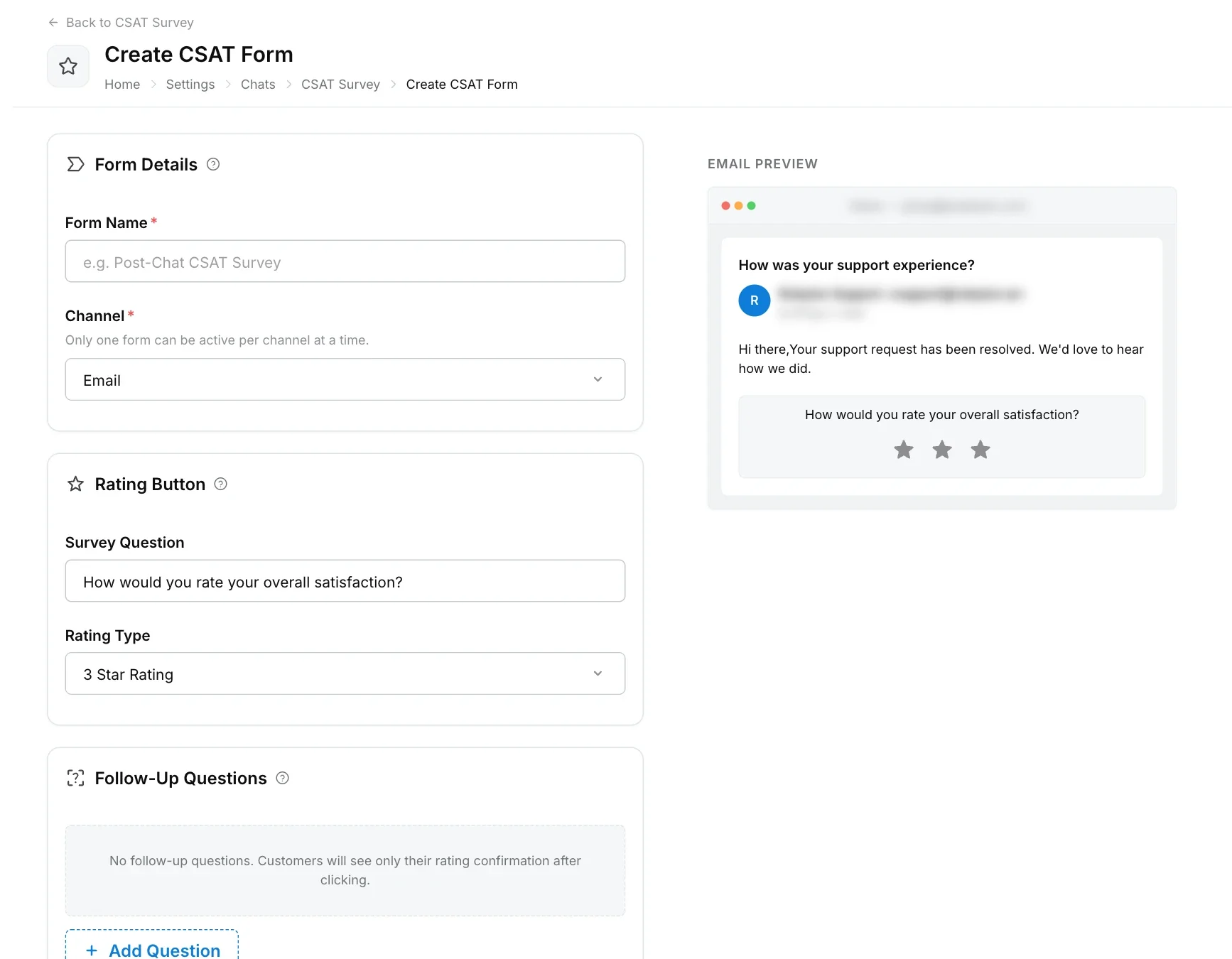
Enter a **Form Name**, for example "Post-chat CSAT", and choose the **Channel**: **Chatbot**, **WhatsApp** or **Email**.
Set the rating question and its **Rating Type**, and add any follow-up questions. See [the options below](#which-rating-types-and-questions-can-i-use).
For chat forms, add **Trigger Rules**. For email forms, set the **Sending Rules**. Both are explained in [When is the survey sent?](#when-is-the-survey-sent)
Click **Save**. The preview on the right shows the survey as the customer will see it.
Only one form can be active per channel at a time. Activating a new form for a channel turns off the one that was active before.
 ## Which rating types and questions can I use?
Every form has one main rating question. Choose its **Rating Type**:
| Rating type | What the customer sees |
| --- | --- |
| **3 Star Rating** | Three stars |
| **5 Star Rating** | Five stars |
| **Thumbs Up / Down** | A thumbs up and a thumbs down |
| **Emoji Scale** | Five faces from unhappy to happy |
| **1-5 Numeric** | Numbers from 1 to 5 |
Chat and WhatsApp forms can have up to 3 questions shown after the conversation closes.
Email forms show the rating buttons inside the survey email. After the customer clicks a rating, a landing page can show up to 5 **Follow-Up Questions**. Each follow-up question has a **Type**:
* **Text Input:** a free-text answer.
* **Single Select:** pick one option from a list you write.
* **Rating Scale:** another rating.
Use **Show When** to show a follow-up question always, or only for certain rating values. For example, ask "What could we improve?" only when the rating is low.
On WhatsApp, a **5 Star Rating** is shown as a list the customer picks from. Other rating types are shown as reply buttons.
## When is the survey sent?
A chat or WhatsApp survey is shown on every chat closure unless a **Trigger Rule** skips it. An email survey is sent when the ticket's status changes to the status you choose in **Sending Rules**. Both are set on each form in **Settings → Inbox & Productivity → CSAT Survey**. Rules keep your CSAT score about real conversations, so customers who said "hi" and left are not asked.
### How do I skip the survey for some chats?
Add trigger rules to the Chatbot or WhatsApp form. If any rule matches, the survey is not shown.
Go to **Settings → Inbox & Productivity → CSAT Survey** and click the Chatbot or WhatsApp form.
Under **Trigger Rules**, click **Add Condition** and pick a rule from the table below.
Enter the number of messages or minutes, and choose whether the rule applies to chats handled by the **AI Agent**, a **Human Agent** or **Both**. Each rule has its own scope.
Click **Save**.
## Which rating types and questions can I use?
Every form has one main rating question. Choose its **Rating Type**:
| Rating type | What the customer sees |
| --- | --- |
| **3 Star Rating** | Three stars |
| **5 Star Rating** | Five stars |
| **Thumbs Up / Down** | A thumbs up and a thumbs down |
| **Emoji Scale** | Five faces from unhappy to happy |
| **1-5 Numeric** | Numbers from 1 to 5 |
Chat and WhatsApp forms can have up to 3 questions shown after the conversation closes.
Email forms show the rating buttons inside the survey email. After the customer clicks a rating, a landing page can show up to 5 **Follow-Up Questions**. Each follow-up question has a **Type**:
* **Text Input:** a free-text answer.
* **Single Select:** pick one option from a list you write.
* **Rating Scale:** another rating.
Use **Show When** to show a follow-up question always, or only for certain rating values. For example, ask "What could we improve?" only when the rating is low.
On WhatsApp, a **5 Star Rating** is shown as a list the customer picks from. Other rating types are shown as reply buttons.
## When is the survey sent?
A chat or WhatsApp survey is shown on every chat closure unless a **Trigger Rule** skips it. An email survey is sent when the ticket's status changes to the status you choose in **Sending Rules**. Both are set on each form in **Settings → Inbox & Productivity → CSAT Survey**. Rules keep your CSAT score about real conversations, so customers who said "hi" and left are not asked.
### How do I skip the survey for some chats?
Add trigger rules to the Chatbot or WhatsApp form. If any rule matches, the survey is not shown.
Go to **Settings → Inbox & Productivity → CSAT Survey** and click the Chatbot or WhatsApp form.
Under **Trigger Rules**, click **Add Condition** and pick a rule from the table below.
Enter the number of messages or minutes, and choose whether the rule applies to chats handled by the **AI Agent**, a **Human Agent** or **Both**. Each rule has its own scope.
Click **Save**.
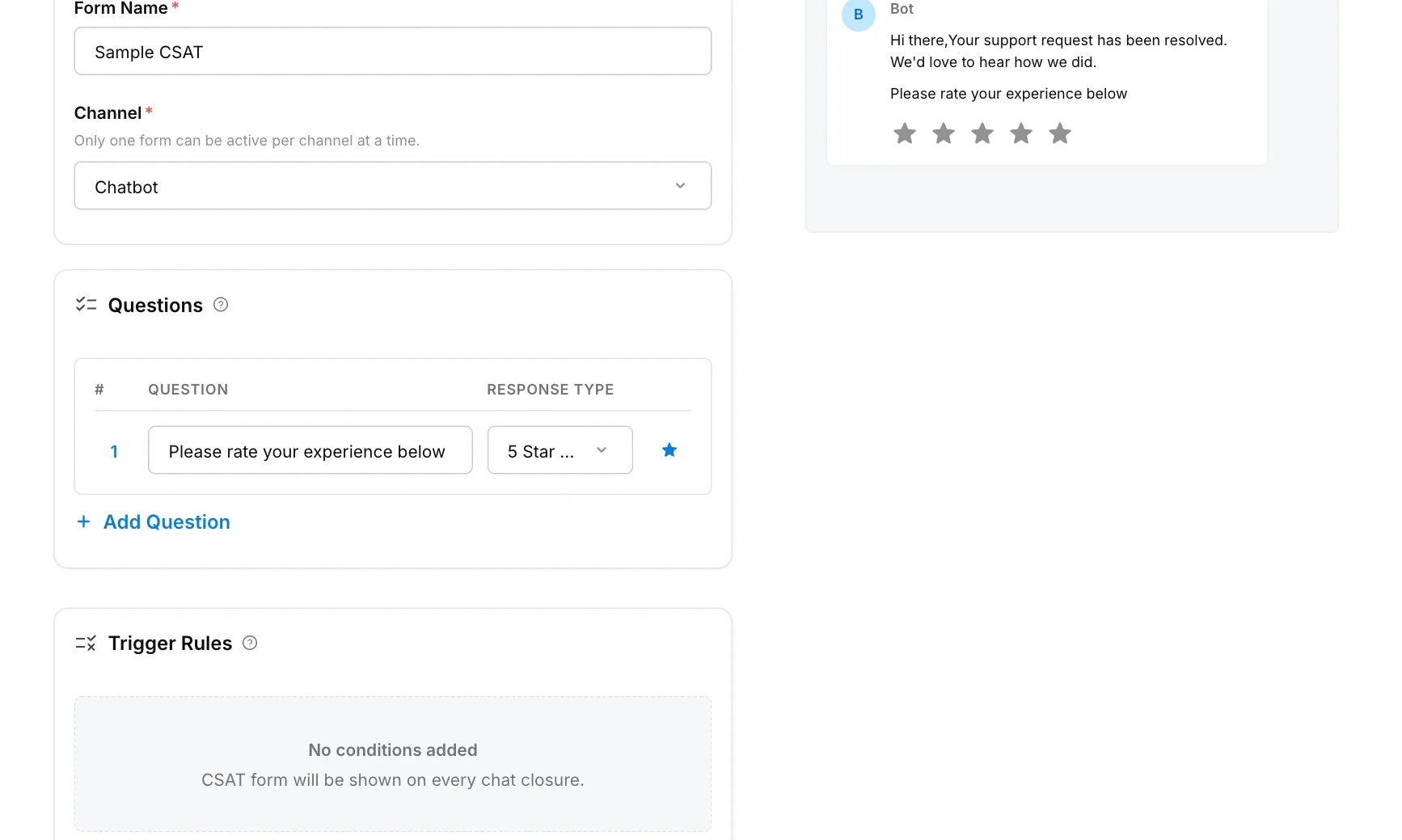 Each rule describes a case where the survey is **not** shown:
| Rule | Skips the survey when |
| --- | --- |
| **Bot sent fewer than X messages** and **Agent sent fewer than X messages after handoff** | The **customer** sent fewer than X messages in the whole conversation. Both rules count the customer's messages, not the AI agent's or your team's. |
| **Customer was inactive for more than X minutes** (before the bot or an agent closed) | More than X minutes passed between the customer's last message and the moment the survey would be shown. |
| **Auto-hide CSAT if not rated within X minutes** (after the bot or an agent closed) | The survey stays in the chat, but a rating given more than X minutes after the chat closed is not accepted. |
| **Skip if closed while in queue** | The chat was closed before it was handed over to a human or assigned to an agent. |
| **Skip if system auto-closed** | Robylon closed the chat automatically because the customer was inactive. Chats closed by a simple automation or a workflow still get the survey. |
A conversation counts as an AI agent conversation if it was never handed over to a human. Once it has been handed over, rules scoped to **Human Agent** apply.
WhatsApp forms work differently: trigger rules are not applied. Instead, the survey is skipped when the customer sent fewer than 2 messages.
Start with two rules: a minimum message count, so one-line chats are not rated, and an inactivity rule, so customers who have left are not asked. Review your response rate after a few weeks and adjust the numbers.
### When is the survey email sent?
When a ticket's status changes to the status you choose under **Sending Rules** on the email form.
| Setting | What it does |
| --- | --- |
| **Send When Ticket Status Changes To** | The ticket status that sends the survey, for example Resolved. |
| **Send Frequency** | **Send once per ticket**: only the first time the ticket reaches that status, so reopens do not send more surveys. **Send every time status changes**: a new survey each time, tracked separately in CSAT reports. |
| **If A CSAT Form Was Already Sent On This Ticket** | **Do not send the survey email**, or **Send anyway**. |
| **Minimum Agent Replies In Ticket** | Only send if an agent replied at least this many times. |
| **Send As A Separate Survey Email** | Sends a dedicated survey email. The survey can also be embedded in other emails whatever this is set to. |
| **Email Content** | The **Subject Line** and **Email Body**. Type `{` to insert variables. |
| **Ticket Filters** | Only send for tickets matching these properties. Leave empty to send for all tickets. |
| **Survey Link Expires After** | Under **Additional Conditions**, choose how long the survey link stays valid. |
For how email tickets and statuses work, see [Email](https://www.robylon.ai/docs/channels/email) and [Tickets](https://www.robylon.ai/docs/inbox/tickets).
## Where do I see CSAT results?
* **Analytics:** the CSAT overview shows your overall CSAT, the split between AI agent and team (bot and human), and the trend over time. See [Analytics](https://www.robylon.ai/docs/analytics).
* **Inbox:** filter conversations by CSAT rating to read the ones with low scores. See [Unified inbox](https://www.robylon.ai/docs/inbox/unified-inbox).
* **Reports:** scheduled reports include each conversation's CSAT rating. See [Reports](https://www.robylon.ai/docs/analytics/reports).
* **Transcripts:** conversations rated 3 or lower are set to **Needs Review**, so you can find them in [Transcripts](https://www.robylon.ai/docs/improve/transcripts).
The **CSAT Survey** list also shows each form's **Responses** count.
Read low-rated conversations every week. Most of them point to a missing Knowledge Base answer, a slow handover or a policy customers dislike, and each has a different fix.
## Can I trigger actions when a customer submits a rating?
Yes, for email tickets. A simple automation with the trigger **When a CSAT response is received** can act on the rating, for example tagging the ticket or alerting a group when the rating is low. See [Simple automations](https://www.robylon.ai/docs/simple-automations).
Each rule describes a case where the survey is **not** shown:
| Rule | Skips the survey when |
| --- | --- |
| **Bot sent fewer than X messages** and **Agent sent fewer than X messages after handoff** | The **customer** sent fewer than X messages in the whole conversation. Both rules count the customer's messages, not the AI agent's or your team's. |
| **Customer was inactive for more than X minutes** (before the bot or an agent closed) | More than X minutes passed between the customer's last message and the moment the survey would be shown. |
| **Auto-hide CSAT if not rated within X minutes** (after the bot or an agent closed) | The survey stays in the chat, but a rating given more than X minutes after the chat closed is not accepted. |
| **Skip if closed while in queue** | The chat was closed before it was handed over to a human or assigned to an agent. |
| **Skip if system auto-closed** | Robylon closed the chat automatically because the customer was inactive. Chats closed by a simple automation or a workflow still get the survey. |
A conversation counts as an AI agent conversation if it was never handed over to a human. Once it has been handed over, rules scoped to **Human Agent** apply.
WhatsApp forms work differently: trigger rules are not applied. Instead, the survey is skipped when the customer sent fewer than 2 messages.
Start with two rules: a minimum message count, so one-line chats are not rated, and an inactivity rule, so customers who have left are not asked. Review your response rate after a few weeks and adjust the numbers.
### When is the survey email sent?
When a ticket's status changes to the status you choose under **Sending Rules** on the email form.
| Setting | What it does |
| --- | --- |
| **Send When Ticket Status Changes To** | The ticket status that sends the survey, for example Resolved. |
| **Send Frequency** | **Send once per ticket**: only the first time the ticket reaches that status, so reopens do not send more surveys. **Send every time status changes**: a new survey each time, tracked separately in CSAT reports. |
| **If A CSAT Form Was Already Sent On This Ticket** | **Do not send the survey email**, or **Send anyway**. |
| **Minimum Agent Replies In Ticket** | Only send if an agent replied at least this many times. |
| **Send As A Separate Survey Email** | Sends a dedicated survey email. The survey can also be embedded in other emails whatever this is set to. |
| **Email Content** | The **Subject Line** and **Email Body**. Type `{` to insert variables. |
| **Ticket Filters** | Only send for tickets matching these properties. Leave empty to send for all tickets. |
| **Survey Link Expires After** | Under **Additional Conditions**, choose how long the survey link stays valid. |
For how email tickets and statuses work, see [Email](https://www.robylon.ai/docs/channels/email) and [Tickets](https://www.robylon.ai/docs/inbox/tickets).
## Where do I see CSAT results?
* **Analytics:** the CSAT overview shows your overall CSAT, the split between AI agent and team (bot and human), and the trend over time. See [Analytics](https://www.robylon.ai/docs/analytics).
* **Inbox:** filter conversations by CSAT rating to read the ones with low scores. See [Unified inbox](https://www.robylon.ai/docs/inbox/unified-inbox).
* **Reports:** scheduled reports include each conversation's CSAT rating. See [Reports](https://www.robylon.ai/docs/analytics/reports).
* **Transcripts:** conversations rated 3 or lower are set to **Needs Review**, so you can find them in [Transcripts](https://www.robylon.ai/docs/improve/transcripts).
The **CSAT Survey** list also shows each form's **Responses** count.
Read low-rated conversations every week. Most of them point to a missing Knowledge Base answer, a slow handover or a policy customers dislike, and each has a different fix.
## Can I trigger actions when a customer submits a rating?
Yes, for email tickets. A simple automation with the trigger **When a CSAT response is received** can act on the rating, for example tagging the ticket or alerting a group when the rating is low. See [Simple automations](https://www.robylon.ai/docs/simple-automations).