# Credentials: Store Secrets for Your APIs and Tools
Store API tokens and passwords safely as credentials, use them in your APIs and tools, and control who can see and change them.
> Source: https://www.robylon.ai/docs/data-and-integrations/secrets-keys
> Section: Data and tools
Robylon has two kinds of secret, going in opposite directions:
* **Credentials** are secrets Robylon uses to call other systems, for example your store's API token. You store them once and insert them into APIs and tools without anyone seeing the value.
* **API keys** are keys your systems use to call Robylon, for example to trigger an outbound call or fetch analytics.
Open them from [**Settings → Data & Developer → Credentials**](https://app.robylon.ai/settings/credentials) and [**Settings → Data & Developer → API Keys**](https://app.robylon.ai/settings/api-keys).
## Add a credential
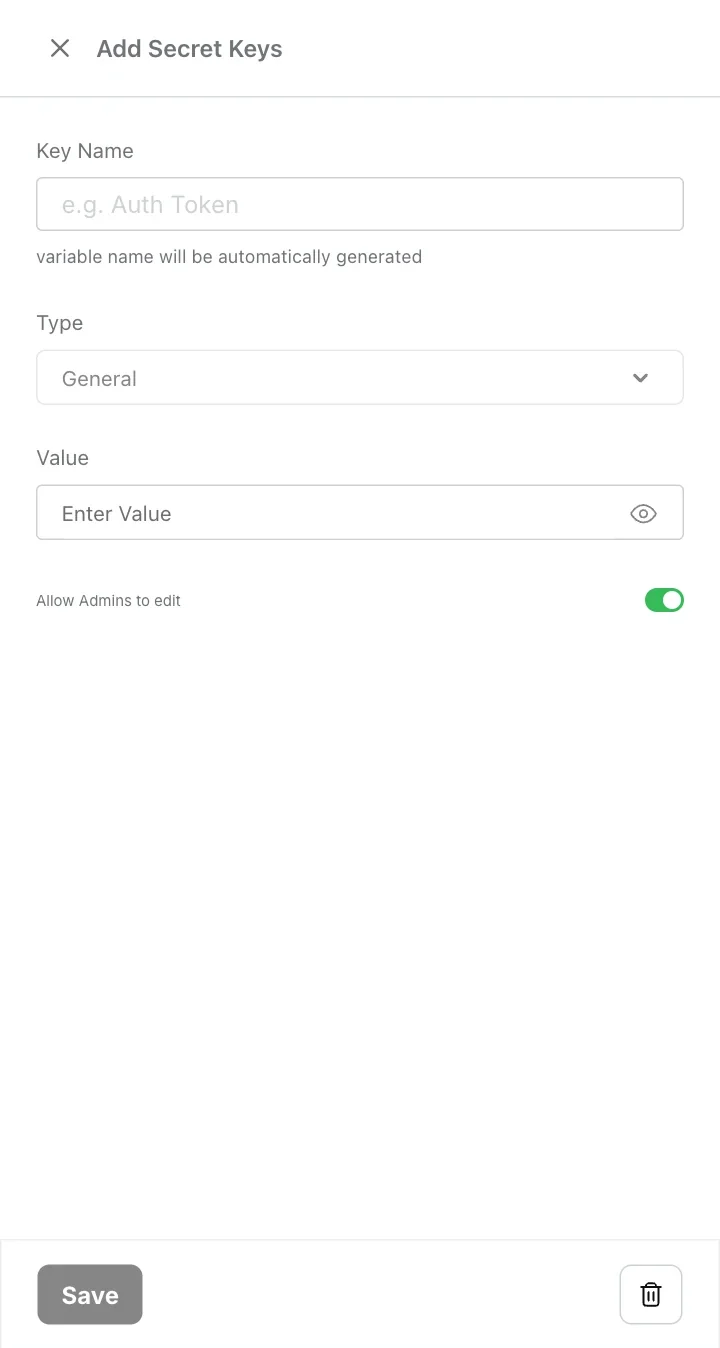
Go to [**Settings → Data & Developer → Credentials**](https://app.robylon.ai/settings/credentials) and click **Create New Key**.
Enter a **Key Name**, for example "Store API token". Robylon creates a variable name from it automatically, in lower case with underscores: `store_api_token`.
Paste the secret into **Value**. Use the eye icon to check what you pasted.
Leave **Allow Admins to edit** on if admins should be able to see and change the value. Turn it off to limit it to super admins.
Click **Save**.
 ## Use a credential in an API or tool
Insert it like any other variable. In an API's headers, parameters or body, type `{` and pick the credential's variable, for example in an `Authorization` header: `Bearer {store_api_token}`.
Robylon fills in the real value only when the request is sent. The value is never shown in the API, in the workflow, or in saved run data.
## Credential access by role
| Role | Can create | Can see the value and edit |
| --- | --- | --- |
| Super Admin | Yes | Yes, including the saved value. |
| Admin | Yes | Only if **Allow Admins to edit** is on. Otherwise the value is masked. |
| Agent and Supervisor | No | No |
Values are encrypted when stored.
## Credential types
Credentials you add yourself have the type **General**. Credentials Robylon creates when you connect a channel or an integration have the type **Integration**. Connecting a WhatsApp number creates them, and so does connecting a Shopify store or a ClickPost, Shiprocket, GoKwik or Return Prime account. Reconnecting one of those accounts refreshes the saved values, and disconnecting it deletes the credentials that belong to that account. See [Shipping, checkout and returns](https://www.robylon.ai/docs/integrations/shipping-returns-checkout#reconnect-or-disconnect-an-account).
## API keys
API keys, which let your own systems call Robylon, have their own page: see [API keys](https://www.robylon.ai/docs/developers/api-keys).