# Set Up the Voice Channel: Numbers, Calling Hours and Transfers
Turn on the voice channel, add phone numbers, create calling hours and call transfer configurations, and learn how the pieces of a voice AI agent fit together.
> Source: https://www.robylon.ai/docs/channels-connectors/voice-settings
> Section: Voice
Open it from [**Settings → Channels → Voice**](https://app.robylon.ai/settings/channels/voice). It holds the settings every voice agent shares: phone numbers, calling hours, call transfers and inbox calling.
## What to set up first
Work through the pages in this order:
1. Add a phone number here, and at least one calling hours configuration.
2. [Create the voice agent](https://www.robylon.ai/docs/voice/create-voice-agent).
3. Write its [prompt and add tools](https://www.robylon.ai/docs/voice/prompt-and-tools).
4. Choose the [LLM](https://www.robylon.ai/docs/voice/llm), [speech to text](https://www.robylon.ai/docs/voice/speech-to-text) and [text to speech](https://www.robylon.ai/docs/voice/text-to-speech) providers.
5. Set the [first message, calling hours and timeouts](https://www.robylon.ai/docs/voice/call-settings).
6. [Test it](https://www.robylon.ai/docs/voice/testing), then [trigger real calls](https://www.robylon.ai/docs/voice/triggering-calls).
7. Set up [post-call analysis](https://www.robylon.ai/docs/voice/post-call-analysis) to capture outcomes.
## How a voice AI agent works
A voice agent listens, thinks and speaks in a loop, using four providers you choose: [telephony](https://www.robylon.ai/docs/voice/telephony) (Twilio or Exotel) connects the call, [speech to text](https://www.robylon.ai/docs/voice/speech-to-text) turns the caller's words into text, the [LLM](https://www.robylon.ai/docs/voice/llm) decides what to say next, and [text to speech](https://www.robylon.ai/docs/voice/text-to-speech) turns the reply into a voice. Each voice agent is a single agent on the **Voice** channel.
## Turn on the voice channel
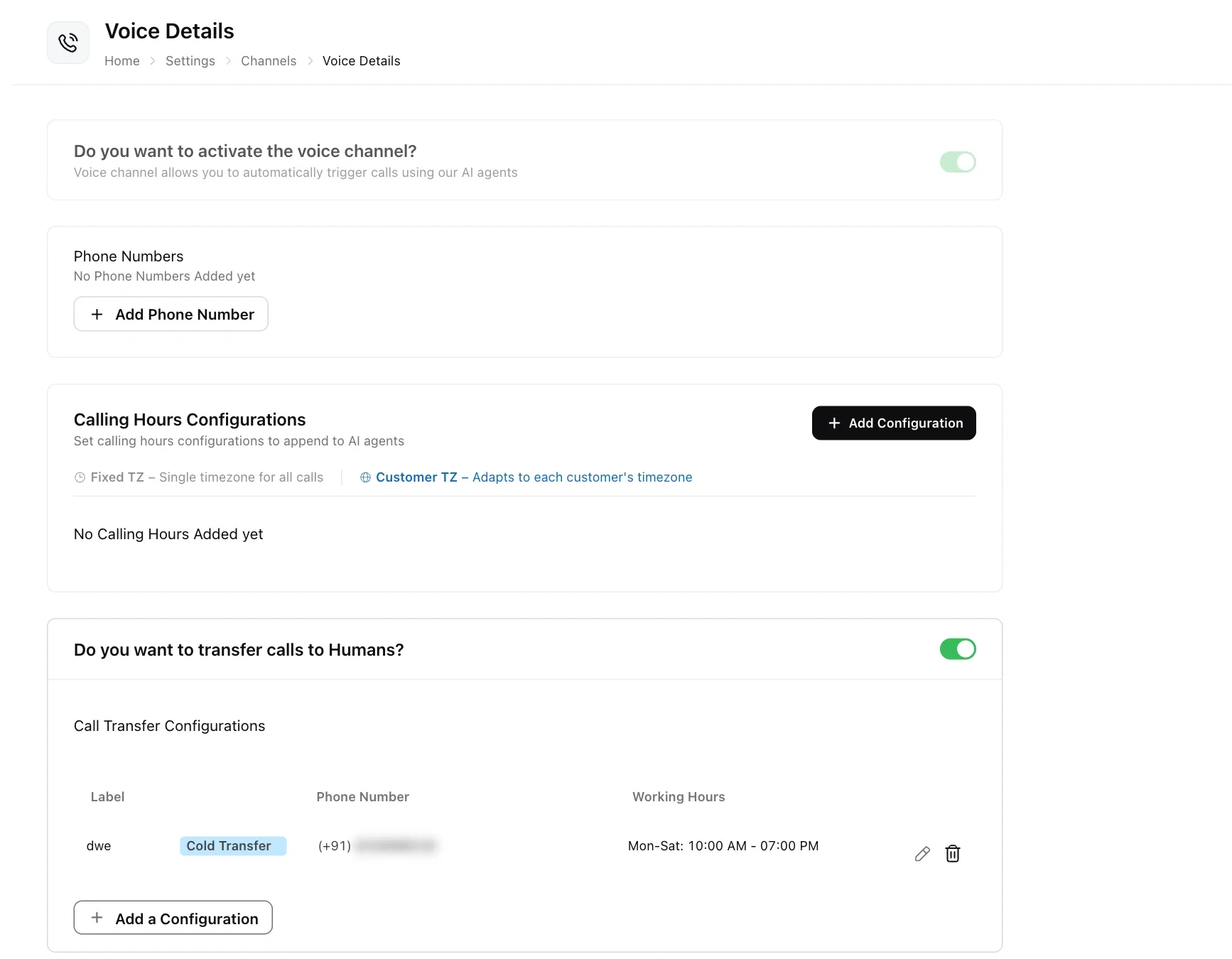
Switch on **Do you want to activate the voice channel?** at the top of the Voice page. The voice channel lets you trigger calls automatically using AI agents.
 ## Add a phone number
Click **Add Phone Number** under **Phone Numbers**, choose **Twilio** or **Exotel**, and enter the provider's details. The fields and steps for each provider are in [Telephony](https://www.robylon.ai/docs/voice/telephony).
## Calling hours configurations
A calling hours configuration is a reusable schedule that says on which days and between which times calls may be placed. You create it once here, then attach it to any voice agent.
Under **Calling Hours Configurations**, click **Add Configuration**.
Enter a **Label** (required, unique in your workspace) and an optional **Description**, then click **Next**.
Choose **Fixed Timezone** or **Customer's Local Timezone** (shown as **Fixed TZ** / **Customer TZ**). The difference is explained below.
Under **Calling Days**, select the days calls can be made and set a start and end time for each. Start must be before end. Then click **Save**.
The two timezone modes:
| Mode | How it works | Example |
| --- | --- | --- |
| **Fixed Timezone** | All calls follow one timezone that you pick. | 9 AM to 6 PM India time, wherever the customer is. |
| **Customer's Local Timezone** | Times apply in each customer's own timezone. | 9 AM to 6 PM arrives as local time for a customer in New York, London or Tokyo. |
With **Customer's Local Timezone**, Robylon reads the customer's timezone from the `CUSTOMER_TIMEZONE` variable. If it is missing, the configuration's own timezone is used.
At least one day must be selected, with valid times, before the configuration can be saved.
To use a configuration, open a voice agent and pick it under **Calling Hour Config**. See [Call settings](https://www.robylon.ai/docs/voice/call-settings#how-calling-hours-work).
## Transfer calls to a human
Switch on **Do you want to transfer calls to Humans?**, then add a call transfer configuration with the numbers calls should go to. A voice agent hands a call over when its **Human agent handover tool** is on and pointed at this configuration.
Switch on **Do you want to transfer calls to Humans?**. While it is off, voice agents cannot hand calls over.
Under **Call Transfer Configurations**, click **Add a Configuration**. Enter a **Label** (required), an optional **Description**, and at least one phone number under **Add Phone Numbers**.
Under **Working Hours**, pick a **Timezone** and the **Working Days** when your team can take calls, with a start and end time for each day. If no day is selected, the whole week (24x7) counts as working time. Under **Out of Office Settings**, switch on **Voice Assignment** if calls should still be transferred outside working hours, and write the **Agent unavailability message** the caller hears when nobody is available.
Choose the **Type of transfer** (**Cold Transfer** or **Warm Transfer**) and save.
In the voice agent, add the **Human agent handover tool** and choose this configuration. See [Prompt and tools](https://www.robylon.ai/docs/voice/prompt-and-tools#built-in-functions).
When the agent hands a call over, the caller hears the handover tool's message (see **Should we speak during tool call**), then the call is passed to one of the numbers in the configuration.
If a transfer is requested outside working hours and **Voice Assignment** is off, or the configuration has no numbers, the call is not transferred. The caller hears the **Agent unavailability message** (or, if it is empty, a short "all our agents are busy" message from the agent in the caller's language), and the call ends.
## Call customers from the inbox
Switch on **Do you want to allow humans to make calls?** to show a call button in the inbox, so agents can phone a customer from a conversation. Calls go out from a number whose **Use this number for** includes **Human**.
A Twilio number used by **Human** needs a **Twilio API Key SID** and **Twilio API Key Secret** as well, so your team can call from the browser. The fields appear in the Twilio form when you select **Human**.
Switch on **Do you want to generate transcripts & summaries of these calls?** to have Robylon transcribe and summarise those agent calls from their recordings. It only works while human calling is also on.