
How to Automate Email Ticket Resolution with AI (Step-by-Step)
Stop manually replying to the same email tickets over and over. This step-by-step guide shows you how to set up AI that reads, understands, and resolves email tickets automatically - with a practical implementation checklist.
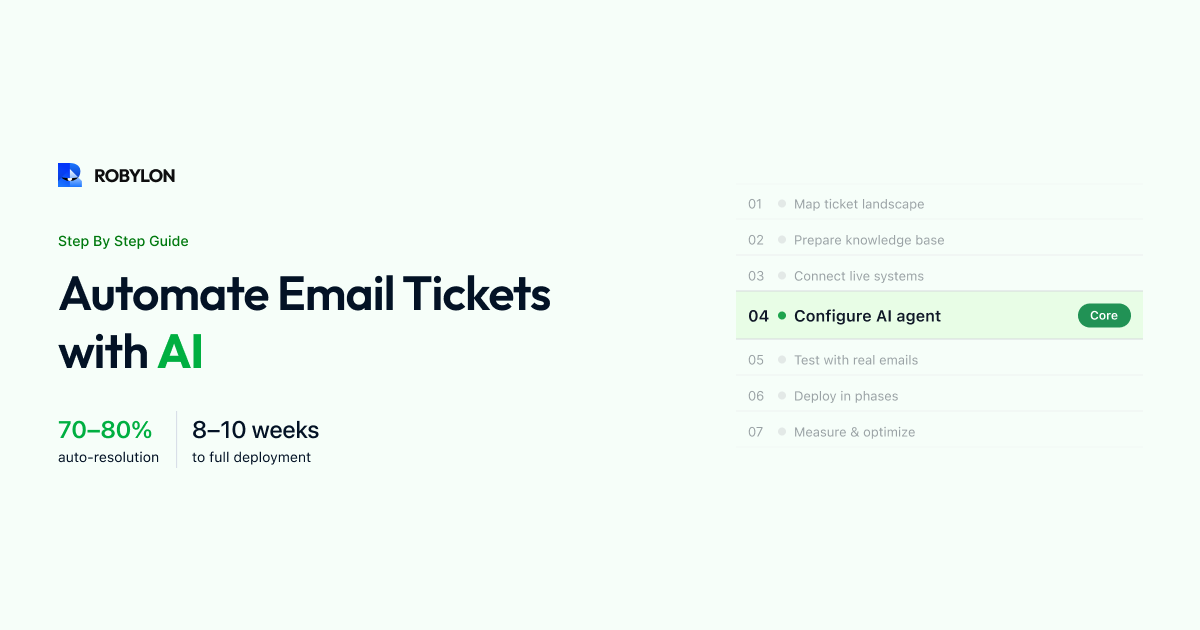
Your support team opens the inbox every morning to the same story: dozens — or hundreds — of emails asking the same questions they answered yesterday. Where is my order? Can I get a refund? How do I reset my password? What are your shipping rates to Canada?
Each one takes 5–15 minutes to handle. Each one is a variation of a question that has been answered a thousand times before. And each one prevents your team from spending time on the genuinely complex issues that need human expertise.
AI changes this equation entirely. In 2026, AI email resolution systems can read a customer’s email, understand what they need, retrieve the right information from your knowledge base and live systems, draft a response, and either send it automatically or present it to an agent for one-click approval. The result: 60–80% of email tickets resolved without human involvement, response times dropping from hours to seconds, and support costs cut by more than half.
Here is exactly how to set it up, step by step.
Step 1: Map Your Email Ticket Landscape
Before automating anything, you need to know what you are automating. Export the last 90 days of email tickets from your helpdesk and categorize them by intent.
How to Categorize
Read a random sample of 200–300 tickets and assign each one a category. You will likely find that your entire email volume falls into 10–15 categories, with the top 5 accounting for the majority. A typical breakdown for an e-commerce business:
- Order tracking / WISMO (30–40%): “Where is my order?”, “Has my order shipped?”, “When will it arrive?”
- Returns and refunds (15–20%): “I want to return this”, “When will I get my refund?”, “Can I exchange this?”
- Product questions (10–15%): “Is this in stock?”, “What size should I order?”, “Does this work with X?”
- Billing and payment (8–12%): “My payment failed”, “I was charged twice”, “Send me an invoice”
- Account issues (5–10%): “I can’t log in”, “Reset my password”, “Update my email address”
- Remaining (15–25%): Complaints, feature requests, partnership inquiries, complex multi-step issues
Score Each Category for Automation Potential
For each category, score three dimensions on a scale of 1–5:
- Volume: How many emails per week in this category?
- Repetitiveness: How similar are the emails and responses? (5 = identical patterns every time)
- Data dependency: Does resolving require live data (order status, payment records)? If yes, is that data API-accessible?
Categories scoring 12+ out of 15 are your Phase 1 automation targets. Order tracking and policy questions typically score highest.
Step 2: Prepare Your Knowledge Base for Email AI
Your AI’s email responses are only as good as the content it learns from. Email-specific knowledge base preparation differs from chat in important ways.
Write for Email-Length Responses
Chat answers are short — a sentence or two. Email answers need to be more complete because customers expect a self-contained response they can read and act on without writing back. For each knowledge base article, ensure the content provides a complete answer that addresses the question, explains any next steps, and anticipates the obvious follow-up.
For example, a chat response to “How do I return an item?” might be: “You can initiate a return within 30 days. Click here to start.” An email response needs more: the return window, what qualifies, how to start the process, what to expect for the refund timeline, and what happens if the item does not qualify.
Include Decision Logic for Edge Cases
Email customers often present edge cases: “I bought this as a gift and the recipient wants to return it,” or “I’m past the 30-day window but the item arrived damaged.” Your knowledge base needs explicit decision logic for these scenarios:
- “If the return is past the 30-day window but the item arrived damaged, accept the return under the damaged goods policy.”
- “If the purchaser and recipient are different, verify the original order email and proceed with return.”
- “If the item was purchased during a sale and marked Final Sale, returns are not accepted. Offer store credit as an alternative.”
Structure Content for Multi-Issue Emails
15–20% of support emails contain multiple questions. Your knowledge base should be structured so the AI can retrieve separate pieces of content for each issue and combine them into a single coherent response. This means clear section boundaries, focused topics per article, and explicit cross-references between related content.
Step 3: Connect Your Data Systems
The biggest leap in email automation comes from connecting the AI to your live business systems. Without this, the AI can only answer questions from static documentation. With it, the AI can resolve transactional queries end-to-end.
Essential Integrations for Email AI
- Order management system (OMS): Shopify, WooCommerce, custom — enables the AI to look up order status, tracking info, and delivery details.
- Payment processor: Stripe, Razorpay, PayPal — enables refund status checks, payment confirmation, and failed payment diagnostics.
- CRM / customer database: Salesforce, HubSpot, custom — enables customer identification, account history, and personalized responses.
- Helpdesk: Zendesk, Freshdesk, Zoho Desk — enables ticket creation, status updates, and agent routing for escalated emails.
- Returns system: Loop Returns, Returnly, native — enables automated return initiation and label generation.
Each integration turns a category of emails from “AI can answer the question” to “AI can resolve the issue.” Order tracking goes from “Please check your email for tracking info” to “Your order #45721 shipped via FedEx on March 18. Here is your tracking link — it is currently in transit and expected to arrive March 22.”
Step 4: Configure Your AI Email Agent
Set Up the Email Channel
Connect your AI platform to your email support channel. There are typically two approaches:
- Via helpdesk integration: The AI connects to Zendesk/Freshdesk and processes tickets as they arrive. This is the cleanest approach if you already use a helpdesk — all conversation history, agent routing, and reporting stay in your existing system.
- Direct email connection: The AI monitors a support email inbox (support@yourcompany.com) directly and processes incoming emails. Better for teams that do not use a traditional helpdesk.
Configure the AI Persona for Email
Email requires a different tone than chat. Email responses should be:
- More complete: Provide the full answer in one response. Unlike chat, you cannot have a back-and-forth to clarify.
- More structured: Use clear paragraphs, numbered steps where relevant, and a closing that invites the customer to reply if they need more help.
- Properly formatted: Subject line handling, signature block, greeting with the customer’s name, professional sign-off.
- Brand-consistent: Match your company’s email voice — whether that is formal and professional or warm and casual.
Set Confidence Thresholds
Configure two thresholds:
- Auto-send threshold (e.g., 90%): Above this confidence level, the AI sends the response automatically without human review.
- Draft threshold (e.g., 70%): Between this and the auto-send threshold, the AI creates a draft for the agent to review and approve with one click.
- Below the draft threshold: The email is routed to a human agent with the AI’s analysis (detected intent, relevant KB articles, customer context) attached to speed up manual handling.
Start conservative — set auto-send at 90% and lower it gradually as you build confidence in the system’s accuracy.
Define Escalation Rules
Configure automatic escalation for:
- Emails with negative sentiment (detected frustration, anger, urgency words)
- Emails mentioning legal action, regulatory complaints, or safety issues
- Emails from VIP or enterprise customers (identified by email domain or CRM tags)
- Emails where the AI has been asked the same question more than once in the same thread
- Emails containing attachments that the AI cannot process (complex documents, videos)
Step 5: Test with Real Email Data
Before going live, test the system using real historical emails. Pull 100 diverse emails from your recent tickets and run them through the AI in test mode.
What to Evaluate
- Intent detection accuracy: Did the AI correctly identify what the customer wanted? Test with different phrasings of the same question.
- Response correctness: Is the information in the AI’s response factually accurate and complete?
- Data retrieval: For transactional emails, did the AI pull the correct order/account data?
- Tone and formatting: Does the email response look professional, properly formatted, and brand-consistent?
- Escalation behavior: Did the AI correctly escalate the emails it should not have answered (legal, emotional, complex)?
- Multi-issue handling: For emails with multiple questions, did the AI address all of them?
Fix any issues by updating your knowledge base, adjusting confidence thresholds, or refining the AI’s system instructions. Repeat testing until accuracy exceeds 85%.
Step 6: Deploy in Phases
Week 1–2: Shadow Mode
The AI processes every email and generates draft responses, but sends nothing to customers. Agents review the drafts alongside their normal workflow and flag issues. This builds confidence without risk.
Week 3–4: Assisted Mode
Enable auto-send for the top 1–2 email categories (highest confidence, highest volume). For everything else, the AI continues generating drafts for agent review. Monitor CSAT and escalation rates daily.
Week 5–8: Full Deployment
Expand auto-send to all email categories where accuracy exceeds your threshold. Keep the AI in draft-only mode for edge cases, new product categories, and any topic where accuracy has not been validated. Most teams reach 60–70% auto-resolution by week 6 and 75–80% by week 10 with consistent optimization.
Step 7: Measure and Optimize
Weekly Metrics to Track
- Auto-resolution rate: Percentage of emails fully resolved by AI without human involvement.
- Draft approval rate: Of the emails queued as drafts, what percentage are approved without edits? High approval rates (90%+) suggest you can raise the auto-send threshold.
- First response time: How quickly are customers getting their first response? AI should bring this under 5 minutes for auto-resolved emails.
- CSAT comparison: AI-resolved vs human-resolved satisfaction scores. Track both.
- Knowledge gap report: Which email topics caused low confidence or escalation? These are your content priorities.
Weekly Optimization Routine (30 Minutes)
- Review the top 5 escalated email topics — add or update KB content. (10 min)
- Check the draft approval rate — if agents are approving 95%+ without edits, raise the auto-send threshold for those categories. (5 min)
- Review any negative CSAT scores on AI-resolved emails — identify the root cause. (10 min)
- Update KB for any business changes this week (pricing, policy, products). (5 min)
Implementation Checklist
Preparation:
- Exported and categorized 90 days of email tickets
- Identified top 5 email categories with automation scores
- Documented baseline metrics (FRT, AHT, FCR, CSAT, cost per ticket)
- Audited and updated knowledge base for top 5 categories
- Connected OMS, CRM, and payment system APIs
Configuration:
- Connected email channel (helpdesk or direct inbox)
- Configured AI persona, tone, and email formatting
- Set confidence thresholds (auto-send and draft)
- Defined escalation rules (sentiment, VIP, legal, attachments)
- Tested with 100+ real historical emails
Deployment:
- Ran shadow mode for 1–2 weeks (85%+ accuracy confirmed)
- Enabled auto-send for top 1–2 categories
- Expanded to full deployment over 4–6 weeks
- Established weekly optimization cadence
Bottom Line
Automating email ticket resolution is not a future aspiration — it is a practical, deployable capability today. The step-by-step process is clear: map your email landscape, prepare your knowledge base, connect your data systems, configure with conservative thresholds, deploy in phases, and optimize weekly. Teams that follow this playbook consistently reach 70–80% email auto-resolution within 8–10 weeks.
Automate your email tickets with Robylon AI. From intent detection to action-taking, Robylon resolves email tickets end-to-end — integrating with your helpdesk, OMS, and CRM. Most teams go live on email in under a day. Start free at robylon.ai
Frequently asked questions
How long does it take to set up AI email ticket automation?
With a purpose-built platform like Robylon AI, the typical timeline is: Week 1 — audit your email volume and prepare your knowledge base. Week 2–3 — configure the AI, connect your helpdesk and data systems, set confidence thresholds. Week 3–4 — run shadow mode (AI generates drafts, humans review). Week 4–6 — enable auto-send for top categories. Most teams have live email automation running within 2–4 weeks, with 60–70% auto-resolution by week 6.
What is shadow mode for AI email support?
Shadow mode is a risk-free testing phase where the AI processes every incoming email and generates draft responses, but does not send anything to customers. Your agents review the AI's drafts alongside their normal workflow and flag inaccuracies. This lets you measure accuracy (target: 85%+) and identify knowledge base gaps before any customer sees an AI-generated response. Typically runs for 1–2 weeks before moving to live deployment.
What confidence threshold should I set for auto-sending email responses?
Set two thresholds: an auto-send threshold (start at 90%) — above this, the AI sends the response automatically. And a draft threshold (start at 70%) — between this and auto-send, the AI creates a draft for one-click agent approval. Below the draft threshold, emails route to humans with the AI's analysis attached. Start conservative and lower gradually as accuracy proves out. Most mature deployments settle at 80–85% for auto-send.
What systems do I need to connect for AI email automation?
Five essential integrations: 1) Order management system (Shopify, WooCommerce) for order status and tracking. 2) Payment processor (Stripe, Razorpay) for refund status and billing queries. 3) CRM/customer database (Salesforce, HubSpot) for customer identification and history. 4) Helpdesk (Zendesk, Freshdesk) for ticket creation and agent routing. 5) Returns system (Loop Returns, native) for return initiation and label generation. Each integration transforms a category from "AI can answer" to "AI can resolve."
How do I handle emails with multiple questions in one message?
15–20% of support emails contain multiple questions (e.g., "Check my order status AND update my address AND tell me about loyalty points"). Your AI platform needs multi-intent parsing — the ability to detect each question separately, retrieve the relevant knowledge for each, and combine everything into a single coherent response. Structure your knowledge base with clear section boundaries and focused topics so the AI can retrieve separate pieces of content and merge them naturally.