
Outlook Shared Mailbox for Support: Why It Breaks and What to Use Instead
Enterprise support teams often start with an Outlook shared mailbox because IT already manages Microsoft 365. It works at low volume — then breaks in predictable, painful ways. This guide covers the 9 specific failures, compares the upgrade options, and shows why AI-powered email support is the right next step in 2026.
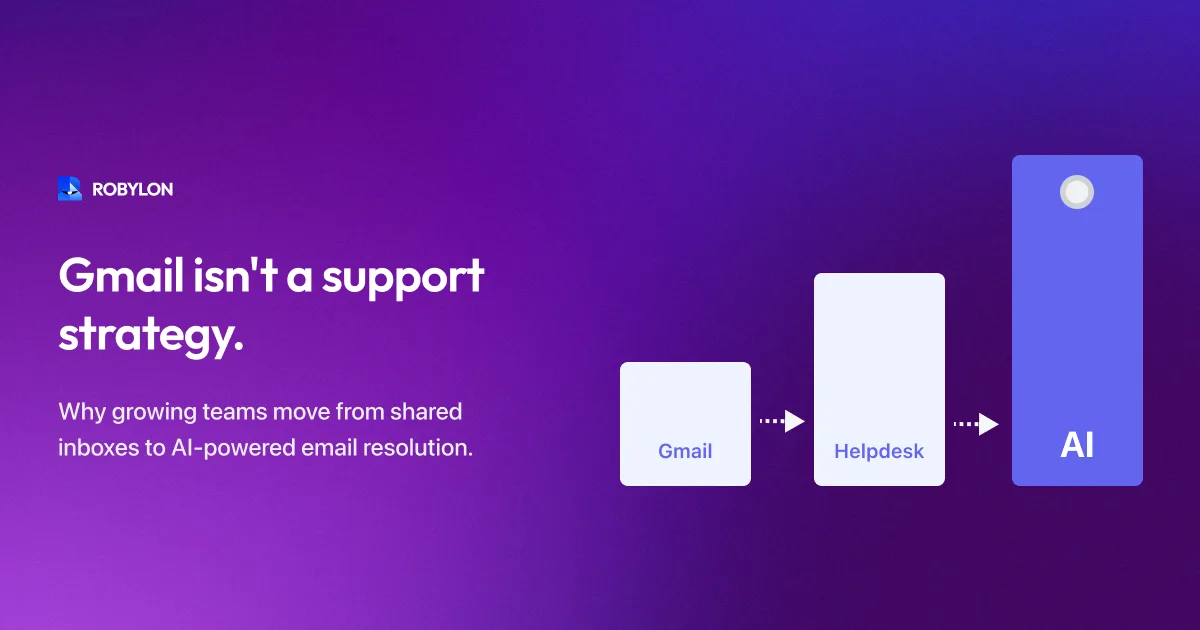
In enterprise environments, the path to email-based customer support almost always starts with Outlook. The company already runs on Microsoft 365. IT sets up a shared mailbox — support@company.com — accessible by the support team through the standard Outlook desktop client or Outlook Web App. No procurement needed, no new vendor to approve, no additional licenses to buy.
For teams handling 20–30 support emails per day, this works well enough. The problems start when volume crosses 50 emails per day, the team grows beyond 3–4 people, or customers begin expecting response times measured in hours rather than days. At that point, the Outlook shared mailbox becomes a liability — not because Outlook is a bad product, but because it was never designed to be a support ticketing system.
How Outlook Shared Mailboxes Work for Support
Microsoft 365 offers two shared email options: the shared mailbox (no license required, 50 GB storage, accessible by multiple users) and the Microsoft 365 Group (includes a shared mailbox plus a SharePoint site, calendar, and Planner). Most support teams use the shared mailbox because IT creates it in minutes and it appears as a folder in each agent’s Outlook.
The typical workflow: agents open the shared mailbox folder alongside their personal inbox, scan for unread emails, mentally claim one, reply from the shared address, and move it to a “Done” folder or leave it in the inbox. More organized teams create subfolders — “In Progress,” “Waiting on Customer,” “Resolved” — and manually move emails between them. Some teams use Outlook categories (colored tags) to indicate priority or topic.
This is, functionally, a manual ticketing system built on folder structures and human discipline. It works until it does not.
The 9 Ways Outlook Shared Mailboxes Fail at Support
1. No True Assignment or Ownership
Outlook has no concept of ticket assignment. You cannot assign an email to a specific agent and have it show as “owned” in the shared mailbox. Teams work around this with Outlook categories (“John — Billing,” “Sarah — Shipping”) or by forwarding emails to personal inboxes — but both approaches are manual, unreliable, and invisible to the rest of the team. The result: emails sit unowned, agents accidentally work on the same email, and managers have no visibility into who is responsible for what.
2. Sent Items Confusion
When an agent replies from a shared mailbox, the sent reply goes to the shared mailbox’s Sent Items folder — not the agent’s personal Sent Items. This is counterintuitive for agents accustomed to seeing their sent emails in their own folder. Worse, if the “Send As” vs “Send on Behalf” permission is misconfigured, replies may show the agent’s personal email address instead of support@company.com, confusing customers and breaking the thread.
3. No Collision Detection
Just like Gmail, Outlook shared mailboxes have no mechanism to show when another agent is viewing or replying to the same email. Two agents can open the same customer email, draft independent responses, and both click send — resulting in duplicate, potentially contradictory replies. In busy periods (Monday mornings, after-hours backlogs), this happens routinely.
4. No SLA Management
Outlook does not track email age, response deadlines, or breach status. There are no configurable SLA targets, no visual indicators for emails approaching their response deadline, and no alerts when an email has been waiting too long. Managers who need SLA data must manually export emails, calculate timestamps in Excel, and build reports from scratch — an exercise that most teams attempt once and abandon.
5. Limited Automation with Power Automate
Microsoft Power Automate (formerly Flow) can add basic automation — auto-reply acknowledgments, route emails by keyword to specific agents, create Planner tasks from emails. But building these flows requires technical knowledge, the shared mailbox connector has limited triggers compared to personal mailbox connectors, and complex routing logic quickly becomes unwieldy. More importantly, Power Automate cannot read an email, understand the customer’s intent, retrieve the relevant knowledge base answer, and generate a personalized response — which is what actual email automation requires.
6. No Integrated Knowledge Base
Outlook has no built-in knowledge base. Agents responding to “How do I reset my password?” must switch to a browser, search the company wiki or SharePoint, find the right article, and manually adapt the information into a reply. This adds 3–5 minutes per email for common questions and produces inconsistent answers — because different agents find different articles or paraphrase differently.
7. No Customer History View
Outlook shows the current email thread, but not the customer’s full support history, account status, order information, or previous interactions with other agents. To get this context, agents must search the shared mailbox by the customer’s email address (which retrieves threads but not structured data), then switch to the CRM or OMS for account details. This context-switching adds significant handling time and means agents frequently respond without the full picture.
8. Storage and Performance Limits
Shared mailboxes have a 50 GB storage limit. For high-volume support teams (500+ emails per day), this fills up within months — especially when emails include attachments (screenshots, PDFs, invoices). Once the mailbox approaches its limit, performance degrades: the folder takes longer to load, search becomes slower, and older emails must be archived. Archiving removes emails from the shared mailbox, making historical context inaccessible to agents.
9. No Meaningful Reporting
Outlook provides no support-specific analytics. You cannot measure first response time, resolution time, emails by category, agent utilization, customer satisfaction, or backlog trends. Microsoft 365 admin reports show mailbox usage (storage, message counts) but nothing about support operations. Without metrics, you cannot identify your most common email topics, your slowest response categories, or whether your team is improving — making it impossible to optimize or justify additional resources.
The Upgrade Options
Option 1: Stay in Microsoft Ecosystem (Dynamics 365 Customer Service)
Microsoft’s own helpdesk solution, Dynamics 365 Customer Service, integrates natively with Outlook and the Microsoft 365 ecosystem. It provides full ticketing, SLA management, routing, knowledge base, and Copilot AI assistance. The catch: it is enterprise-priced ($50–$195 per user per month), requires significant configuration, and Copilot’s email AI capabilities are focused on agent assistance (draft suggestions, summarization) rather than autonomous email resolution.
Option 2: Migrate to a Third-Party Helpdesk (Zendesk, Freshdesk)
The most common path. Zendesk and Freshdesk connect to your Outlook mailbox via forwarding or API, converting incoming emails into tickets. You get all the helpdesk features Outlook lacks — assignment, SLA, macros, reporting, multi-channel. The trade-off: agents leave Outlook for a new interface (training and adoption friction), and AI features are either limited or expensive (Zendesk Advanced AI: $50/agent/month on top of Suite Pro at $89/agent).
Option 3: Layer an AI Email Agent on Top (Robylon AI)
An AI email agent connects to your Outlook shared mailbox and processes incoming emails before they reach agents. The AI reads each email, detects intent, retrieves relevant information from your knowledge base and connected systems (CRM, OMS, billing), generates a personalized response, and either auto-sends (above a confidence threshold) or queues a draft for agent review.
This approach is the least disruptive — agents can continue using Outlook for the emails that reach them, while the AI handles the 60–80% that do not require human involvement. No migration required. No new ticketing interface to learn. The AI simply intercepts and resolves the predictable volume, and routes the rest to your team with context attached.
Why AI Beats a Helpdesk Migration in the Outlook World
Enterprise teams on Outlook face a specific adoption challenge: the organization is standardized on Microsoft, and introducing a non-Microsoft tool (Zendesk, Freshdesk) requires procurement approval, security review, SSO integration, and change management across the support team. This process takes 2–6 months in many enterprises. Whichever route you take, run any AI email vendor through a security checklist for evaluating AI email vendors covering certifications, encryption, access controls, and the AI-specific risks InfoSec will scrutinise.
An AI email agent sidesteps this friction entirely. It connects to the existing Outlook mailbox via Microsoft Graph API — an approved, native Microsoft integration. No new user interface for agents. No migration of historical data. No retraining on a new tool. The AI works behind the scenes, and agents only see the emails that need their attention, delivered with full context and a suggested response.
The cost comparison also favors AI. A Dynamics 365 deployment for 10 agents runs $500–$1,950 per month (plus implementation costs of $10,000–$50,000). A Zendesk deployment costs $890–$1,390 per month for seats alone, with AI adding another $500. An AI email agent (Robylon) costs $1,500–$3,000 per month — but resolves 60–80% of email volume automatically, which means you may only need 3–4 agents instead of 10. The net savings from reduced headcount far outweigh the platform cost.
For enterprise procurement teams evaluating this trade-off across Dynamics 365, Zendesk, Freshdesk, and AI-native alternatives, our enterprise procurement-grade comparison covers TCO math at 50K tickets/month, security and compliance posture, and the eight questions that every shortlisted vendor should answer.
The Migration Path: Outlook Shared Mailbox to AI Email Support
- Day 1: Connect your Outlook shared mailbox to Robylon AI via Microsoft Graph API. Your IT team grants the necessary permissions — read and send access for the shared mailbox.
- Day 1–3: Upload your knowledge base — SharePoint articles, internal wikis, FAQ documents, policy PDFs. Connect your CRM (Dynamics 365, Salesforce), OMS, and billing systems.
- Day 3–5: Configure the AI — confidence thresholds, escalation rules, brand voice, restricted topics. Define which categories the AI should auto-resolve versus draft for review.
- Day 5–12: Shadow mode. The AI processes every incoming email and generates draft responses, but sends nothing to customers. Your team reviews drafts daily and flags issues.
- Day 12–14: Enable auto-send for the top-performing categories. Gradually expand as accuracy proves out.
Within 2–3 weeks, the AI is handling the majority of your email volume. Your Outlook shared mailbox is still there — it just has far fewer unread emails in it because the AI has already resolved them.
Bottom Line
The Outlook shared mailbox is a fine starting point for email support — it is free, familiar, and integrated into the Microsoft ecosystem your organization already uses. But it was never designed to be a ticketing system, and it shows. No assignment, no SLAs, no automation, no reporting, no knowledge base integration.
The question is not whether to upgrade — it is whether to spend 3–6 months procuring and deploying a traditional helpdesk, or 2 weeks connecting an AI email agent that resolves the majority of your email volume automatically while keeping your team in the Outlook environment they already know.
Keep Outlook. Add AI. Robylon AI connects to your Outlook shared mailbox via Microsoft Graph API and resolves 60–80% of email tickets automatically — no helpdesk migration, no agent retraining. Start free at robylon.ai
Frequently asked questions
Why do Outlook shared mailboxes fail for customer support?
Outlook shared mailboxes were designed for team collaboration on email, not customer support operations. They lack 9 critical capabilities: no ticket assignment or ownership, sent items confusion (replies go to the shared Sent folder, not the agent's), no collision detection, no SLA management, limited automation via Power Automate, no integrated knowledge base, no customer history view, 50 GB storage limits that degrade performance at high volume, and no support-specific reporting. These limitations surface once volume exceeds 50 emails per day or the team grows beyond 3–4 agents.
Can Microsoft Power Automate replace a proper email automation tool?
Power Automate handles basic email automation — auto-acknowledgments, keyword-based routing, task creation in Planner. But it cannot read an email, understand the customer's intent, retrieve information from your knowledge base and business systems, generate a personalized response, and send it. That requires an AI email agent. Power Automate also has limited triggers for shared mailbox connectors compared to personal mailboxes, and complex routing logic becomes difficult to maintain. Use Power Automate for simple rules; use an AI email agent for actual email resolution.
Is Dynamics 365 the best upgrade from an Outlook shared mailbox?
Dynamics 365 Customer Service is the natural Microsoft ecosystem upgrade — native Outlook integration, Copilot AI, full ticketing. But it is enterprise-priced ($50–$195/user/month), requires significant configuration, and Copilot focuses on agent assistance (draft suggestions, summarization) rather than autonomous resolution. For teams that want AI to resolve emails — not just help agents write faster — an AI email agent delivers higher auto-resolution rates (60–80% vs 20–35%) at lower total cost, with a 2-week deployment versus 2–6 months for Dynamics.
How do I connect an AI email agent to my Outlook shared mailbox?
AI email agents like Robylon connect to Outlook shared mailboxes via the Microsoft Graph API — an approved, native Microsoft integration. Your IT team grants read and send permissions for the shared mailbox, and the AI starts processing incoming emails. No data migration, no change to your email address, no new interface for agents. The entire setup typically takes 1–3 days for IT approval and API connection, plus 1–2 weeks for knowledge base setup and shadow mode testing.
Can I keep using Outlook after deploying an AI email agent?
Yes — that is the recommended approach. The AI email agent works behind the scenes, processing incoming emails from your Outlook shared mailbox and resolving 60–80% automatically. The remaining 20–40% that require human attention are routed to agents, who can continue working in Outlook (or a connected helpdesk). Your shared mailbox simply has far fewer unread emails because the AI has already handled most of them. No migration, no retraining, no new tools for agents to learn.