
How to Build an AI Chatbot Without Coding (2026)
You do not need a developer to build an AI chatbot in 2026. This step-by-step tutorial walks you through planning, training, testing, and deploying a no-code AI chatbot that resolves real customer queries.
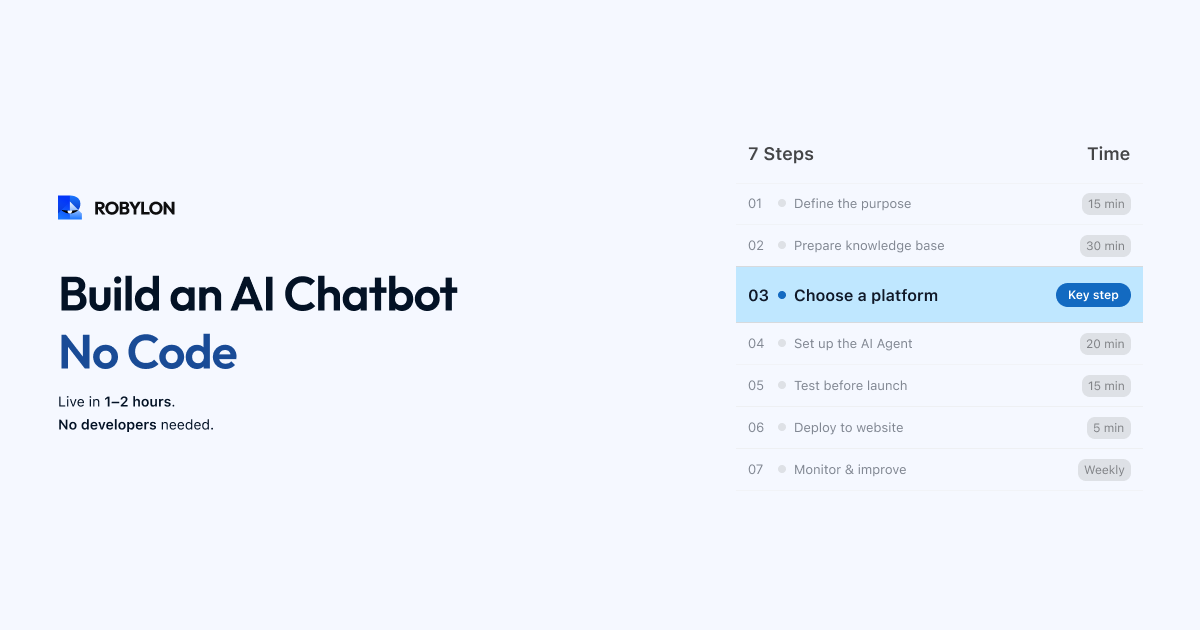
Five years ago, building a chatbot meant hiring developers, writing dialogue scripts, and managing complex NLP pipelines. That world is gone. In 2026, anyone — a customer support lead, a marketing manager, a founder — can build and deploy an AI chatbot that handles real customer conversations, without writing a single line of code.
This is not about building a toy demo. By the end of this guide, you will have a production-ready AI chatbot trained on your business data, deployed on your website, and capable of resolving customer queries autonomously. Let us walk through it step by step.
What You Will Build
Before diving in, let us set clear expectations. The chatbot you build in this tutorial will be able to:
- Answer questions about your business using your own help articles, FAQs, product pages, and policy documents.
- Handle multi-turn conversations — follow-up questions, clarifications, and context switching.
- Escalate to a human agent when it cannot resolve the query or when the customer asks for a person.
- Collect lead information — name, email, phone — and push it to your CRM or email tool.
- Go live on your website within a single working session.
What it will not do out of the box (but can be added later): execute transactions like refunds, pull real-time order data from your OMS, or handle voice calls. Those require system integrations, which are a natural next step once your chatbot is live and proving value.
Step 1: Define Your Chatbot’s Purpose
The biggest mistake people make is trying to build a chatbot that does everything. Start with one clear use case. The most common starting points are:
- Customer support: Answer questions about your product, service, policies, pricing, and troubleshooting steps.
- Lead qualification: Engage website visitors, ask qualifying questions, and capture contact details for your sales team.
- Product guidance: Help visitors find the right product, compare options, or understand features.
Pick one. You can expand later, but a chatbot with a clear, focused purpose will always outperform one that tries to cover everything from day one.
Write down three things:
- Who is the chatbot for? (Website visitors, existing customers, trial users, etc.)
- What are the top 5 questions they ask? (Check your support tickets, FAQ page, or sales call notes.)
- What does success look like? (70% of questions answered without human help? 50 leads captured per week? Average response time under 5 seconds?)
Step 2: Gather and Prepare Your Knowledge Base
Your chatbot learns from the content you feed it. The quality of that content directly determines the quality of every answer it gives. Here is how to prepare it.
Collect Your Source Material
Pull together everything your chatbot might need to reference:
- Help center articles — your existing FAQ and support documentation.
- Product pages — descriptions, specifications, pricing, and comparison content.
- Policy documents — returns policy, shipping information, terms of service, privacy policy.
- Internal SOPs — the step-by-step procedures your support team follows for common issues.
- Past support transcripts — real conversations that show how questions are typically asked and answered.
Clean and Structure It
Raw content often needs cleanup before it works well as chatbot training data. Focus on these adjustments:
- Make policies explicit. Replace vague language (“we offer flexible returns”) with specific rules (“returns are accepted within 30 days for unused items in original packaging”).
- Remove internal jargon. Your chatbot speaks to customers, not to your team. Rewrite content in the language your customers use.
- Add edge cases. If your return policy has exceptions (sale items, customized products, international orders), document them clearly.
- Use headers and structure. Well-organized content with clear headings helps the AI retrieve the right information faster.
Step 3: Choose a No-Code Chatbot Platform
Several platforms let you build and deploy AI chatbots without coding. Here is what to look for:
- LLM-powered AI: Make sure the platform uses large language models (not just keyword matching) so it can handle natural, conversational queries.
- Easy knowledge base upload: You should be able to point to URLs, upload PDFs, or paste text — and the AI trains itself.
- Widget customization: Brand colors, greeting message, avatar, placement on your site.
- Human handoff: Built-in escalation to a live agent when the AI cannot resolve the issue.
- Analytics: Dashboards showing what customers are asking, resolution rates, and gaps.
For this tutorial, we will use Robylon AI — which offers a free tier, no-code setup, LLM-powered conversations, and deployment across web chat and WhatsApp. You can follow the same principles on any similar platform.
Step 4: Set Up Your AI Chatbot
Here is the step-by-step process to go from zero to a working chatbot.
4.1 Create Your Account and Agent
Sign up on your chosen platform and create a new AI agent. You will typically be asked to name it and describe its purpose. Be specific — “Customer support agent for an e-commerce store selling sustainable clothing” gives the AI much better context than “support bot.”
4.2 Upload Your Knowledge Base
This is the most important step. Feed the platform your content using whichever methods are available:
- URL scraping: Point to your help center or product pages. The AI crawls and ingests them automatically.
- Document upload: Upload PDFs, Word docs, or text files — policy documents, SOPs, product guides.
- Manual entry: For critical Q&A pairs that are not documented anywhere else, add them as custom knowledge entries.
Start with your top 5 question categories from Step 1. You can add more content later as you discover gaps.
4.3 Configure the Persona and Tone
Set how your chatbot communicates. Most platforms let you configure:
- Name and avatar: Give it a name that feels approachable but professional.
- Greeting message: What does the chatbot say when a visitor opens the widget? Keep it short and helpful: “Hi! I can help with orders, returns, product questions, or anything else. What do you need?”
- Tone: Friendly and conversational? Professional and concise? Match your brand voice.
- Language: If you serve multilingual customers, enable the languages you need. Many platforms support 40+ languages automatically.
4.4 Set Up Escalation Rules
Configure when the chatbot should hand off to a human agent:
- When the customer explicitly asks for a person.
- When the AI does not have a confident answer (below a configurable threshold).
- When the conversation involves sensitive topics (billing disputes, legal issues, complaints).
- When the customer has asked the same question multiple times without resolution.
If you do not have live agents available 24/7, configure an offline message: “Our team is currently offline. Leave your email and we will follow up within 2 hours.”
4.5 Customize the Widget
Style the chat widget to match your website: brand colors, button position (bottom-right is standard), icon style, and whether it auto-opens or waits for a click. Keep it visible but not intrusive.
Step 5: Test Before You Launch
Do not go live without thorough testing. Use the platform’s built-in preview or staging mode and run through these scenarios:
- Happy path: Ask your top 5 questions. Are the answers accurate and complete?
- Phrasing variations: Ask the same question in three different ways. “What’s your return policy?” vs “How do I send something back?” vs “Can I get a refund on my order?”
- Edge cases: Ask something outside your knowledge base. Does the chatbot admit it does not know, or does it hallucinate an answer?
- Escalation: Say “I want to talk to a person.” Does the handoff work smoothly?
- Conversation context: Ask a follow-up question. “What about international orders?” after asking about returns. Does it maintain context?
- Gibberish and abuse: Type random characters or hostile messages. Does the chatbot handle it gracefully?
Fix any issues you find by updating your knowledge base content. Most problems trace back to missing or ambiguous documentation, not to the AI itself.
Step 6: Deploy to Your Website
Once testing passes, deployment is usually a one-step process:
- Copy the embed code from your chatbot platform. It is typically a short JavaScript snippet.
- Paste it into your website. The exact method depends on your platform:
- WordPress: Add the snippet to your theme’s header.php or use a plugin like “Insert Headers and Footers.”
- Shopify: Go to Online Store → Themes → Edit Code → paste in theme.liquid before the closing body tag.
- Webflow: Go to Project Settings → Custom Code → paste in the Footer Code section.
- Wix: Use the Custom Code feature in Settings → Advanced.
- Custom site: Paste the snippet before the closing
</body>tag in your HTML.
- Verify it loads. Visit your live site, open the chat widget, and run a quick test conversation.
Step 7: Monitor and Improve
Your chatbot is live — but the work is not done. The first two weeks after launch are critical for optimization.
Week 1: Watch Everything
- Read through actual customer conversations daily. Are answers accurate? Are customers satisfied?
- Check your analytics dashboard for unanswered questions — these are knowledge gaps you need to fill.
- Look at escalation reasons. Are they legitimate (complex issues) or avoidable (missing KB content)?
Week 2: Start Optimizing
- Add content to cover the top unanswered topics.
- Refine the greeting message based on what visitors are actually asking.
- Adjust the escalation threshold — too many false escalations waste agent time, too few frustrate customers.
Ongoing: Weekly Review Cycle
Set aside 30 minutes each week to review low-confidence responses, add new content, and update existing articles. Teams that do this consistently see their automation rate climb 2–5 percentage points every month.
What Comes Next: Beyond the Basics
Once your no-code chatbot is running smoothly and handling a meaningful share of conversations, you can start adding more advanced capabilities:
- System integrations: Connect your OMS, CRM, or billing system so the chatbot can check order status, update records, and take real actions.
- Additional channels: Deploy the same AI agent on WhatsApp, email, or voice without rebuilding.
- Proactive engagement: Trigger the chatbot based on visitor behavior — time on page, cart abandonment, exit intent.
- Lead qualification flows: Build structured conversation flows that qualify visitors and book meetings for your sales team.
- Multilingual expansion: Enable additional languages for international audiences.
Bottom Line
Building an AI chatbot without code is not a compromise — it is the standard approach in 2026. The platforms available today are powerful enough to handle real customer conversations, integrate with your business tools, and scale with your growth. The key is starting focused (one use case, your top questions), investing in your knowledge base, and committing to ongoing optimization.
You do not need a developer. You do not need months of implementation. You need clear content, the right platform, and 30 minutes a week to keep improving.
Build your first AI chatbot today. Robylon AI offers a free tier with no-code setup, LLM-powered conversations, and deployment across web chat and WhatsApp. Most teams go live within hours. Get started at robylon.ai
Frequently asked questions
Can I really build a useful AI chatbot without any coding?
Yes. Modern no-code platforms like Robylon AI let you build production-grade AI chatbots by uploading your knowledge base (URLs, PDFs, or text), configuring the persona and escalation rules, and embedding a widget on your site — all without writing a single line of code. The AI handles natural language understanding, context management, and response generation automatically.
How long does it take to build a no-code chatbot from scratch?
A basic AI chatbot trained on your help center content can be live within 1–2 hours. This includes account setup, knowledge base upload, widget customization, and initial testing. Building a more refined chatbot with escalation rules, multiple data sources, and thorough testing typically takes half a day to a full day. The ongoing optimization is what takes weeks — but the chatbot is functional from day one.
What content should I prepare before building my chatbot?
Start with your top 5 most-asked questions and the content that answers them. At minimum, gather: help center articles, FAQ pages, product/service descriptions, policy documents (returns, shipping, pricing), and any SOPs your support team uses. The more specific and well-structured your content, the more accurate your chatbot will be from launch.
What happens when the no-code chatbot cannot answer a question?
A well-configured chatbot should never leave customers stuck. When the AI is not confident in its answer, it should either: admit it does not know and offer to connect the customer with a human agent, collect the customer's contact details for follow-up, or suggest related topics it can help with. You configure these escalation rules during setup — no coding required.
Can I deploy my no-code chatbot on WhatsApp and email too?
Depends on the platform. Some no-code builders only support web chat. Omnichannel platforms like Robylon AI let you deploy the same chatbot — with the same knowledge base and escalation rules — across web chat, WhatsApp, email, and voice from a single configuration. This is the recommended approach to avoid maintaining separate bots for each channel.
Related reading
 Chatbots
10 Best AI Chatbots for Customer Support in 2026
This article reviews the top 10 AI chatbots for customer support in 2025, including Zendesk, Freshworks, Intercom, Drift, and more. It highlights their strengths, limitations, and best-fit use cases. The clear winner is Robylon AI, which delivers autonomous agents with 97% accuracy, 85–95% query automation, and 30% cost savings: making it the best overall choice for enterprises seeking scalable, reliable, and cost-efficient customer support.
 Chatbots
10 Best AI Chatbots for E-Commerce in 2026
Explore the 10 best AI chatbots for E-Commerce in 2025. Compare platforms like Robylon, Tidio, Intercom, Gorgias, and Ada to see how chatbots improve customer support, reduce costs, and boost sales.
 Chatbots
10 Best AI Chatbots for Ecommerce Customer Support in 2026
Discover the best AI chatbots for ecommerce in 2025. Compare top platforms like Robylon, Tidio, Zendesk, and more - automating order tracking, returns, refunds, and customer support to boost conversions and cut costs.