# WhatsApp Backup Templates: Keep Sending When Meta Pauses a Template
Attach a backup to a WhatsApp template so campaigns and workflows send it instead when Meta rates the main template Red, pauses it or disables it, and map the backup's variables so it can be used.
> Source: https://www.robylon.ai/docs/whatsapp/backup-templates
> Section: WhatsApp
A backup template is a second approved template that Robylon sends instead of the main one when Meta stops the main one from going out. It keeps a campaign or a workflow sending when a template is paused halfway through.
Meta rates every template on how customers react to it. When too many people block or report a template, its rating drops to Red and Meta pauses it: for 3 hours the first time, for 6 hours the second time, and the third time it is disabled for good ([Meta: template pausing](https://developers.facebook.com/docs/whatsapp/business-management-api/message-templates/template-pausing)). Without a backup, every message that template would have sent during a pause fails.
Set backups from [**Outbound → Whatsapp**](https://app.robylon.ai/apps/outbound/whatsapp), on each template's page.
## When the backup is sent
Robylon checks the main template's status and quality rating before it sends, and picks which template goes out.
| Main template | What is sent |
| --- | --- |
| **Approved**, rated **Green**, **Yellow** or **Unknown** | The main template. |
| **Approved**, rated **Red** | The backup. With no usable backup, the main template is still sent. |
| **Paused**, **Disabled**, **Rejected**, **Pending**, **In Appeal**, **Limit Exceeded**, **Pending Deletion**, **Archived** or **Deleted** | The backup. With no usable backup, nothing is sent. |
A backup is ready to use when it is **Approved** and its variables are mapped where it is sent (see [Map the backup's variables](#map-the-backups-variables)). Robylon sends an approved backup whatever its own rating, so choose one rated **Green** where you can.
Each template has one backup, and Robylon sends either the main template or that backup.
## Set a backup on a template
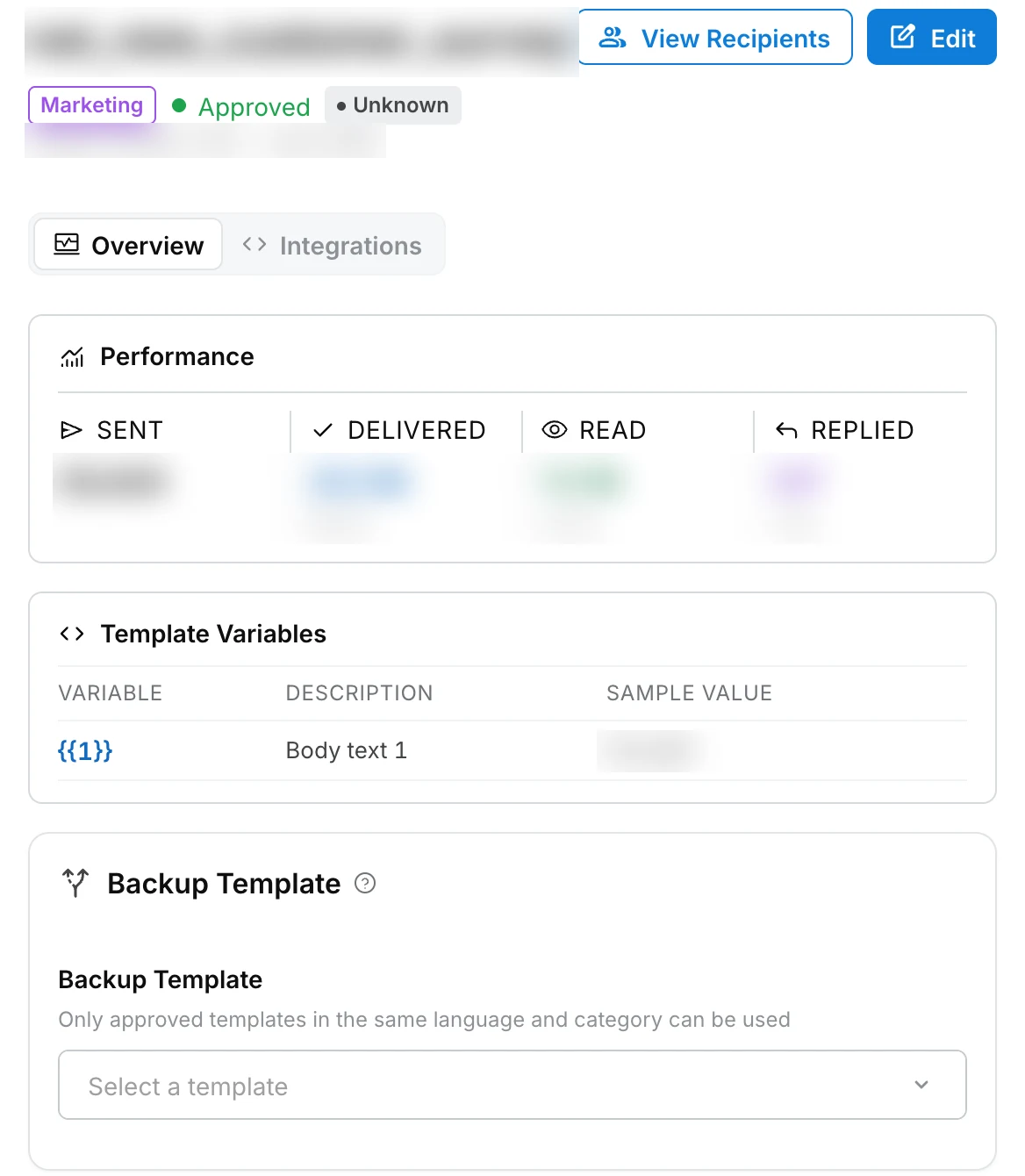
Open the template's page and pick the backup under **Backup Template**.
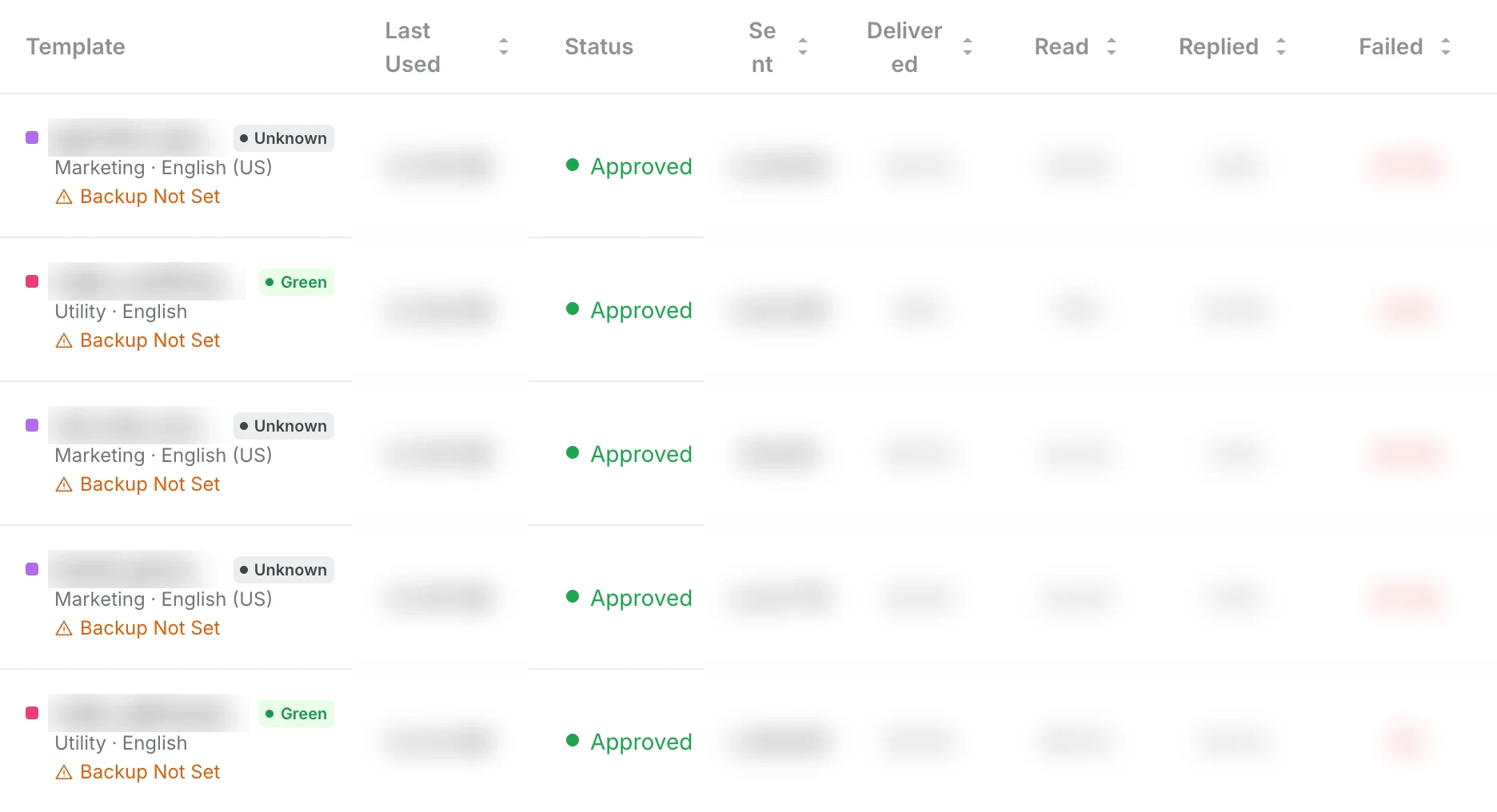
Go to [**Outbound → Whatsapp**](https://app.robylon.ai/apps/outbound/whatsapp) and click the template. Templates without one show **Backup Not Set** in the list.
Under **Backup Template**, open **Select a template** and pick one. Only templates that can be a backup are listed.
 A template can be a backup when it:
* is sent from the same WhatsApp number,
* is in the same language,
* is in the same category (Marketing, Utility or Authentication), so the price per message stays the same,
* is **Approved** when you attach it, and
* is not the template itself.
One template can be the backup for several templates. You can change a template's category only to one that still matches its backup.
Robylon points out two things to check when you attach a backup:
* **A link button with a dynamic URL** lets messages sent as the backup carry UTM tags, so their orders are attributed to the campaign. See [Revenue attribution](https://www.robylon.ai/docs/outbound/revenue-attribution).
* **The header type** decides where the backup works. A backup with a text header or no header works in campaigns and workflows, and one with an image, video or document header works in workflows.
A template can be a backup when it:
* is sent from the same WhatsApp number,
* is in the same language,
* is in the same category (Marketing, Utility or Authentication), so the price per message stays the same,
* is **Approved** when you attach it, and
* is not the template itself.
One template can be the backup for several templates. You can change a template's category only to one that still matches its backup.
Robylon points out two things to check when you attach a backup:
* **A link button with a dynamic URL** lets messages sent as the backup carry UTM tags, so their orders are attributed to the campaign. See [Revenue attribution](https://www.robylon.ai/docs/outbound/revenue-attribution).
* **The header type** decides where the backup works. A backup with a text header or no header works in campaigns and workflows, and one with an image, video or document header works in workflows.
 ## Map the backup's variables
The backup has its own variables, so you map them wherever it is sent. Mapping them is what switches the backup on for that campaign or workflow.
* **Campaigns:** in **Map Variables**, map every backup variable. Map all of them or none, because a partly mapped backup cannot be saved. Leaving them all empty sends this campaign without its backup.
* **Workflows:** in the **WhatsApp Template** step, map the backup's variables next to the main template's. Map every one, because Meta accepts the backup only when each variable has a value.
For campaigns, choose a backup with at least one variable, because mapping it is what turns the backup on.
## Backups in campaigns
When you select a template in a campaign, the form shows its backup: "Sent instead if the template above is rated Red, paused, or disabled." A template without one shows **No Backup Attached** and the warning "If this template is paused mid-send, the remaining messages will fail", with **Add A Backup** to open the template's page. See [WhatsApp campaigns](https://www.robylon.ai/docs/whatsapp/campaigns).
During the send:
* **Robylon decides for every batch of 100 recipients**, using the template's latest status and rating, not once when the campaign starts. A template paused halfway through switches to the backup from the next batch.
* **A recipient whose message fails because Meta has just paused or disabled the template is sent the backup straight away.** That recipient shows twice in the recipient list: once as failed with **Template paused**, and once for the backup that was sent.
* **When neither template can be sent**, the batch's recipients are held back and counted as skipped, so no failed messages are sent.
## Backups in workflows
The **WhatsApp Template** step uses a backup when its variables are mapped. Just before sending, Robylon reads the template's current status and rating from Meta, so the decision uses the latest state. When neither template can be sent, the step leaves through its **Skipped** exit: nothing was sent, and it is not counted as a failure.
## Templates sent one at a time
Backups cover campaigns and workflows, where messages go out in volume. A template sent one at a time goes out as itself:
* **From the inbox:** the agent sees the template's status, and a paused or disabled template prompts them to pick another one.
* **Through the API or a webhook:** see [Send a template with the API](https://www.robylon.ai/docs/whatsapp/templates#send-a-template-with-the-api).
* **By a voice agent:** the WhatsApp outbound message function sends the template you chose.
## How ratings stay up to date
Robylon learns about rating and status changes in three ways:
1. Meta tells Robylon when a template's status or quality rating changes.
2. Robylon checks every template with Meta once an hour.
3. Opening the templates list checks again, at most once every 5 minutes.
Keep an eye on quality ratings in the templates list, and attach backups to the templates your campaigns and workflows rely on, so they are covered before a rating drops.
## Related guides
* [WhatsApp templates](https://www.robylon.ai/docs/whatsapp/templates)
* [WhatsApp campaigns](https://www.robylon.ai/docs/whatsapp/campaigns)
* [WhatsApp suppression list](https://www.robylon.ai/docs/whatsapp/suppression-list)
## Map the backup's variables
The backup has its own variables, so you map them wherever it is sent. Mapping them is what switches the backup on for that campaign or workflow.
* **Campaigns:** in **Map Variables**, map every backup variable. Map all of them or none, because a partly mapped backup cannot be saved. Leaving them all empty sends this campaign without its backup.
* **Workflows:** in the **WhatsApp Template** step, map the backup's variables next to the main template's. Map every one, because Meta accepts the backup only when each variable has a value.
For campaigns, choose a backup with at least one variable, because mapping it is what turns the backup on.
## Backups in campaigns
When you select a template in a campaign, the form shows its backup: "Sent instead if the template above is rated Red, paused, or disabled." A template without one shows **No Backup Attached** and the warning "If this template is paused mid-send, the remaining messages will fail", with **Add A Backup** to open the template's page. See [WhatsApp campaigns](https://www.robylon.ai/docs/whatsapp/campaigns).
During the send:
* **Robylon decides for every batch of 100 recipients**, using the template's latest status and rating, not once when the campaign starts. A template paused halfway through switches to the backup from the next batch.
* **A recipient whose message fails because Meta has just paused or disabled the template is sent the backup straight away.** That recipient shows twice in the recipient list: once as failed with **Template paused**, and once for the backup that was sent.
* **When neither template can be sent**, the batch's recipients are held back and counted as skipped, so no failed messages are sent.
## Backups in workflows
The **WhatsApp Template** step uses a backup when its variables are mapped. Just before sending, Robylon reads the template's current status and rating from Meta, so the decision uses the latest state. When neither template can be sent, the step leaves through its **Skipped** exit: nothing was sent, and it is not counted as a failure.
## Templates sent one at a time
Backups cover campaigns and workflows, where messages go out in volume. A template sent one at a time goes out as itself:
* **From the inbox:** the agent sees the template's status, and a paused or disabled template prompts them to pick another one.
* **Through the API or a webhook:** see [Send a template with the API](https://www.robylon.ai/docs/whatsapp/templates#send-a-template-with-the-api).
* **By a voice agent:** the WhatsApp outbound message function sends the template you chose.
## How ratings stay up to date
Robylon learns about rating and status changes in three ways:
1. Meta tells Robylon when a template's status or quality rating changes.
2. Robylon checks every template with Meta once an hour.
3. Opening the templates list checks again, at most once every 5 minutes.
Keep an eye on quality ratings in the templates list, and attach backups to the templates your campaigns and workflows rely on, so they are covered before a rating drops.
## Related guides
* [WhatsApp templates](https://www.robylon.ai/docs/whatsapp/templates)
* [WhatsApp campaigns](https://www.robylon.ai/docs/whatsapp/campaigns)
* [WhatsApp suppression list](https://www.robylon.ai/docs/whatsapp/suppression-list)