# Reply to Google, Play Store and App Store Reviews in Robylon
See how new reviews arrive in the Robylon inbox, set up a workflow to reply automatically, let teammates reply or add notes, and run simple automations on review conversations.
> Source: https://www.robylon.ai/docs/reviews/reply-to-reviews
> Section: Reviews
Every new written review on a connected review channel becomes a conversation in the Robylon inbox. A workflow with the **When a user posts a review** trigger runs on it, so AI can write and post a reply, and teammates can reply from the inbox. Each review gets one public reply from Robylon, posted on the platform where the review was left.
To connect a channel first, see [Connect review channels](https://www.robylon.ai/docs/reviews/connect).
## Where do reviews show up in Robylon?
Reviews appear in the [unified inbox](https://www.robylon.ai/docs/inbox/unified-inbox) as conversations, next to your chats. Each review is its own conversation, and the reviewer is saved as a contact.
When you open a review, the inbox shows:
- The star rating, the review text (and the title, on the App Store), the reviewer's name and when it was posted.
- A link to the review on the platform: **View on Play Store**, **View on App Store** or **View on Google Maps**.
- Details about the app or location, such as its overall rating and number of ratings. Google Play Store reviews also show the reviewer's device, app version and language.
Choose which details appear in the right-hand panel under **Settings → Inbox & Productivity → Inbox Panel**, with **Panel Type** set to **Reviews**. See [Inbox panel](https://www.robylon.ai/docs/inbox/inbox-panel).
## How do I reply to reviews automatically?
Build a workflow that starts on new reviews and writes the reply with a **Gen AI** block.
Create a workflow and click **Add a Trigger**. Choose **Channel Trigger**, pick the review channel (and the account, if asked), and choose **When a user posts a review**. See [Triggers](https://www.robylon.ai/docs/product/triggers).
Add a [Gen AI](https://www.robylon.ai/docs/product/gen-ai) block that writes the reply from the review, then send it. You can also send a fixed message with a Talk block. The first message the workflow sends to the customer is posted as the public reply.
Publish the workflow. It runs on every new written review on that account from then on.
Keep exactly one live workflow with this trigger for each account: each Google account on Google My Business and Google Play Store, and each App ID on the App Store. If two workflows listen to the same account, new reviews on it are not processed.
## Which reviews start the workflow?
Written reviews. On Google My Business and Google Play Store, star-only ratings with no text are still recorded, and count in [Ratings & Reviews analytics](https://www.robylon.ai/docs/analytics/ratings-reviews), but they don't start the workflow.
On the App Store, the workflow also runs on reviews that already had a reply when Robylon picked them up, but it can't post a second reply on them. See [Can I reply more than once?](#can-i-reply-more-than-once)
## Can a teammate reply instead of the AI?
Yes. Open the review in the inbox and type a reply. It is posted on the platform as your public reply, as plain text.
A workflow can also hand a review to your team, for example to a group for 1 and 2 star reviews, with a handover step. The review is then assigned like any other conversation. See [Assignment limits and logic](https://www.robylon.ai/docs/human-users/assignment).
## Can I reply more than once?
No. Robylon posts one public reply per review. After a reply is posted, by the AI or by a teammate, the reply box switches to internal notes only. The same happens if the review already had a reply on the platform when Robylon picked it up.
Use internal notes to discuss a review with your team. Notes are never posted on the platform.
## How many reviews can each agent hold at once?
Set this with the **Reviews** limit in **Settings → Team → Assignment Limit**. See [Assignment limits and logic](https://www.robylon.ai/docs/human-users/assignment).
## Can I use simple automations on reviews?
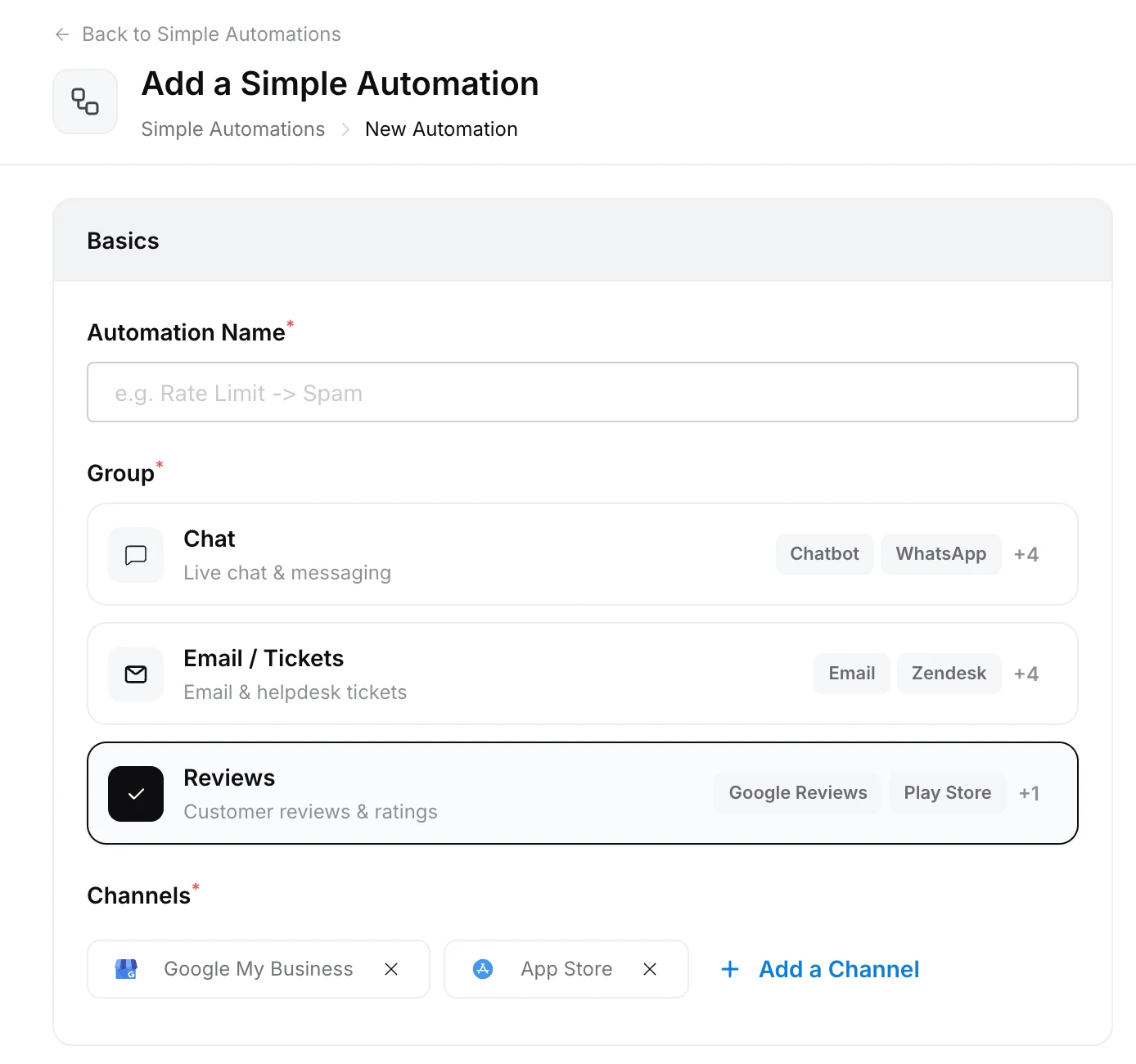
Yes. When you create a [simple automation](https://www.robylon.ai/docs/simple-automations), choose **Reviews** under **Group**. The Reviews group covers **Google Play Store**, **Google My Business** and **App Store** once they are connected. Pick the channels it should run on with **Add a Channel**.
Open it from **Settings → Workflows & AI Agents → Simple Automations** and click **Add an Automation**. The steps are the same as for any simple automation, see [Create a simple automation](https://www.robylon.ai/docs/simple-automations/create).
 ## Which triggers can a review automation use?
| Trigger | When it runs |
| --- | --- |
| **When a human agent changes the chat status** | A teammate changes the review conversation to the status you choose, for example **Resolved**. |
| **When a customer has been unresponsive** | The reviewer has not replied for the time you set after your last message. |
| **When there is a technical glitch in the chat** | The workflow running on the review fails. Use it to hand the review to your team so it still gets a reply. |
Review automations have no **Conditions** section. One template is available: **Notify on agent status change**, which runs when a teammate sets a review to **Resolved**. Change the status and the steps before you publish, or choose **Start from scratch**.
## Which steps can a review automation run?
The same steps as chat, except **Send outbound message**, which is WhatsApp only:
| Step | What it does on a review |
| --- | --- |
| **Send a message** | Adds a message or an internal note to the conversation in Robylon. It is not posted on the platform. |
| **Snooze** | Waits for a set time before the next step. |
| **Handover to Agent** | Assigns the review to a teammate. |
| **Handover to Group** | Assigns the review to a group, or to another agent in its current group. |
| **Change status** | Sets the review conversation's status, such as **Open**, **Pending** or **Closed**. |
| **Send an email** | Sends an email from Robylon's own address, for example to alert a manager about a bad review. |
| **Call API** | Calls one of your saved APIs. |
Automation messages are never posted as public replies. Public replies come only from the review workflow or from a teammate in the inbox.
## What can and can't I do on each platform?
| | Google My Business | Google Play Store | App Store |
| --- | --- | --- | --- |
| **Imported** | New, unreplied, last 2 days | New, unreplied, last 2 days | New, last 2 days |
| **Already replied** | Not imported | Not imported | Imported, notes only |
| **Split by** | Location | App | App ID |
On every platform, Robylon posts one public reply per review and supports internal notes. Each review links to the platform with **View on Google Maps**, **View on Play Store** or **View on App Store**.
Robylon can't message a reviewer privately, delete or report a review, or reply to reviews posted more than 2 days before you connected.
## Which triggers can a review automation use?
| Trigger | When it runs |
| --- | --- |
| **When a human agent changes the chat status** | A teammate changes the review conversation to the status you choose, for example **Resolved**. |
| **When a customer has been unresponsive** | The reviewer has not replied for the time you set after your last message. |
| **When there is a technical glitch in the chat** | The workflow running on the review fails. Use it to hand the review to your team so it still gets a reply. |
Review automations have no **Conditions** section. One template is available: **Notify on agent status change**, which runs when a teammate sets a review to **Resolved**. Change the status and the steps before you publish, or choose **Start from scratch**.
## Which steps can a review automation run?
The same steps as chat, except **Send outbound message**, which is WhatsApp only:
| Step | What it does on a review |
| --- | --- |
| **Send a message** | Adds a message or an internal note to the conversation in Robylon. It is not posted on the platform. |
| **Snooze** | Waits for a set time before the next step. |
| **Handover to Agent** | Assigns the review to a teammate. |
| **Handover to Group** | Assigns the review to a group, or to another agent in its current group. |
| **Change status** | Sets the review conversation's status, such as **Open**, **Pending** or **Closed**. |
| **Send an email** | Sends an email from Robylon's own address, for example to alert a manager about a bad review. |
| **Call API** | Calls one of your saved APIs. |
Automation messages are never posted as public replies. Public replies come only from the review workflow or from a teammate in the inbox.
## What can and can't I do on each platform?
| | Google My Business | Google Play Store | App Store |
| --- | --- | --- | --- |
| **Imported** | New, unreplied, last 2 days | New, unreplied, last 2 days | New, last 2 days |
| **Already replied** | Not imported | Not imported | Imported, notes only |
| **Split by** | Location | App | App ID |
On every platform, Robylon posts one public reply per review and supports internal notes. Each review links to the platform with **View on Google Maps**, **View on Play Store** or **View on App Store**.
Robylon can't message a reviewer privately, delete or report a review, or reply to reviews posted more than 2 days before you connected.